

Your Vehicles in Backbuild Miles
Every drive Backbuild Miles records belongs to a vehicle, and the Vehicles screen is where those vehicles live. This page teaches you how to register a car or truck, what each field on the registration form is actually for, how to record what a vehicle costs you to run, and what happens when you stop driving one. After this page you will be able to set up a vehicle correctly the first time, keep its running costs on file as you spend, and retire it cleanly when you sell it.
Why the Registry Exists
After this section you will know why a vehicle record is worth keeping properly, rather than being something to click past.
There are two common ways to turn business driving into a deduction. One multiplies your business miles by a standard rate per mile. The other adds up what the vehicle actually cost you over the year and claims the business share of that. Backbuild Miles supports both, and which one is better for you can change from year to year and from vehicle to vehicle.
The standard rate needs only your miles, which Backbuild Miles captures on its own. The actual cost method needs something the phone cannot know: what you paid for the vehicle, and what you have spent keeping it on the road. That is what the registry holds. Register the vehicle properly and record costs as you go, and both methods are available to you at the end of the year. Skip it, and only one is.
Your registry is per entity. If you keep a personal set of books and a company set, each has its own vehicles, and the entity picker at the top of the screen chooses which one you are looking at. Getting Around Backbuild Miles covers that picker in detail: see Getting Around Backbuild Miles.
Registering a Vehicle
After this section you will be able to add a vehicle with the details that matter and know what each one does.
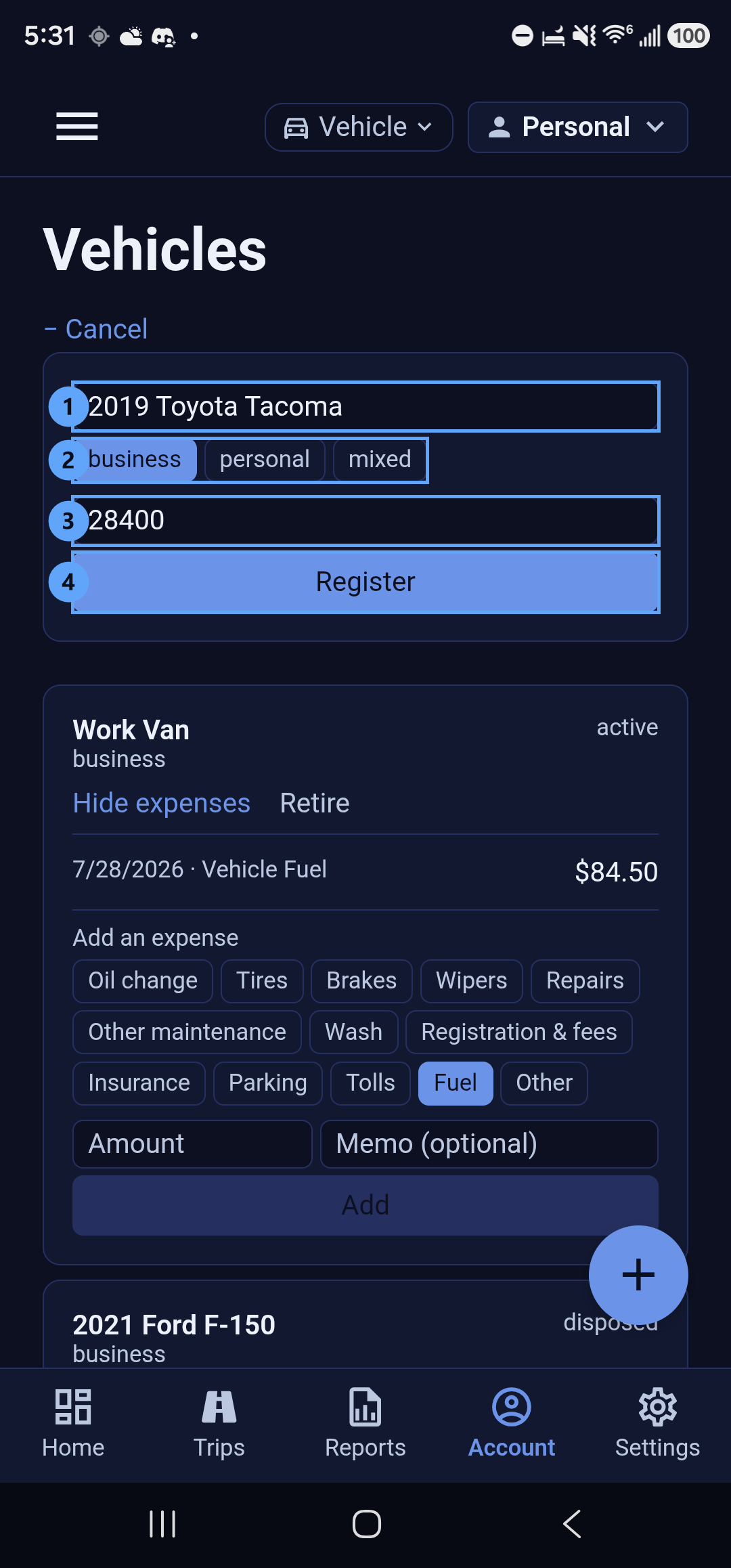
Open the Vehicles screen and tap Register vehicle. The form opens underneath the link, and the link becomes Cancel so you can close it again without saving.
The Name
The name is the only field you must fill in, and it is how the vehicle appears everywhere else in the app: in the vehicle picker at the top of the screen, on each trip card, and in your reports. Use something you will recognise at a glance while driving, such as 2019 Toyota Tacoma or Work Van. It can be up to 256 characters, and if you go past that the form tells you so rather than failing quietly.
The Use Type
The three chips under the name say how this vehicle is used, and business is selected for you.
- Business: a vehicle you run for the business. Its purchase price is recorded as the cost basis the actual cost method works from.
- Personal: a vehicle that is yours rather than the business's. It is kept in the registry so you can still record drives against it, but it carries no business cost basis.
- Mixed: a vehicle used both ways. Its cost is recorded, and the business share follows from how you classify each drive.
This is a statement about the vehicle, not about any single trip. You still classify each drive as business, commuting or personal on the trips list, which is covered in Working Your Trips List.
The Purchase Price
The purchase price is optional and you can leave it empty, but it is the figure the actual cost method depends on, so it is worth entering if you know it. Enter what you paid as a plain number, without a currency symbol. If you do not have it to hand, register the vehicle now and get the number later: a vehicle with no price still records miles and still accepts expenses.
Saving It
Tap Register. The button stays greyed out until the name has something in it, reads Saving while it works, and then the form closes and your new vehicle appears in the list below. If something is wrong with what you entered, the form stays open, keeps what you typed, and shows the reason in red just above the button, so you can correct it rather than guess.
Reading the List
After this section you will be able to tell the state of every vehicle you keep at a glance.
Each vehicle is a card. The name is on the left and its status is on the right: active for one you still drive, disposed for one you have retired. Underneath the name is its use type, and, where you supplied a purchase price, the cost basis derived from it. Active vehicles are listed first.
Two actions sit on each card. Expenses opens the running costs for that vehicle, and Retire marks it as no longer driven. Retire disappears once a vehicle is retired, because there is nothing left to do to it.
Recording What a Vehicle Costs You
After this section you will be able to keep a running record of every cost a vehicle incurs, in the categories the actual cost method expects.
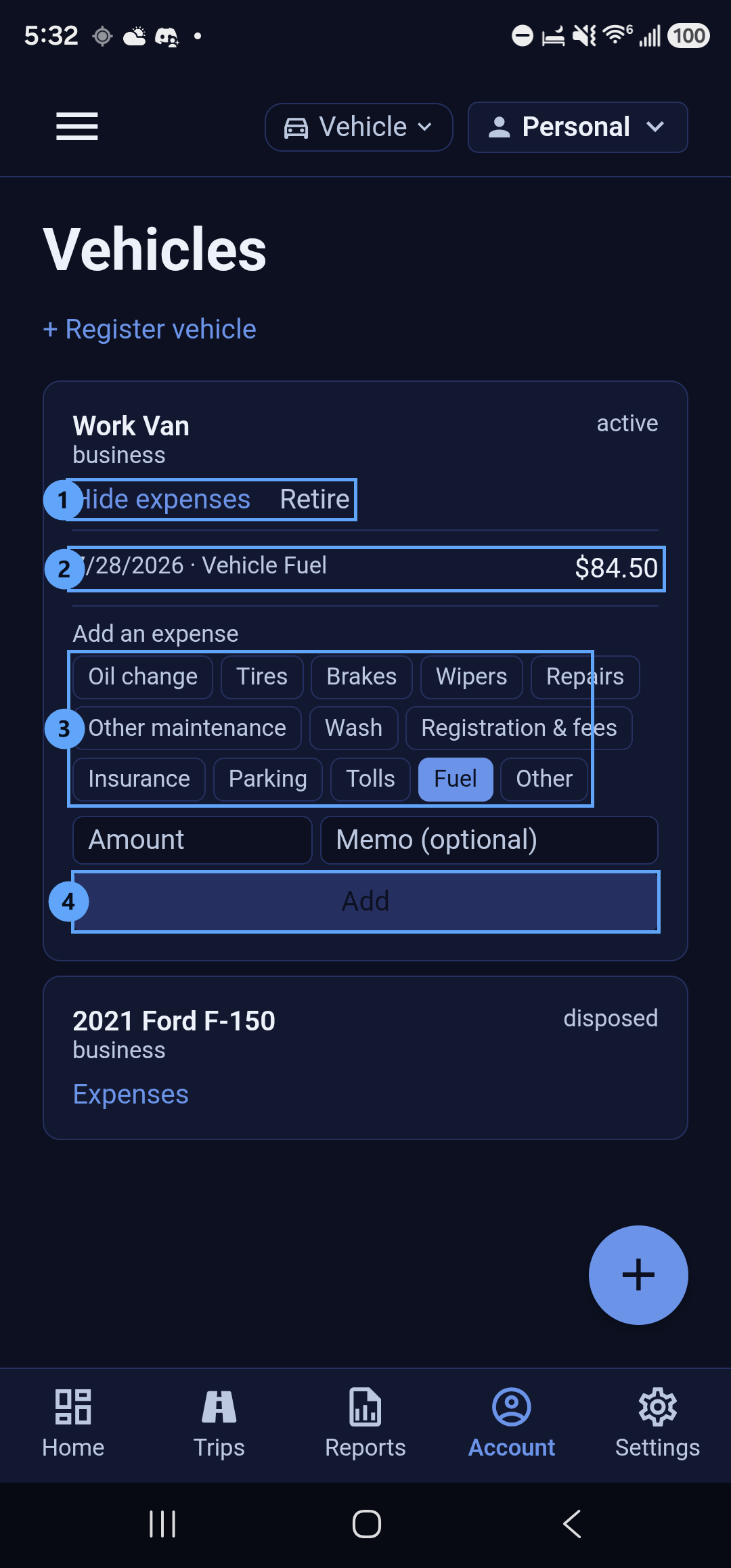
Tap Expenses on a vehicle card. The card expands to show what you have already recorded against that vehicle, newest first, and a short form for adding another.
Choosing a Category
Pick the chip that describes the cost. The categories are Oil change, Tires, Brakes, Wipers, Repairs, Other maintenance, Wash, Registration and fees, Insurance, Parking, Tolls, Fuel and Other. Fuel is selected for you, because it is the one most people reach for most often. Categories matter at the end of the year: they are what let a total be broken down into the kinds of cost an accountant expects to see separately.
The Amount and the Note
Enter the amount as a plain number. The note is optional and free text, and it is what makes a line item recognisable months later, so it is worth a few words: the garage, the station, what was done. Then tap Add. The new cost appears in the list above with today's date, and the fields clear so you can record another.
If the amount is missing or is not a positive number, the form says so rather than doing nothing, and if the save itself is refused you get the reason in red instead of silence.
Costs With a Photograph Attached
The form on this screen records the numbers. If you also want the receipt itself on file, which is what substantiates the actual cost method if you are ever asked, photograph it on the Receipts screen instead: it captures the picture and files the cost against the vehicle in one step. See Scanning Your Receipts. Costs recorded either way land in the same place, so you can mix the two freely.
Retiring a Vehicle
After this section you will know what retiring does, and what it does not do.
When you sell a vehicle or stop using it, tap Retire on its card. Its status changes to disposed and the Retire action disappears.
Retiring is not deleting. The vehicle stays in your registry, every drive you recorded against it stays exactly as it was, and its costs stay on file, so a vehicle you sold in March still appears correctly in that year's figures. What changes is that it is no longer offered as the vehicle you are currently driving.
Two things are worth knowing before you tap it. It takes effect immediately, with no confirmation step, and the app does not currently offer a way to bring a retired vehicle back, so retire a vehicle when you are sure you are finished with it. If you retire one by mistake, register it again and carry on: the original record and its history are not lost.
Common Questions
How many vehicles can I keep?
As many as you drive. Register each one separately so its miles and its costs stay apart from the others.
Do I have to register a vehicle before Backbuild Miles will record a drive?
Recording happens on its own either way, but a drive has to belong to a vehicle before it counts towards anything, so register at least one. If you have a vehicle paired over Bluetooth, the app can select it for you when you get in: see Getting Around Backbuild Miles.
I entered the wrong purchase price. Can I change it?
Not from this screen today. Register the vehicle again with the correct figure and retire the incorrect record, which keeps both on file without one of them being offered for new drives.
Can my accountant see all this?
Anyone you have added to the entity can. The vehicle registry and its costs are part of that entity's records in Backbuild Finances, so they are available wherever you work with those books, not only on the phone.
Does a retired vehicle still appear in my reports?
Yes. Reports cover the period you ask for, so a vehicle you drove during that period appears in it whether or not you have since retired it. See Reports and Exports.
Which deduction method should I use?
That depends on your vehicle, your mileage and your circumstances, and it is a question for your accountant. What Backbuild Miles does is make sure the figures for both are on file, so the choice is still open when you come to make it.
Where to Go Next
- Scanning Your Receipts: photograph a receipt and file it against a vehicle cost.
- Working Your Trips List: give every captured drive a vehicle, a classification and a purpose.
- Reports and Exports: turn a year of driving and spending into a deduction and a mileage log.
- Getting Around Backbuild Miles: the menu, the pickers and the tabs.