

The Waiting Room and Moderation
Coming soon. Backbuild Meetings is a forthcoming part of the workspace. This guide teaches the moderation controls you will use when it arrives.
This guide teaches how a host keeps a meeting safe and orderly: holding newcomers in a waiting room and admitting them deliberately, locking the room so no one else can enter, muting a noisy line, removing a disruptor, and spotlighting the person who should have the room's attention. After this page you will run a meeting no uninvited person can crash and no single participant can derail.
The Waiting Room and Ask to Join
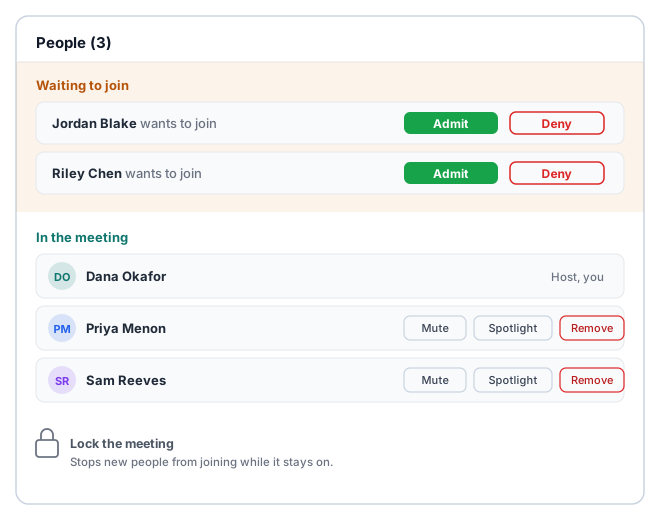
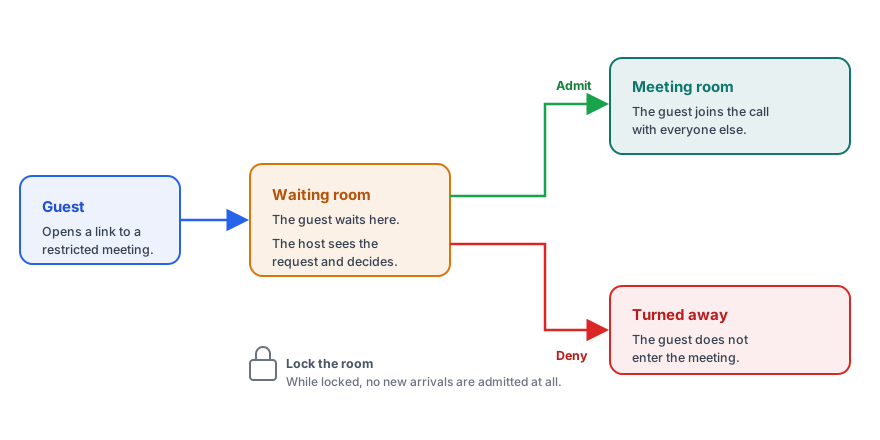
After this section you will decide who gets in, one person at a time. A meeting can be set so that people are held at the door rather than dropped straight into the room. When a meeting is restricted this way, anyone trying to enter, member or guest, sees Ask to Join and waits, and you, as host, see them appear in a knock list with their real name, so you decide on a person, not a mystery entry.
- Admit lets a waiting person into the room, and it happens the moment you press it: the waiting person's screen brings them into the room within seconds, with nothing for them to refresh or retry.
- Deny turns a waiting person away; their screen tells them the host declined.
- Admit as they arrive. A knock appears the moment someone asks, so you review each newcomer as they knock rather than finding a crowd already inside.
Members and guests knock and are admitted the same way, and both show who they really are: a signed-in member knocks under their account name, and a guest knocks under the name they gave when they opened the link. The waiting room is the front-line defense against an uninvited person joining a meeting whose link leaked or was forwarded. Treat it as the default-safe posture for any meeting that is not fully open, not an advanced trick.
Locking the Room
After this section you will seal a meeting once everyone is in. Locking the meeting stops anyone new from entering, even with a valid link or code. Once your expected people are present, lock the room and a lock indicator shows in the status bar for everyone. This is the follow-through after you remove someone: remove the disruptor, then lock the door so they cannot rejoin. Unlock it again if a latecomer you do want needs to get in.
How do I stop uninvited people from getting in? Use the two controls together. Turn on the waiting room so newcomers are held for your approval, and lock the meeting once everyone you expect is present so no one else can enter at all. With both on, only people you personally admit are in the room, and once it is locked the door is closed.
Muting a Noisy Participant
After this section you will silence background noise without argument. From the participant roster you can mute a participant whose open microphone is disrupting the meeting, for example an unattended line with background noise. Muting silences their microphone for the room; the person can unmute themselves again when they are ready to speak, so it is a courtesy control, not a gag.
Removing a Disruptor
After this section you will get a disruptive person out and keep them out. When someone should not be in the meeting, remove them from the participant roster. Removal takes them out of the room immediately. Pair it with locking the room so a removed person cannot simply rejoin with the same link.
Can I remove someone and keep them out? Yes. Remove them from the roster to take them out of the room, then lock the meeting so they cannot rejoin. Locking closes the door to anyone new, including someone you just removed.
Spotlighting a Presenter
After this section you will put the right person front and center. Spotlight a participant to make them the main stage for everyone, regardless of who is speaking. Use it to keep a presenter or a signer large while others react. Clear the spotlight to return to the normal active-speaker layout. A shared screen already takes the main stage on its own.
Who Can Moderate
After this section you will know who holds these controls. The host of a meeting holds the moderation controls: admit and deny, mute, remove, spotlight, and lock. Co-hosting lets you share those controls with someone you trust to help run a larger session. Which roles in your organization can host and moderate is governed by your workspace roles, so hosting is not an open free-for-all; the administrator view of that is in Administration and Security.
Frequently Asked Questions
Does muting someone stop them speaking for good? No. Muting silences a participant's microphone so the room is not disrupted, but the person can unmute themselves again when they want to speak. It is a way to clear noise, not to permanently silence a participant.
Is there a co-host so I am not the only moderator? Yes. Moderation can be shared so more than one person can admit, mute, remove, and lock, which helps when you run a busy meeting. The roles that may host and moderate are set by your workspace.
What happens to people already waiting when I lock the room? Locking stops new arrivals from entering. Admit the people you want from the waiting list first, then lock the room to close it to anyone else.
Does an admitted person have to refresh or rejoin to get in? No. The waiting screen is live: the moment you press Admit, the person enters the room automatically, within seconds. They are told to keep the page open, and there is nothing else on their side, no refresh, no retry, no re-entering a code.