

Backbuild Sheets
Backbuild Sheets is the spreadsheet built into your Backbuild workspace. You track lists and budgets, build models and dashboards, and co-edit one live grid with your team, without moving to a second tool. It is the same spreadsheet an operations lead uses for an inventory, a finance analyst uses for a three-statement model, a data analyst uses for a QUERY-driven dashboard, and a researcher uses for a table of results with real statistics and live mathematical notation. After this page you will know what Backbuild Sheets does, how to create your first sheet, what is included on every plan, and which guide answers the job in front of you.
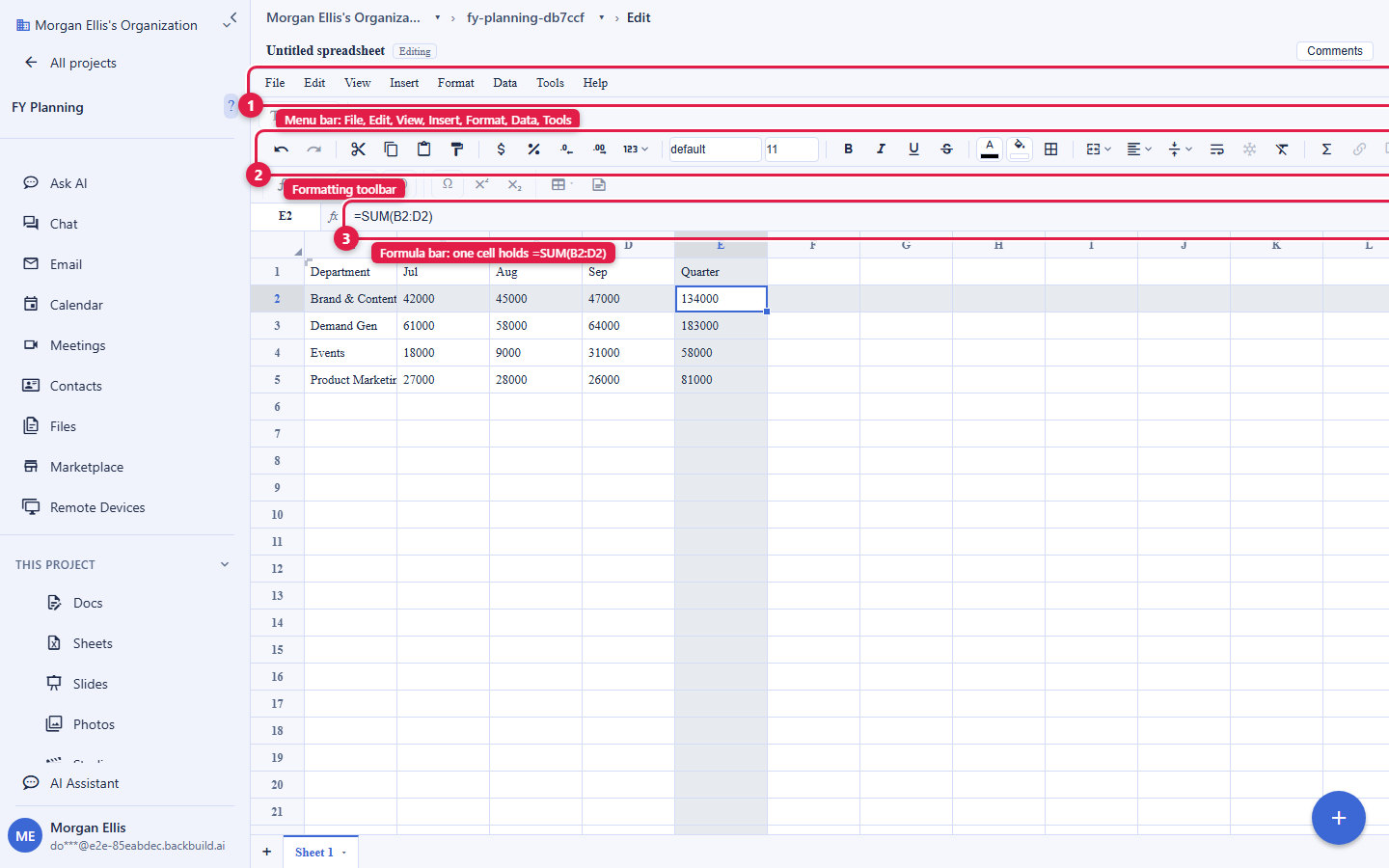
What You Get
After this section you will understand the shape of the product and which guide answers your question. Backbuild Sheets is a full spreadsheet, not a lightweight table. It pairs a deep formula engine with live collaboration, so the calculation and the shared source of truth are the same file.
- Real-time co-editing, on every plan. Several people work the same grid at once. Edits merge automatically and appear within moments, so two people typing never overwrite each other. There is no per-collaborator seat charge to co-edit a sheet.
- A deep formula engine. More than 500 functions across math, statistics, finance, text, logical, lookup, and date families, plus dynamic-array spill,
LAMBDAandLET, and a SQL-likeQUERYfunction. Formulas recalculate through a dependency graph, so only the cells that depend on a change recompute. - Formatting that reads correctly. Number and currency formats, bold and italic, alignment, borders, fill color, merged cells, frozen rows and columns, conditional formatting, and find and replace, so a financial or scientific table renders the way it should.
- Charts, sorting, filtering, and validation. Bind a chart to a live range, sort and filter a range with real condition operators, and constrain input with dropdowns, number and date rules, checkboxes, and custom formulas.
- Rich cells with live math. A cell can hold formatted rich text and live LaTeX mathematical notation, edited with the same editor as Backbuild Docs, which is what a research table or an annotated dataset needs.
- Bring data in and take it out. Import from CSV, TSV, XLSX (Excel), and ODS (OpenDocument); export to CSV, TSV, and XLSX on every plan, and to a portable SQLite database file on the paid plans and with Backbuild Science or Backbuild Prove. Nothing is trapped in a proprietary format.
- Drivable by AI and by API. An AI assistant works inside the sheet, and the whole spreadsheet surface is available over the public REST API and as native MCP tools, so an agent can create, read, and edit a sheet through the same access checks a person passes.
Create Your First Sheet
After this section you will have a working sheet open and know it is saved. There is nothing to install and nothing to configure. If you have used a spreadsheet before, you already know how to start.
- Open a project. Sheets live inside projects, the same containers that hold your files, documents, tasks, and data. Open an existing project or create one from the workspace.
- Create a sheet. Inside the project, choose New, then Spreadsheet. A blank grid opens, ready to type.
- Type a value or a formula. Click a cell and enter a number or text, or start with an equals sign to enter a formula, for example
=SUM(A1:A10). Autocomplete suggests function names as you type. - Format and organize. Use the toolbar to bold a header row, set a currency format, or add a border, and add a second sheet tab at the bottom for a new table.
- Share when you are ready. Invite a colleague to co-edit, or use File then Download to take a CSV or XLSX copy with you. Every keystroke is saved as you go; there is no Save button to remember.
Is this too technical for a non-technical user?
No. Backbuild Sheets opens as a plain grid and behaves the way a familiar
spreadsheet does: type a value, drag the fill handle, use the toolbar, share a
link. The advanced capabilities (dynamic arrays, QUERY, LaTeX
cells) are there when you need them and stay out of the way when you do not.
Included on Every Plan
After this section you will know what is free and what draws credits. Backbuild Sheets is part of the free Backbuild workspace, next to Backbuild Docs, Backbuild Slides, Backbuild Mail, and Backbuild Calendar. There is no separate spreadsheet subscription and no paywall on the collaboration that makes it useful.
- Free on every plan, including Free: the editor, real-time co-editing, comments, the full formula engine, charts, data validation, conditional formatting, rich and LaTeX cells, find and replace, and CSV, TSV, and XLSX import and export.
- No per-collaborator seat gate: inviting someone to comment on or co-edit a sheet does not cost a separate seat.
- What draws universal usage credits: the in-sheet AI assistant (unless you bring your own AI provider keys, in which case that usage is billed by your provider, not by Backbuild), and database storage for the content in your sheets beyond your plan's included allowance.
- A paid-plan and research capability: exporting a workbook as a single SQLite database file is included on the paid Lite, Pro, and Enterprise plans and with Backbuild Science (free for verified students and faculty) and Backbuild Prove. Every other export format is on every plan.
The pricing page is the authoritative source for current allowances and rates. See Usage and Credits for how metering works, and File vs Database Storage for which pool your sheet data lands in.
Backbuild Sheets is a spreadsheet, not a relational database. It is built to compute over tabular data the way a spreadsheet does. If you need linked records across tables, typed fields, and saved board or calendar views, use the Backbuild platform's custom entity types and views, which are part of the free workspace on every plan, and keep Backbuild Sheets for calculation, analysis, and shared data.
Choose Your Guide
Each guide teaches one job end to end. Start with the one that matches what you need to do.
- Editing, Formatting, and Organizing the Grid: enter values and formulas, copy and fill, insert and resize rows and columns, work multiple sheet tabs, freeze and merge, and format with number formats, borders, fill color, conditional formatting, and find and replace.
- Formulas, Functions, and the Calculation Engine: the more-than-500-function catalog, dynamic arrays and spill,
LAMBDAandLET,QUERY, finance and statistics coverage and accuracy, error handling and recalculation, and the honest limits (values-only XLSX, single-sheet references, and the import-class functions that are off by design). - Charts, Sorting, Filtering, and Data Validation: build charts from a live range, sort and filter with real condition operators, and keep shared data clean with validation rules.
- Rich Cells, LaTeX Math, Images, and Links: put formatted rich text, live mathematical notation, images, and hyperlinks inside a cell, and expand a cell into a full mini-document.
- Collaboration, Comments, and Sharing: co-edit one live grid, see who is present, discuss a cell with comments, and share with view, comment, or edit access using scoped, expiring, revocable links.
- Importing and Exporting: bring in CSV, TSV, XLSX, and ODS; take out CSV, TSV, and XLSX on every plan and SQLite on the paid and research plans; and understand exactly what a round-trip preserves.
- AI Assistance, the API, and Agents: edit a sheet with the in-app assistant, and drive spreadsheets over the public REST API and the native MCP tools.
What Backbuild Sheets Does Not Do Yet
Choosing well means matching the tool to the requirement, so these limits are
stated plainly rather than discovered later. Formula references are
single-sheet today: a reference to another tab in the same workbook, for
example Sheet2!A1, is not evaluated yet. XLSX export writes the
computed values of your sheet, not the formulas behind them, so an exported
Excel file is a values snapshot (CSV, TSV, and SQLite export the same way). A
set of live-import functions such as IMPORTRANGE and
IMPORTDATA is recognized so a pasted foreign formula does not
misparse, but these do not fetch over the network and return a clear error by
design. Named ranges and protected ranges are designed but not yet surfaced,
and Kanban, calendar, and gallery views belong to the platform's
views, not to a spreadsheet. Parquet export,
PDF export, and a browsable named version history are coming soon. Each guide
says where one of these matters rather than implying a capability that is not
there.