

Collaboration, Comments, Sharing, and Governance
This guide teaches how a deck becomes a shared, governed source of truth: several people building it at once, discussing slides in place, and an administrator controlling exactly who can do what. After it you will be able to co-build a deck live, comment and assign a fix, restore an earlier version, and share with the right level of access using links you can scope, expire, and revoke. It also answers the questions a security, compliance, or procurement reviewer asks: how access is enforced, how fast revocation takes effect, and what identity, audit, and export controls ride along.
Real-Time Co-Editing
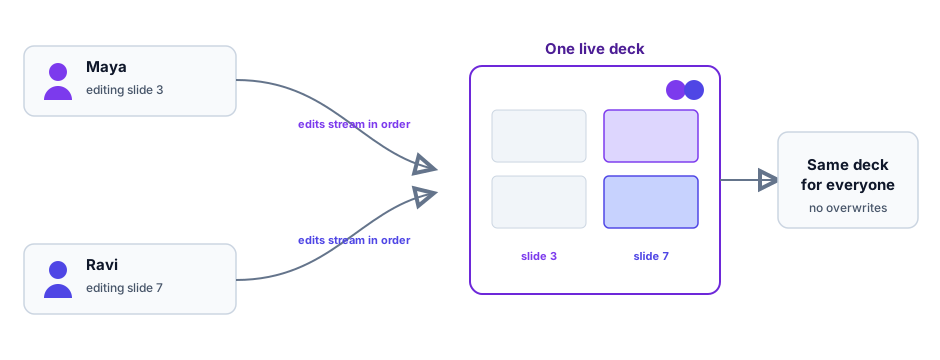
After this section you will build the same deck as your teammates without stepping on each other. Everyone opens one live copy of the deck. Changes stream between collaborators as compact updates, apply in order, and appear for everyone within moments, so the deck stays consistent no matter how many people are building it. There is no file to email around, no version to reconcile, and no per-collaborator seat charge to co-edit. This is what ends the trail of attachments named for the final version that was not final: there is one deck, and it is always the current one.
- Automatic merge: two people editing different slides never collide, and the deck you see is the deck everyone sees.
- Presence: you can see who else is in the deck.
- Cross-device: the same live deck is available wherever you sign in, on a laptop, a Chromebook, or a tablet, and edits sync between devices.
- Offline continuity: the editor keeps a local copy of your work, so if the connection drops it reloads what you had and replays your edits when it reconnects.
Comments and Assigning a Fix
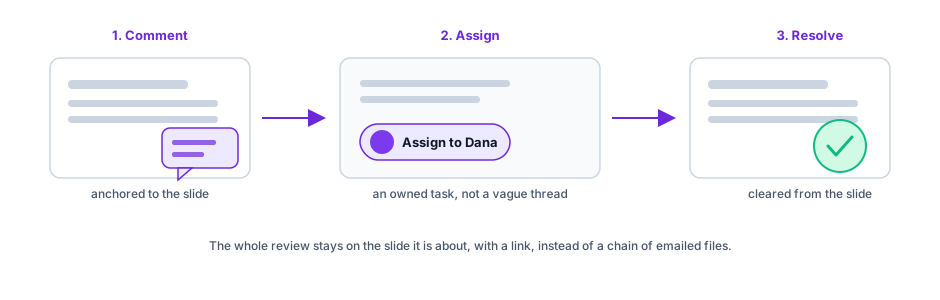
After this section you will run a clean review cycle without an emailed file loop. Anchor a comment to a slide or an element and a thread opens. Add a comment to raise a question or flag a change, reply to continue the discussion, and resolve the thread when it is settled, so the conversation stays attached to the exact slide it is about. When a comment needs a specific person to act, assign it to an organization member from the assignee picker, so a review turns into clear, owned tasks rather than a vague thread. For an agency or a brand team, this is the client-and-stakeholder review loop done in one place, with a link, instead of a chain of file attachments and permission requests.
Version History
After this section a revision round will never destroy an approved deck. A deck keeps a version history you can review and restore, so a round of edits never overwrites the version a client or an executive signed off on. If a change went the wrong way, you roll back to an earlier point. Together with continuous autosave, this means your work is both saved as you go and recoverable to a known-good state.
Sharing and Access Levels
After this section you will give exactly the right people exactly the right access. A deck is shared through the same access model as the rest of your workspace:
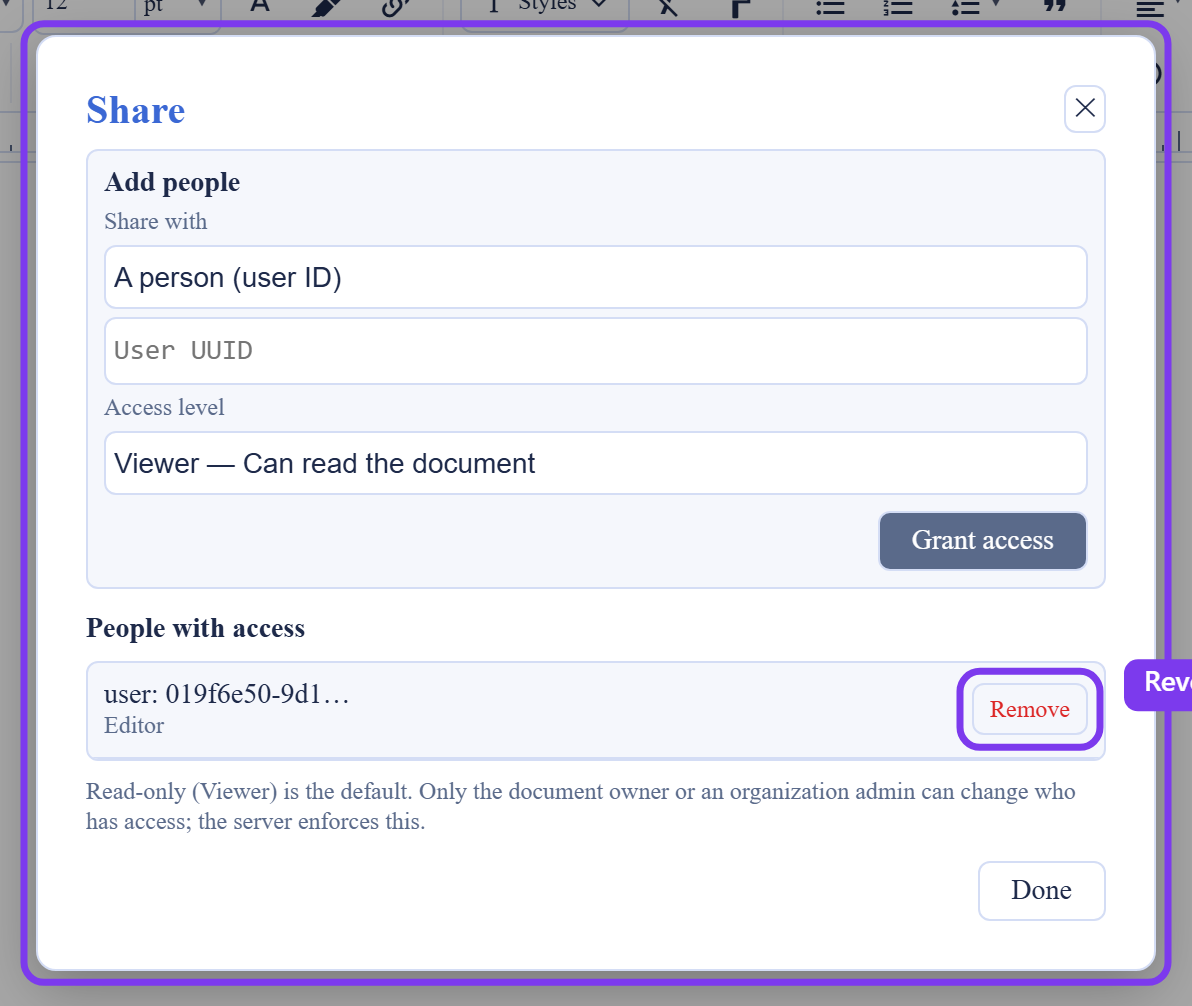
- Access levels: grant view, comment, or edit access. A viewer reads the deck, a commenter reads and discusses, and an editor changes it.
- Who you share with: a specific person, a role or group, a department, everyone in the organization, or, where allowed, a public link, so a deck reaches precisely the audience it should.
- Links you control: a shared link can be scoped to an access level, set to expire, and revoked at any time, so a pitch you sent never lives forever in an inbox by accident.
- View without an account, where you choose: a scoped public link lets a recipient open a deck in the browser at the access you set, so a prospect or an investor is not stopped by a request-access wall. Sharing to a person, role, group, or organization is tied to workspace identity; you choose per share.
For the full model, including how sharing spans organizations, see the platform's Roles and Permissions.
How Access Is Enforced
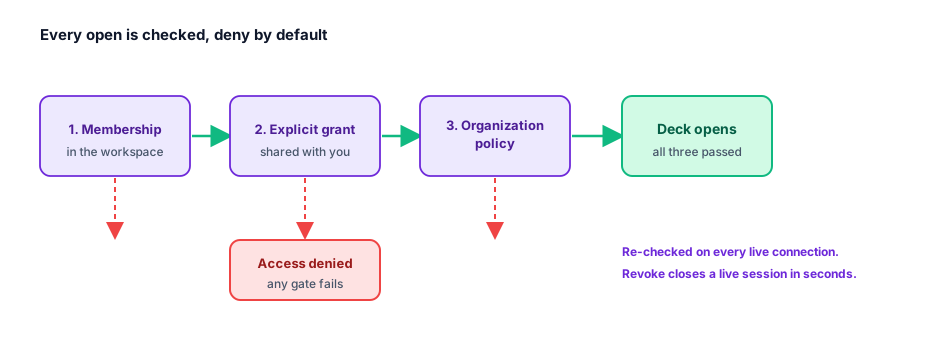
After this section a security reviewer will trust that access holds. Access is deny-by-default and checked on the server, on every live connection, not just when a deck opens. A person reaches a deck only when their membership, an explicit grant, and organization policy all allow it; if any one of those does not permit access, the deck does not open. A viewer without write access cannot change the deck, and there is no client-side path around the checks, because they live on the server rather than in the browser.
Revocation is fast and real. When you remove or downgrade someone's access, that change takes effect on their live connection within seconds, and it reaches a running editor or a live presenter session too: a revoked deck force-closes the session promptly rather than letting it linger open. For a reviewer asking whether revoking a departed employee actually stops them mid session, the answer is yes, on the live connection, not at the next reload.
Identity, Audit, and Administration
After this section an administrator will know the enterprise controls are in place, on every plan. Governance is not an add-on:
- Single sign-on and provisioning: the workspace supports SSO for sign-in and directory-based user provisioning and deprovisioning, so access follows your identity system and a removed user loses access.
- Role-based access control: permissions are governed by roles, scoped to the organization, so people hold only the access their role grants.
- Audit logging: activity is recorded, giving an organization an accountable trail of who did what on a deck, which is what a board-facing or regulated deck needs.
- No lock-in: a deck exports cleanly to PowerPoint, OpenDocument, PDF, and image formats at any time, so the data is portable on demand (see Importing and Exporting).
- Your content is yours: customer content is not used to train AI models. When AI assists, it runs on your own provider keys or on usage credits under your control (see AI Assistance, the API, and Agents).
For the full picture of the platform's governance and compliance posture, see Security and Compliance.
When I send a deck link, does the recipient have to sign in or make an account to view it? Not for a scoped public link. It opens the deck in the browser at the access level you set, so a prospect or an investor is not stopped by a request-access wall. Sharing to a person, role, group, or organization is tied to workspace identity instead; you choose per share.
Can I revoke or expire a share link after the deal closes or if I sent it to the wrong person? Yes. A link can be set to expire and can be revoked at any time. Revocation takes effect within seconds on any live connection, so access does not linger.
Does revoking access actually end a live or presenter session? Yes. A revoked deck force-closes a running editor or presenter session promptly on the live connection, rather than waiting for the person to reload.
Can reviewers comment and assign a fix to a specific person? Yes. A comment anchors to a slide or element, and you can assign it to an organization member, so a review becomes owned tasks rather than a loose thread.
Do you support SSO, SCIM provisioning, RBAC, and audit logging? Yes, and they are included on every plan, not sold as an enterprise upgrade. Sign-in and directory-based provisioning and deprovisioning follow your identity system, permissions are governed by organization-scoped roles, and activity is recorded for an accountable audit trail.
Is our content used to train AI models? No. Customer content is not used to train models, and AI assistance runs on your own provider keys or usage credits under your control.
Does it work across devices and through a brief disconnect? Yes. The deck is available across your devices and syncs between them, and offline continuity keeps a local copy so a dropped connection reloads your work and replays your edits on reconnect.
Where to Go Next
- Presenting: Present Mode and Presenter View: present the deck you share, live.
- Importing and Exporting: the export path that guarantees no lock-in.
- Roles and Permissions: the full workspace access model behind deck sharing.