

Members, Invitations & Offboarding
This guide covers the full lifecycle of a person in your organization: joining, changing roles, being suspended, and leaving. Every action here has teeth: it takes effect immediately, it is enforced on the server, and it is recorded in the audit trail.
After reading this page you will be able to: invite someone at the right role and know exactly what the invite link can and cannot do, read the member list like a dashboard, suspend or remove a person and know with certainty that their access ended the moment you clicked, reset a locked out member without ever touching their credentials, and run a complete offboarding you can prove to an auditor.
The Members Screen
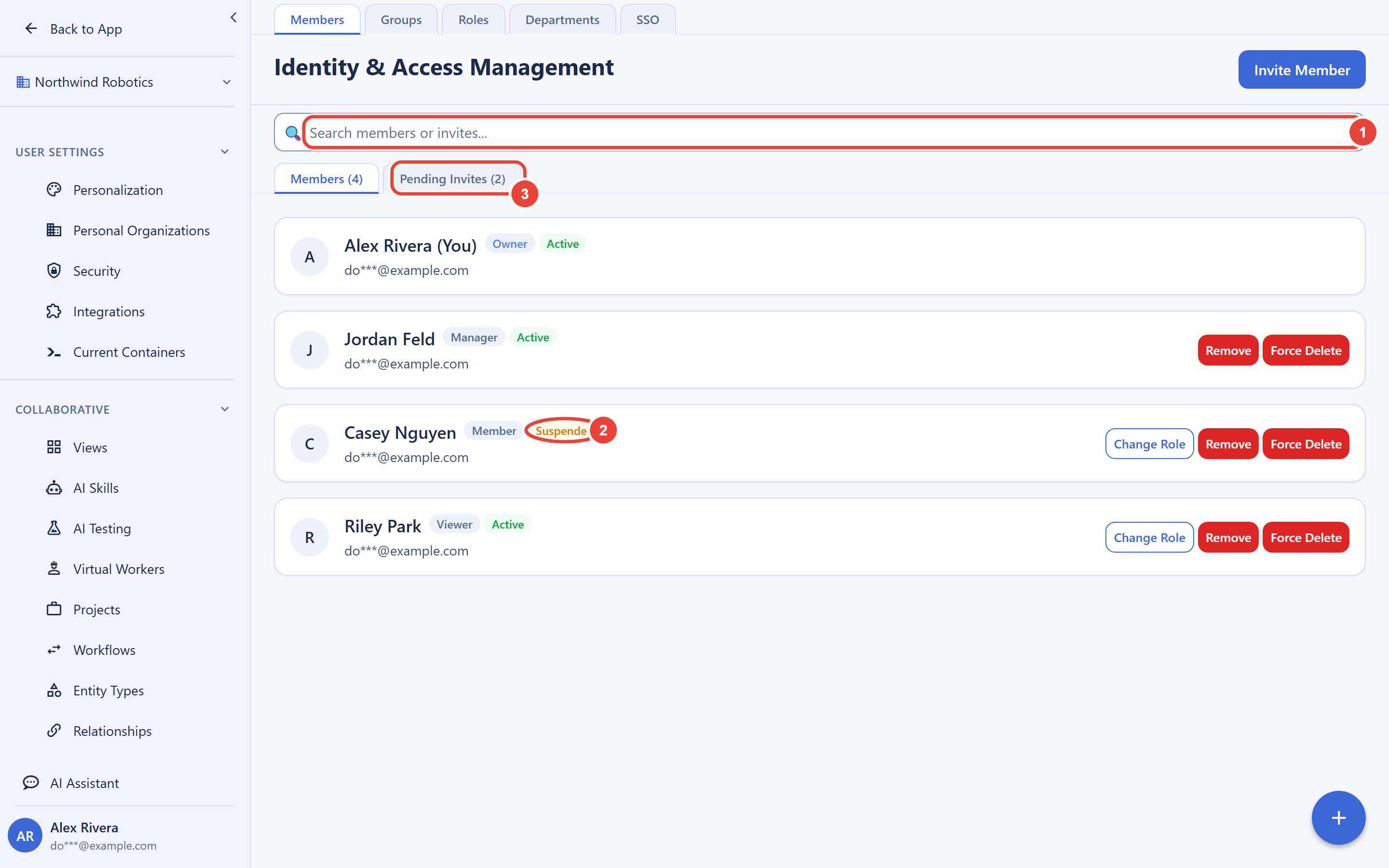
Open Settings → Members (part of the IAM area, alongside Roles, Groups, and Departments). The member list shows every person with their role and status, filterable by both, with pagination for large teams. Suspended members remain visible in the list, clearly marked, so nobody silently disappears from view while their case is open. Selecting a member opens their detail page with role controls, status controls, reset actions, and their recent activity.
Inviting People
Invitations are how people join your organization. You pre-authorize the role before the person ever signs in, so there is no window where a new member has more access than you intended.
- In the Members screen, create an invitation with the person’s email address and the role they should hold. Optionally assign them an organization mailbox at the same time.
- The screen gives you a single-use acceptance link. Share it with the invitee yourself over a channel you trust. Backbuild does not email the link automatically today, which means you always know exactly how the link traveled.
- The invitee opens the link and completes onboarding. When they finish, they are a member at exactly the role you chose.
What the acceptance link is, and is not
The acceptance link is built for the exact failure everyone fears with invite links: forwarding. It is:
- Single use. It grants one membership, once.
- Locked to the first browser that opens it. The moment anyone visits the link, it binds to that browser. A copy forwarded afterward is dead on arrival.
- Expiring. Invitations expire 24 hours after creation. An expired link cannot be used; create a fresh invitation instead.
- Revocable. Revoke any pending invitation from the pending list at any moment, and the link stops working immediately. The pending list never displays the link’s secret, so an invitation cannot leak from the admin screen after the fact.
Combine invitations with the allowed email domains policy when you want a hard guarantee that only company addresses can ever join.
What the invitee experiences
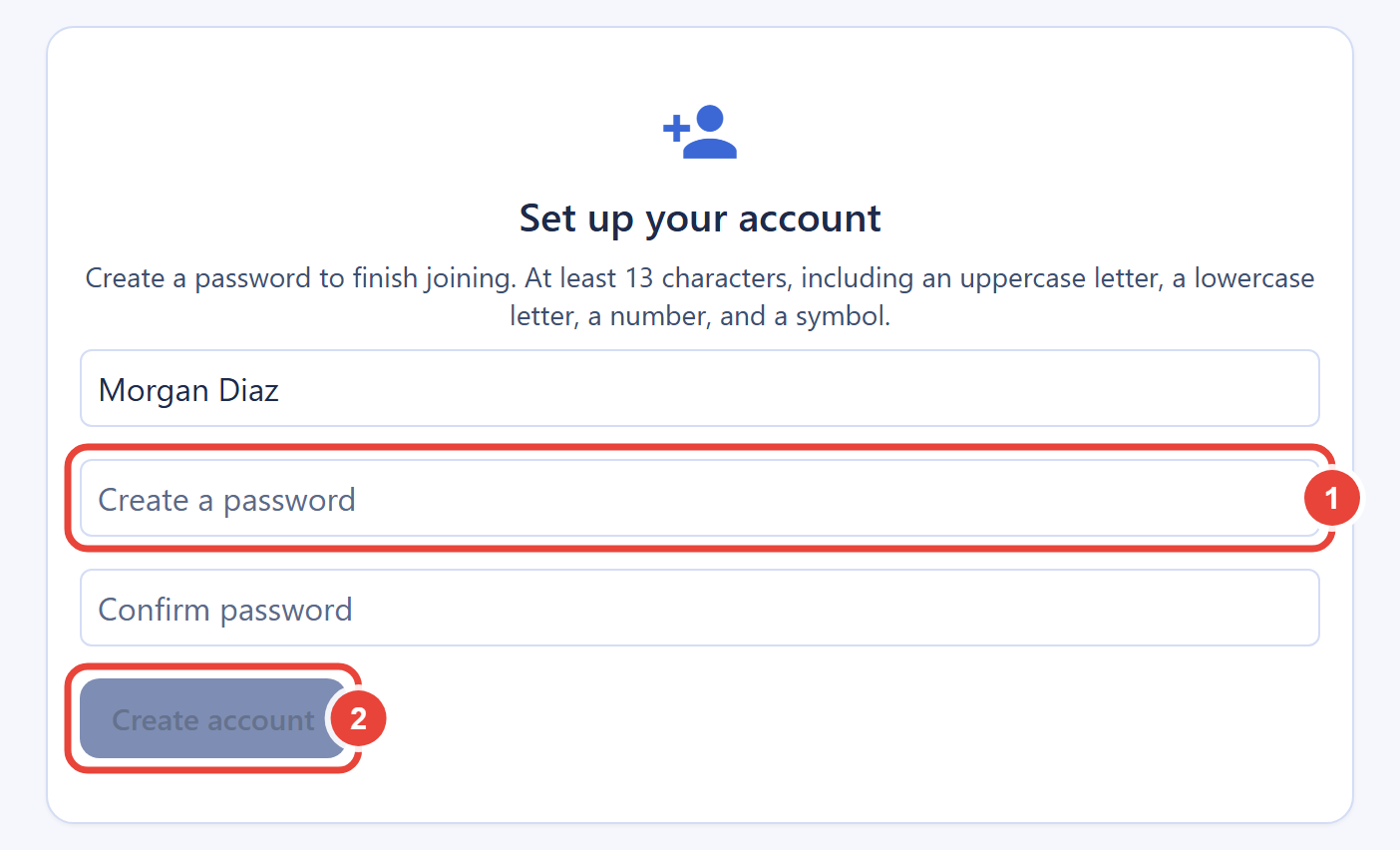
A brand-new invitee is walked through account setup on the acceptance page itself: they choose a sign-in password and a separate master password for their secrets vault, then land in your organization at the assigned role. If they were also assigned an organization mailbox, it is ready when they arrive: that mailbox address both receives their organization mail and is a sign-in credential for their account, so they can sign in with it as well.
An invitee whose email already has a Backbuild account keeps their existing credentials: the platform will never re-credential an existing account from an invite link. They simply sign in as themselves, and the acceptance then binds the membership to their account. Existing users skip any onboarding step they have already completed.
When an invitation goes wrong
- “They never got it”: the admin shares the link directly, so check the channel you sent it on and confirm the address you invited. The link itself is shown once, at creation; if it was lost, revoke the pending invitation and issue a new one.
- “Link says expired”: more than 24 hours passed. Revoke the stale invitation and create a new one.
- “Link already used or locked”: someone opened it first. If that was not the intended person, revoke immediately and reissue; the original link cannot mint a second membership either way.
- “Account already exists”: expected for existing users; they sign in with their own credentials and then accept.
Changing Roles
Change a member’s role from their detail page. Three server-side rules protect you from the classic role-change accidents:
- Hierarchy ceiling: you can only assign roles at or below your own level. An admin cannot mint an owner, and nobody can promote past themselves.
- Last-owner protection: the platform refuses to demote or remove the only owner, so an organization can never be orphaned.
- No self-service escalation: you cannot change your own role from the admin surface.
What each role can do, and how groups and departments layer on top, is covered in Roles, Groups & Permissions.
Member States: Active, Suspended, Archived, Removed
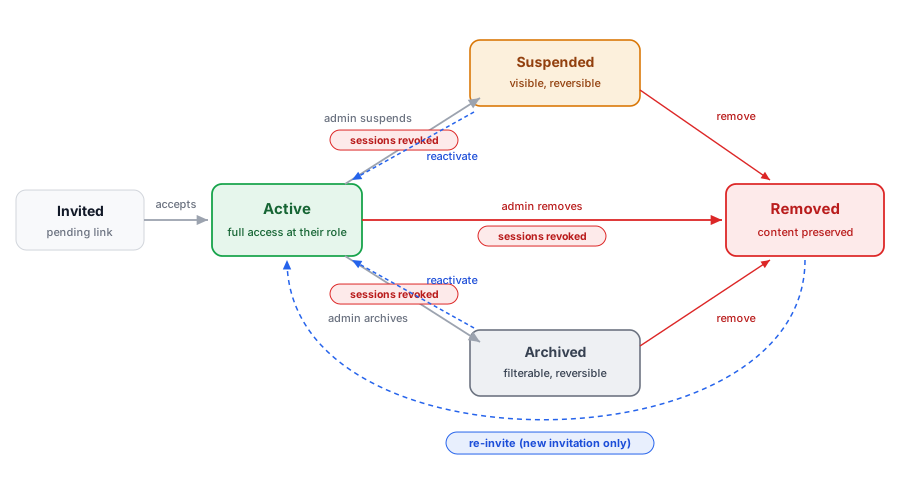
This table is the contract. Each state is enforced server-side the instant you set it.
| State | Can enter the org? | Org sessions ended? | Shown in member list? | Content preserved? | Reversible? |
|---|---|---|---|---|---|
| Active | Yes | n/a | Yes | Yes | n/a |
| Suspended | No | Yes, immediately | Yes, marked suspended | Yes | Yes, reactivate anytime |
| Archived | No | Yes, immediately | Filterable | Yes | Yes, reactivate anytime |
| Removed | No | Yes, immediately | No | Yes, attributed to them | Re-invite to restore membership |
Suspending and archiving both require a written reason, which lands in the audit trail alongside the action. Removal is a standard removal that ends the membership while preserving everything the person created. For the rare case where you must also strip the person’s organization-assigned artifacts, a separate force removal additionally deletes their assigned organization mailboxes and aliases, revokes their pending invitations, and ends their organization sessions, with an optional audit reason recorded on the action.
In every state and every removal flavor, the person’s global Backbuild account is untouched. You are managing their membership in your organization, not their identity. Their memberships in other organizations are unaffected.
The session guarantee
When you suspend, archive, or remove a member, their organization-scoped sessions are revoked immediately, on all devices, including API access held under that membership. There is no “until they sign out” window and no lingering token that keeps working. This is the guarantee that makes a 2 a.m. offboarding safe to do from your phone.
What happens to their work
Nothing they created is deleted by suspension or removal. Documents, entities, tasks, and messages remain in the organization, attributed to the person who made them, and the audit history stays intact. If the person owned projects, add a new project owner to each of those projects (see Projects) as part of offboarding.
Admin Resets: Password and Two-Factor
Both resets are designed so the admin never sees, sets, or transmits a credential:
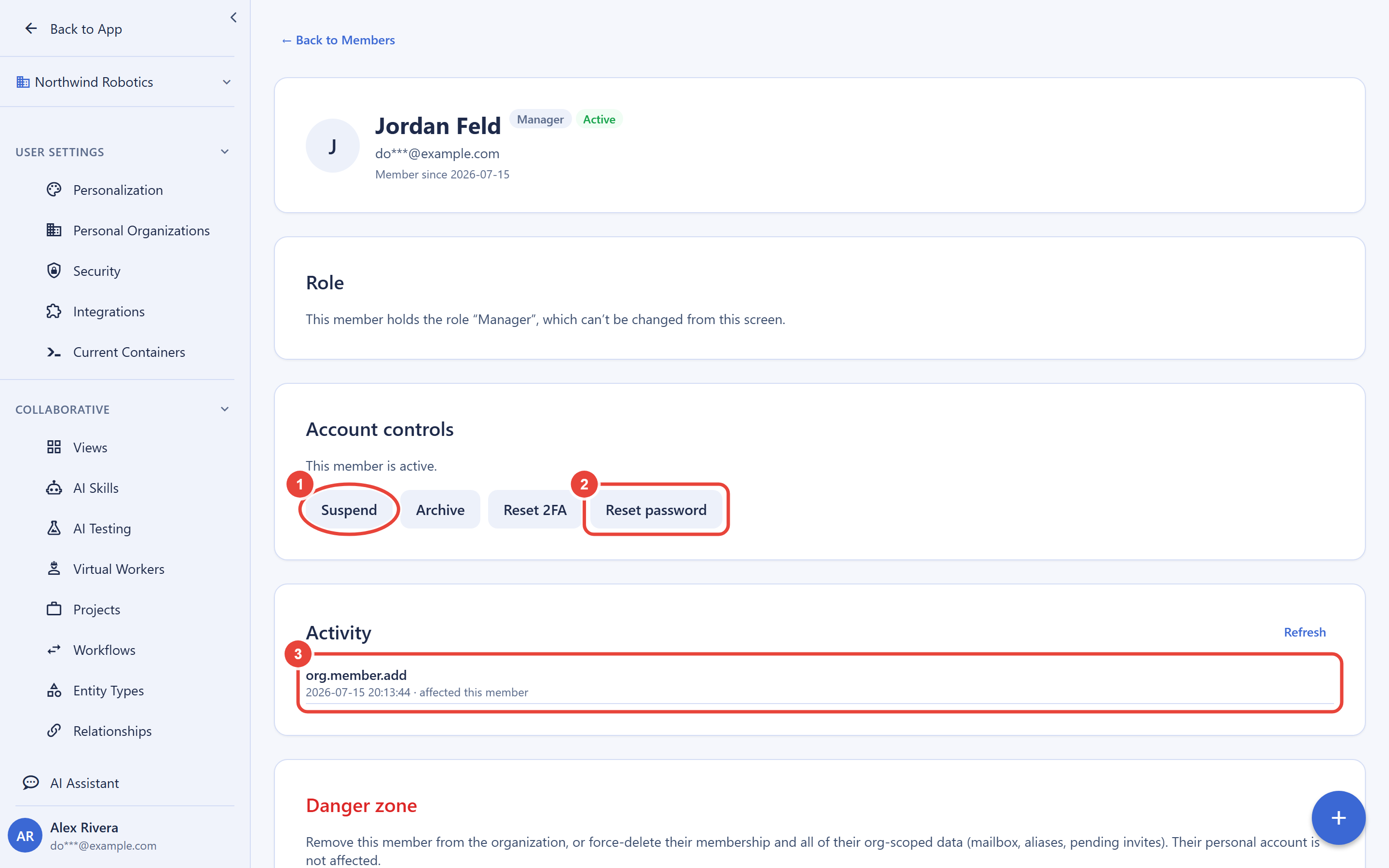
- Password reset: triggers the member’s standard self-service reset email. You do not choose their password and you are never shown anything secret. The action reports success without disclosing account details, and the member takes it from there.
- Two-factor reset: for the “lost my phone” case. It un-enrolls the member’s second factor and revokes their sessions; at their next sign-in they must enroll a new second factor before proceeding. There is no state where the account continues without 2FA if your organization enforces it.
- Neither action can be aimed at yourself from the admin surface; manage your own credentials from your personal security settings.
- Both actions are audit-logged with the acting admin, target, and timestamp.
The Per-Member Activity Trail
Each member’s detail page includes their recent organization-scoped activity: what they touched, when, and from where. Use it to answer “what did this account do” during an investigation, to spot a dormant account before an access review, or to hand an auditor evidence for a specific person without exporting the world.
The Offboarding Runbook
Run these steps in order when someone leaves. The order matters: suspending first ends access instantly while everything else is still in place to review.
- Suspend the member. Access and sessions end immediately; their data and assignments stay visible for the handover.
- Reassign ownership. Add new owners to any projects they owned and reassign their open tasks.
- Check their trail. Skim the member’s activity feed for anything that needs follow-up.
- Revoke pending invitations they created, if any are still open in the pending list.
- Remove the member (or force-remove if their org mailboxes and aliases must go too).
- Verify. Confirm they are gone from the member list and that the removal appears in the audit trail. Their seat is now free.
Total time: minutes. Every step is logged, so the runbook doubles as your compliance evidence for the departure.
Frequently Asked Questions
If I remove someone, do they lose access immediately?
Yes. Sign-in to the organization is blocked and their org sessions are
revoked at that moment, on every device, API access included.
What is the difference between suspending and removing? Which
frees a seat?
Suspension blocks access but keeps the membership, visible and
reversible, which is right for investigations and leave. Removal ends the
membership and frees the seat. Both end sessions immediately; neither
deletes any content.
What happens to everything a removed person created?
It stays, attributed to them. Removal never deletes work product. Assign
new owners for anything they owned as part of the runbook above.
Someone says their invite link is expired. What do I do?
Invitations last 24 hours. Revoke the old one and create a fresh
invitation; share the new link directly.
Can a forwarded invite link let the wrong person in?
The link locks to the first browser that opens it and grants exactly one
membership at the role you pre-authorized. If the wrong person opened it,
revoke it; and with an allowed-domains policy, off-domain addresses
cannot join at all.
Can I reset a member’s password for them?
You can trigger their self-service reset, which is the point: an admin
never holds a member’s credential, so there is nothing to leak,
reuse, or subpoena from the admin side.
Does removing someone delete their Backbuild account?
No. Membership and account are different things. You end their
membership in your organization; their account and their other
memberships are untouched.
API Reference
GET /v1/organizations/:orgId/members: list members with role and status filters (paginated)POST /v1/organizations/:orgId/members: add or update a member with a roleDELETE /v1/organizations/:orgId/members/:userId: remove a member (content preserved)POST /v1/organizations/:orgId/members/:userId/status: set active, suspended, or archived (reason required for non-active)POST /v1/organizations/:orgId/members/:userId/reset-password: trigger the member’s self-service resetPOST /v1/organizations/:orgId/members/:userId/reset-2fa: un-enroll the member’s second factor and revoke sessionsGET /v1/organizations/:orgId/members/:userId/activity: the member’s recent org-scoped activityPOST /v1/organizations/:orgId/member-invites: create an invitation (returns the single-use acceptance link once)GET /v1/organizations/:orgId/member-invites: list pending invitations (the token is never returned)POST /v1/organizations/:orgId/member-invites/:inviteId/revoke: revoke a pending invitation
See the API Reference for complete request and response documentation.