

Managing Sessions, Persistence, and Credits
A container is cheap because it runs only when you need it and stops when you do not. This guide teaches the everyday management around that idea: seeing your running containers, switching between them, closing one cleanly, and knowing precisely what is saved and what is thrown away. You will also learn the difference between leaving a viewer and shutting down its container, including what happens when the last terminal exits. Finally, this guide settles the question that makes people nervous about any cloud environment: what does this cost, and can a container I forgot about run up a bill? After this page you will manage containers without worrying about waste or surprise charges.
Containers run on universal usage credits and are available on every plan, including Free. Credits are drawn only while a container is running. A stopped or torn-down container draws nothing. See pricing.
Your Containers List
After this section you will be able to find and manage every container you have running. Your containers list is always reachable and shows the sessions you currently have live: those that are queued, starting, running, idle, or tearing down. Each row names the container, shows its status, marks the one you have open, and shows its size and how long it has been up.
From the list you can:
- Open a container to switch to it and work in its terminal, editor, and desktop.
- Terminate a container you are done with, which stops it and releases its compute.
- Start a new container when you need a fresh one, for example at a larger size or with the desktop turned on.
This is also your safeguard against forgotten containers. Because the list shows everything you have running and how long each has been up, a container left on is visible rather than hidden, and you can terminate it in one action.

When the Last Terminal Closes or Exits
After this section you will be able to leave, recover, or shut down without losing the terminal screen you were using. Closing the final live terminal is different from closing one of several terminal tabs. When the last shell exits, or when you ask to close it, Backbuild keeps the terminal pane and its scrollback mounted while it asks what should happen next.
| Choice | What happens | Billing effect |
|---|---|---|
| Keep running and open a fresh shell | A new shell opens on the existing container connection. The old terminal remains available as a scrollback tab for copying. | The same container keeps running and drawing credits. |
| Disconnect and leave running | Your viewer disconnects. The container and its work continue in the background, ready to reopen from your containers list. | The container continues drawing credits until it is shut down or idle teardown closes it. |
| Yes, shut down | The container begins a graceful close and releases its compute after saved state is flushed. | Container compute charges stop after teardown completes. |
Backbuild opens the replacement shell before closing a last live shell that you asked to replace. If replacement fails, it keeps the prompt, the existing terminal, and its scrollback available and shows an error. It does not enter a reconnect loop or discard the screen you may need to copy.
Can I close the browser but leave a long job running? Yes. Choose Disconnect and leave running. Reopen the container from your containers list when you are ready. Remember that a running container continues to draw credits.
What if my shell exited but I need its output? Keep the retained terminal tab open. Select Keep running and open a fresh shell to continue working without removing the old scrollback.
Closing a Container Cleanly
After this section you will know the right way to end a session. Terminating a container requests a graceful close. This is an orderly shutdown, not a hard kill: the container is given the chance to finish writing out its saved session record before its compute is released. The session stays visible while it drains and then moves to terminated. Terminating is asynchronous, so you do not have to sit and wait on it.
The confirmation is honest about what happens: a graceful close ends the running container, so any unsaved work inside the live session is lost, while your home folder is preserved. In practice this means: save your files (they live in the home folder), then terminate without worry.
What is the difference between stopping and terminating? Terminating is the graceful close: it stops the running container and releases its compute while preserving your home folder. There is no separate hard-delete of your data in the flow; the persistent home folder is what carries your work to the next session.
Exactly What Persists
After this section you will know, with no ambiguity, what survives a shutdown. This is the single most important thing to understand about any disposable cloud environment, and the honest answer for Backbuild containers is simple.
| What | Survives teardown? |
|---|---|
| Your home folder (your files and saved work) | Yes. It is stored in your organization's own private storage and is restored when you relaunch. |
| The running machine's live state (running processes, anything not saved to the home folder) | No. The running container is released on teardown. Save your work to the home folder to keep it. |
| Paired coding-agent access | Yes, through your selected Backbuild Secrets vault. Credential files are not saved in the home folder. Each fresh container restores every supported coding agent you paired when its vault grant is active. |
The active session is remembered per project, so if you reload while a container is running, you return to it rather than to the launch screen. When a session ends, that memory clears and the next visit starts fresh at the launch screen. Nothing you did not save to the home folder is retained as machine state. Paired coding-agent access follows a separate path: the container restores it from the vault you chose, not from a file copied out of the old machine. If the grant has been revoked or is unavailable, the affected agent stays signed out instead of falling back to another credential source.
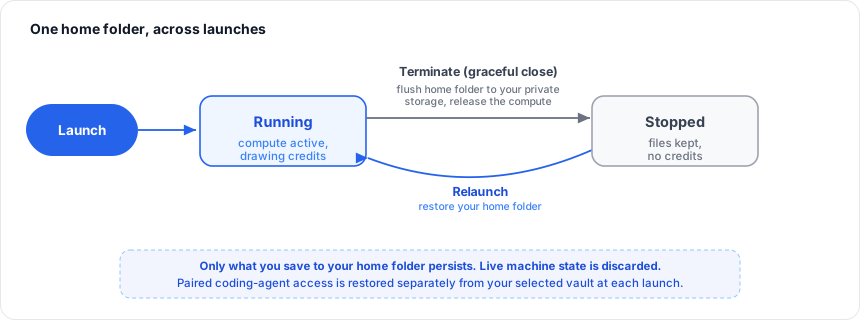
If I close the container, do I lose my files? No, not the ones in your home folder. That folder is saved to your organization's private storage and restored when you relaunch. What is lost is the live machine state: running processes and anything you did not save into the home folder. So save your work, then close.
How do I start completely fresh? Launch a new container. Your home folder still carries your saved files; if you want an empty workspace, remove what you no longer need before or after relaunching.
Do I have to pair every coding agent again after relaunch? No. Each paired, supported agent is restored from your selected vault when its grant remains active. Revoking the grant prevents future restoration.
What It Costs, and Why There Is No Surprise Bill
After this section you will be able to reason about container cost with confidence. Cost has one governing rule: you pay only for the time a container is actually running. Everything else follows from that.
- The rate is the credits-per-hour on the size card, and it is repeated in the running status bar so it is always in view. Larger sizes cost more per hour; smaller ones cost less.
- Stopped and torn-down containers cost nothing. There is no idle charge for a container that is not running, and no lingering storage-of-the-machine fee. Your home folder counts toward your ordinary file storage allowance, not a separate container meter.
- Real-time syncing to a running container draws from your Real-Time Session Minutes, of which every organization gets 10,800 free each month, and only active time counts; idle time never does.
The fear that a forgotten container quietly runs up a bill is answered by idle teardown. A container left without activity moves to an idle state and is closed rather than left running indefinitely. If it reports an idle reason of inactivity, that is the system protecting you from paying for a machine nobody is using. And if your credits run out mid-session, the container is moved to idle with a reason of exhausted credits and closed by enforcement; it is not silently kept running for free, and it is not run up as a debt.
Will a container I forget about run up a huge bill? No. A container left idle is torn down rather than left running forever, so it stops drawing credits. Your containers list also shows everything running and for how long, so a forgotten container is visible and one click from terminated.
Is idle time free, or am I paying for an idle machine? A running container draws its per-hour rate whether or not you are typing, which is why idle teardown exists: rather than bill you for an idle machine, the system closes it. The way to pay nothing is for the container to be stopped, and idle teardown gets it there.
What happens if I run out of credits during a session? The container moves to idle with a reason of exhausted credits and is closed by enforcement. Your home folder is preserved, so you can top up credits and relaunch to pick up your saved work.
Where to Next
- Universal Usage Credits: what a credit buys, packages, and rollover.
- Real-Time Session Minutes: the active-sync allowance and how it meters.
- File vs Database Storage: where your home folder counts and how storage is billed.
- Container Policies and Administration: for admins, controlling sizes, backends, and who can launch.