

Deploying to a Fleet
This guide is for administrators who need to put Backbuild Desktop on many computers at once, keep it current, and answer for it in a security review. It is written to be honest about the operational realities, including that the builds are distributed directly by Backbuild rather than through the app stores, and there is no in-app auto-updater, so you own the rollout and the update cadence. After this page you will be able to plan a quiet deployment, stage the prerequisites, set an update process, and describe the app's connection posture.
The installers themselves are on the download page. This guide covers deploying them at scale; the end-user install and first-launch experience is in Installing and First Launch.
Quiet Installation With Your Management Tool
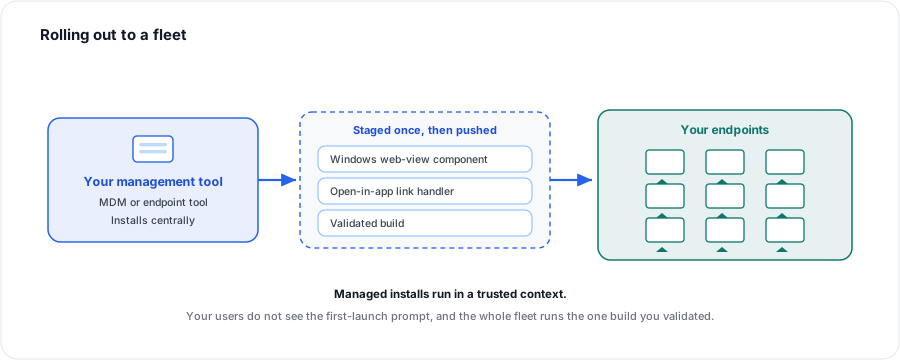
After this section you will know how to push the app without touching each machine. Backbuild Desktop deploys the way other desktop apps do. The Windows installer supports an unattended, non-interactive installation your endpoint-management tool can invoke, and the macOS app can be packaged and pushed through your device-management platform like any other Mac app. Because managed deployments run in a trusted context on the endpoint rather than as a user double-clicking a download, they generally proceed without the interactive first-launch prompt an individual user would see.
- Windows. Deliver the installer through your management tool and run it in its unattended mode, the same pattern you use for other line-of-business apps.
- macOS. Package the app for your device-management platform and deploy it to Applications on the target Macs.
- Test first. Endpoint tools, reputation systems, and policies differ between organizations. Validate a pilot ring before a broad rollout, and confirm the install completes without an interactive prompt in your environment.
Stage the Prerequisites
After this section you will know the two things to prepare so the app works cleanly on a managed machine. Neither is unusual, and on up-to-date machines they are often already handled, but knowing them prevents surprises on locked-down or offline endpoints.
| Prerequisite | What it is | What to do |
|---|---|---|
| Windows web-view component | The Microsoft system web view the app draws its interface with. Present on Windows 11 and most current Windows 10 machines. | Let the installer fetch it, or pre-stage Microsoft's component on offline or tightly restricted fleets so the machine does not need to reach out during install. |
| Open-in-app link handler | What lets Backbuild links open directly in the installed app rather than the browser. | The installer registers it on the machine; normally nothing extra is needed. Confirm it survives your packaging if you repackage the installer. |
On macOS there is no separate web-view step, because the web view is part of the operating system.
The Direct-Distribution Reality
After this section you will be able to explain the reputation and prompt behavior to your team. Backbuild Desktop is delivered directly by Backbuild and is not currently signed through Microsoft's or Apple's developer program. For a fleet, this has two practical consequences worth planning around:
- Each new build starts unrecognized. Endpoint reputation systems treat a freshly published build as new until it has been seen widely, and that recognition does not carry from one build to the next. A user who installs a build by hand will see the one-time first-launch prompt covered in Installing and First Launch.
- Managed deployment sidesteps the interactive prompt. Because your management tool installs in a trusted context, end users typically do not encounter the prompt at all when you push the app for them. This is the main reason to deploy centrally rather than asking people to download and run it themselves.
Deploy through your managed channel and leave endpoint protections on. Suppress the prompt by installing in the trusted context your management tool provides, not by weakening a machine's defenses, which is never necessary and not something to do across a fleet.
Will every update re-trigger warnings? For a hand-install, each new build is unrecognized until it earns reputation, so a user installing manually would see the first-launch prompt again. Pushing updates through your management tool in a trusted context avoids that for your users.
Are the builds code-signed? Not currently. They are distributed directly by Backbuild. Plan your rollout around managed, trusted- context installation rather than relying on store signing.
Keeping the Fleet Current
After this section you will have an update process. There is no in-app auto-updater, so the app will not update itself on your endpoints. You control updates the same way you control other unmanaged-update apps: push each new build through your management tool on your own cadence.
- Validate a build. Take the latest installer from the download page, test it in a pilot ring, and record which build you approved.
- Stage it. Host or package the approved build in your deployment system so every endpoint gets the exact build you validated, rather than each machine fetching independently.
- Push it. Deploy the new build over the installed one through your management tool. User data lives in the Backbuild account, not the app, so replacing the client is low-risk and loses nothing.
- Confirm coverage. Use your management tool's inventory to see the installed app version across the fleet and confirm the rollout reached every machine.
How do I tell which version a machine is running? Read the installed application version through your endpoint-management tool's software inventory, the same way you report versions for other apps.
Can I control exactly which build users get? Yes. Stage the specific build you validated in your deployment system and push that, rather than letting each machine pull independently, so the whole fleet runs one known build.
Answering a Security Review
After this section you will be able to describe the app's posture. The essentials a reviewer usually asks for:
- What it connects to. The app connects only to Backbuild's own services, and to Google's sign-in when a user chooses Google. It is not wired to reach third parties.
- What ships. Released builds are the finished, hardened app, without the debugging and developer surfaces that exist only in internal builds.
- Where data lives. User content lives in the Backbuild account and syncs across surfaces; it is not siloed inside the installed client, so removing the app never risks account data.
- Identity and governance. The app honors your organization's single sign-on, roles, and audit logging exactly as the web does; it is another client for the same governed account, not a separate identity.
For the platform-wide security and compliance posture (encryption, roles, audit logging, and the compliance frameworks), point reviewers to Security and Compliance.
Where to Next
- Installing and First Launch: the end-user experience your pilot users will have.
- Signing In, Sync, Device Unlock and Security: the sign-in, sync, and connection posture in user terms.
- Security and Compliance: the platform-wide posture for a formal review.