

Joining a Meeting and the Lobby
Coming soon. Backbuild Meetings is a forthcoming part of the workspace. This guide teaches the join experience you will use when it arrives.
This guide teaches the everyday work of getting into a meeting and being seen and heard correctly the first time: opening the link, checking your camera and audio in the pre-join lobby, choosing the right devices when the wrong one is selected, joining as a member or a guest, and taking part with reactions and a raised hand. After this page you will join fast and never be the person who is on mute or on the wrong microphone.
Opening the Link
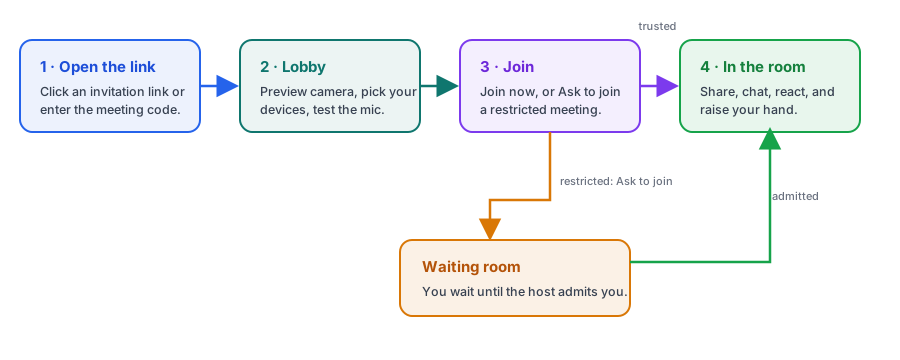
After this section you will know exactly what a join takes. A meeting reaches you as a link, in an email invitation, on a calendar event, or as a short meeting code someone reads to you. Open the link and Backbuild Meetings opens in your browser. There is nothing to install and nothing to update.
- From an email invitation, click the join button or link in the message.
- From a calendar event, open the event and click its meeting link.
- From a code, open Backbuild Meetings and use the join-with-a-code field, entering the code in the form it was given to you.
Do I need a Backbuild account or a download to join? No. The meeting opens in your browser, and a guest joins by link with no account and nothing to install. If a meeting has been restricted by its host, you will be asked to wait to be let in; that is covered below under Ask to Join.
The Pre-Join Lobby
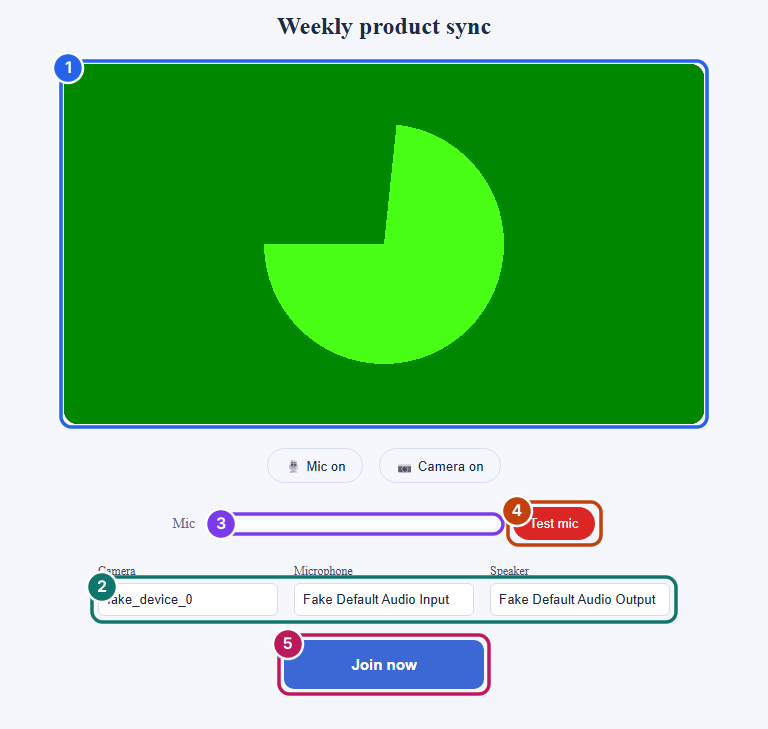
After this section you will confirm you look and sound right before anyone sees you. Before you enter the room, Backbuild Meetings shows a private lobby that only you can see. This is the single most useful habit for a good call: you fix a dark camera or a wrong microphone here, not live in front of the room.
- Camera preview. A live, mirrored preview of your own camera so you can check framing and lighting.
- Microphone and camera toggles. Turn your microphone or camera off before you join if you want to enter muted or with video off.
- Device pickers. Separate dropdowns for your microphone, your camera, and your speaker. If your browser has just granted permission, the lists refresh so every connected device appears.
- A live input meter. A level indicator that moves as you speak, so you can see your microphone is picking you up before you rely on it.
- A microphone test. Record a few seconds and play it back, so you hear yourself exactly as the room will.
Choosing the Right Microphone, Camera, and Speaker
After this section you will fix wrong-device audio in seconds. Most "no one can hear me" and "why is it playing through the wrong speaker" problems are a device selection, not a broken meeting. Open the microphone, camera, or speaker dropdown in the lobby and pick the device you actually want, then watch the input meter move as you talk to confirm the microphone is live. You can change any of these during the meeting from the same controls, so if you plug in a headset mid-call you can switch to it without leaving.
No Camera or Microphone? You Can Still Join
A machine with no camera and no microphone, or a browser that refused the permission, does not keep you out of the meeting. You join anyway: you enter the room without sending audio or video, and the room shows a brief notice telling you so, so you are never left wondering why your tile is dark. You still see and hear everyone else, and you take part with chat, reactions, and a raised hand. This makes a bare conference-room machine, a locked-down work laptop, or a quick check-in from a device with no webcam a perfectly good way to attend.
The wrong microphone is selected. How do I switch? Open the microphone dropdown, choose the correct device, and confirm the input meter responds when you speak. Your choice is remembered, and you can switch again at any point from the same control during the meeting.
My camera is black or my microphone shows nothing. Your browser needs permission to use the camera and microphone. Allow the permission prompt when your browser asks, then reopen the device dropdowns so the newly permitted devices appear. The lobby is the place to confirm all of this before you join.
Joining as a Member or a Guest
After this section you will know what to expect when you click Join. When the meeting is open, the lobby shows Join now and you enter the room. When the host has restricted the meeting, the button reads Ask to join: your request is sent to the host with your name on it, member or guest, and you wait on a held screen that says you will enter the moment they admit you. That is exactly what happens: keep the page open, and within seconds of the host's decision you drop into the room, with nothing to refresh and nothing to retry. Either way you are a full participant once you are in, whether you signed in or joined as a named guest.
What is Ask to Join, and how long do I wait? It means the host has turned on the waiting room. You are held at the door until the host admits you, which they do from their participant list, where your real name is shown. There is nothing else you need to do but keep the page open; the moment the host admits you, you enter automatically. If the host declines, the screen tells you that too. Hosts manage this from the waiting room.
Do I pay anything to join? No. Meetings run on the host organization's usage credits, and attendees never pay or provide billing details. If the meeting's organization is out of credits, new entry is refused: members of that organization see a clear message about credits, while a guest simply sees that the meeting is currently unavailable.
Taking Part: Reactions and Raised Hands
After this section you will contribute without talking over anyone. Once you are in the room, the control bar gives you ways to take part quietly. Send a reaction to show agreement or applause without unmuting, and raise your hand to signal you want to speak so the host can bring you in at a natural break. Lower your hand when you are done. These are non-disruptive by design: a reaction appears briefly and fades, and a raised hand is a small indicator, not an interruption.
How do I react or raise my hand without interrupting? Use the reactions and raise-hand controls on the meeting control bar. A reaction floats up briefly and disappears on its own, and a raised hand shows the host you want to speak without cutting anyone off. Both are covered with screen sharing and chat in In the Meeting.
Frequently Asked Questions
Am I being recorded, and will I be told? Cloud recording is not part of the first release of Backbuild Meetings, so meetings are not saved to a recording at launch. If and when recording becomes available, the meeting will show a clear on-screen indicator to everyone while it is active. The honest current posture is in Administration and Security.
Why can others not hear or see me? First check the microphone and camera toggles on the control bar in case you joined muted or with video off, then confirm the right devices are selected. The lobby exists to catch exactly this before you join, so run the microphone test there next time.
Can I join from my phone? Backbuild Meetings is used through the web app on your computer at launch; native mobile apps are not available yet. Join from a laptop or desktop browser for the best experience.