

Importing and Exporting
A document tool is only as useful as the work you can get into it and the deliverable you can get out. This guide teaches how to bring an existing file into Backbuild Docs, how to produce every format a reader or a submission asks for, and how to return to any earlier draft with version history. After it you will be able to open a Word file you were sent, hand back a Word file or a PDF, publish to Markdown or HTML, and recover an earlier version without hunting for the right attachment. It is honest about where a conversion is lossy and why, so you can plan around it rather than be surprised by it.
Importing: What Comes In
After this section you will get an existing document into the editor, whatever tool it came from. Open an import from the File menu and choose the file. Backbuild Docs reads the file by its actual content, not by the extension on its name, so a file that was renamed still imports correctly. The supported formats are:
- Microsoft Word (the modern
.docxformat), including a document exported from Google Docs, which exports as.docx. - OpenDocument Text (
.odt), the format LibreOffice and OpenOffice write. - Legacy Word (the
.docformat from Word 97 to 2003). Its text and paragraphs come in; a legacy.docis a good way to rescue an old file rather than a full-fidelity design import. - Rich Text Format (
.rtf). - HTML, so you can bring in a web page or an exported web document.
- Markdown, so notes and docs-as-code content come straight in.
An import lands as a normal Backbuild Docs document you edit, format, and share like any other. Headings, lists, tables, and inline formatting come across; the document arrives with real structure, so you can immediately apply a named style or reflow it rather than untangling ad-hoc formatting.
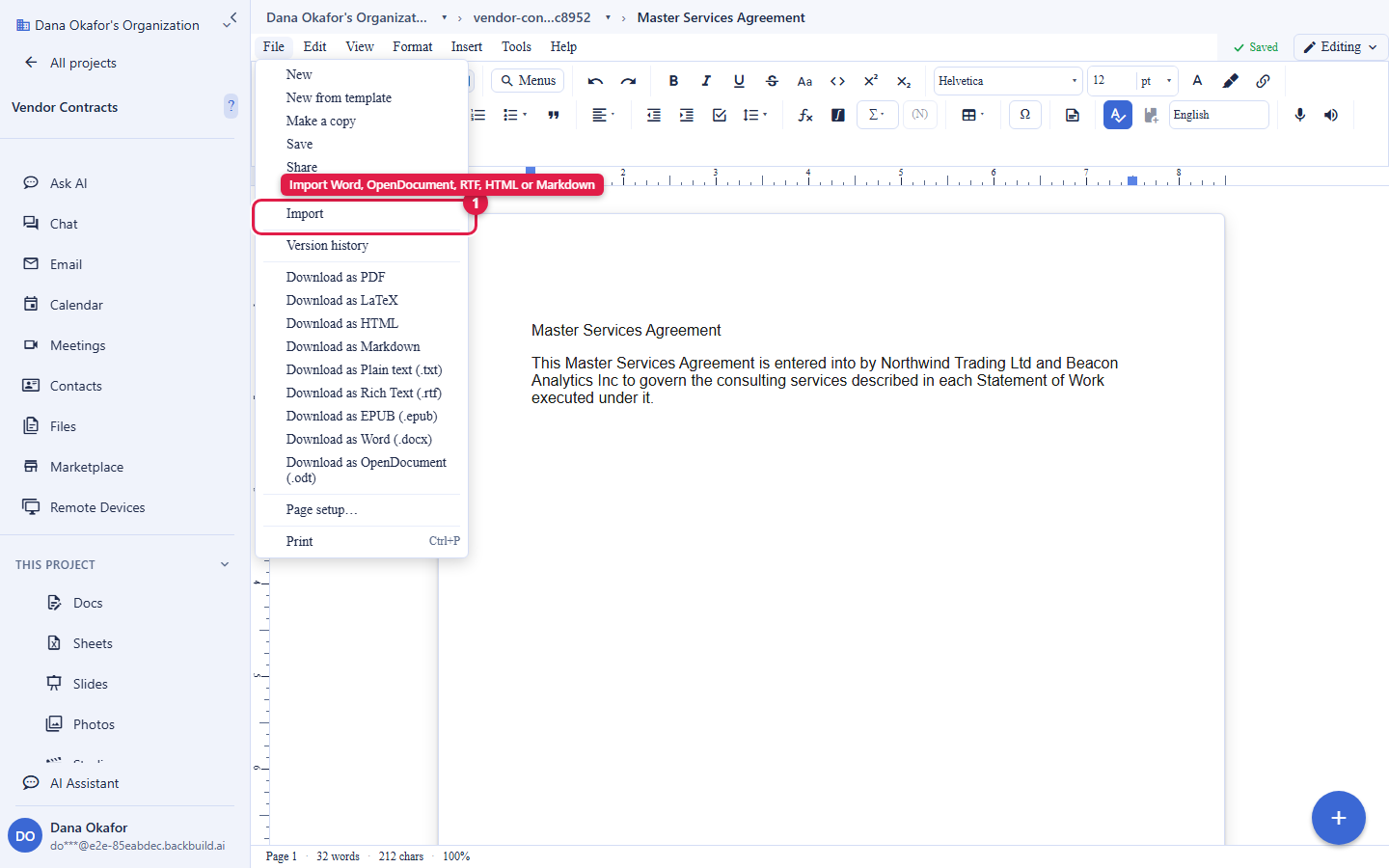
Will it import my existing Word or Google Docs file cleanly?
Yes. Import a Word .docx file directly; a Google Docs document exports
as .docx, so it comes in the same way. Headings, lists, tables, and
inline formatting are preserved, and the document arrives with real underlying
structure rather than a flattened copy. Very heavy or unusual layout can shift, so
check a complex file after import, but everyday documents come across faithfully.
Does it import by file extension or by content? By content. The importer inspects the file itself and handles it as what it actually is, so a mislabeled or renamed file still imports correctly.
Exporting: What Goes Out
After this section you will produce the exact deliverable a reader or a submission needs. From the File menu you can download the document in a range of formats, so nothing is trapped in a proprietary shape:
| Format | Use it for |
|---|---|
Microsoft Word (.docx) | Handing a document to someone who works in Word, including a redline or a clean copy for a counterparty. |
| A fixed, final deliverable. Produce it with File then Print and save as PDF; what you see in the editor is what prints. | |
OpenDocument Text (.odt) | A reader who uses LibreOffice or OpenOffice. |
| HTML | Publishing to the web or pasting into a content system. |
| Markdown | Docs-as-code pipelines and version-controlled documentation. |
Rich Text Format (.rtf) | A widely compatible interchange format. |
| EPUB | A reflowable e-book for long-form reading. |
| Plain text | The words alone, with no formatting. |
LaTeX source (.tex) | A submission-ready build for a journal or preprint pipeline that compiles the source to PDF. This is a Backbuild Science capability. |
Images, tables, and equations travel with the document into your export. An image you pasted inline is carried into the Word, HTML, and PDF outputs; an equation you typeset renders in the export, including in the LaTeX build. See Images, Tables, Math, and Citations for how those objects behave.
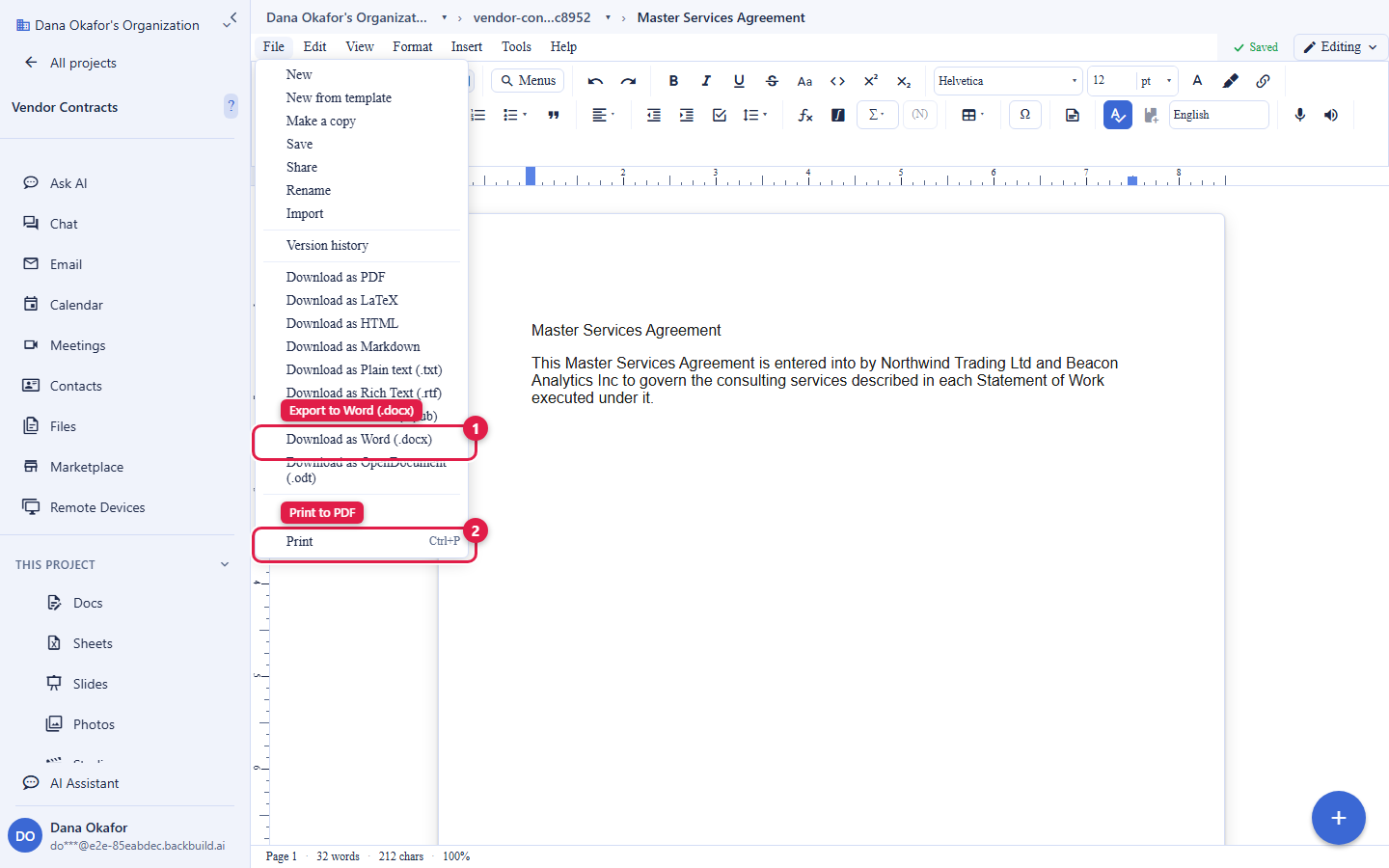
Can I export back to Word and PDF without losing my formatting?
Yes. Export to Word (.docx) and the document opens in a Word processor
with its headings, styles, lists, tables, and images intact, because the document
has real structure to carry over. For a fixed final copy, print to PDF; the editor
renders live, so the PDF matches what you see. A round-trip through a very
different tool can shift fine layout details, which is true of any cross-tool
conversion; the format-by-format notes below tell you where.
How do I get a PDF? Use File then Print and save as PDF through your browser or system print dialog. There is no separate compile step and no compile-minute meter; the document is already rendered, so printing it is instant.
What Survives, and Where a Conversion Is Lossy
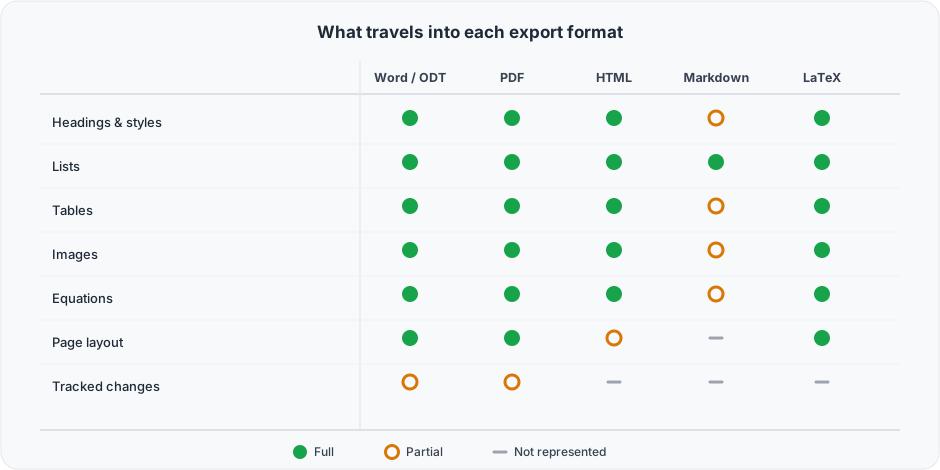
After this section you will know what to check after a conversion. Every conversion between two document formats trades something, because no two formats model a document identically. Plan around these boundaries:
- Word and OpenDocument carry headings, named styles, lists, tables, images, alignment, and spacing well. Very intricate layout, unusual style overrides, or exotic Word features can shift, so review a complex document after the round-trip.
- Markdown and plain text are intentionally simple formats. Structure such as headings, lists, links, and basic emphasis round-trips cleanly; rich page layout (columns, precise margins, headers and footers) has no Markdown equivalent and is not represented there. Use Markdown for content, not for print layout.
- Legacy Word (
.doc) import brings in text and paragraphs; it is a rescue path for an old file rather than a design-preserving import. - Tracked changes into Word: you can export a redline copy and a clean copy for a counterparty who works in Word. Full round-tripping of live, individually acceptable tracked changes to and from Word is a later milestone, so for a negotiation today, export the marked-up copy and the clean copy as the deliverables, and keep the live accept-or-reject markup in Backbuild Docs. Redlining is covered in Tracked Changes.
- Custom tab-stop positions are a display convenience of the live document and are not preserved through a LaTeX round-trip; use a table where alignment must survive every export.
The point of stating this plainly is that you can choose the right export for the job. For a faithful editable hand-off, use Word or OpenDocument; for the web, use HTML; for a fixed final copy, print to PDF; for a journal submission, download the LaTeX source.
Version History: Never Lose a Draft
After this section you will return to any earlier state of a document without keeping a pile of files. Because everyone works on one live copy, Backbuild Docs keeps a history of that copy for you. From the File menu you can:
- See the versions of a document as a timeline of saved states.
- Open a version to read exactly what the document looked like at that point.
- Restore a version to bring an earlier state back as the current document, without losing the later history.
This is what ends the "which file is the current one" problem. There is no Contract_v3_FINAL_final.docx to guess at and no manual draft to shuffle over email: there is one document, and its history is inside it. Produce a clean copy from a redline and you can still return to the marked-up state; restore a draft you thought was gone and pick up where it was.
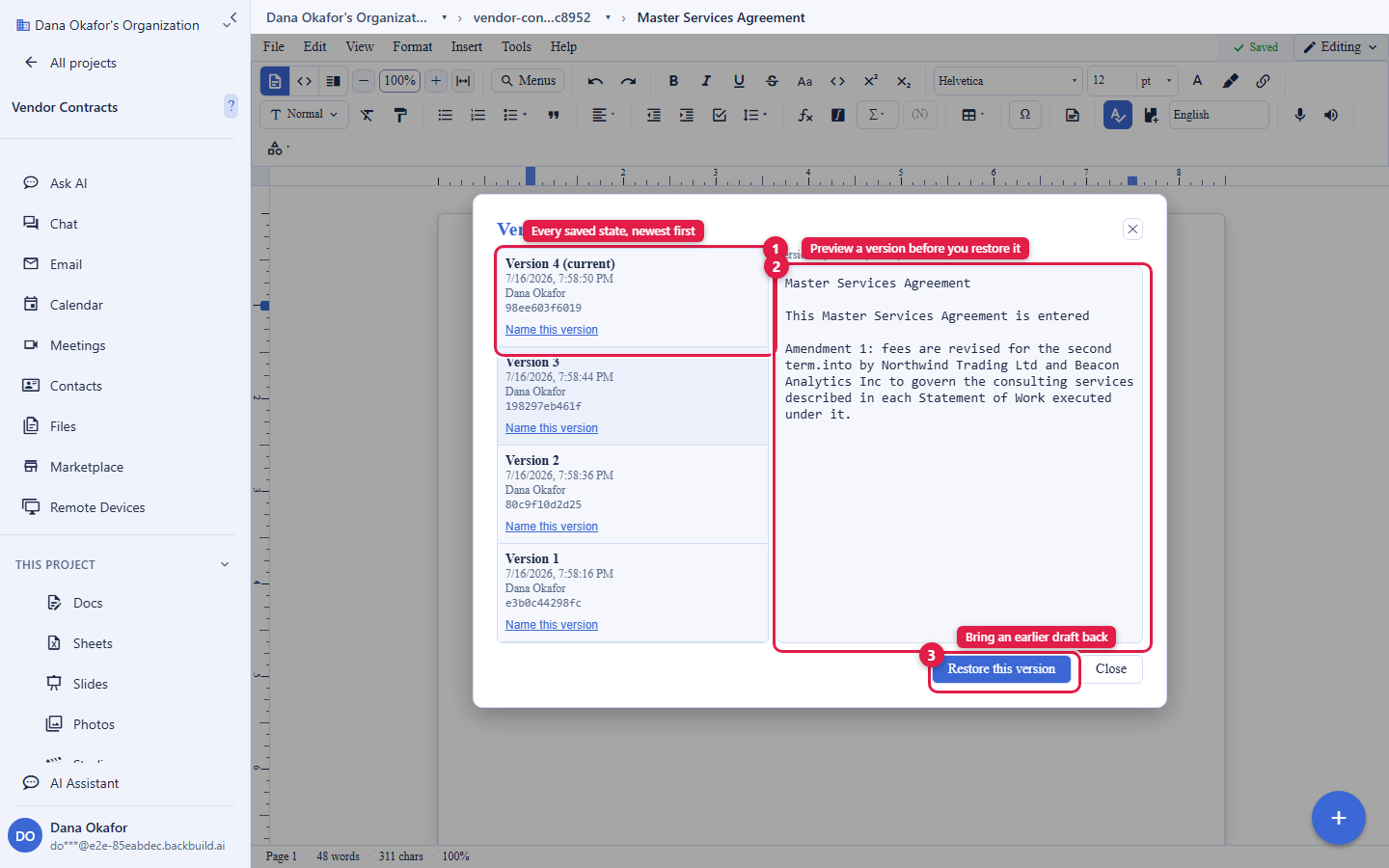
How do I stop working from the wrong draft and always know which is current? There is only ever one live document, so there is no "current draft" to track down. If you need an earlier state, open version history, preview the version you want, and restore it. Nothing is overwritten permanently, and no file-naming convention is holding your process together.
Is version history free? Yes. Version history, like real-time co-authoring and tracked changes, is part of Backbuild Docs on every plan. See the pricing page for current allowances.
Where to Go Next
- Suggesting, Tracked Changes, Compare, and Combine: produce a redline copy and a clean copy for export.
- Images, Tables, Math, and Citations: how each object travels into an export format.
- AI Assistance, the API, and Agents: automate document creation and export from code and from agents.