

Presenting: Present Mode and Presenter View
This guide teaches how to show a deck live with confidence. After it you will be able to start a fullscreen show, run a two-screen presenter console with the next slide and your notes on your display only, drive the whole thing from the keyboard, and know exactly what a remote viewer can and cannot see. It is the guide for the high-stakes moment: an investor pitch, a QBR, a keynote, or a lecture where you cannot afford a surprise.
Starting a Show
After this section you will start a show the way the moment needs. The Present control is a split button with an options menu. From it you can:
- Present from the current slide: start the show where you are, useful when you are rehearsing a section.
- Present from the beginning: start at slide one.
- Presenter view: open the two-screen console described below.
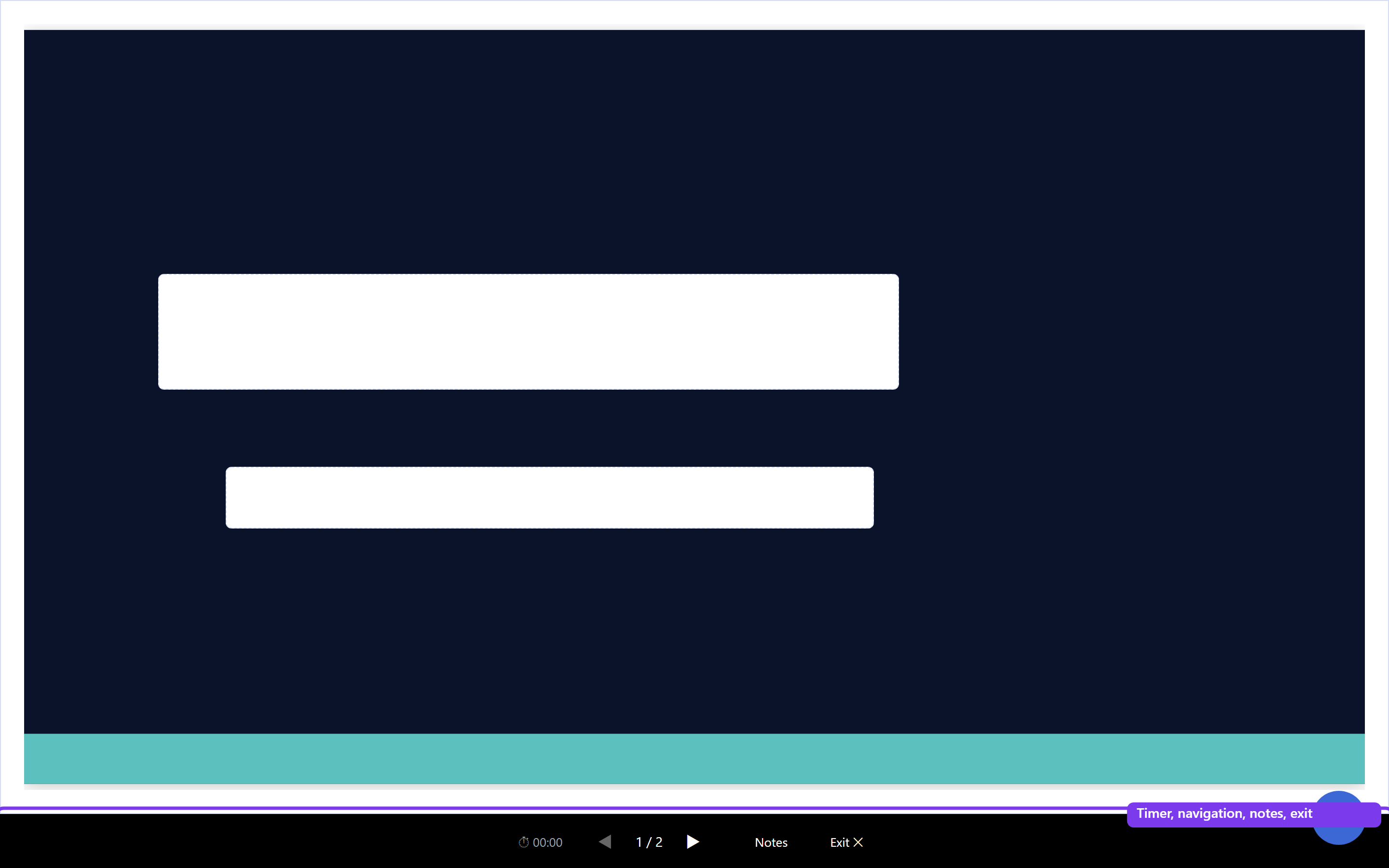
A show runs as a chromeless, fullscreen surface: just the slide, edge to edge, with no toolbars or browser furniture in the room's view. A slim control bar gives you a timer, previous and next controls with a slide counter, a notes toggle, and an exit. Slides you marked Skip are left out of the show automatically, so an appendix stays out of the running order unless you jump to it. Present and presenter surfaces are read-only: showing a deck never changes it.
Presenter View: Two Screens
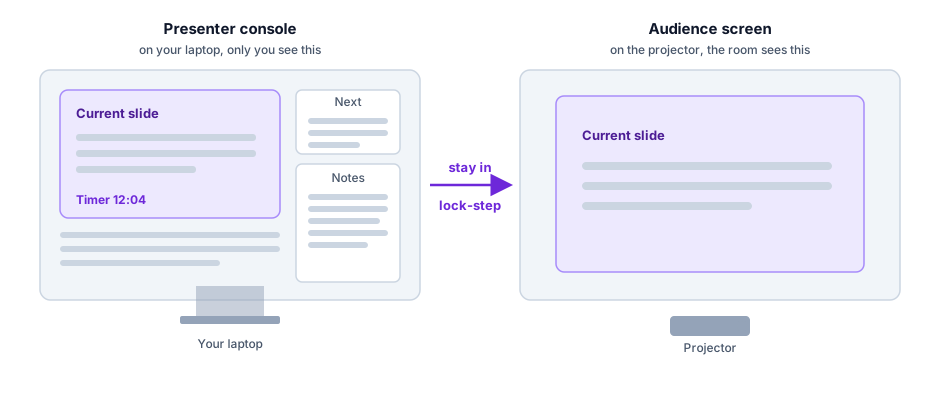
After this section you will present with the next slide, your notes, and a timer in front of you while the room sees only the slide. Presenter view splits the show across two windows:
- Your console shows the current slide, a preview of the slide coming next, your always-on speaker notes, an elapsed timer, and navigation. This is the window you look at.
- The audience window shows only the clean current slide, with none of your notes or previews. This is the window you put on the projector or the shared screen.
The two windows stay in lock-step: advance in either one and both move together, so what the room sees always follows exactly where you are. Either window can drive the show, and when you exit, the audience window closes with you. This is the setup for delivering without notes in your hand: your script, your pacing, and a look at what is coming next are all on your screen, and the audience never sees any of it.
Navigate From the Keyboard
After this section you will run the whole show without reaching for a mouse. The runtime is built for keyboard control, so a clicker or the arrow keys drive it cleanly:
- Next: Right arrow, Down arrow, Space, Page Down, or Enter.
- Previous: Left arrow, Up arrow, Page Up, or Backspace.
- Jump to ends: Home goes to the first slide, End to the last.
- Exit: Escape ends the show.
Because next also advances your on-click animation builds, one key walks you through a slide's reveals and then on to the next slide, so your clicker paces the whole talk.
Presenting to a Remote Audience
After this section you will set up a remote talk honestly, without a surprise in the room. The presenter console and its audience window run on your own computer and its second display, which is the setup for presenting in a room or over a screen share where you share the audience window. Letting a remote viewer's own screen follow your live position across the internet, advancing on their device as you advance on yours, is coming soon. Until it ships, present two ways:
- Screen share the audience window in your video call. The audience window is the clean slide with none of your notes, so it is exactly what you want to share, and it follows your navigation because it runs alongside your console.
- Send viewers a link to the deck to open themselves, for a deck they read at their own pace rather than following your live position.
Stating this plainly matters more than a vague claim: for a live remote pitch, share the audience window on your call; for a leave-behind, share the deck link. See Collaboration, Comments, Sharing, and Governance for scoped, revocable share links.
Does presenter view show the next slide and my notes on my screen only? Yes. Your console shows the current slide, a preview of the next slide, your speaker notes, and a timer. The separate audience window shows only the clean current slide, so the room never sees your notes or the preview.
Will the deck render exactly right when I present? You present the live deck itself in a chromeless fullscreen surface, so what is on screen is your deck as built, with your transitions and animations playing in order. There is no export step between building and presenting to introduce a difference.
Can I present to investors remotely and have them follow along on their own machines? Live cross-device audience-follow is coming soon. Today, screen share the clean audience window on your call so they see each slide as you advance, or send them a link to open the deck at their own pace.
Do my skipped slides show up in the talk? No. Slides marked Skip are left out of the show automatically. They stay in the deck so you can jump to one if a question calls for it, but they do not appear in the normal running order.
Can I run the whole thing from a clicker? Yes. Space, the arrow keys, Page Up and Page Down, Enter, and Backspace all navigate, Home and End jump to the ends, and Escape exits, so a standard clicker drives the show and steps through your animation builds.
Where to Go Next
- Transitions, Animations, and Speaker Notes: build the reveals and write the script your console shows.
- Collaboration, Comments, Sharing, and Governance: share a link a remote viewer opens, scoped and revocable.
- Importing and Exporting: hand off a PDF or a PowerPoint copy for a room you will not present in.