

Real-Time Collaboration, Comments, and Sharing
A document is rarely written alone. This guide teaches how several people work the same document at once without overwriting each other, how to discuss it in place with comments, and how to share it with exactly the access you intend. After it you will be able to invite a colleague to co-edit live, run a comment thread to resolution, and hand a document to someone outside your team with a link that grants only what you choose and can be revoked.
One Live Copy, Edited Together
After this section you will understand why co-editing here does not lose work. Everyone editing a document works on the same live copy. Edits merge automatically using a conflict-free replicated data type, which is a technical way of saying that two people typing in the same paragraph at the same moment both keep their text; neither overwrites the other, and there is no "someone else edited this, discard your changes" dialog. This is the single biggest anxiety people carry over from older tools, and it does not happen here.
You see collaborators live: each person has a colored cursor and selection, and a presence indicator shows who is in the document with you right now. When a colleague types, you see it appear; when you type, they see it appear. There is no manual refresh and no merge step.
Does co-editing lag or conflict when several people type at once? No. Merging is automatic and continuous, so there is no lock on a paragraph and no queue for who edits next. Several authors can work different sections, or the same sentence, at the same time, and every keystroke lands. You see each other's cursors so you can stay out of each other's way when you want to.
Comments: Discuss in Place
After this section you will run a review conversation without leaving the document. Select text and add a comment to attach a note to that exact passage. Comments are threaded: anyone with access can reply, so a question and its answer stay together on the text they are about. When a point is settled, resolve the thread to clear it from the margin while keeping it in the record.
Mention a colleague in a comment to pull them in and notify them, so a specific person knows a specific passage needs their eyes. This is how a team turns a document around: comments for the discussion, mentions for the hand-offs, resolve to close the loop, all anchored to the words in question rather than scattered across email.
Sharing: Who Can Do What
After this section you will grant exactly the access you intend, and take it back when you need to. Share a document from the share control and choose an access level:
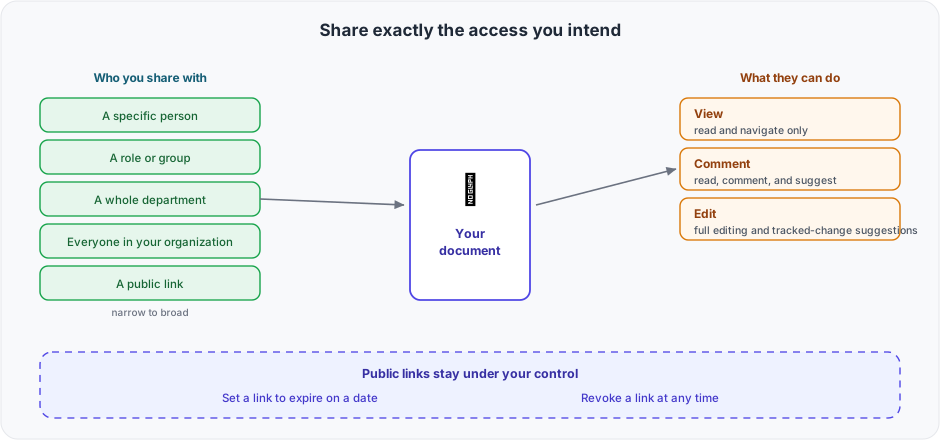
- View: read and navigate only. No changes, no comments.
- Comment: read and leave comments and suggestions, but not change the text directly. This is the right level for an outside reviewer or a counterparty who should weigh in without editing.
- Edit: full editing, including turning on Suggesting to propose tracked changes.
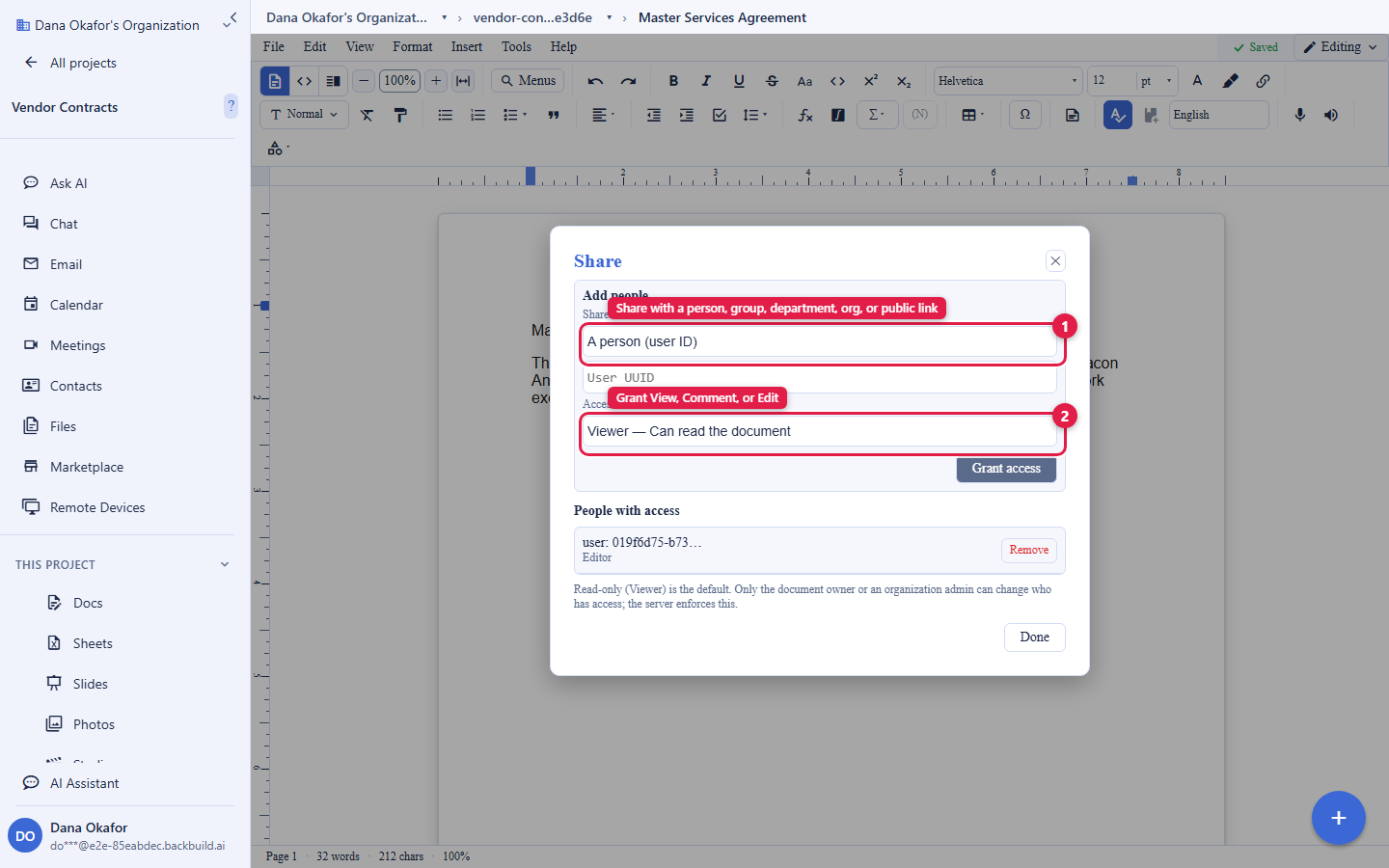
You choose not just the level but the audience. Share with a specific person, a role or a group, a whole department, everyone in your organization, or by a public link. Public links can be set to expire on a date and can be revoked at any time, so a link you send today does not become a permanent open door. This is the same organization-wide sharing model the rest of the workspace uses; it is described in general terms in Real-time Collaboration.
Can someone without an account open a document I share? A public view link opens in a browser for anyone who has the link, so you can send a read-only document to someone outside your organization without them signing up. To comment or edit, a collaborator signs in, which is what lets the document attribute their comments and changes to them.
What is the difference between view, comment, and edit access? View is read-only; comment adds the ability to leave notes and suggestions without changing the text; edit adds full editing and the ability to propose tracked changes in Suggesting mode. Pick the lowest level that lets the person do their job, and raise it later if you need to.
Can I limit an outside collaborator to suggestions only, not direct edits? Yes. Grant comment access and they can leave comments and proposed wording without altering the text; or grant edit access and ask them to work in Suggesting mode, where their edits arrive as tracked changes you accept or reject. Redlining is covered in Tracked Changes.
Projects Hold Your Documents
After this section you will know where documents live and how access flows to them. Documents belong to projects, the same containers that hold your files, tasks, and data. A project is the natural unit of access: people who work a project reach the documents in it, and per-document sharing lets you widen or narrow that for a specific document. See Projects for the project model in full.
Working Offline and Across Devices
After this section you will know your work is safe on a flaky connection. A document you have open keeps working when your connection drops: your edits are held locally and sync back when you are online again, without a lost-work prompt. The document is one live object shared across every device you sign in from, and it is available in the Backbuild web app and the native desktop apps. See the downloads page for current client availability.
Governance and the Audit Trail
After this section you will know a shared document is accountable, not a free-for-all. Access to documents is governed by your organization's roles and permissions, and document activity is recorded in the organization's audit log, so who was granted access and what changed is attributable rather than a mystery. These controls are part of every plan, not an enterprise add-on; see Security and Compliance and Roles and Permissions.
Where to Go Next
- Suggesting, Tracked Changes, Compare, and Combine: the review workflow in depth, including redlining and version comparison.
- Writing, Formatting, and Page Layout: the editing and formatting surface.
- AI Assistance, the API, and Agents: how agents co-author over the same documents.