

Editing, Formatting, and Organizing the Grid
This guide teaches the everyday craft of a spreadsheet: getting values and formulas into cells, moving them around without breaking references, structuring the sheet with rows, columns, and tabs, and formatting it so it reads clearly. After it you will be able to enter and fill data quickly, freeze a header row, merge cells, apply number and currency formats, color cells by rule, and find and replace across a whole sheet. Every step here is the real editor, and none of it requires knowing a formula.
Entering Values and Formulas
After this section you will enter data and your first formulas with confidence. Click a cell and type. A number stays a number, text stays text, and a value that starts with an equals sign is a formula that the sheet computes.
- Values: type a number, a date, or text and press Enter to move down or Tab to move right.
- Formulas: start with
=, for example=A1+B1or=SUM(A1:A10). As you type a function name, autocomplete offers matches and shows what each function expects, so you are not guessing at arguments. - The formula bar above the grid shows and edits the full contents of the selected cell, which is where you read and adjust a long formula.
- Delete clears a cell's value while leaving its formatting; clearing formatting is a separate action, covered below.
Formulas are the subject of their own guide. See Formulas, Functions, and the Calculation Engine for the full catalog, dynamic arrays, and error handling.
Copy, Paste, Cut, Undo, and Fill
After this section you will move and repeat data quickly and correctly. Copy, cut, and paste behave the way a spreadsheet should, and the fill handle turns a pattern into a column in one drag.
- Copy and paste a cell or a range, and relative references adjust to their new position while absolute references (written with a dollar sign, for example
$A$1) stay pinned. Cut moves the content instead of duplicating it. - Undo and redo reverse and reapply any edit, so you can experiment without risk.
- Fill down repeats the top cell of a selection through the rest of it, adjusting references as it goes.
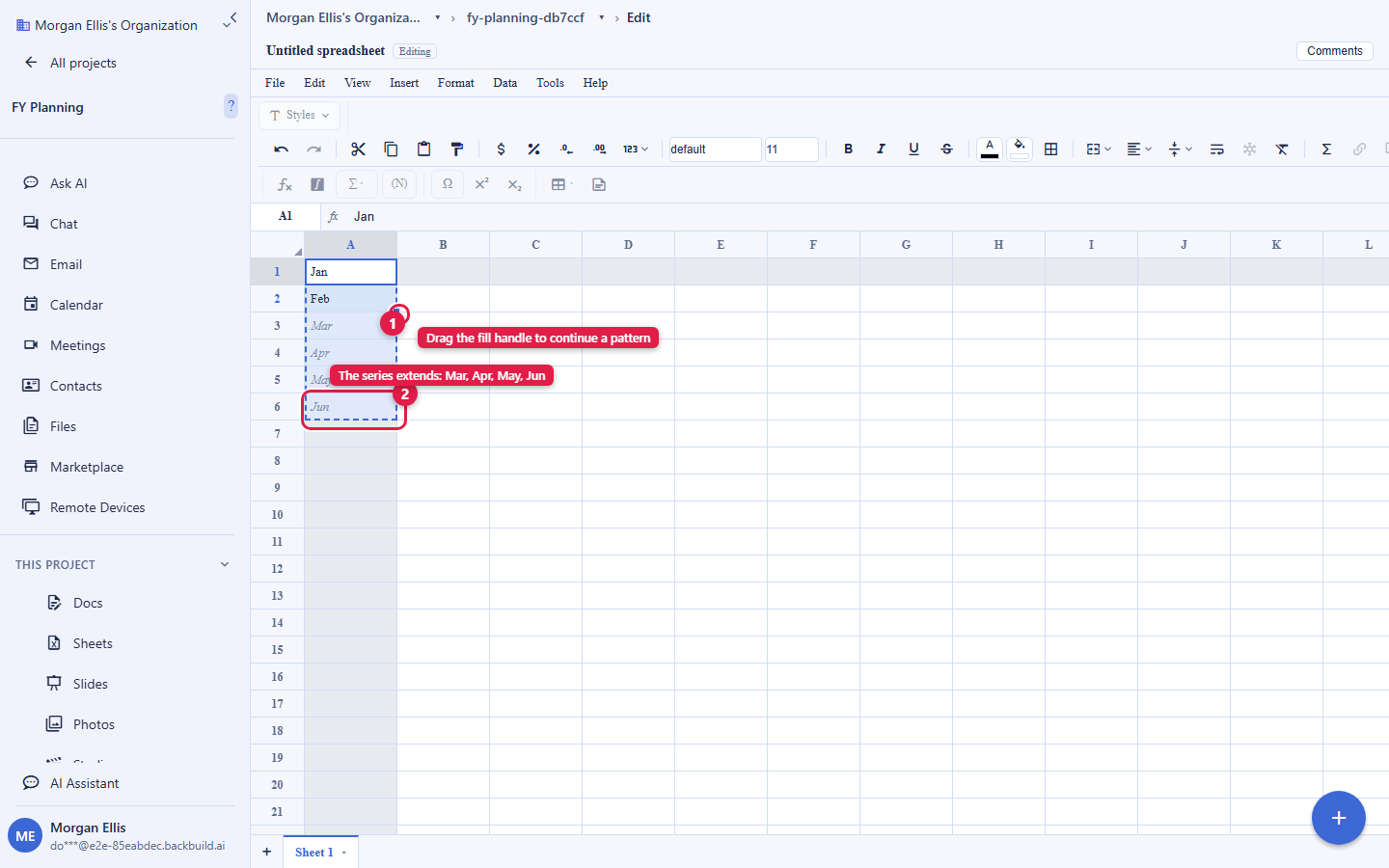
- The fill handle is the small square at the corner of a selection. Drag it and the sheet continues the pattern intelligently: a run of numbers extends arithmetically, a date series steps by day, weekday, or month, a text token increments, and a formula shifts its references. It works forward and backward.
- Select all selects the whole sheet for a bulk format or clear.
When I copy a formula, do the cell references move with it?
Yes, by design. Relative references (like A1) shift to match where
you paste, which is what lets you write one formula and fill a column with it.
Lock a reference by writing it with dollar signs ($A$1) when it
must always point at the same cell.
Rows, Columns, and Sheet Tabs
After this section you will restructure a sheet without retyping it. Rows, columns, and tabs are the skeleton of a spreadsheet, and you can reshape all three at any time.
- Insert rows above or below the selection, and insert columns to the left or right. Existing formulas adjust their references to the new layout automatically.
- Delete a row or column, and everything downstream reflows.
- Resize a row's height or a column's width by dragging its border.
- Sheet tabs run along the bottom. Add a tab for a new table, switch between tabs, rename a tab, drag to reorder tabs, and delete a tab you no longer need. Tabs keep related tables in one workbook instead of scattered files.
Can one formula on one tab read a cell on another tab?
Not yet. References are single-sheet today, so a reference such as
Sheet2!A1 is not evaluated. Keep the values a formula needs on the
same tab for now, or bring them together with import or a paste. Cross-tab
references are a planned addition, and this documentation is kept current as
they ship.
Freezing Panes and Merging Cells
After this section you will keep headers in view and lay out a title row cleanly. Freezing and merging are what make a large or a presentation-ready sheet readable.
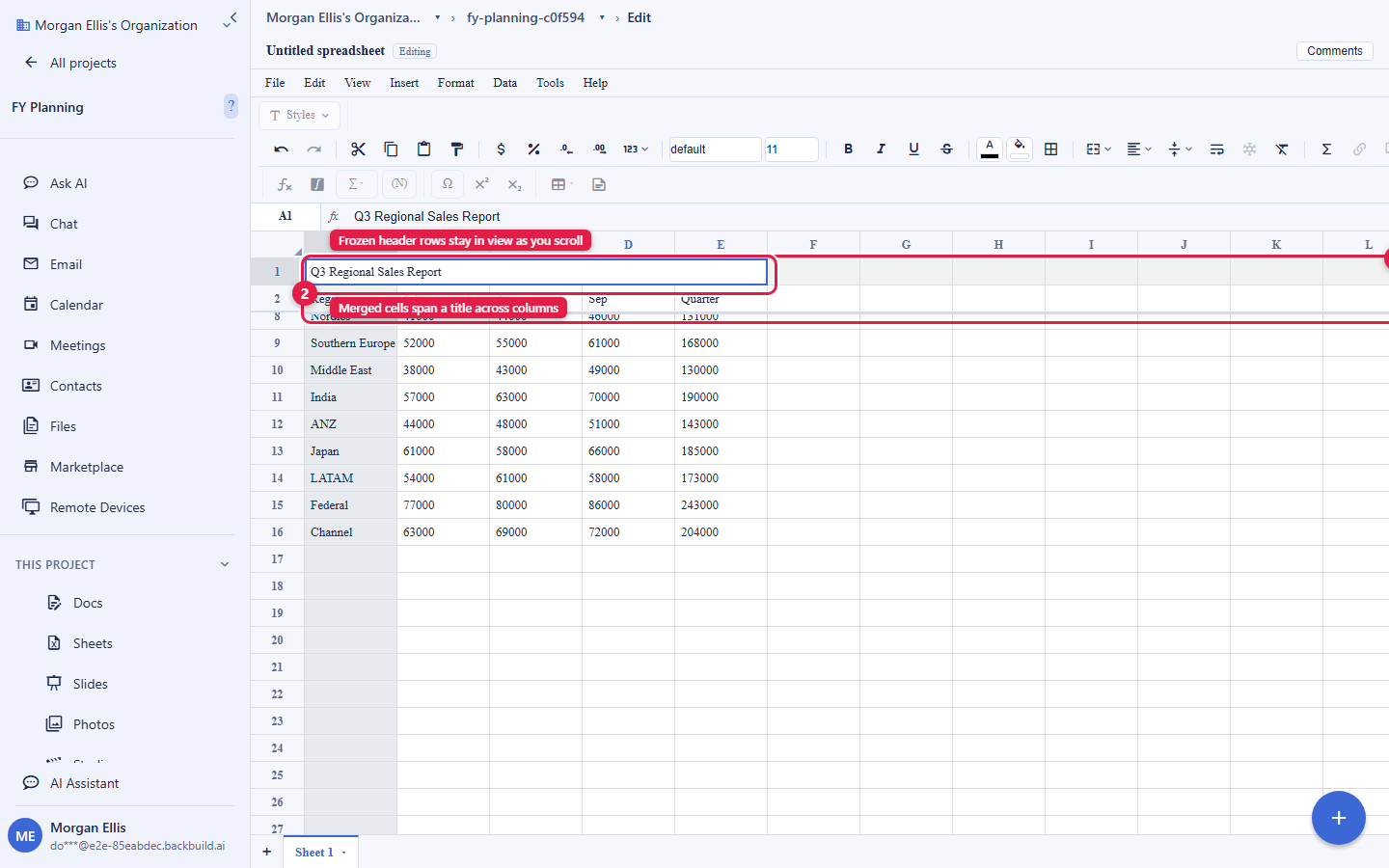
- Freeze panes pins the top rows and the leftmost columns so they stay in view while you scroll the rest of the grid. Freeze zero, one, or two rows and, independently, zero, one, or two columns, or drag the freeze line to set it directly. A frozen header row is the difference between a usable long table and a confusing one.
- Merge cells combines a selection of two or more cells into one, horizontally, vertically, or across a block, for a title that spans several columns. Unmerge splits a merged cell back into its parts. Note that a merged cell can block a dynamic-array formula from spilling into it; the formula guide covers that interaction.
Formatting: Marks, Numbers, Alignment, Borders, and Color
After this section you will make a table read the way a professional one does. Formatting is applied from the toolbar or the Format menu to the selected cell or range.
- Text marks: bold, italic, underline, and strikethrough.
- Number formats: currency and accounting, percentages, dates and times, and thousands grouping. The displayed value is formatted for reading while the underlying value is preserved exactly for calculation, so a rounded display never changes the math.
- Alignment: horizontal and vertical alignment from an alignment flyout, so headers, labels, and numbers line up cleanly.
- Borders: a borders picker for outlines, inner lines, and individual edges, to group and separate parts of a table.
- Fill color: a cell background color, chosen as a hex value or with full opacity control, to shade header rows and highlight totals.
- Clear formatting: strip all formatting from a selection back to plain, in one action, while leaving the values intact.
Styles are stored efficiently and sync to everyone viewing the sheet, so a format you apply is what your collaborators see, and it survives a reload.
Conditional Formatting
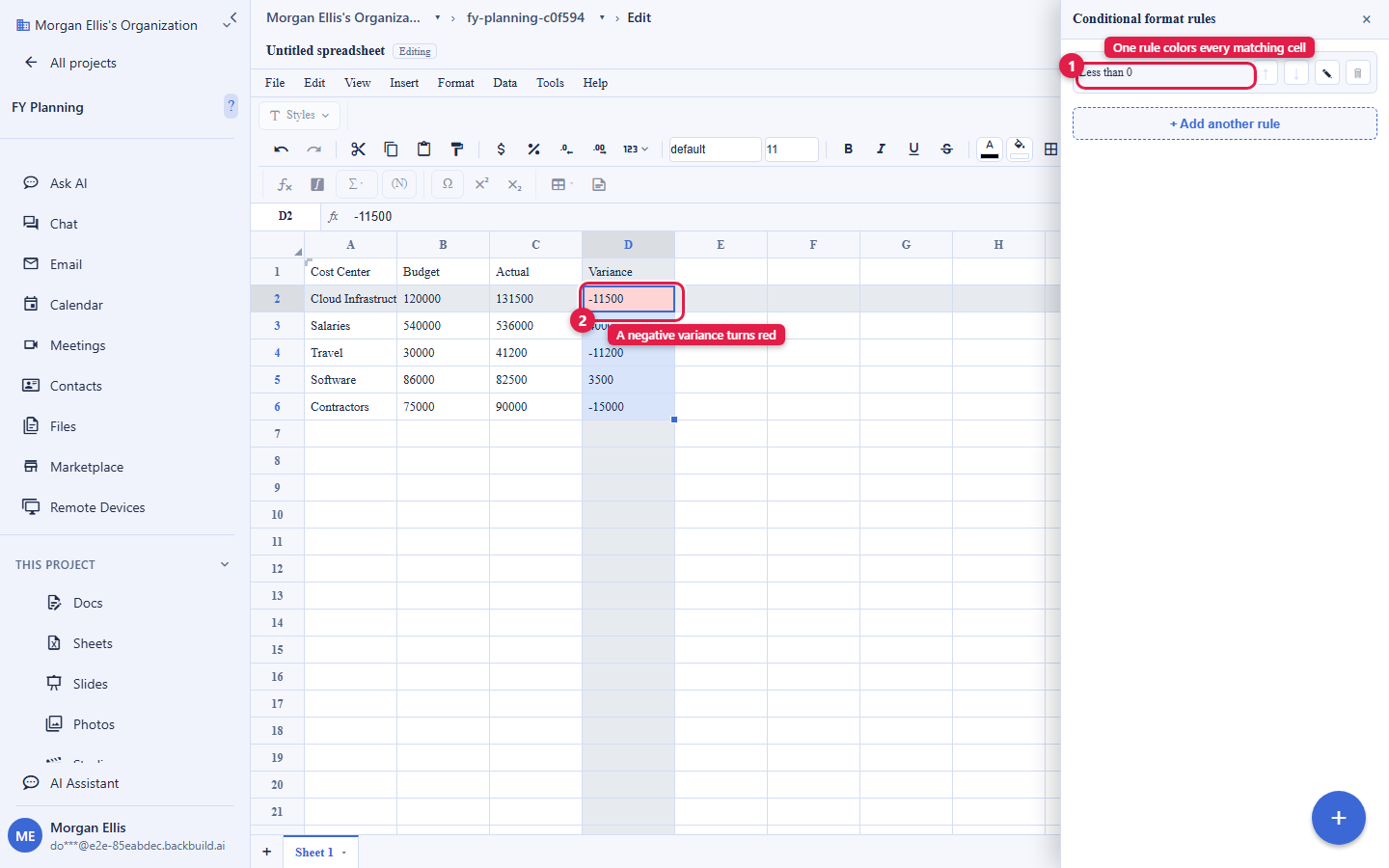
After this section you will make a sheet color itself as its values change. Conditional formatting applies a format automatically to any cell in a range that meets a rule, so a table highlights what matters without you re-coloring it by hand. Use it to flag negative numbers in red, shade a status column by its value, or draw attention to figures over a threshold. The formatting updates the moment a value changes, which is what turns a static table into a living one.
Find and Replace
After this section you will locate and fix values across a whole sheet at once. Find and replace searches the sheet for a value and, optionally, replaces it. Match case, match the whole cell, and use a pattern for structured searches, with pattern matching guarded so a complex expression cannot hang the sheet. It is the fast way to correct a mislabeled category or update a repeated value everywhere it appears.
How do I freeze the top row so my headers stay visible? Use the View menu, choose Freeze, and set one frozen row (and, if you like, one or more frozen columns). The header stays pinned while the rest of the grid scrolls under it.
Will a rounded currency display change my totals? No. A number format changes only how a value is shown. The full-precision value is what every formula uses, so displaying two decimal places never introduces a rounding error into the math.
Can several people format the same sheet at once? Yes. Formatting is just another kind of edit, and edits from every collaborator merge automatically. See Collaboration, Comments, and Sharing.
Where to Go Next
- Formulas, Functions, and the Calculation Engine: the catalog, dynamic arrays,
QUERY, and error handling. - Charts, Sorting, Filtering, and Data Validation: turn a table into a chart and keep its data clean.
- Collaboration, Comments, and Sharing: bring your team onto the same grid.