

Transitions, Animations, and Speaker Notes
This guide teaches the three things that turn a set of slides into a talk you deliver: transitions between slides, animations that reveal a slide one point at a time, and the private speaker notes you present from. After it you will be able to animate a slide change, build a slide that unfolds as you speak, and keep a script on every slide that only you see. It also answers the accessibility question a careful presenter asks: whether motion respects a viewer's reduced-motion setting.
Transitions Between Slides
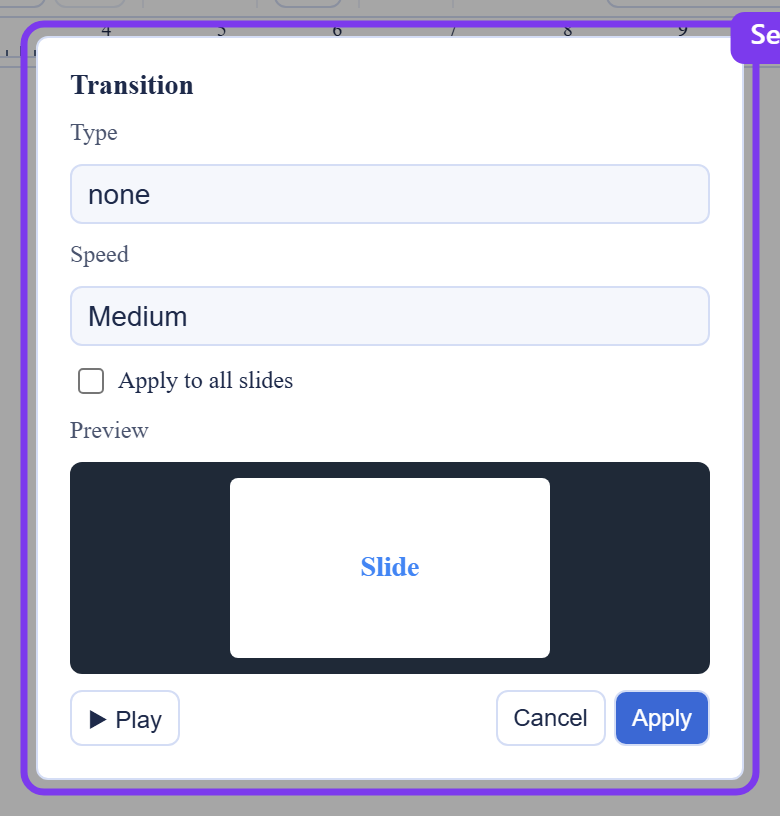
After this section you will animate the move from one slide to the next. A transition is the animation that plays when the show advances to a slide. Set a transition per slide, so a section divider can arrive differently from a content slide, and the presenter runtime plays it when you move to that slide. Used with restraint, a consistent transition gives a deck a polished rhythm; used heavily, it distracts, so choose deliberately.
Animations: Reveal a Slide One Build at a Time
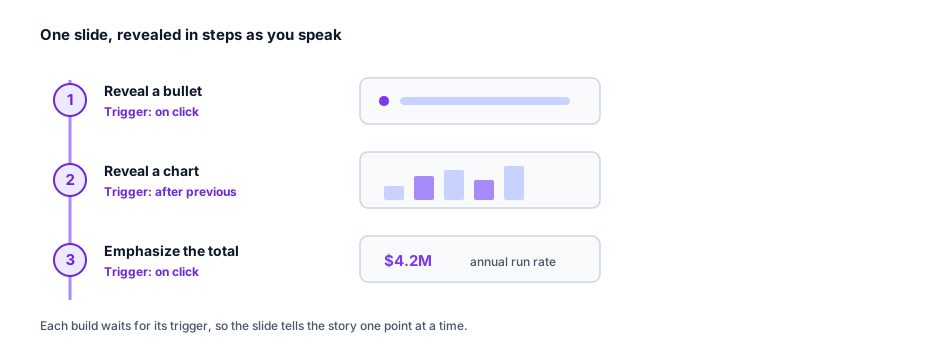
After this section you will build a slide that unfolds as you talk rather than showing everything at once. An animation is applied to an object on the slide and belongs to one of three kinds:
- Entrance: the object animates onto the slide.
- Exit: the object animates off the slide.
- Emphasis: the object animates in place to draw attention.
Each animation has a trigger that decides when it runs relative to the ones before it:
- On click: the animation waits for your next advance and starts a new build step, so you reveal it exactly when you are ready.
- With previous: the animation runs together with the step before it, for two things that should move as one.
- After previous: the animation runs automatically once the previous step finishes, for a hands-free sequence.
Because on-click animations advance in ordered steps, a single slide can carry a whole argument: reveal the first point, speak to it, advance to the second, and so on, without the audience reading ahead. The presenter runtime plays the animations in order as you advance, so the build you designed is the build the room sees.
Motion and Accessibility
After this section you will trust that your motion is considerate of every viewer. Transitions and animations honor a viewer's reduced-motion preference. When someone has asked their device to minimize motion, the runtime respects that setting rather than forcing full animation, so a deck you build with movement stays comfortable for people who are sensitive to it. You get the polish of animation without excluding anyone, which matters in a classroom, a training session, or any audience you do not control.
Speaker Notes
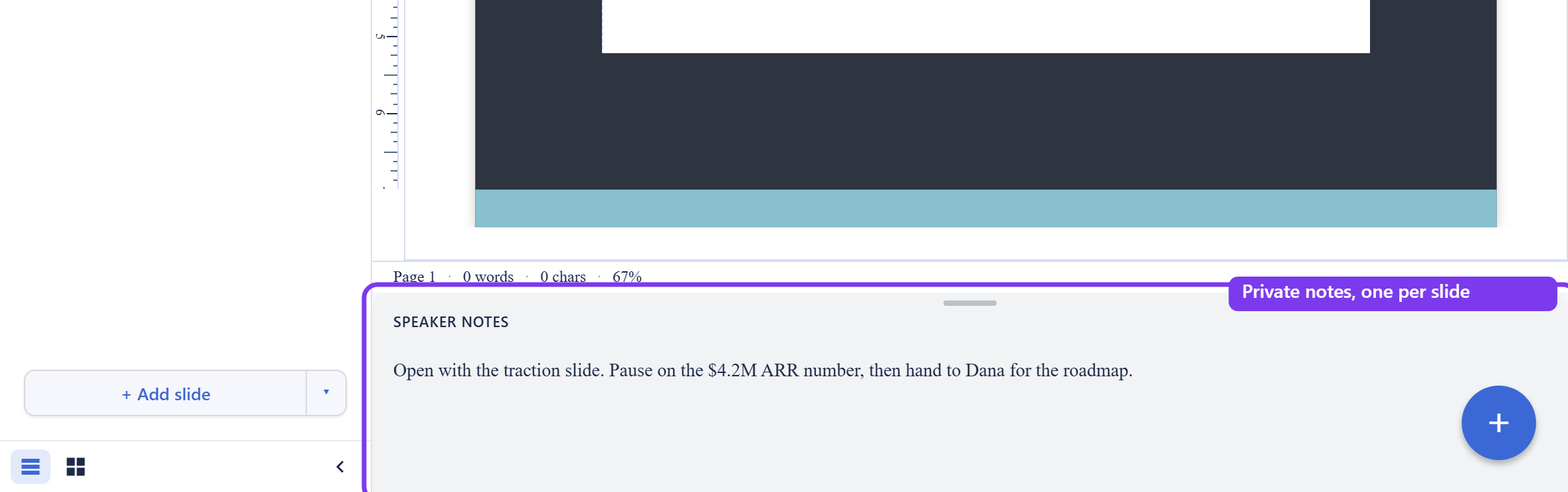
After this section you will script your delivery on every slide, privately. Below the slide canvas is a speaker notes pane, always available and resizable. Each slide has its own notes, and the pane follows the slide you are editing, so the note you write is attached to the slide it is about. Click into the pane, where a placeholder invites you to add notes, and write. The notes are a small rich editor, so you can format them, and they save and sync over the same live connection as the rest of the deck.
Speaker notes are private to the presenter. They appear in the presenter console while you show the deck and never appear to the audience. When you open a deck to preview or present, the notes are read-only, so a live show never risks an accidental edit. This is the script, the reminder, and the timing cue you present from, kept exactly where you need it and hidden from the room.
Can I reveal bullet points one at a time as I speak? Yes. Give each point an entrance animation triggered on click. Each click starts the next build step, so the slide unfolds one point at a time and the audience does not read ahead.
Do animations and transitions actually play when I present? Yes. The presenter runtime plays the transitions on slide change and the object animations in the order you set, so what you designed is what the room sees. See Presenting.
Will the motion bother viewers who are sensitive to it? No. Transitions and animations respect a reduced-motion preference, so a viewer who has asked to minimize motion gets a calmer playback automatically.
Can the audience see my speaker notes? No. Notes are private to the presenter. They show in your presenter console and never on the audience's screen, and they are read-only while you present so they cannot be changed by accident.
Where to Go Next
- Presenting: Present Mode and Presenter View: run the show and see your notes and the next slide on your screen.
- Adding Content: Shapes, Charts, Diagrams, and Media: place the objects you will animate.
- Importing and Exporting: understand how animations translate when you export a deck.