

Hosting: Create, Schedule, and Invite
Coming soon. Backbuild Meetings is a forthcoming part of the workspace. This guide teaches the hosting experience you will use when it arrives.
This guide teaches how a host runs the front of a meeting: creating an instant or a scheduled meeting, inviting the right people by email and by name, letting your calendar and mail carry the link so you never copy and paste and reshare, and the housekeeping of renaming, deleting, and ending a meeting. After this page you will set up a meeting in seconds and get everyone the link cleanly.
The Meetings Hub
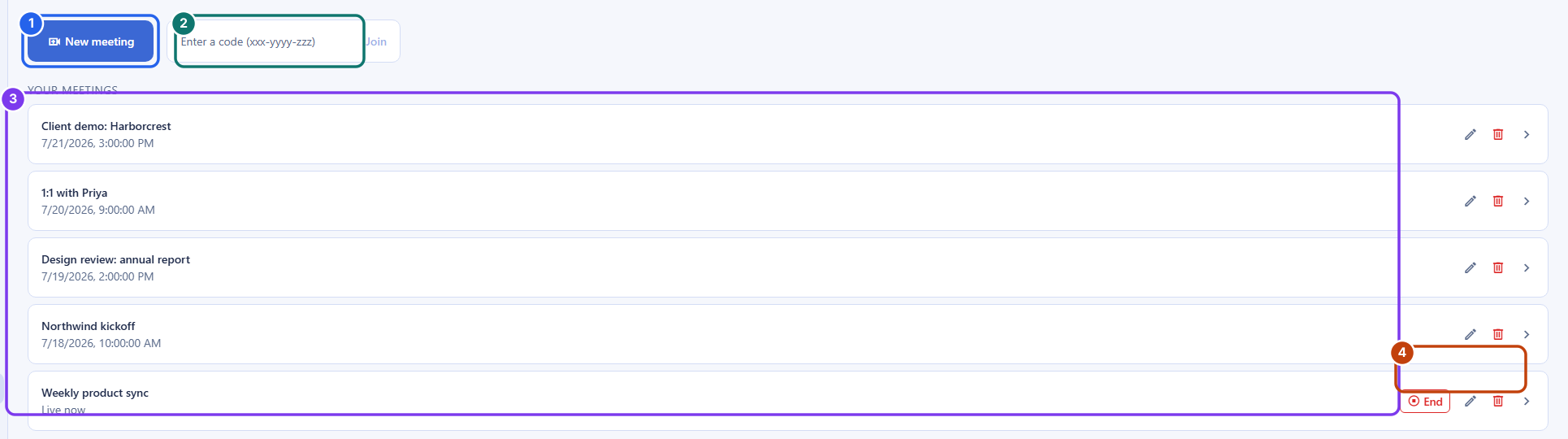
After this section you will find your way around the hub. Open Backbuild Meetings from the workspace sidebar, below Backbuild Calendar. The hub is where you create a meeting, join one with a code, and see your own meetings.
- The credits notice sits at the top of the hub: meetings run on universal usage credits, and the notice shows your organization's current balance and the current per-minute price. It is there on every plan; see the section on costs below.
- New meeting opens a short dialog where you name the meeting, optionally invite people, and optionally schedule it for later.
- Join with a code is a field that takes a meeting code someone gave you and opens that room.
- Your meetings is the list of meetings you host or take part in. Each row opens the room, and your own meetings offer inline controls to rename, delete, or end a live one.
What Hosting Costs
After this section you will know what a meeting draws and what to do when the balance is empty. Meetings run on universal usage credits on every plan, including Free, and there is no free meetings allowance: every live minute meters. Your organization, as the meeting's host, covers the whole meeting, guests included; the people you invite never pay anything.
- The rate is per participant-minute. Each person in the room draws credits for each minute they are connected, at the rate the hub's credits notice shows: currently 2,000 credits per participant-minute. Rates are current pricing and can change; the pricing page is the authoritative source. For scale, a one-hour meeting with four participants is 480,000 credits, about $3.20 at entry credit package rates.
- Out of credits means no new meetings, bought inline. When your organization's balance is zero, the New meeting and join controls are disabled with the reason stated plainly, and the hub offers the credit packages right on the screen. Completing a purchase re-enables everything in place, with no reload and no trip to another screen.
- A meeting in progress is never cut off. Credits gate entry, not the room. If the balance runs out mid-meeting, everyone connected stays connected until the meeting ends; only new entries are refused until credits are added.
- Your spend is visible. Meetings usage appears as its own category in the billable usage breakdown on the Billing & Usage screen, so the cost of your meetings is always attributable.
Start Now or Schedule for Later
After this section you will create a meeting either way. New meeting gives you two modes from the same dialog.
- Instant meeting. Give it a title and create it, and you go straight into the room. Any invitations you added are sent in the background, so a slow send never holds up your entry. Use this when you want to meet right now and pull people in.
- Schedule for later. Turn on Schedule for later and set a date and start time in your own time zone. The meeting is created with its time and appears in your list, ready to start when the time comes. Use this when you want invitees to have the details ahead.
How do I start an instant meeting versus schedule one? Both start from New meeting. Leave Schedule for later off to create and join immediately; turn it on and set a date and time to create a scheduled meeting that waits in your list until you start it.
Inviting People: by Email and by Name
After this section you will invite the right people without copying and pasting a link. The create dialog and the meeting both let you invite in two ways that work together.
- By email. Type or paste email addresses, separated by commas, spaces, or semicolons. Duplicates are removed and obviously invalid addresses are caught, so you can paste a rough list and let it clean itself up.
- By name. Start typing a teammate's name and pick them from the matches in your organization directory. Each pick becomes a chip, and Backbuild resolves it to the person's real address when the invitation is sent, so you never have to look up a colleague's email.
Each invited person receives an email invitation carrying the join link and the meeting code, so they click straight through. This is the answer to the usual clumsy invite dance of copying a link, pasting it into a message, and resharing.
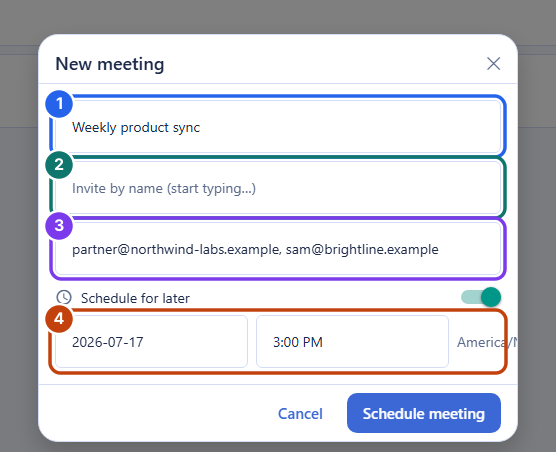
How do invitees actually receive the link? By email. Each person you invite gets an email invitation with the join link and the meeting code. You can invite by typing addresses directly or by picking teammates by name, and the two can be mixed in one meeting.
What if there is no mailbox to send from? Sending an invitation uses Backbuild Mail. If your organization has not set up a sending mailbox yet, invitations cannot go out, and you will be told rather than left guessing. Set up sending first; see Sending Domains and DNS.
Letting Your Calendar and Mail Carry the Meeting
After this section you will schedule a meeting where people already look. Because Backbuild Meetings lives in the same workspace as Backbuild Calendar and Backbuild Mail, a meeting can travel on a calendar event and its email invitation. When you attach a meeting to an event, the join link and meeting code ride on the invitation your guests receive, so the meeting is one click from the calendar entry they already accepted. The calendar side of this is taught in Views, Events, and RSVPs.
Renaming, Deleting, and Ending a Meeting
After this section you will keep your meetings list tidy and close a room cleanly. On a meeting you host, the list row and the room give you the housekeeping controls.
- Rename changes the meeting's title in place.
- Delete removes a meeting you no longer need, with a confirmation so you do not remove one by accident.
- End closes a live meeting for everyone. A live meeting is always ended before it is removed, so deleting one that is still running ends it for everyone first, then removes it.
- Leave takes you out of the room without ending it for everyone else; use End when you want to close the room for the whole group.
How do I end a live meeting for everyone versus just leaving? Leave takes only you out and lets the others continue. End closes the room for everyone. Deleting a meeting that is currently live ends it for everyone first, then removes it.
How Big Can a Meeting Be?
After this section you will set the right expectation. Backbuild Meetings is built for small working groups, the standups, one-on-ones, project syncs, client calls, and demos most teams run. It is not a webinar or broadcast platform, and there are no breakout rooms or phone dial-in at launch. If your requirement is an audience of hundreds, weigh that against this scope. For a small group that wants reliable video in the same place as their calendar, mail, and documents, it is built for exactly that.
Frequently Asked Questions
Can I rename or delete a meeting after I create it? Yes. Use the Rename and Delete controls on the meeting in your list. Deleting a live meeting ends it for everyone first, then removes it.
Can I invite people who are not in my organization? Yes. Add any email address in the invite field, and that person receives an invitation and joins by link as a guest, with no account. How guests are held at the door and contained is covered in The Waiting Room and Moderation and Administration and Security.
Does inviting a big list cost anything? Invitations are email, so a very large invite list counts toward your outbound email allowance the way any message does. See the outbound allowances guide, and the pricing page for current rates.
Do my invitees or guests pay anything to attend? No. Your organization, as the host, covers the whole meeting on its usage credits, guests included. Attendees are never asked for billing details, and a guest never sees your organization's billing state; if the meeting cannot admit anyone for credit reasons, a guest simply sees that the meeting is unavailable.