

Composing and Sending
The composer carries the conveniences that make daily email bearable: undo send, scheduled send, snooze, attachments, and continuous draft autosave. This guide teaches you to write and send a message, use those conveniences, and work within the send limits. After this page you will be able to send with confidence and know exactly what each limit is and why it is there.
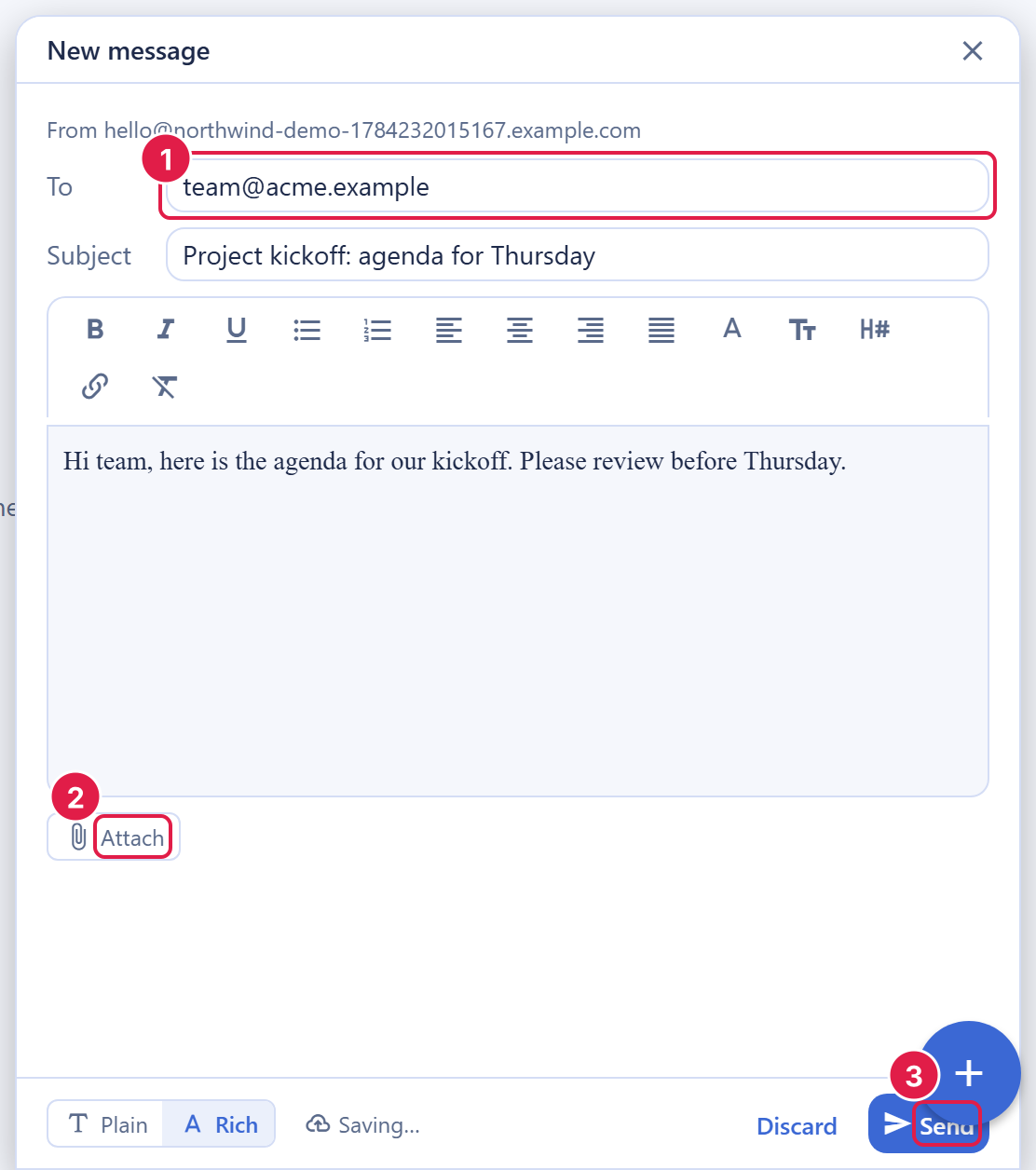
Write and Send a Message
After this section you will be able to compose and send. Click Compose to open the composer. Write in the rich editor for formatted mail, or switch to text-only. Add recipients across To, Cc, and Bcc, give the message a subject, and send.
- Rich or plain: the composer is a full rich-text editor; formatted mail is sent so it renders correctly for recipients whose clients show HTML, with a plain-text alternative for those that do not.
- Recipients: add addresses across To, Cc, and Bcc. A single message can carry up to 50 recipients total, counted across all three fields together.
- Subject: a subject line can be up to 998 characters.
- Reply and forward: replying or forwarding rebuilds the thread so the conversation stays intact.
Attachments
After this section you will know what you can attach. Add files to a message and they are uploaded first, then sent with the message.
- Up to 32 attachments per message.
- Up to 25 MiB per part. Attachments are de-duplicated within a mailbox, so attaching the same file again does not cost extra storage.
- Total size: the combined attachment size is limited to keep mail deliverable; the allowance is higher when every recipient is on a verified domain.
- Safe downloads: when you download an attachment, known file types are served with the right content type, and anything unrecognized is served as a plain download rather than opened in place, so a file cannot masquerade as something it is not.
Undo Send
After this section you will never fear the sent-too-soon moment. When you send, Backbuild Mail holds the message for a short window before it actually goes out. Cancel within the window and the message is discarded before it ever reaches the sending path: it is a true cancellation, not a recall of mail that already left.
- Choose the window: 0, 5, 10, 20, or 30 seconds. The default is 10 seconds.
- Set 0 to send immediately with no hold.
Does undo send actually cancel before the email leaves? Yes. Within the window you choose, the message has not been dispatched, so cancelling discards it entirely. This is different from trying to recall a message after it has already been delivered, which no email system can guarantee. Undo send works because the message is still held.
Scheduled Send and Snooze
After this section you will be able to send later and defer threads to the right moment.
- Scheduled send: pick a future time and the message waits in your Scheduled view. You can edit or cancel it any time before it fires.
- Snooze: hide a thread until a time you choose, when it returns to the top of your inbox. Snoozed threads live in the Snoozed view until they resurface.
How do snooze and scheduled send behave, and where do items live? A scheduled message waits in the Scheduled view and is editable or cancelable until it sends. A snoozed thread waits in the Snoozed view and reappears in your inbox at the time you set.
Drafts
After this section you will trust that your writing is safe. Drafts autosave continuously as you write, so a closed tab or a dropped connection does not lose your work. Reopen a draft from the Drafts folder and the composer picks up exactly where you left off. Every message you send is also kept as a copy in your Sent folder.
The Send Limits, and Why They Exist
After this section you will understand every limit on a send. The limits keep Backbuild Mail a real mailbox with a clean sending reputation rather than a bulk-mail blaster.
- 50 recipients per message, counted across To, Cc, and Bcc together. A message over the limit is refused before it sends.
- 32 attachments, 25 MiB per part.
- 998-character subject.
- Suppression pre-flight: recipients who previously bounced or complained are removed before a send and shown to you in the composer, so you do not keep mailing an address that will not accept it and hurt your reputation.
- Monthly send allowance: every plan includes 500 sends per month at your own domain; beyond that, sends draw universal usage credits, counted per recipient. See Outbound Routing and Allowances and the pricing page.
What are the send limits (recipients, attachments, size, subject)? Up to 50 recipients across To, Cc, and Bcc combined; up to 32 attachments at 25 MiB per part; subjects up to 998 characters. Known-bad recipients (past bounces or complaints) are dropped before send and surfaced to you.
Your Sending Identity Is Protected
After this section you will understand why you cannot accidentally, or maliciously, send as someone else. The From address and the technical headers that identify a message are set by the server based on the mailbox you are sending from. You cannot send as an address you do not own. A reply-to address is allowed only when it is your mailbox address or a verified alias on your organization's domain. This is what keeps the domain's reputation clean and stops spoofing. How outbound mail is routed, and how send categories are decided, is covered in Outbound Routing and Allowances.
Related Guides
- Labels, Filters, and Search: signatures, mark-as-read behavior, and keyboard shortcuts.
- Outbound Routing and Allowances: how mail is sent, and allowances and credits.
- Mailboxes, Inbox, and Reading: the Scheduled and Snoozed views in context.