

The Backbuild Browser Extension
The Backbuild browser extension connects your everyday browser to your Backbuild account. It signs you in automatically from the web app, unlocks a zero-knowledge vault for passwords and secrets, fills credentials safely on the sites you authorize, lets a Backbuild AI assistant drive the page under your explicit control, and can act as a second factor for two-step verification. It installs once and carries one fixed, verifiable identity, so you always know exactly what is holding your sessions.
After reading this page you will be able to: install the extension when it reaches your browser's store; understand why the vendor can never read your vault; fill and save credentials without being phished by a look-alike site; arm and kill an AI browser session with confidence; register a device as a trusted second factor; and, as an administrator, roll the extension to a team while keeping every account and environment isolated.
Availability
The Backbuild extension is a single cross-browser build. It is coming to the Chrome Web Store (for Chrome, Edge, Brave, Opera, and other Chromium browsers), to Firefox Add-ons, and to the App Store as a Safari web extension. There is one published identity, named Backbuild, for every browser and every environment.
Backbuild is in Early Adopter Alpha, and the public browser-store listings are coming soon (they are marked Coming Soon on the download page). The vault itself is available today inside the Backbuild web app and the Windows and macOS desktop apps, and the extension already powers the browser inside Backbuild's on-demand containers. This page teaches the full extension so you are ready the day it lands in your browser. If you need early access, ask through the contact page.
One install, one identity
You install the extension once, from your browser's store, and it serves your whole Backbuild account. It does not change its name, icon, or identity between visits or between environments, which is exactly what lets you confirm at a glance that the extension holding your sessions is the genuine Backbuild build and not a look-alike. The environment you are working in is runtime state shown on a badge, not a separate install you have to manage.
The parts of the interface that prove the extension's identity (its toolbar icon and badge, the AI-active indicator, the environment badge, and the framing around any request to confirm a credential) are fixed, first-party Backbuild chrome. No tenant theme can restyle, recolor, hide, or draw over them. Tenant branding (a logo, an app name, colors, and themes) skins only the content surfaces, drawn from the same configuration the web app uses, with a built-in offline fallback so unlock, autofill, and the active indicator still render even with no network.
You will meet three surfaces as you use the extension:
- The toolbar popup, opened from the extension's icon: unlock the vault, browse and search entries, generate a password, lock now, set the auto-lock timer, and see which account and environment are active and whether any AI session is armed.
- The full options page: settings, import and export, device enrollment, AI-session management, agent-gateway management, and theme selection.
- The in-page overlay: the autofill prompt, the save-or-update prompt, and the AI-active indicator, all rendered inside an isolated host that the page's own styles and scripts cannot read, restyle, cover, or click for you.
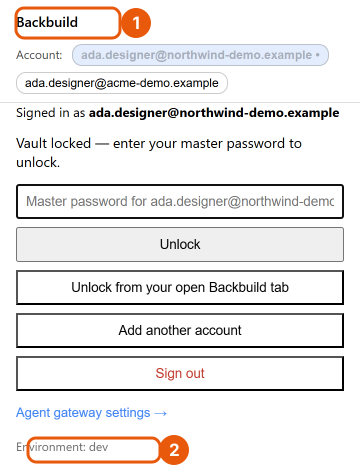
Automatic sign-in, and signing in from the extension
When you are signed in to the Backbuild web app, the extension detects that session from the app's own web address and adopts it, so you do not sign in a second time. The first time it adopts a given account on a given environment, it shows a one-click confirmation naming the account, the organization, and the environment. After that, re-adoption is silent until you sign out or revoke the session.
The environment is derived strictly from the web address you are signed in on, never from the content of any message, so a page can never talk the extension into adopting a session it did not actually observe. By default only production sign-ins (on app.backbuild.ai) are recognized.
When there is no usable web session, you can sign in from the extension itself: email and password, a multi-factor challenge (a security key or passkey, an authenticator app code, an emailed one-time code, or a recovery code), or single sign-on through the app origin. You can optionally trust the device to skip the sign-in multi-factor step for thirty days. An extension sign-in is tagged as an extension session and is listed and revocable on its own in your account security settings, right alongside your other sessions.
You can be signed in to several accounts and organizations at once. Each is kept fully separate, with its own credentials and its own vault-unlock state, so nothing leaks from one account into another and unlocking one never unlocks the rest. The effective account follows whichever Backbuild app tab you are focused on, or a manual pin that always wins, so the extension simply behaves as whoever you are currently working as.
Does it work in my browser?
The extension is one cross-browser build coming to Chrome, Edge, Brave,
Opera, and other Chromium browsers through the Chrome Web Store, to Firefox
through Firefox Add-ons, and to Safari through the App Store. Your vault
follows you across every browser you install it in. Until the store
listings are public, they are marked Coming Soon on the
download page.
How are several accounts and environments kept from mixing?
Every account is isolated per environment: its session, its vault-unlock
state, and its data never surface under another account. The effective
account follows your focused app tab, and you can pin one so it always
wins. A credential you saved in one account never appears in another.
The vault and safe autofill
The extension carries a full password and secrets manager backed by the zero-knowledge Backbuild Secrets vault. You can unlock it, browse and search, autofill logins, save new logins as you submit them, generate strong passwords, passphrases, and PINs, store and present time-based one-time-passcode (TOTP) codes, import from other managers, and run compromised-password checks. Every plaintext operation happens on your device; the server only ever holds ciphertext.
Why we can never read your passwords
The vault is zero-knowledge. Your vault contents are encrypted on your device under a key derived from your master password, and that master password never leaves the device. Backbuild stores only ciphertext and cannot decrypt it, reset it, or hand it to anyone. A wrong master password fails locally on your device, so the server is never a place an attacker can test password guesses against. That is also why, if you forget your master password, no one can recover it for you: there is no back door. The full cryptography, including the post-quantum key exchange, is covered on the Password and Secrets Vault page.
Unlocking, auto-lock, and locking now
You open the vault with your master password. For fast re-unlock, a silent cache keeps the vault openable for a short, sliding idle window of ten minutes. Auto-lock is configurable from one to ten minutes, and the vault also locks immediately when your browser or operating system locks, or when you choose Lock now. If your device supports it, you can turn on a hardware-backed unlock so you can reopen the vault without retyping your master password each time. When you copy a secret to the clipboard, Backbuild clears it automatically a short time later (about forty-five seconds) while the app is in focus; note that some browsers and operating systems limit how reliably a program can read or clear the clipboard, so treat copied secrets as short-lived either way.
Autofill that refuses to be phished
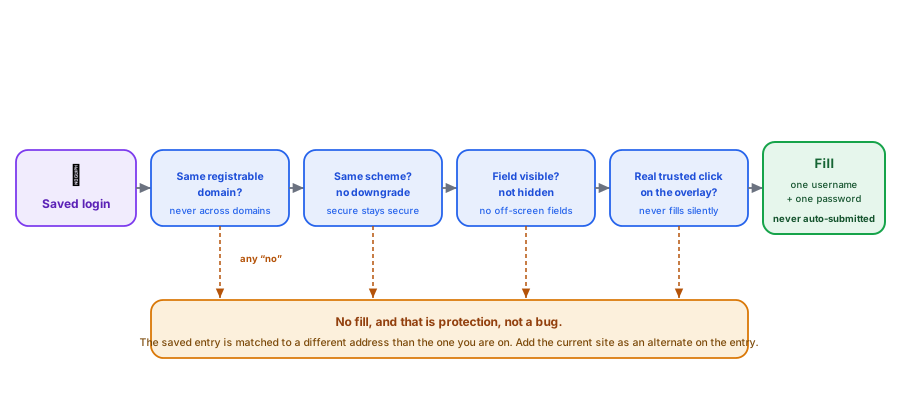
Autofill is deliberately strict, because a password manager that fills too eagerly becomes a phishing tool. The extension matches a saved login to a site only by its registrable domain, and it will not fill it on a different registrable domain, so a look-alike page at another domain gets nothing. It honors the public-suffix boundary, and it refuses to fill down a scheme downgrade, so a login you saved over a secure connection is never offered on an insecure one. It fills at most one username and one password per confirmation, refuses hidden or off-screen fields, never submits the form for you, and never fills silently: it always waits for a real, trusted click on its own overlay.
This means a non-fill is sometimes protection, not a bug. If a login does not appear where you expect it, the usual fix is that the saved entry is matched to a different address than the one you are on. Open the entry, add the current site as an alternate address for it, and invoke fill from the extension. Never work around a refusal by retyping a password onto a page you are unsure of.
Saving, importing, TOTP, and breach checks
When you submit a login the extension does not recognize, it offers to Save it. When you submit a changed password for a login it already has on the same site and username, it offers to Update. When nothing changed, it stays quiet. It respects the standard markers a site uses to say a field should not be saved, so it never offers to store your Backbuild master password.
You can bring your existing logins with you. The extension imports from 1Password, Bitwarden, LastPass, Dashlane, KeePass, and a browser CSV export. Logins, secure notes, and TOTP seeds carry over, so you do not have to re-enroll your two-step codes by hand. After importing, check the item count against your old manager, then securely delete the export file, since a plaintext export is itself a sensitive document.
For accounts protected by an authenticator app, the vault can store the TOTP seed and present the current six-digit code next to the login, so autofill can offer the code right where you need it. Compromised-password checks tell you which of your logins appear in known breaches (checked without ever sending your actual password), which are weak, old, reused, or missing two-factor protection, so you know what to rotate first.
If your browser's own built-in password manager keeps prompting to save or fill alongside the extension, turn the browser's offer to save and fill passwords off in the browser settings, so there is a single source of truth and the two do not fight over the same field.
Can Backbuild see my passwords?
No. The vault is zero-knowledge: your entries are encrypted on your device
under a key derived from a master password that never leaves it, and the
server holds only ciphertext it cannot open.
What if I forget my master password?
Because it is zero-knowledge, no one can recover it for you and there is no
back door. Set up any account-recovery options your workspace offers before
you need them.
Why will autofill not work on this site?
Autofill fills only on the same registrable domain, never across domains,
never down a scheme downgrade, and never into hidden fields, so a refusal is
often protection. Add the current site as an alternate address on the saved
entry and invoke fill from the extension.
Does copying a secret leak it to other apps?
Copied secrets are cleared from the clipboard automatically a short time
after you copy them (about forty-five seconds) while the app is in focus.
Some browsers and operating systems limit programmatic reading and
clearing, so treat copied values as short-lived.
Does it carry my two-step codes?
Yes. Store the TOTP seed on the login and the current code appears next to
it, ready for autofill.
Supervised AI browser control
You can let a Backbuild AI assistant act in your browser, but nothing is drivable until you turn it on for a specific site. You arm a session by choosing Allow AI control for the origin you want the assistant to work in. Arming binds the session to that origin (an allowlist the assistant cannot widen), mints a separate AI-control key for that session only, and starts a session with a hard lifetime cap, an idle expiry, and a maximum number of actions. Nothing outside what you armed is reachable.
Once armed, the assistant can list the sessions and tabs you armed, navigate within the allowlist, take screenshots (with sensitive regions hidden by default), read the page's structure and visible text, and produce real mouse moves, clicks, typing, key presses, and scrolling. Every action it takes carries an honest label describing how genuine the input was. The assistant can never widen the allowlist by navigating somewhere new, can never assert an identity of its own, and can never reach the vault, the unlock screen, a password or one-time-code field, or any control that reveals a secret. Screen capture fails closed while a credential field is engaged, so a password in progress cannot be photographed.
An always-on indicator that the page cannot fake or cover (the toolbar badge plus the in-page overlay) shows whenever the assistant can act and which account and session it is driving. A single kill switch tears the session down immediately. You can arm several accounts into one session group at once; the assistant chooses which armed session to act as by an opaque handle, never by naming a person or organization, and each session keeps its own allowlist, its own action budget, and its own kill switch. A session group never spans environments.
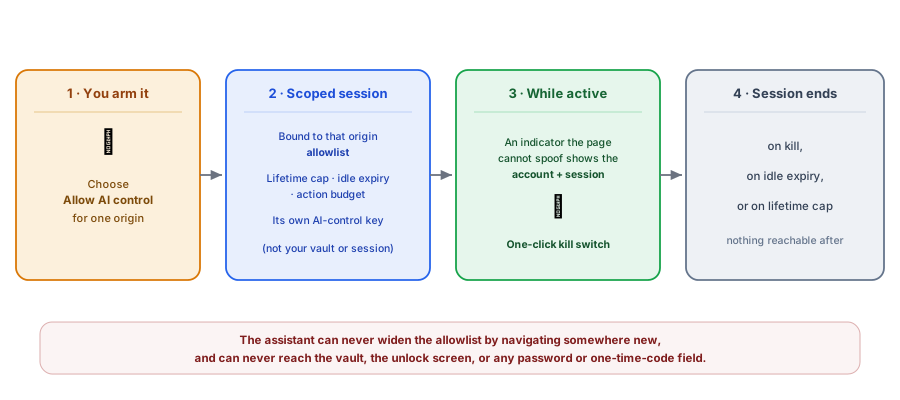
It can watch the AI act, but can I stop it?
Yes. An always-on indicator that the page cannot spoof or hide shows
whenever the assistant can act, and a one-click kill switch ends the session
immediately. The session also ends on its own at an idle expiry, a lifetime
cap, or an action budget.
Can the AI reach my passwords or widen what I allowed?
No. The assistant is bound to the origin you armed and cannot navigate its
way to a broader allowlist, and it can never reach the vault, the unlock
screen, or a password or one-time-code field. Capture fails closed while a
credential field is engaged.
A device factor for two-step verification
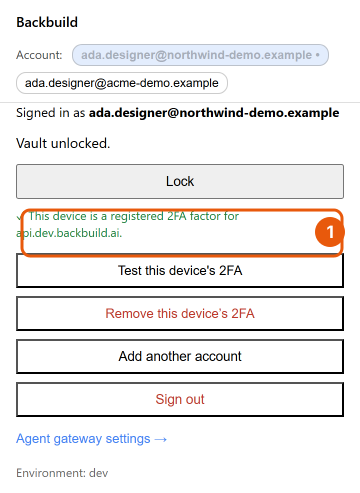
The extension can act as a strong second factor that lives with your browser. There are two related uses. First, you can register a device so that re-unlocking your vault on that browser and machine does not demand a fresh second factor every time: the registered device satisfies the step-up. Second, the extension can answer server-issued two-step challenges when you sign in, with a signature bound to your device.
Registration is opt-in, requires a fresh step-up when you turn it on, and creates a real, revocable two-step method that you can see and remove in your security settings. A subtle confirmation shows that the device is verified. The extension stores the device key in the strongest place your device offers: a platform authenticator backed by your device's secure hardware (a TPM or a Secure Enclave) where available, the Backbuild desktop app's hardware-backed key where it is installed, or, only as a last resort, a non-extractable software key that we label honestly as software-isolated rather than hardware-backed. Every response, whether it is silent or prompts you, is recorded on the server, and every factor is bound to a single environment, so a factor you enrolled on one environment is never presented on another, and challenges are single-use and cannot be replayed.
Rolling the extension out to a team
For an administrator, the extension is designed to be low-friction to deploy and easy to keep clean. It is one cross-browser install with one published identity, so you are pinning a single, recognizable extension rather than a different build per environment. Because sign-in piggybacks the user's existing web session (silent after the first confirmation), users do not fight a second login, which keeps the support tail short. Single sign-on works through the app origin, so access is granted the way the rest of your workspace grants it.
Offboarding is clean because every extension session is listed and revocable on its own in security settings, and revocation takes effect immediately. Each account, on each environment, is a separate session, so you revoke exactly what you mean to without disturbing the others. Auto-lock defaults to a short idle timeout and locks on browser or operating-system lock, and the vault can be set to lock the moment the browser closes.
The AI-control capability does not create standing access you have to worry about. It is off until a user arms it for a specific site, it uses a separate, scoped AI-control key rather than the user's vault or account session, it is killable at any time, and it can never reach the vault, administrative areas, or secrets. Treat it as a managed, revocable capability, not an open door. And because the extension's own interface is isolated from page scripts, a hostile web page cannot read, restyle, cover, or drive the extension's chrome or its overlays.
How do I revoke a user's or a device's access?
Extension sessions are listed individually in security settings and each is
revocable on its own, effective immediately. Because each account and
environment is a separate session, you revoke precisely the one you intend.
Can a malicious web page tamper with the extension's interface?
No. The toolbar chrome and the in-page overlays are isolated from page
script and styles, so a page cannot read them, restyle them, cover them, or
click them on your behalf, and the identity chrome cannot be reskinned by
any tenant theme.
Does adding AI control create an unmanaged risk?
No. AI control is off until a user arms it for one site, runs on a separate
scoped key rather than the vault or account session, is killable instantly,
and can never reach the vault, admin areas, or secrets.
Security posture at a glance
This section is for the reviewer who has to sign off. The extension is built so that the two things it does, holding secrets and driving the browser, can never become one weakness:
- Two isolated credentials. A user session serves the vault, sign-in, and account surfaces. Only while AI control is armed does a separate AI-control key exist, and it works only on the AI-control channel and is rejected everywhere else. Compromise of one never yields the other.
- Containment the AI cannot widen. An armed session is bound to a per-site allowlist that navigation cannot extend, with a lifetime cap, an idle expiry, and an action budget, plus a one-click kill switch and an always-on indicator the page cannot spoof or occlude.
- Secrets stay out of reach. The assistant can never open the vault, the unlock screen, or a password or one-time-code field, and screen capture fails closed while a credential field is engaged.
- Anti-phishing autofill. Fill only on the same registrable domain, never across domains, never down a scheme downgrade, never into hidden or off-screen fields, never auto-submitted, and only on a trusted click.
- Isolation and identity. The extension's chrome and overlays are isolated from page scripts, the identity chrome cannot be reskinned by a tenant, and every account and environment is kept separate.
- Everything traces to a person. Device-factor responses and security-relevant actions are recorded on the server and attributable to the account that took them.
Connect a local AI agent
The extension can also let an AI agent you run on your own machine (a command-line coding assistant, a desktop assistant, or an IDE helper) work across Backbuild as you, inside a default-deny permission gate you control. See Connect a Local AI Agent for how pairing works, which identity the agent acts as, exactly what it can and cannot reach, and how to revoke any agent instantly.