

Sync with Google Calendar and Apple or CalDAV
This guide is for anyone who already lives in another calendar and worries about losing events by switching. You do not have to switch. Connect your existing calendar once, choose how it syncs, and Backbuild Calendar keeps it in step so your events flow between the two. After this page you will have your real calendar inside Backbuild, in the direction you want, without stranding anything.
What Sync Does
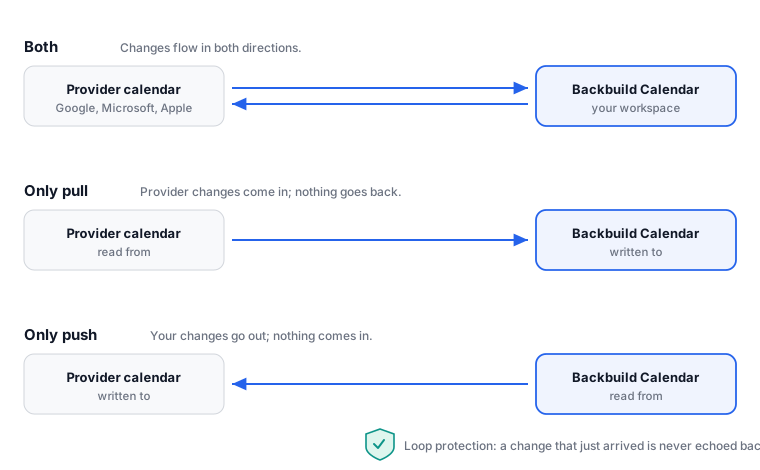
After this section you will understand the model before you connect anything. A connection links one account (a Google account, or an Apple or CalDAV account) to Backbuild Calendar. Within that account you link individual calendars, and each linked calendar carries its own sync direction. Events created or changed on either side flow to the other according to that direction, with loop protection so a change is not echoed back and forth. This is how you consolidate: keep receiving invites where your colleagues send them, and see and manage everything from Backbuild.
Connect Google Calendar
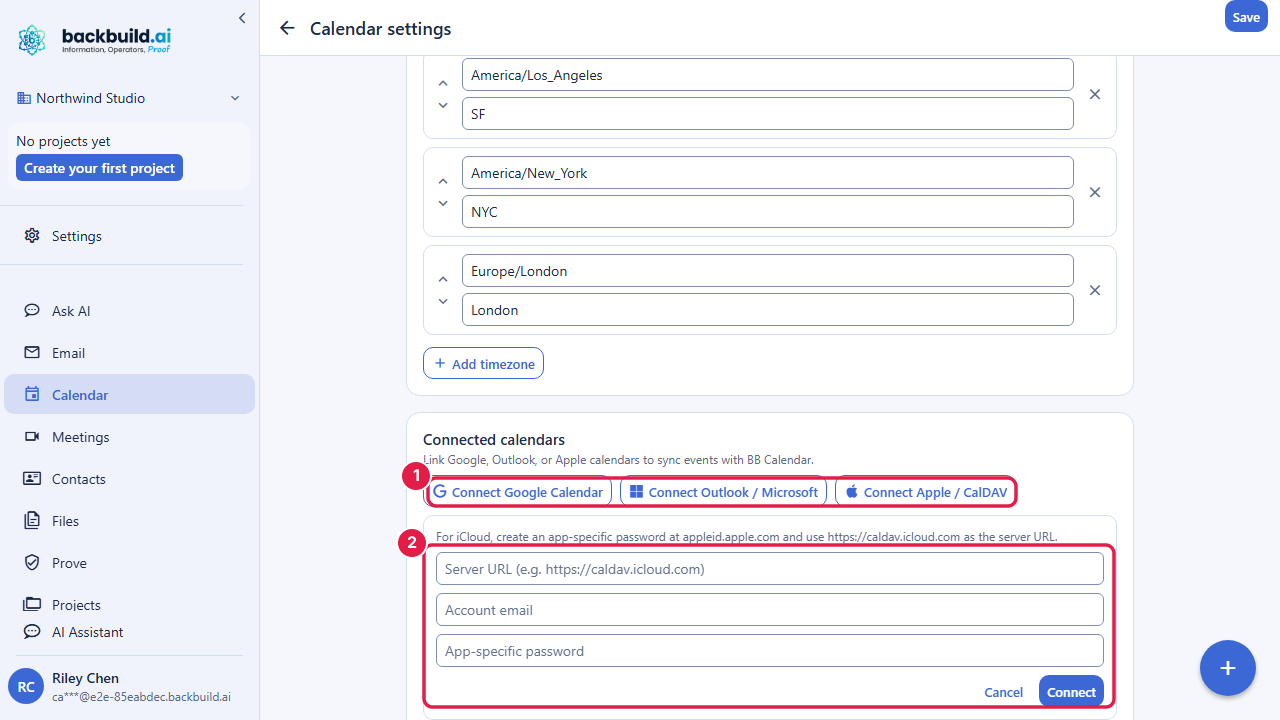
After this section you will have a provider account connected. In Calendar settings, choose to connect Google Calendar. A standard consent screen opens in a new tab where you approve the connection with the provider. When you return, a banner confirms the account is connected, and the connection shows the account's email and a status of Connected or Needs reauthorization.
Microsoft 365 sync is built on the same engine and its connector is rolling out. The button appears in settings, and until the rollout completes it reports that Microsoft calendar sync is not configured. To reach a Microsoft calendar today, connect it over CalDAV if your server supports it, or use Google Calendar as the intermediate account.
Connect Apple Calendar or a CalDAV Server
After this section you will connect an Apple or self-hosted calendar. Apple Calendar and other standards-based servers connect over CalDAV with an inline form: the server address, your account email, and an app-specific password. The password is write-only: it is sent once over an encrypted connection to establish the link and is never displayed back to you or kept anywhere you can read it.
- For iCloud, create an app-specific password in your Apple account settings and use the iCloud CalDAV server address shown in the form's inline guidance.
- For another CalDAV server, use the address and credentials your provider gives you.
Choose What Syncs, and Which Way
After this section you will control the sync precisely. Once an account is connected, add a calendar to sync: pick one of the provider's calendars, map it to one of your Backbuild calendars, and choose the direction:
- Both: two-way sync. Changes on either side flow to the other. This is the usual choice when you want the two calendars to be the same.
- Only pull: the provider's events come into Backbuild, but your Backbuild changes do not go back out. Use this to view another calendar read-only inside Backbuild.
- Only push: your Backbuild events go out to the provider, but the provider's events do not come in. Use this to publish your Backbuild schedule to an existing calendar.
Each linked calendar shows its last-sync time and any error, so you can see it is current at a glance. You can unlink a single calendar to stop syncing just that one, or disconnect the whole account to remove all of its links at once.
Will this sync with my phone and my existing Google or Apple calendar, two-way? Yes. Connect a Google or an Apple or CalDAV account, link the calendars you want, and set each one to Both for two-way sync. Because your phone is already on your Google or Apple calendar, syncing Backbuild to that account brings your phone along without a separate mobile app. Microsoft 365 sync is built on the same engine and its connector is rolling out; until it is available, reach a Microsoft calendar over CalDAV if your server supports it, or through a Google account.
Can I import my existing calendar without losing anything? Yes, and nothing is deleted from the source. Sync copies your events into Backbuild rather than moving them; your original calendar stays exactly as it is. Start with Only pull if you want to bring events in and watch before you commit to two-way.
Can I get my data back out if I leave? Your data is not trapped. With two-way sync your events also live in your connected Google or Apple or CalDAV calendar, and the whole calendar is readable through the Backbuild REST API. See the API reference. Portability is the design, not an afterthought.
Keeping a Connection Healthy
After this section you will fix a stale connection. If a provider connection shows Needs reauthorization, its access has expired or been revoked on the provider's side; reconnect it from settings to resume syncing. If a specific linked calendar shows an error, its last-sync line explains what went wrong. Unlink and relink that calendar, or reconnect the account, to clear it.