

Importing and Migrating
Switching accounting tools is the moment every owner and bookkeeper dreads: will the data land correctly, and will the business keep running during the cutover? This guide teaches migration into Backbuild Finances so the answer is yes. You bring your data in through a wizard that lets you preview before anything commits, and you validate the landing against a number you already trust. After this page you will be able to import a chart of accounts, customers, vendors, and transactions, connect and import from QuickBooks, and confirm the books tie out.
Importing and migration are part of the back office, free for teams up to 50 seats. See the pricing page.
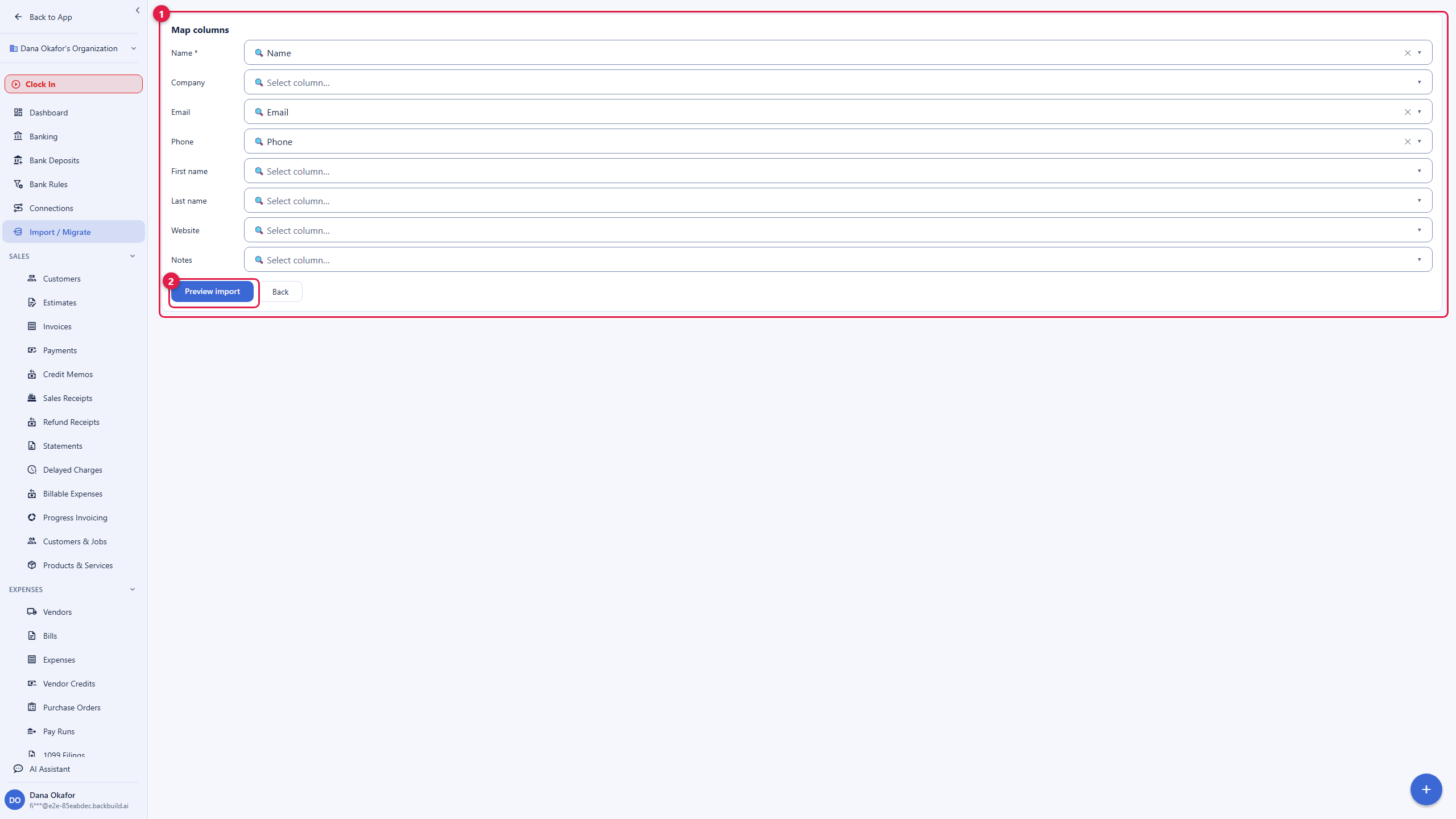
The Import Wizard: Preview Before You Commit
After this section you will import without fear. The wizard is built so nothing lands until you have seen it. Open Import from the Finances sidebar.
- Create an import and choose what you are bringing in and the file.
- Map the columns: line up each column in your file with the right field in Backbuild Finances, so your data goes where it belongs.
- Preview import: preview exactly what would be created, marked ready, duplicate, or error, and catch a bad mapping or a malformed row before it touches your books. Nothing is written at this step.
- Import when the preview is right, which brings in only the ready rows. You can go back instead, and you can see your past imports in the list.
The preview is the safety net. You are never blind-loading a spreadsheet into live books; you review the result first and only then import.
What Transfers, and What You Set Up Fresh
After this section your expectations will be accurate. A clean migration is mostly about knowing what comes across and what you rebuild.
- Transfers well: your chart of accounts, customers, vendors, products and services, historical transactions, and open balances. These are the backbone of your books and the wizard is built to carry them.
- Set up fresh: connections and integrations (reconnect your bank and, on paid tiers, Stripe), recurring templates and rules, and your reporting preferences. These are quick to redo and worth redoing deliberately.
- The honest limit on payroll history: detailed historical payroll runs from another system generally do not transfer intact between platforms. Plan to bring payroll across as summarized opening balances, or start payroll fresh in the new period and keep the old records for reference. This is true of migrations in general, and stating it up front saves a nasty surprise at year-end.
Import from QuickBooks
After this section you will pull your QuickBooks data in directly. Beyond a file import, you can connect QuickBooks and import from it.
- Connect your QuickBooks account with the guided authorization, which grants read access to import from it.
- Import your data, then review it in Backbuild Finances.
- You can see your QuickBooks connections and disconnect at any time.
The same expectations apply: the backbone (chart of accounts, customers, vendors, transactions, open balances) comes across, and payroll history is the known limit. Bring the data in, then validate it before you rely on it.
Validate the Landing
After this section you will know the migration is correct. Do not declare a migration done because it finished; declare it done because it ties out. The check is the same one accountants use.
- Run the Trial Balance in Backbuild Finances and compare it to the trial balance from your old system as of the cutover date.
- Confirm your opening balances, especially cash, receivables, and payables, match what you expect.
- Spot-check a few customers and vendors for the right balances and history.
When the trial balances agree and the opening balances tie out, the books landed correctly and you can cut over with confidence. If something is off, the preview and the import list make it straightforward to correct and reimport rather than unpicking live books by hand.
Will my data land correctly? The wizard maps your columns and lets you preview before anything is written, so you review the result first. You then validate by tying the trial balance and opening balances to your old system.
What imports from QuickBooks? The chart of accounts, customers, vendors, transactions, and open balances. Connect QuickBooks, import, and review. You can disconnect afterward.
Does my payroll history transfer? Generally not in full detail; that is a limit of migrations in general, not this tool specifically. Bring payroll across as opening balances or start fresh in the new period and keep the old records.
How do I avoid disruption during cutover? Import into your new books, validate with the trial balance before relying on them, and keep the old system readable until the new one is confirmed. Because the preview precedes the import, you are never mid-migration on live books you have not checked.
Can I redo an import if it is wrong? Yes. Cancel before commit, or correct the mapping and reimport; your imports are listed so you can see what ran.
Where to Next
- The Accounting Ledger: organize the chart of accounts you import into.
- Banking and Reconciliation: reconnect and reconcile your bank after cutover.
- Reports and Sales Tax: the trial balance you validate the landing with.
- Access, Security and the API: give your accountant scoped access to help with the migration.