

Autofill with the Browser Extension
This guide teaches you to fill your saved logins safely with the Backbuild browser extension, to save and update logins as you sign in, and to understand why autofill sometimes refuses on purpose. By the end you will be able to fill a login on a site you authorize, know exactly what the extension will and will not do, and read a non-fill as the protection it usually is.
Availability
The Backbuild browser extension is a single cross-browser build coming to the Chrome Web Store (for Chrome, Edge, Brave, Opera, and other Chromium browsers), to Firefox Add-ons, and to the App Store as a Safari extension. The public store listings are marked Coming Soon on the download page. Your vault itself is available today in the Backbuild web app and the Windows and macOS desktop apps, and the extension already powers the browser inside Backbuild's on-demand containers. This page teaches the autofill behavior so you are ready the day the extension lands in your browser.
This page focuses on the vault and autofill. The extension does more: it signs you in automatically from the web app, can drive the page under a Backbuild AI assistant with an armable, killable session, and can act as a device factor for two-step verification. Those capabilities, and the administrator rollout, are covered in full in The Backbuild Browser Extension.
Authorize the Sites You Want Filled
After this section you will understand why the extension is not active everywhere. The extension is not injected into every site you visit by default. Autofill is gated per site: you grant it permission on the sites where you want it to work, and it does nothing on the rest. This is a deliberate reduction of where a password manager can act at all, and it is the first line of the anti-phishing design.
Autofill That Refuses to Be Phished
After this section you will trust a fill and understand a refusal. A password manager that fills too eagerly becomes a phishing tool, so Backbuild's autofill is deliberately strict. When you ask it to fill, it:
- Matches only the registrable domain. A login saved for one domain is never offered on a different one, so a look-alike page at another address gets nothing.
- Refuses a scheme downgrade. A login you saved over a secure connection is never offered on an insecure one.
- Fills only visible fields. It identifies the real password field first and anchors the username to it, and it refuses hidden or off-screen fields, which is exactly the trick a malicious page uses to harvest a fill you cannot see.
- Fills at most one username and one password, never a page full of fields.
- Never submits the form for you, and never fills silently. A fill happens only after a real, trusted click on the extension's own overlay, so nothing is populated without your intent.
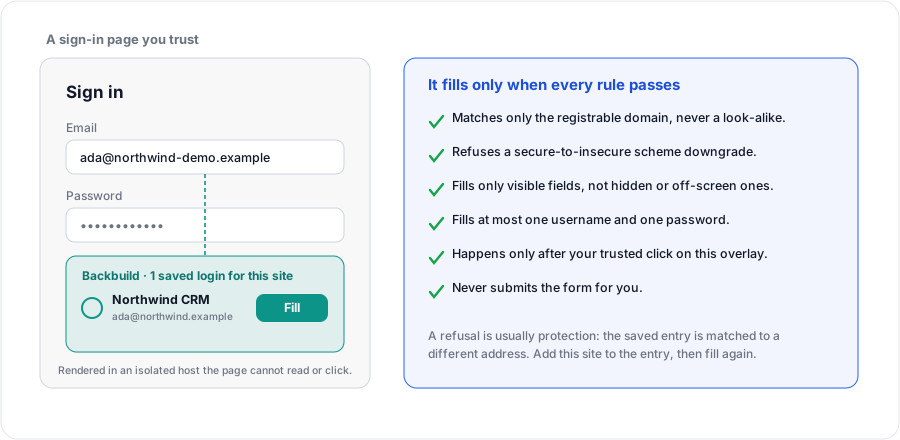
A refusal is therefore often protection, not a bug. If a login does not appear where you expect it, the usual reason is that the saved entry is matched to a different address than the one you are on. Open the entry, add the current site as an alternate address for it, and invoke fill again. Never work around a refusal by retyping a password onto a page you are unsure of; the decision flow the extension follows is illustrated in The Backbuild Browser Extension.
Save and Update Logins as You Sign In
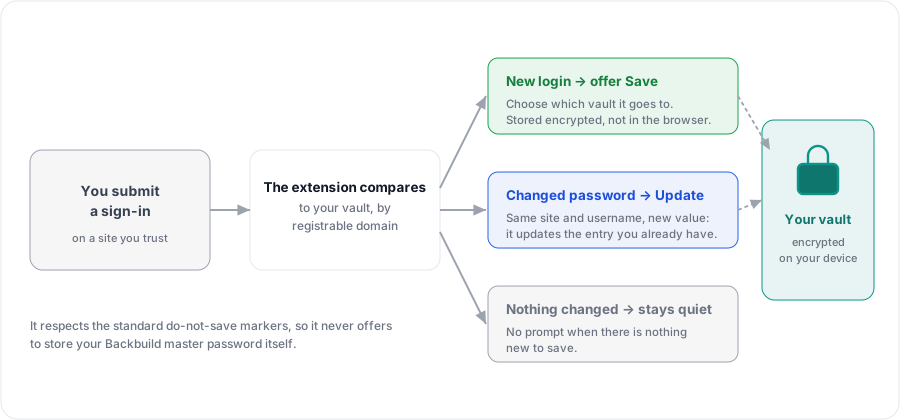
After this section you will grow your vault without extra work. When you submit a login the extension does not recognize, it offers to save it. When you submit a changed password for a login it already has on the same site and username, it offers to update that entry. When nothing changed, it stays quiet. Matching uses registrable-domain rules, so a save is filed against the right site and a submission never crosses domains.
The extension also respects the standard markers a site uses to say a field should not be saved, so it never offers to store your Backbuild master password itself.
Unlock, Generate, and Lock in the Browser
After this section you will run the vault from the toolbar. You will meet two surfaces. The toolbar popup, opened from the extension's icon, is where you unlock the vault, browse and search entries, generate a password, lock now, and see which account is active. The in-page overlay is where autofill and the save prompt appear, rendered in an isolated host that the page's own scripts and styles cannot read, restyle, cover, or click for you.
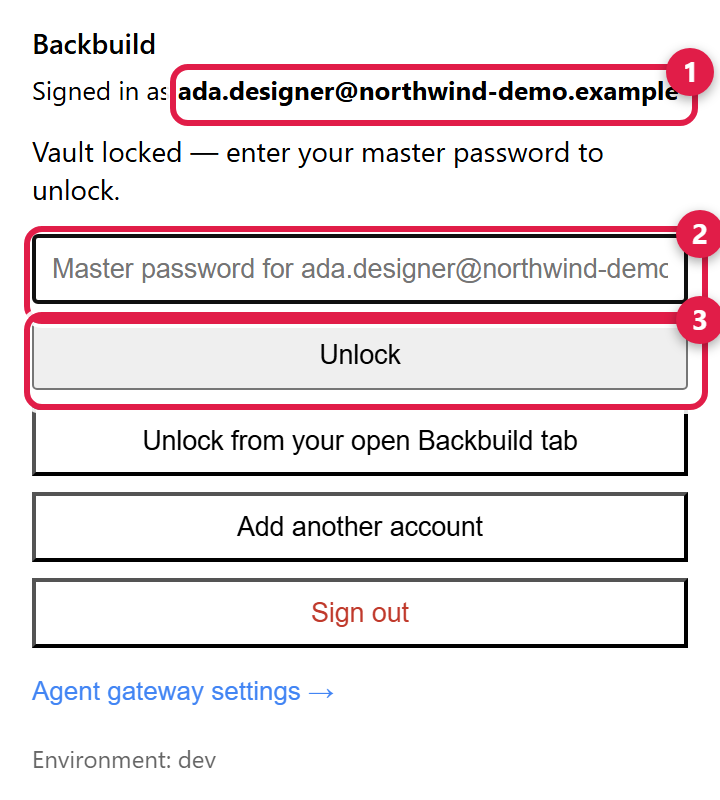
- Unlock with your master password. For fast re-unlock, a short sliding idle window keeps the vault openable without retyping. Auto-lock is configurable, and the vault also locks immediately when your browser or operating system locks, or when you choose Lock now. If your device supports it, you can turn on a hardware-backed unlock so you reopen the vault with a device gesture instead of your master password (see Unlocking, Device Factor and Recovery).
- Generate a strong password, passphrase, or PIN from the popup, the same generator described in Vaults, Items and the Password Generator, so you can create a fresh credential right where you are signing up.
- Copy carefully. The clipboard is a shared surface that other applications on your device can read, so paste a copied secret where you need it and then overwrite your clipboard. Wherever you can, let the extension fill a login directly instead of copying it, so the value is typed into the field and never touches the clipboard at all.
If your browser's built-in password manager keeps prompting to save or fill alongside the extension, turn the browser's own offer to save and fill passwords off in its settings, so there is one source of truth and the two do not fight over the same field.
Why will autofill not work on this site?
Autofill fills only on the same registrable domain, never across domains,
never down a scheme downgrade, and never into hidden fields, so a refusal is
often protection. The usual fix is that the saved entry is matched to a
different address than the one you are on: open the entry, add the current
site as an alternate address, and invoke fill again.
I read about the autofill clickjacking attacks. Can a hidden field
be filled?
No. The extension refuses hidden and off-screen fields, fills at most one
username and one password, and never fills silently: it waits for a real,
trusted click on its own overlay, which is rendered in a host isolated from
the page's scripts and styles so the page cannot read or click it for you.
Does it save my passwords automatically?
It offers to save a new login or update a changed one when you submit a
sign-in, and stays quiet when nothing changed. You choose where to save it,
and it never offers to store your Backbuild master password.
Does copying a secret leak it to other apps?
The clipboard is a shared surface any application on your device can read, so
treat a copied secret as exposed until you clear it: paste it where you need
it, then overwrite your clipboard. Wherever you can, let the extension fill a
login directly, so the value is typed into the field and never reaches the
clipboard.
Next Steps
- The Backbuild Browser Extension: automatic sign-in, supervised AI browser control, the device factor, and administrator rollout.
- Unlocking, Device Factor and Recovery: unlock with a device gesture and set up your way back in.
- Vaults, Items and the Password Generator: the entries autofill draws from, and the generator.