

CLI and CI
The backbuild CLI runs verification, watches files, gates CI
pipelines with real exit codes and machine-readable output, manages project
settings, and publishes signed proof certificates.
After this page you will be able to verify a project from the command line, keep a watch loop running while you code, fail a build or a pull request on a broken proof, emit JUnit results for your CI dashboard, and publish a certificate.
The CLI is part of Backbuild Prove, which is launching soon. Join the waitlist for access at launch.
Installation
Install the Backbuild CLI via pip:
pip install backbuild-cliVerify the installation:
backbuild --helpAuthentication
Authenticate with your Backbuild account before running any prove commands.
backbuild auth login
Opens a browser window for OAuth authentication. Credentials are stored locally for subsequent commands.
backbuild auth loginbackbuild auth logout
Clears stored credentials from the local machine.
backbuild auth logoutbackbuild auth status
Shows the current authentication status, including the authenticated user and token expiration.
backbuild auth statusbackbuild prove run
Scan the project for pf2 annotations and verify all of them against the server-side HOL kernel.
backbuild prove runOptions
| Option | Description |
|---|---|
--project-path <path> | Path to the project root. Defaults to the current directory. |
Output
The CLI reports results for each annotation with one of four statuses:
- Verified: the proof is mathematically valid.
- Failed: one or more proof steps did not check out. The error identifies the failing step.
- Cached: the annotation content hash matches a previously verified result.
- Skipped: the annotation was excluded by project settings.
Example
$ backbuild prove run
Scanning project...
Found 12 pf2 annotations in 5 files.

  src/math.rs
    checked_add_safe ............ Verified
    multiply_bounds ............. Verified

  src/auth.rs
    validate_token_expiry ....... Verified
    hash_password_rounds ........ Failed
      Step 2: Expected PRE_SUC but got ADD_SYM

  src/utils.rs
    clamp_in_range .............. Cached
    safe_divide ................. Cached

Results: 9 verified, 1 failed, 2 cached, 0 skipped
backbuild prove watch
Watch for file changes and automatically re-verify annotations when
files are modified. Runs continuously until stopped with
Ctrl+C.
backbuild prove watchOptions
| Option | Description |
|---|---|
--project-path <path> | Path to the project root. Defaults to the current directory. |
--poll-interval <seconds> | Polling interval in seconds when filesystem events are unavailable. Default: 2. |
The watch command uses watchdog for efficient filesystem
event monitoring. On systems where native filesystem events are
unavailable, it falls back to polling at the configured interval.
backbuild prove ci
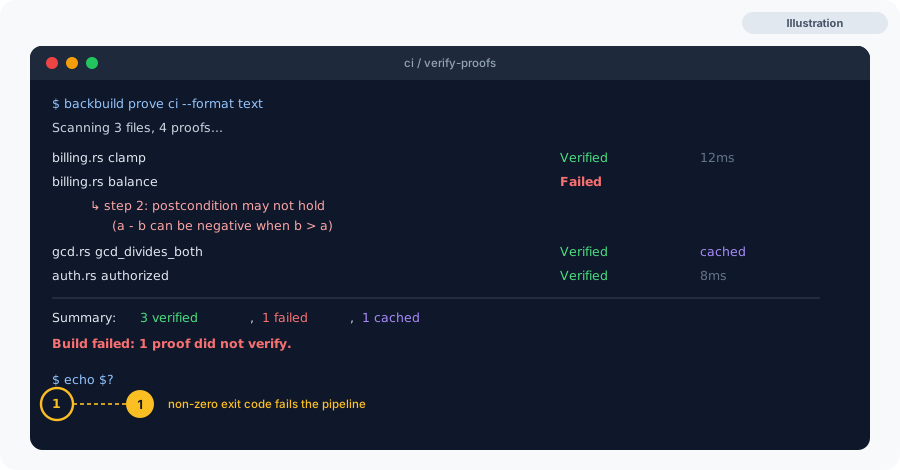
Non-interactive verification designed for CI/CD pipelines. Produces machine-readable output and uses exit codes to signal results.
backbuild prove ciOptions
| Option | Description |
|---|---|
--project-path <path> | Path to the project root. Defaults to the current directory. |
--format <text|json> | Output format. text for human-readable, json for machine-readable. Default: text. |
--junit-xml <path> | Write results in JUnit XML format to the specified file. Used by CI systems that support JUnit test result ingestion. |
Exit Codes
| Code | Meaning |
|---|---|
0 | All annotations verified successfully. |
1 | One or more annotations failed verification. |
2 | An error occurred (network, authentication, configuration). |
CI Integration Example
GitHub Actions:
- name: Verify proofs
  run: |
    pip install backbuild-cli
    backbuild prove ci --format json --junit-xml prove-results.xml

- name: Upload test results
  if: always()
  uses: actions/upload-artifact@v4
  with:
    name: prove-results
    path: prove-results.xml
backbuild prove status
Show a summary of pf2 annotations in the project without running verification. Prints the project info, current settings, and a per-file breakdown of where annotations live. Useful for quickly checking annotation coverage.
backbuild prove statusOptions
| Option | Description |
|---|---|
--project-path <path> | Path to the project root. Defaults to the current directory. |
Example
$ backbuild prove status
Project: my-project
Root:    /home/dev/my-project
API:     https://api.backbuild.ai

Settings:
  Severity mode:  strict
  Timeout:        60000ms
  Max parallel:   4

Annotations: 47 in 18 file(s)
backbuild prove settings
View or update project-level settings for Backbuild Prove. Settings
are stored in .backbuild-cli/prove.json in the project
root.
View Current Settings
backbuild prove settingsOptions
| Option | Description |
|---|---|
--severity-mode <strict|warn|lenient> | Set the severity mode. See Project Settings for details. |
--timeout <ms> | Set the per-annotation verification timeout in milliseconds. |
--max-parallel <n> | Set the maximum number of concurrent verifications. |
--add-exclude <pattern> | Add a glob pattern to the exclusion list. |
--remove-exclude <pattern> | Remove a glob pattern from the exclusion list. |
Examples
# Set strict mode for CI
backbuild prove settings --severity-mode strict

# Exclude test fixtures
backbuild prove settings --add-exclude "tests/fixtures/**"

# Increase timeout for complex proofs
backbuild prove settings --timeout 120000

# Run up to 8 verifications in parallel
backbuild prove settings --max-parallel 8
backbuild prove publish
Sign and upload a certification bundle for verified code. This produces a cryptographically signed attestation that the project’s proofs have been verified.
backbuild prove publish \
  --project-id <uuid> \
  --name my-library-core \
  --version 1.2.0
Options
| Option | Description |
|---|---|
--project-id <uuid> | Backbuild project UUID. Required. |
--name <name> | Bundle name (e.g. my-library-core). Required. |
--version <semver> | Semantic version of the bundle (e.g. 1.2.0). Required. |
--binary <path> | Path to a compiled artifact to bind into the bundle. Repeatable. |
--lean4-results <path> | Path to a Lean 4 cross-check results JSON file to include. |
--project-path <path> | Project root directory. Defaults to the current directory. |
--dry-run | Build the bundle and print its metadata without uploading or registering it. |
Run backbuild prove run first, because publish builds the
bundle from your verified theorem results.
How It Works
- Resolve signing key: the CLI locates or generates the org’s local Ed25519 signing key.
- Build tarball: the CLI assembles a certification bundle containing the manifest, verified theorem results, file hashes, and optional binary and Lean 4 cross-check results.
- Sign locally: the bundle’s SHA-256 digest is signed with your Ed25519 private key. The private key never leaves your machine.
- Upload: the bundle is uploaded to secure object storage via the API, then registered with the public key and signature.
- Verify URL: the CLI prints a public verification URL where anyone can independently verify the certificate.
Key Management
On first publish, an Ed25519 keypair is generated and stored at
~/.backbuild/bbprove-keys/. The private key is used
for signing and never transmitted. The public key is uploaded alongside
the certificate for verification.
Back up your private key. If lost, you will need to generate a new keypair and previously signed certificates will reference the old key.
Example
$ backbuild prove publish --project-id 8f3a... --name my-library-core --version 1.2.0
Publishing Backbuild Prove bundle my-library-core@1.2.0
Resolving signing key...
Building bundle...
  Bundle: 18432 bytes, 47 theorems, 18 files, 0 binaries
  SHA-256: 9f2c...
Signing bundle locally...
Requesting upload slot...
Uploading bundle (18432 bytes)...
Registering certification...

✓ Published my-library-core@1.2.0
  Public verify URL: https://backbuild.ai/verify/cert_01HX9K3M4N5P6Q7R8S9T0U1V2W
Settings File
All project-level settings are stored in
.backbuild-cli/prove.json:
{
  "severity_mode": "strict",
  "exclude_patterns": [
    "tests/fixtures/**",
    "vendor/**"
  ],
  "timeout_ms": 60000,
  "max_parallel": 4
}
See Project Settings for full documentation of each option.
Does it fit my CI/CD? Exit codes, JUnit XML, PR gating?
Yes. backbuild prove ci is non-interactive, exits 0 on
success, 1 on a failed proof, and 2 on an error, and can write JUnit XML
for CI systems that ingest test results. Wire it as a required check to
fail a build or block a pull request on a broken proof, regardless of the
project's interactive severity mode.
How do I keep verification fast in CI?
Unchanged annotations return from cache, and you can raise
max_parallel on many-core runners and exclude vendored or
generated paths. See Project Settings.
Can I run it without signing in interactively?
Authenticate once with backbuild auth login; the stored
session is reused by later commands, including in automation. Use backbuild
auth status to confirm the session state.
Next Steps
- Project Settings: detailed documentation for all settings
- Certifications: certificate contents, trust model, and verification
- Editor Extensions: interactive verification in your editor