

Personal, Organization, and Cross-Org Contacts
This guide explains the three tabs at the top of Backbuild Contacts and when to use each. The distinction is simple but important: some contacts are yours alone, some belong to the whole team, and some live in a different organization you also belong to. After this page you will keep a private contact private, build one shared team address book that does not depend on any one person, and look up a contact in another organization without leaving where you are.
My Contacts: Private to You
After this section you will keep personal contacts to yourself. The My Contacts tab is your private address book. The people you add here are visible only to you, not to your teammates. Use it for personal connections and anyone you are not ready to (or should not) put in front of the whole team. Everything from the fields guide applies: channels, addresses, notes, favorites, search, and emailing from the record.
Organization: One Shared Address Book
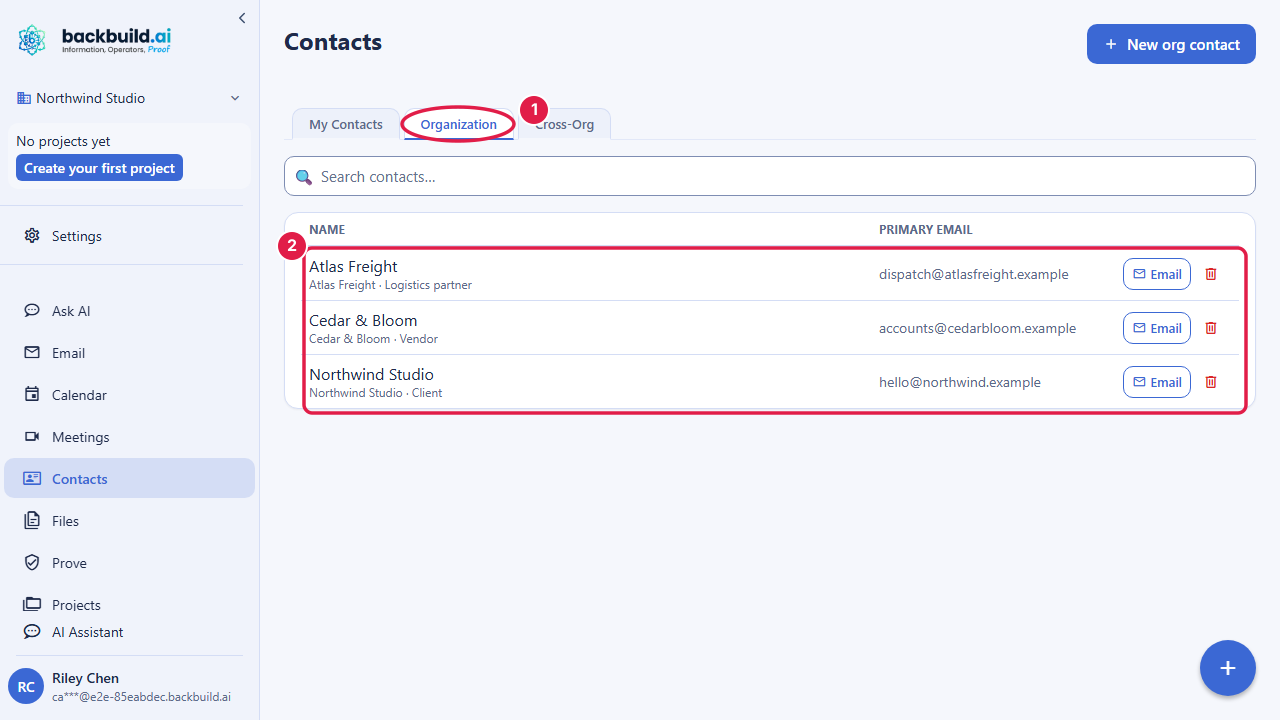
After this section you will run a single team address book that does not live on one person's phone. The Organization tab is the shared address book for everyone in your organization. A contact you add here (use New org contact) is visible to your team, so the client's number, the vendor's email, and the partner's mailing address are on file for whoever needs them, not trapped with one colleague. This is the answer to contact data scattered across inboxes and spreadsheets: one place, shared, searchable, and current.
How do I set up a shared contact list so everyone at my small business sees the same client details? Add clients and vendors on the Organization tab instead of your personal one. Every member of your organization sees the same shared records and can search them, so nobody has to ask the one person who "has the number". It is included on every plan, so there is no cost to consolidating here.
What is the difference between My Contacts and Organization? My Contacts are private to you; Organization contacts are shared with your whole team. Put anything the team should be able to reach on the Organization tab, and keep personal connections on My Contacts.
Cross-Org: Look Up Contacts in Your Other Organizations
After this section you will find a contact that lives in a different organization you belong to. Many people belong to more than one organization in Backbuild, for example a consultancy and a client's workspace. The Cross-Org tab lets you look up the shared contacts of your other organizations without switching your whole session. Pick one of your other organizations from a searchable list, and its shared contacts appear read-only: you can see them and email them, but you cannot edit or delete them from here, because they belong to that organization's address book. If you do not belong to any other organization, the tab tells you so.
Why can't I edit a contact on the Cross-Org tab? Because it belongs to a different organization's shared address book, and you are looking at it from the outside. Cross-Org is a read-only lookup, so you can find and email the person, but edits and deletes happen inside the organization that owns the record.
Who Can See What
After this section you will place every contact in the right scope. The three tabs are three visibility boundaries:
- My Contacts are private to you.
- Organization contacts are shared with the members of that organization.
- Cross-Org shows another organization's shared contacts to you read-only, and only for organizations you are a member of.
As with everything in the workspace, access follows your organization membership and roles, and each organization's data is isolated from every other organization's. Deleting a contact is a soft delete an administrator can reverse, so a shared list is safe from an accidental removal.