

Backbuild Calendar
Backbuild Calendar is the scheduling app built into your Backbuild workspace. You plan your day in the view that fits the task, invite guests and track their replies, keep separate calendars for separate parts of your work, see when your teammates are free, and, when you already live in Google Calendar or Microsoft 365, keep those calendars in two-way sync so nothing is stranded. It is part of the free workspace, next to Backbuild Mail, Backbuild Contacts, Backbuild Docs, and Backbuild Sheets. After this page you will know what Backbuild Calendar does today, how to create your first event, and where to go for each job you need to do.
What You Get
After this section you will understand the shape of the app and which guide answers your question. Backbuild Calendar is a full calendar, not a bolt-on. You create real events, invite real guests who receive real email invitations, and manage as many separate calendars as your work needs.
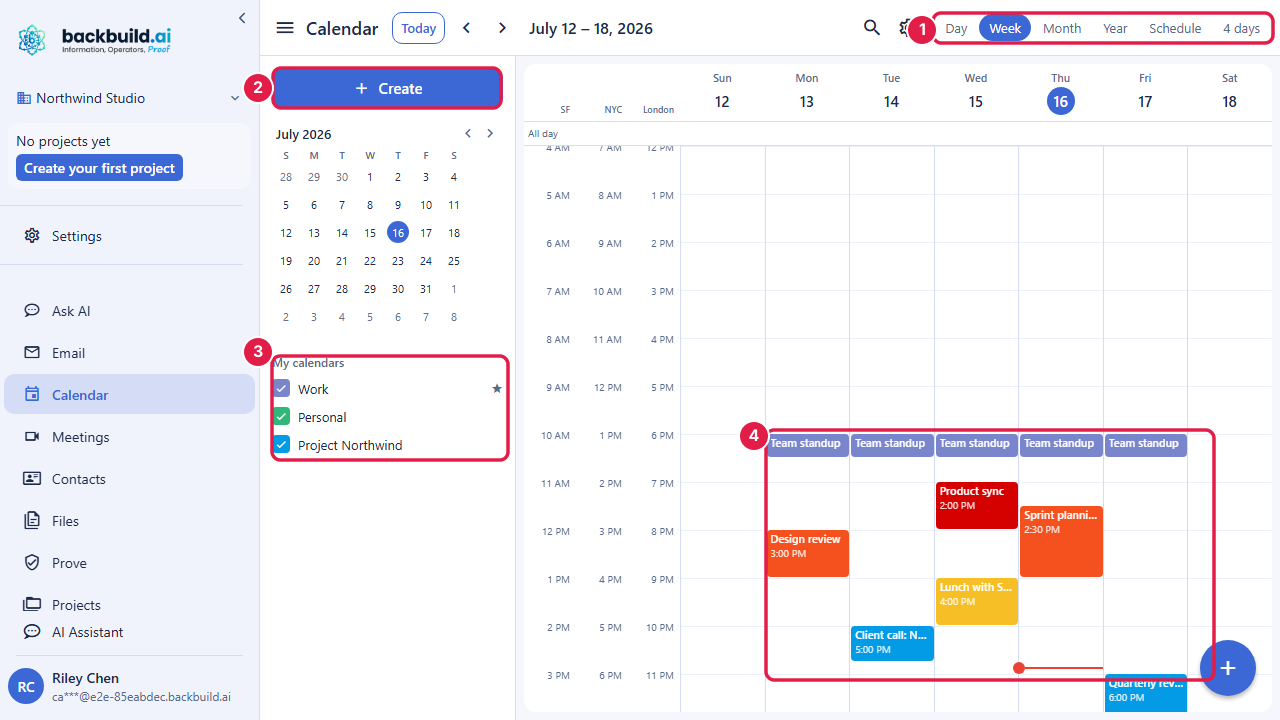
- Views for the way you plan. Day, Week, Month, Year, and Schedule (an agenda list), plus a custom multi-day view. Jump to today, step forward and back, and click any open slot to start an event.
- Events with everything on them. A title, a timed or all-day span, a time zone, a location, a description, reminders, a color, guests, and a video meeting link, all on one editor.
- Guests and replies. Add attendees by email; each guest receives a standards-based email invitation and can reply Yes, Maybe, or No, and you see their responses on the event.
- Recurring series. Daily, weekly, monthly, yearly, every weekday, or a custom pattern, with the familiar choice when you edit: this event, this and following events, or the whole series.
- Many calendars, one grid. Keep work, personal, and project calendars, each with its own color, and turn them on and off in the view.
- See when people are free. A free-busy read shows who is busy and when, without exposing the private details of their events.
- Time zones done right. Each timed event carries its own zone, and you can show up to five labeled zone columns down the side of the Day and Week grids.
- Two-way sync. Connect Google Calendar, Microsoft 365, or an Apple or CalDAV account, and keep the connected calendar in step with Backbuild Calendar.
- Live across every device. Your calendar is one live object; a change on your laptop appears on your other open sessions in real time.
Calendar Is Included on Every Plan
After this section you will know what is included and what draws credits. Backbuild Calendar is part of the free workspace on every plan, including Free, the same way Backbuild Mail, Backbuild Contacts, Backbuild Docs, and Backbuild Sheets are. There is no separate calendar subscription and no per-seat calendar add-on. Because it lives inside the workspace, an event, a document, and a message share one identity and one set of roles, and the people you schedule with are the same records you keep in Backbuild Contacts.
- Free on every plan: the calendar itself, guests and email invitations, recurring events, reminders, multiple calendars, free-busy availability, multi-zone display, and two-way external sync.
- What can draw credits: sending guest invitations is email, so very large guest lists count toward your outbound email allowance the same way any message does. See the outbound allowances guide.
The pricing page is the authoritative source for current allowances and rates.
Create Your First Event
After this section you will have a real event on your calendar with a guest invited. The fastest path is to click the slot you want and fill in the editor.
- Open Backbuild Calendar from the workspace sidebar. If you do not see it, an administrator can enable the calendar for your organization.
- Click an open slot in the Day, Week, or multi-day view, or press Create in the left rail. The event editor opens.
- Give the event a title, confirm the date and start and end times, and pick the calendar it belongs to.
- Add a guest by typing an email address in the Guests field. The guest will receive an email invitation and can reply.
- Save. The event appears on the grid immediately, and on your other open sessions in real time.
Do I have to be technical to use this? No. Creating an event is a click and a title. There is nothing to install and nothing to configure to get started. The one setup task that pays off, if you already keep a calendar in Google or Microsoft 365, is connecting it once so both calendars stay in step; the sync guide walks that in a few minutes.
Choose Your Guide
Each guide teaches one job end to end. Start with the one that matches what you need to do.
- Views, Events, and RSVPs: the six views, the left rail, creating and editing events with every field, the event detail card, replying to invitations, hiding private events, and searching your calendar.
- Recurring Events, Guests, and Reminders: build a repeating series, choose whether a change applies to one event or the whole series, invite guests and track replies, and set reminders that fire on time.
- Calendars, Sharing, and Find a Time: create separate calendars, control who can see what with the four access tiers, follow calendars shared with you, and read a team's free-busy to pick a slot that works.
- Settings and Time Zones: set your time zone, show extra zone columns for a global team, choose your clock and grid display, and understand how a series behaves across daylight saving.
- Sync with Google, Microsoft 365, and Apple: connect your existing calendar, choose the sync direction per link, and consolidate on Backbuild without abandoning the calendar your colleagues invite you on.
- Backbuild Contacts: the shared address book that holds the people you schedule with, so a guest is a record you already have, not an address you retype.
What Backbuild Calendar Does Not Do Yet
Choosing well means matching the tool to the requirement, so here are the edges to weigh before you switch. Each of these is on the roadmap, and the pricing page marks the ones with a plan line as coming soon.
- Public booking pages (a page where a client picks an open slot with you, the way an appointment scheduler works) are coming soon. Today you manage availability by sharing free-busy and creating events yourself; see Calendars, Sharing, and Find a Time.
- Automated scheduling rules such as round-robin assignment, buffers between meetings, and booking limits arrive with booking pages and are not available today.
- Extra event types beyond a standard event (a task, an out-of-office block, focus time, a working-location entry, and an appointment schedule) are coming soon; the create menu lists them so you can see what is on the way.
- Backbuild's secure video meeting experience is coming soon, and the pricing page marks it as such. Today you can attach a video meeting to an event so its join link and meeting code travel on the invitation; the full secure meeting experience arrives with that release.
- Native mobile apps are not available; you use Backbuild Calendar through the web app and the Windows and macOS desktop app. On mobile, connect Backbuild Calendar to your phone's calendar with two-way sync.
- A subscribable calendar feed (a read-only URL another app follows) is not usable yet; to keep another app in step today, use two-way sync instead.
If your hard requirement today is a public booking page or a native mobile app, weigh that against everything above. If you want a full, live, shared calendar that sits in the same workspace as your mail, contacts, documents, and sheets, is free on every plan, and can keep your existing Google or Microsoft calendar in two-way sync, this is built for you.