

AI Assistance, the API, and Agents
This guide is about doing more with less effort: letting the in-document AI assistant translate and extend your writing, recording repetitive edits so you never do them twice, and driving documents from code and from AI agents. After it you will be able to translate a passage in place, ask the assistant to continue a draft, record a macro for a routine formatting sequence, and understand how a script or an agent creates, edits, versions, and exports a document over the same surface you use by hand. It also answers the question every buyer asks first: what happens to your content when AI touches it.
The In-Document AI Assistant
After this section you will use AI where you are writing, without leaving the document. The assistant works on the text in front of you:
- Translate a selection, or the whole document, into another language, replacing the text in place. This turns a document into a second-language version without a separate translation tool or a copy-and-paste round trip.
- Continue writing: place your caret where a draft trails off and ask the assistant to continue from what you have written, so a blank stretch becomes a first draft you then shape. It works from the text leading up to your caret, so the continuation follows your document rather than starting from nothing.
Both actions require that you can edit the document; in a read-only or comment-only view the assistant does not change the text. What the assistant adds is ordinary editable text, not a locked block, so you revise it like anything else you wrote.
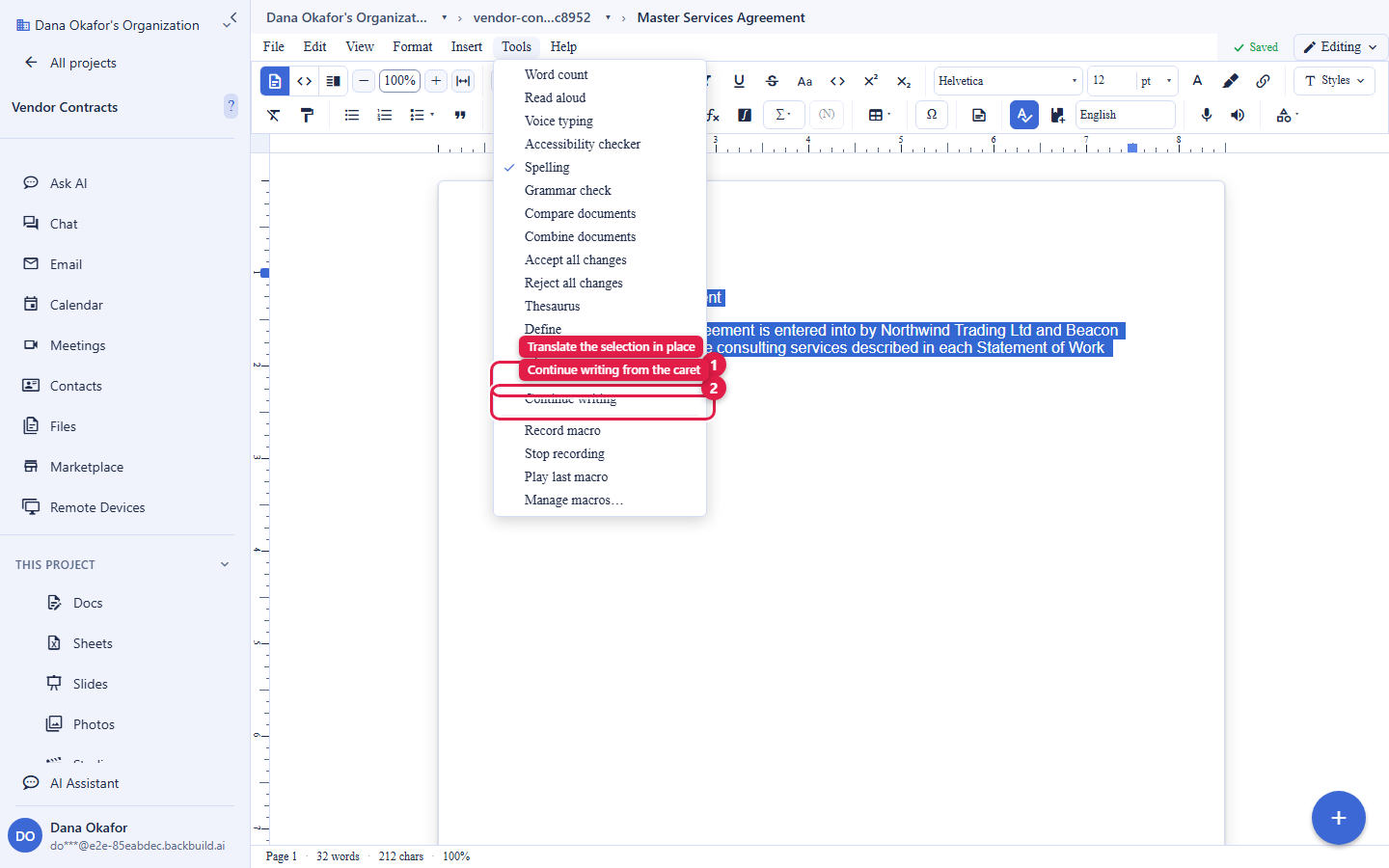
What can the in-document AI do, and does it cost extra? It translates a selection or the whole document in place and continues your writing from where your caret sits. AI usage draws on your prepaid universal usage credits, or you can bring your own AI provider keys, in which case the model usage is billed by your provider rather than by Backbuild. Everything else in Backbuild Docs, the editing, formatting, collaboration, tracked changes, and export, is not AI usage and does not draw credits. See Usage and Credits and bring your own keys.
Your Content Is Not Used to Train AI Models
After this section you will know exactly how your document content is handled when AI touches it. This is the first question a security or compliance reviewer asks, and the answer is unambiguous: your organization's content is not used to train AI models. A document you translate or extend is processed to produce that result and is not turned into training data. Content is encrypted in transit and at rest, and access to a document follows your organization's roles and permissions whether a person or the assistant is acting on it.
If you bring your own AI provider keys, the model call goes to your provider under your own agreement, and the key itself is stored and resolved through the workspace vault: it is never returned in an API response and never written to a log. Comment visibility follows document access: a comment is visible to the people who can see the document, and document activity is recorded in your organization's audit log. See Security and Compliance and the AI assistant overview for the platform-wide posture.
Is my document content used to train AI models? No. Your organization's content is not used to train models. It is processed to produce the result you asked for, is encrypted in transit and at rest, and stays governed by your organization's roles and permissions.
Is the AI feature confidential, and who can see my comments? A document and its comments are visible only to the people you have granted access, and the assistant acts within that same access. Comments follow document access, and document activity is recorded in the organization's audit log, so a shared document is accountable rather than open.
Record and Replay Repetitive Edits: Macros
After this section you will stop performing the same editing sequence by hand. A macro records a named sequence of editing actions so you can replay it whenever you need it. Record the steps once, name the macro, and run it to apply the whole sequence again, which is the fast path for a formatting routine you repeat across a document or across many documents. Macros capture editing actions from a curated set of recordable operations and are stored with the document, so a macro you record is there when you come back.
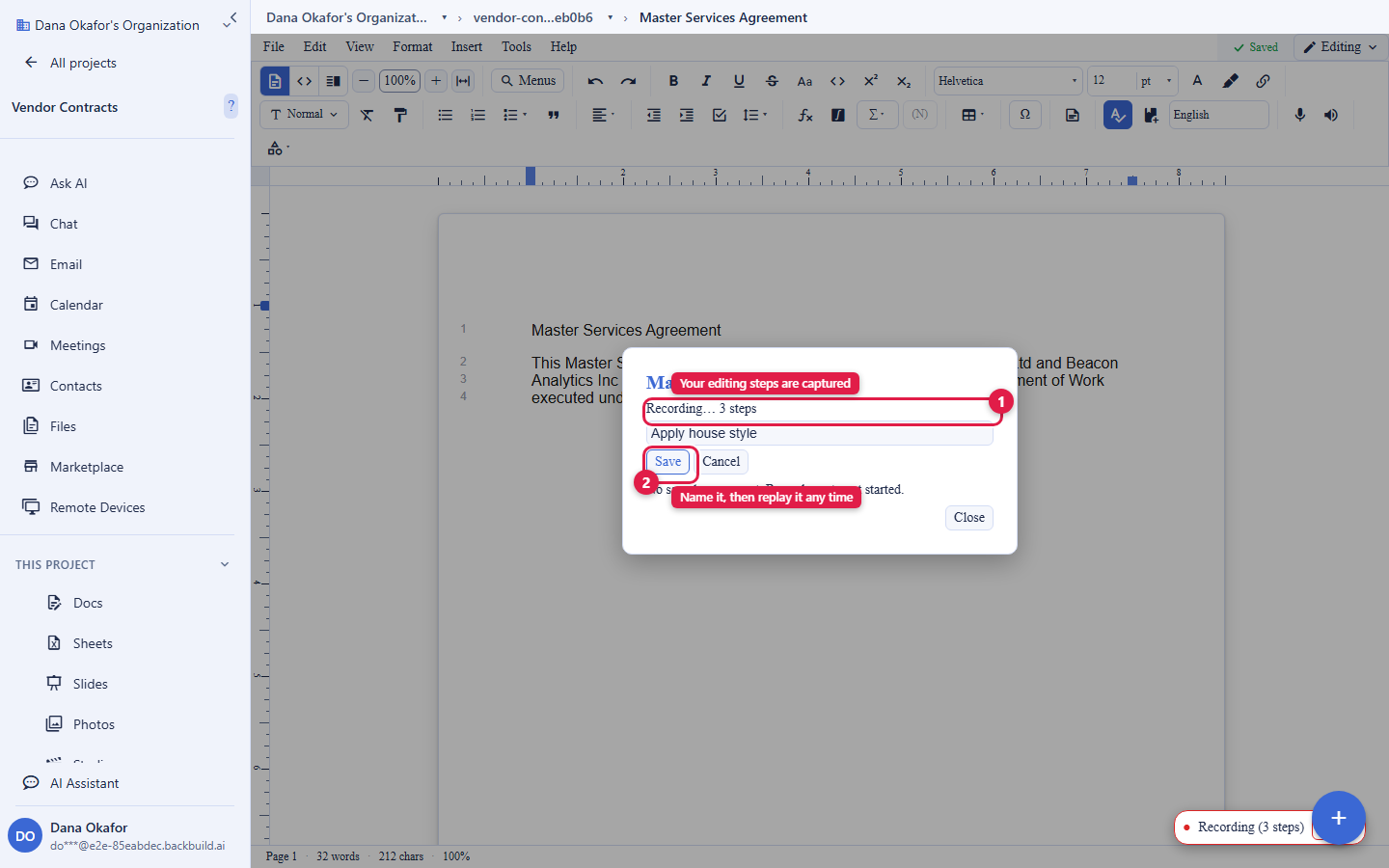
Can I record and replay repetitive editing sequences? Yes. Record a sequence of editing actions as a named macro and replay it on demand. It is the built-in way to apply a routine set of edits again without repeating them by hand.
The REST API
After this section you will know the document surface is fully scriptable. The entire Backbuild platform is drivable over the public REST API, and documents are no exception. A script can create a document, read and update its content, list documents in a project, and manage the document lifecycle, every call authenticated and scoped to your organization and gated by the same permissions as the app, so a script can never reach beyond what its identity is allowed.
This is how you generate documents from a template, batch-produce reports from your own data, or wire document creation into a larger workflow. For endpoints, request and response shapes, and authentication, see the Documents API, the REST API reference, and API authentication. API access uses an API key scoped to the document surface, described in API keys.
Can I automate document generation through an API? Yes. The whole document surface is available over the public REST API: create, read, update, list, and manage documents from a script, with every call authenticated and permission-gated. It is built for generating and maintaining documents programmatically.
Does it offer structured single-sourcing or conditional text like a dedicated help-authoring tool? Not as a content-reuse or conditional-text system. Backbuild Docs gives you real document structure, multi-format export, version history, and a full programmatic API to generate and assemble documents, which covers a great deal of a docs-as-code workflow; it is not a single-source publishing system with variant or profiled output, so if your process depends on conditional profiles, plan for that explicitly.
MCP Tools for AI Agents
After this section your AI agents will be able to work documents as first class objects. Backbuild Docs exposes native tools on the platform MCP surface, so an AI agent connected to your workspace can create and edit documents as part of a larger task, with fine-grained per-tool permission so an agent gets exactly the access you grant. The tools cover the document's full life:
- Content: open a document, read a range of it, replace a range, and read or set the page layout.
- Lifecycle: create a document, get it, rename it, list documents and recent documents, and permanently delete an explicitly selected batch when the agent has document-delete permission.
- Versions: list versions, view a version, and restore a version.
- Export: export a document to LaTeX source or to PDF.
- Verified results: insert a reference to a formally verified proof, list available proofs, and use
proofs.renameNodeto rename a proof-chain node while propagating the new name through incoming citations and formal proof references.
This lets an agent draft, revise, version, and deliver a document end to end, inside the same access and audit controls a person works under. How to connect an agent over MCP is covered in MCP and Agent Integration and the MCP server reference. The verified-proof reference is a Backbuild Science capability, described in The Proof System.
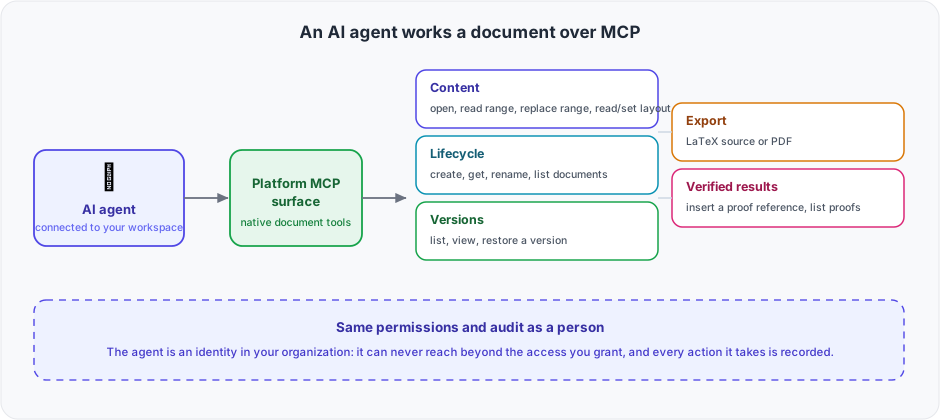
Is there an MCP surface so an AI agent can create and edit documents? Yes. Backbuild Docs is available as native MCP tools an agent can call: open, read, and replace content, read and set layout, create, rename, list, and explicitly delete documents, list and restore versions, export to LaTeX or PDF, and insert a verified-proof reference. Permanent deletion requires document-delete permission and is audited. The agent works under the permissions you grant, and its actions are audited like a person's.
Governance for Programmatic and AI Access
After this section you will know automated access is governed, not a side door. A script or an agent is an identity in your organization, subject to the same roles, permissions, and audit trail as a person. Enterprise administration, single sign-on, and automated user provisioning and deprovisioning are platform capabilities that apply to Backbuild Docs along with the rest of the workspace; see Security and Compliance and Roles and Permissions. Nothing an API key or an agent can do exceeds what its granted permissions allow, and every action it takes is attributable.
Where to Go Next
- Importing and Exporting: the formats an API export and an agent export produce.
- Real-Time Collaboration, Comments, and Sharing: how people and agents share one live document.
- Documents API: endpoints, request and response shapes, and authentication.
- MCP and Agent Integration: connect an AI agent to your workspace.