

Backbuild Photos
Backbuild Photos is the image library and editor built into your Backbuild workspace. You upload images from your computer, organize them into albums and slideshows, edit them in a professional, non-destructive, layer-based editor, generate and retouch them with AI, and share them with exactly the access each audience should have. It is part of the free workspace, next to Backbuild Docs, Backbuild Sheets, Backbuild Slides, Backbuild Calendar, and Backbuild Contacts. After this page you will know what Backbuild Photos does today, how to upload your first photos, and where to go for each job you need to do.
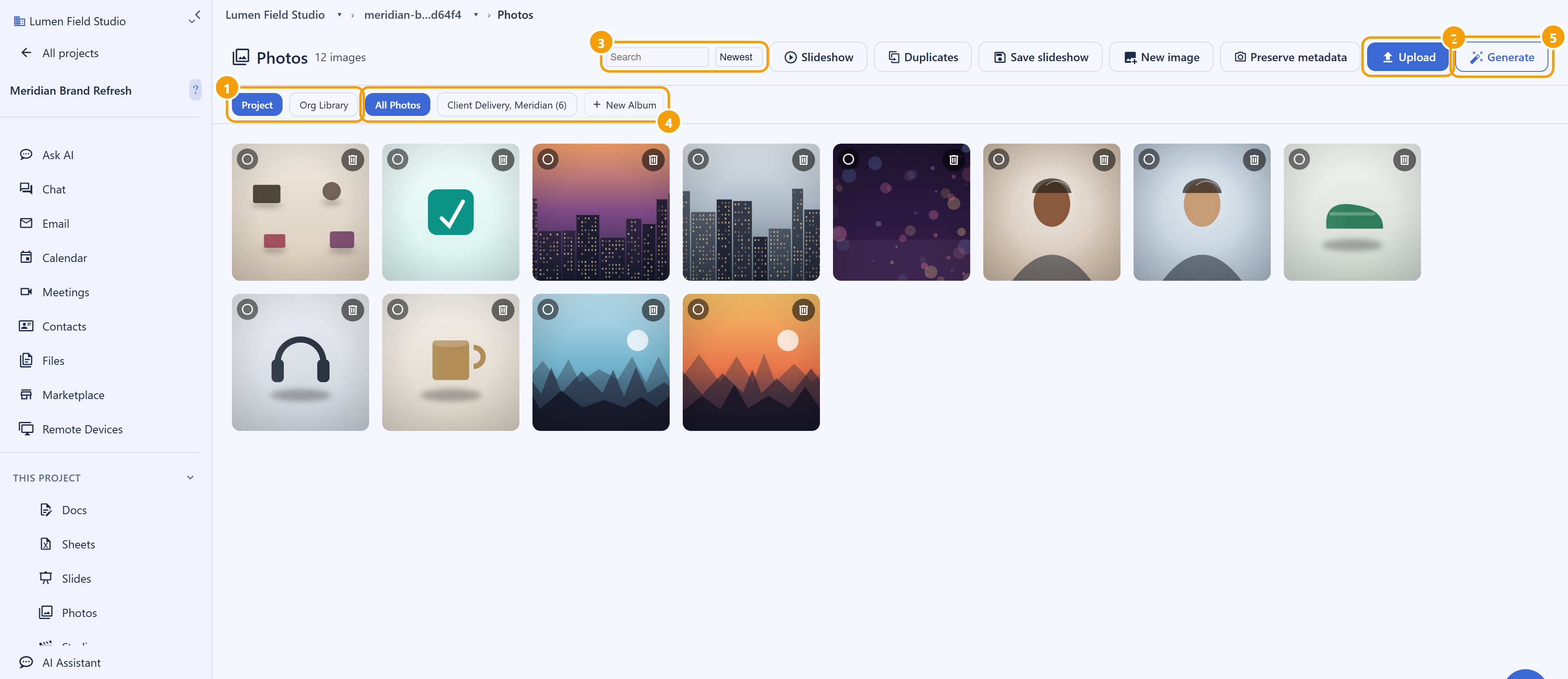
What You Get
After this section you will understand the shape of the app and which guide answers your question. Backbuild Photos is not a bolt-on gallery. It is a real asset library and a professional editor in one place, so the image you upload once is the image you organize, edit, generate variations from, share, and drop straight into a document.
- A fast gallery. A responsive thumbnail grid with upload by file picker or drag and drop, search, sort, multi-select, duplicate detection, and a full-screen lightbox with zoom, previous and next, a metadata panel, and version history.
- Three places to keep images. A project library your team shares, an organization-wide library, and your own personal library, each with its own access rules. See Your Library, Albums, and Slideshows.
- Albums and slideshows. Group photos into named, ordered albums (a photo can be in many), then play a selection as a full-screen slideshow with timed transitions and a Ken Burns pan and zoom.
- A professional, non-destructive editor. Layers, masks, blend modes, selections, retouching, curves and levels, filters with a re-editable smart-filter graph, vector and type tools, transform and liquify, and a RAW develop panel. Your original is never overwritten. See Editing Photos.
- AI image tools. Generate an image from a text prompt, fill a selection from a prompt, expand the canvas, and remove an object, all server-side and metered. See AI Image Tools.
- Governed sharing. Share to a person, a role, a group, a department, the whole organization, or a public link you can set to expire and revoke, all under enforced access and an audit trail. See Sharing, Access, and Governance.
- Images in your documents. Insert a picture straight from your project's library into Backbuild Docs, with no second upload and no external link.
- Drivable over the API. The whole surface is available over the public REST API, so an agent or a script can create and edit images too. See The API, AI, and Agents.
Photos Is Included on Every Plan
After this section you will know what is included and what draws credits. Backbuild Photos is part of the free workspace on every plan, including Free, the same way Backbuild Docs, Backbuild Sheets, Backbuild Slides, Backbuild Calendar, and Backbuild Contacts are. There is no separate photo subscription, no per-seat editor add-on, and no monthly cap on how many edits you can save. The free workspace is for teams of up to fifty seats.
- Free on every plan: the gallery, uploads, the three scopes, albums and slideshows, the full non-destructive editor with layers and RAW develop, version history, and governed sharing.
- What can draw credits: the images you upload count toward your workspace file-storage allowance, and storage beyond the included allowance is metered in usage credits rather than a separate subscription. The AI image tools run server-side and consume usage credits, or you can bring your own AI provider key. See file versus database storage and usage and credits.
The pricing page is the authoritative source for current allowances and rates.
The Three Places a Photo Can Live
After this section you will put each image where the right people can reach it. Every photo belongs to one of three scopes, and the scope decides who can see and change it. In a project's gallery, a scope toggle switches between the Project library and the shared Org Library; your Personal library is your own private space, which you also reach from the picker when you insert a picture into a document.
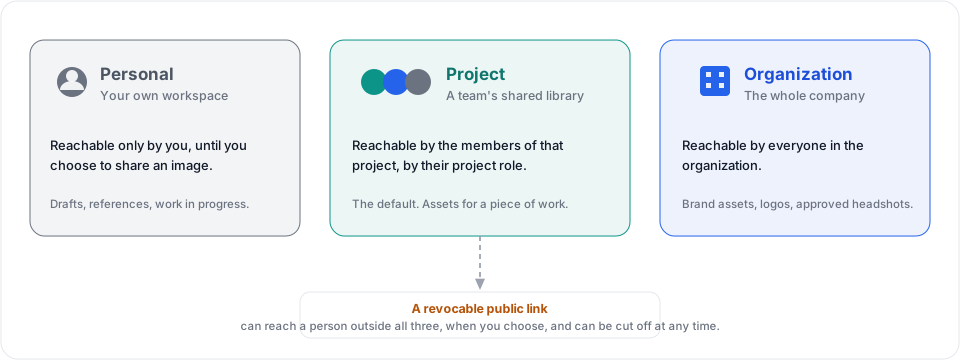
- Project. The default. Images live in the project you are working in and are visible to project members, governed by their project role. This is where team assets for a piece of work belong.
- Organization. A shared library for images the whole organization uses, such as brand assets, logos, and headshots, so nobody re-uploads the current approved version.
- Personal. Your own library, visible only to you until you choose to share an image.
Upload Your First Photos
After this section you will have real images in your library. The fastest path is to open a project's Photos area and drop files onto it.
- Open Backbuild Photos from the project sidebar, under This Project. If you do not see it, an administrator can enable it for your organization.
- Drag images onto the grid, or press Upload and pick files. Uploads run in parallel with per-file progress, and one bad file does not stop the batch.
- Watch the grid fill in. Each new image appears as a thumbnail as soon as it finishes. If you drop the same file twice, it is recognized and not duplicated.
- Click a thumbnail to open the lightbox, or use Edit to open the full editor.
Do I have to be technical to use this? No. Uploading is drag and drop, and organizing is a click. The professional editor is there when you want it, but you never have to open it to keep and share images.
Which file types can I upload? PNG, JPEG, WebP, GIF, and BMP. The editor can additionally open TIFF, HEIC, AVIF, and camera RAW for editing. For safety, uploaded files are checked by their actual content, not just their name, and scalable vector (SVG) files are not accepted as photo uploads.
What happens to the location data in my photos? GPS coordinates and camera metadata are removed from the file on upload before the image is stored, so nothing about where a photo was taken travels with it. The file name, dimensions, format, and size are always kept for display. If you want to keep the camera details (make, model, lens, capture time, exposure), turn on Preserve metadata before uploading; those details are then shown in the image's Info panel and become searchable. GPS is never kept, even then.
Choose Your Guide
Each guide teaches one job end to end. Start with the one that matches what you need to do.
- Your Library, Albums, and Slideshows: the gallery in depth, uploading and de-duplicating, the three scopes, search and sort, the lightbox, building albums, and playing a full-screen slideshow with Ken Burns motion.
- Editing Photos: The Non-Destructive Editor: the four-region editor, layers and masks, selections, retouching, adjustments and filters, vector and type, transform and liquify, RAW develop, version history, and export, with an honest account of the limits.
- AI Image Tools: Generate, Fill, Expand, and Remove: create an image from a prompt, fill and expand from a prompt, remove an object, one-click background removal and upscale, what they cost, and your rights to the output.
- Sharing, Access, and Governance: the three scopes and project roles, sharing to a person or a group, public links that expire and revoke, the audit trail, and how your data is protected.
- The API, AI, and Agents: drive the whole library over the public REST API, let an AI agent create and edit images, and understand what is programmable today.
What Backbuild Photos Does Not Do Yet
Choosing well means matching the tool to the requirement, so here are the edges to weigh before you switch, especially if you are moving from a consumer cloud photo service.
- No automatic phone backup. You upload from a computer. There is no background auto-upload of a phone's camera roll today.
- No machine-learning content search or face grouping. Search matches file names and kept camera details, not the contents of the image, so you cannot search for "beach" or "dog" and have the photos found by content, and there is no People view that clusters faces.
- No automatic memories or highlight albums. Albums are the ones you create.
- No AI culling or auto-selection of the best frames from a large shoot.
- A stock media marketplace (licensed photos, video, and music) is coming soon and is marked as such on the pricing page. Today you bring your own images or generate them with the AI tools.
- No native mobile app. Backbuild Photos runs in the web app and the Windows and macOS desktop app.
If automatic phone backup or machine-learning content search is your first requirement, weigh that against everything above. If you want a private, governed image library with a genuinely professional editor, AI generation and retouching, and images that flow into your documents, all free on every plan, this is built for you.