

Remote Desktop in the Native App
Backbuild Remote Desktop lets you see and control your own machines and cloud desktops from the browser, on every plan. The native desktop app adds the pieces a browser tab cannot: lifting a remote session out into its own real window, dragging files directly between the remote machine and your own desktop, sharing your screen, and keeping a machine reachable. This guide teaches those native additions and when to reach for each. After this page you will be able to treat a remote desktop like a first-class window on your own computer instead of a captive panel in a browser tab.
Remote Desktop is available on every plan, and its connection is encrypted with post-quantum protection. This guide covers only what the native app adds; for the engine itself, per-device trust, roles, and reaching your enrolled machines, see Remote Desktop.
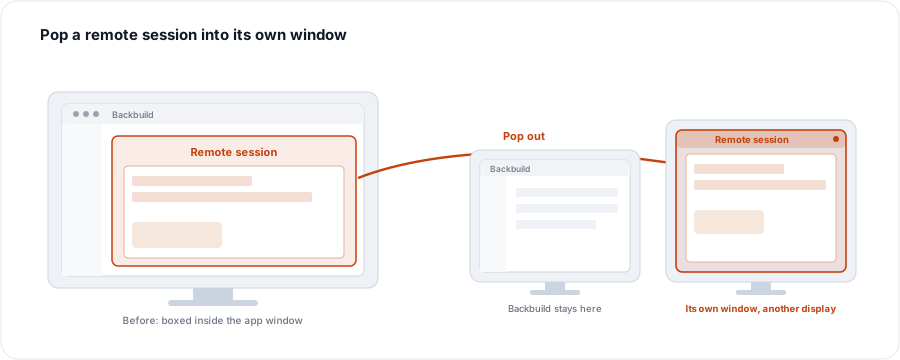
Pop a Remote Session Into Its Own Window
After this section you will be able to give a remote desktop its own real window. In the browser, a remote session lives inside the page, boxed in by the tab around it. In the native app you can lift it out into its own operating-system window that you move to any monitor, resize up to full screen, and close on its own, independently of the rest of Backbuild. It behaves like any other application window on your computer, which is exactly what you want when you are working in a remote machine for a stretch rather than glancing at it.
- Its own window. The remote session becomes a standalone window you can place, size, and full-screen like a native app, rather than a frame inside a page.
- On the monitor you choose. Drag it to a second display and give the remote machine a whole screen while you keep Backbuild on your main one.
- Closed on its own. Close the popped-out window when you are done with the remote machine without disturbing the rest of your workspace.
Drag Files Between the Remote Machine and Your Own
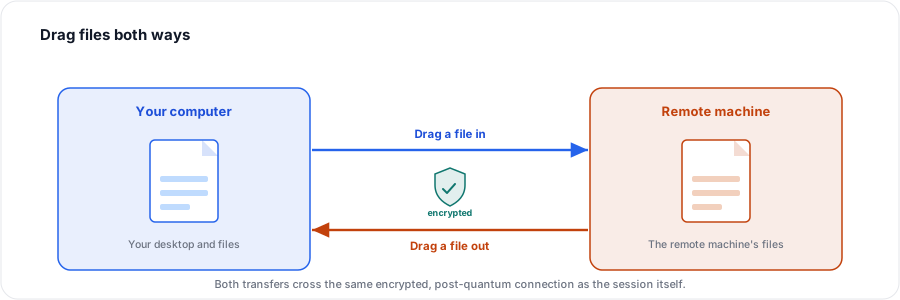
After this section you will be able to move files by dragging them, in both directions. This is the single most-requested capability in remote access, and the one browser-only remote surfaces cannot offer. In the native app you drag a file from your own desktop onto the remote session window to send it across, and drag a file out of the remote session onto your own desktop to bring it back. There is no separate file-transfer panel to open and no clipboard juggling: you use the same drag gesture you use everywhere else.
- Into the session. Drag a file from your local machine onto the remote window to transfer it to the remote machine.
- Out of the session. Drag a file from the remote machine onto your own desktop to bring it back to your computer.
Transfer time depends on the size of the file and the quality of your connection, as any file transfer does, so a very large file will take a moment. Everything crosses the same encrypted, post-quantum connection the session itself uses.
Can I drag files straight into and out of the remote session window? Yes, in both directions, using an ordinary drag. This is the native capability a browser tab cannot provide, and it needs no separate file-transfer window.
Is the transfer encrypted? Yes. Files move across the same encrypted, post-quantum connection as the session, the same protection covered in Remote Desktop.
Share Your Own Screen
After this section you will know how to let someone view your screen. The desktop app can also host, or share, your own screen, so an authorized person can watch what you are doing, the same engine working in the other direction. This is useful for showing your work, walking a colleague through a problem, or making your machine viewable for support. As with viewing a remote machine, sharing your own screen runs under Remote Desktop's access rules, so who may connect and what they may do is governed by roles and per-device trust, not left open.
Keep a Machine Reachable
After this section you will understand the option to stay reachable, and its guardrails. Sometimes you want a machine to remain reachable even when you are not sitting in front of the app, so you can return to it later from elsewhere. The desktop app can install a small background helper for that purpose. It is an opt-in choice, not something that happens silently, and access to the machine stays governed by the same per-device trust and roles as every other Remote Desktop connection, so being reachable is not the same as being open. If you do not want a machine to be reachable while the app is closed, you simply do not enable the helper.
Does the app leave something running in the background? Only if you choose to keep a machine reachable, which installs a background helper on purpose. It is opt-in, and access to the machine is still controlled by roles and device trust. Leave it off and closing the app closes everything.
Who can connect to a machine I keep reachable? The same people your Remote Desktop roles and per-device trust allow, and no one else. Reachable means you can return to it under those rules, not that it is exposed to anyone.
Where to Next
- Remote Desktop: the engine in full, including enrolling your own machines, per-device trust, roles, and the encrypted connection.
- Signing In, Sync, Device Unlock and Security: how the app authenticates and what it is allowed to connect to.
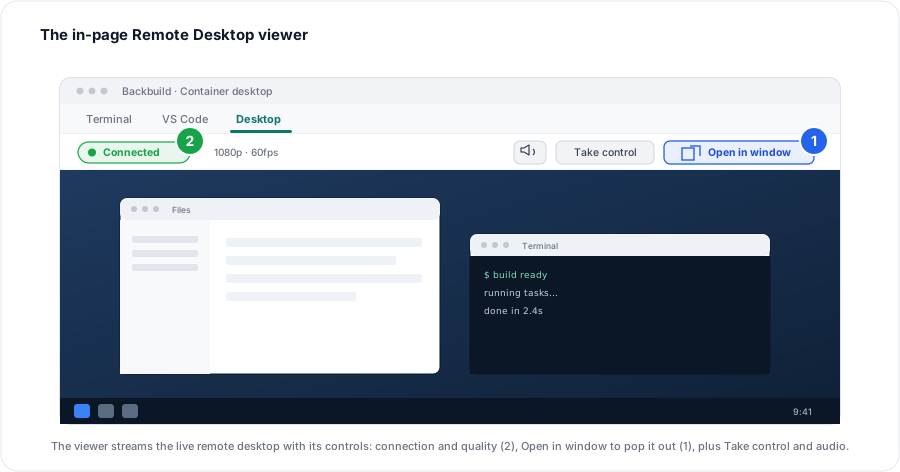
- Terminal, VS Code and Desktop: the graphical desktop of a Backbuild container, which streams over the same Remote Desktop engine.