

Backbuild Studio
Backbuild Studio is the creative-media app built into your Backbuild workspace. It is six editors in one place: a narrated Training Video that drives your real product on screen, an illustrated Visual Storybook, a long-form Audiobook, a multi-track Video Editor, a mastering-grade Audio Editor, and a multi-instrument Music Editor. It is the same studio a developer advocate uses to keep a product demo current, a training team uses to publish a library of how-to modules, a creator uses to cut a short and a long edit from one recording, a podcaster uses to clean and level an episode, and a producer uses to sketch a track. After this page you will know what Studio does, how to make your first production, exactly what is free and what draws credits, and which guide answers the job in front of you.
Studio does not use AI avatars. It does not generate a synthetic presenter or a talking head reading your script. A Studio training video shows your actual product on screen, driven step by step, with a real voiceover. If you need a presenter-led avatar video, that is a different class of tool. Studio is built to teach software, produce narrated long-form media, and edit real video, audio, and music.
What You Get
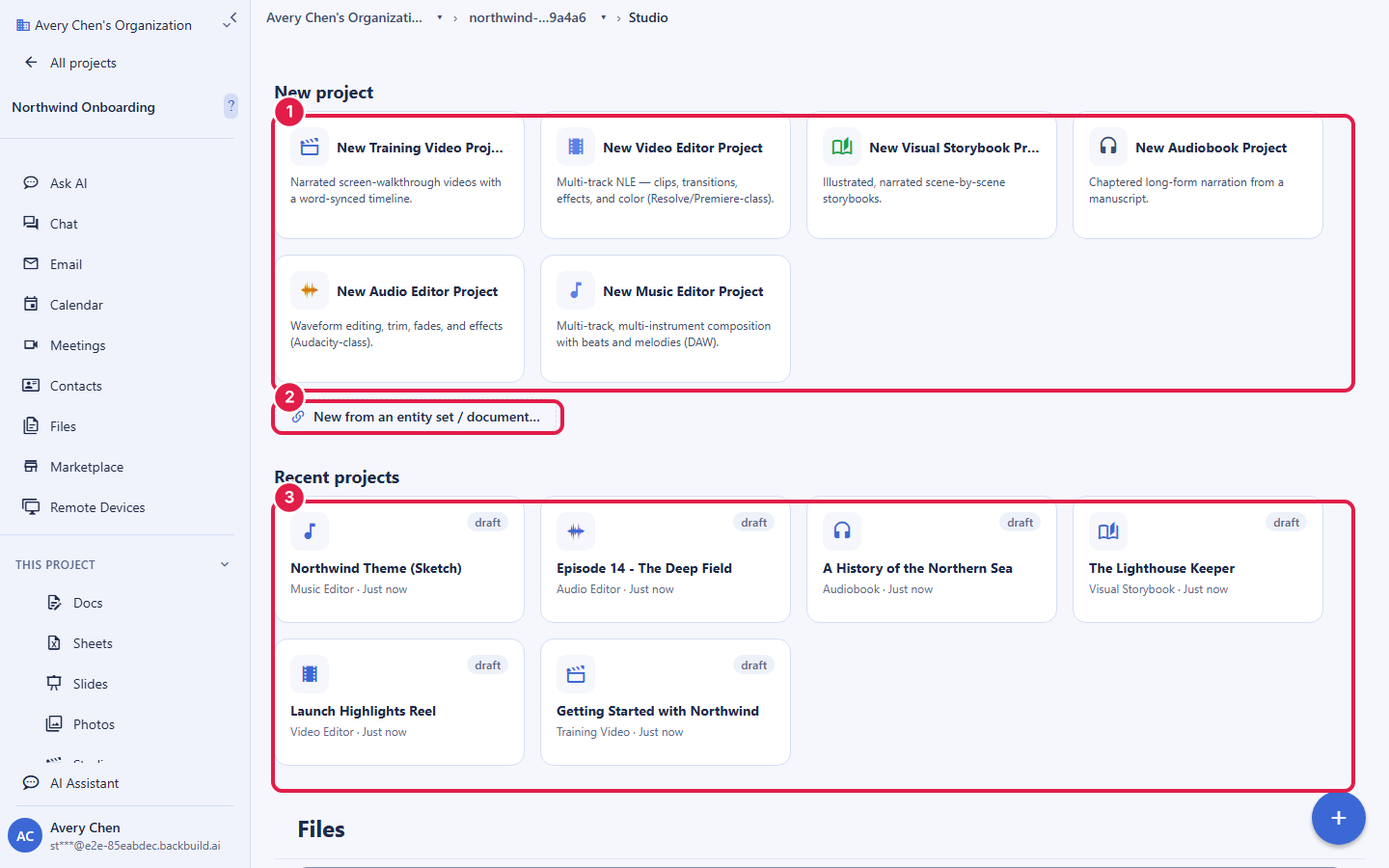
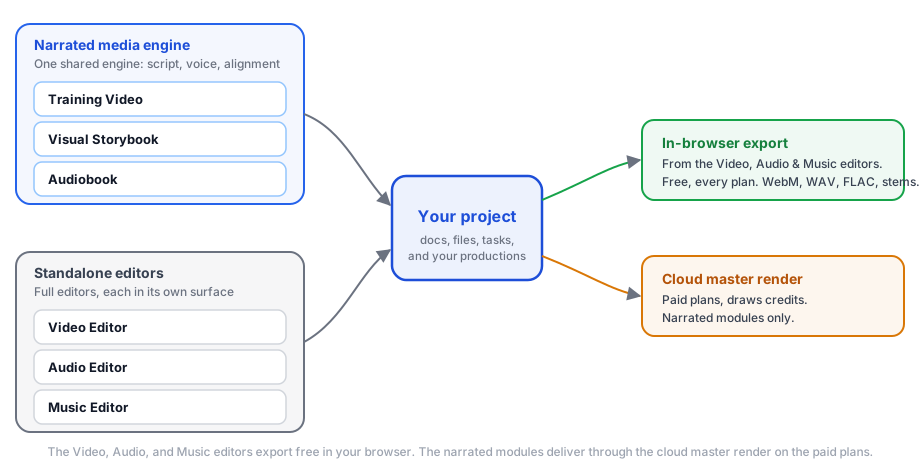
After this section you will understand the shape of the product and which guide answers your question. Studio lives inside a project, alongside your documents, sheets, files, and tasks, so a production sits next to the work it belongs to. The home screen is a set of tiles, one per editor. You pick the tile for the job, and the project opens in that editor. Two of those editors, the narrated ones, share a single media engine; the rest are full standalone editors.
- A narrated Training Video. Type your narration into a word timeline, then anchor on-screen actions, highlights, music, and captions to individual spoken words. On render, a real browser drives your live product (navigate, click, type, drag, assert) while the voiceover plays, and every action lands on the exact word it belongs to. The render doubles as a check that the product still works.
- Visual Storybooks and Audiobooks. Tell an illustrated story scene by scene and get a video and an audiobook from one run, or produce a chaptered audiobook from a manuscript where editing one chapter re-synthesizes only that chapter.
- A multi-track Video Editor. A timeline editor with clips, transitions, keyframes, color grading and scopes, and a layout toggle that switches the whole editor between a Resolve, a Premiere, and a CapCut style with matching shortcuts.
- A mastering-grade Audio Editor. Waveform editing with a deep restoration stack (noise reduction, spectral repair, de-esser, de-hum, de-reverb), loudness metering to a target you set, and transcript-based editing. It opens as a full editor or as a quick modal on any audio clip anywhere in Studio.
- A Music Editor. A multi-track composition surface with a piano roll, a step sequencer, first-party instruments, MIDI import and export, a mixer, automation, and an AI music generator, bouncing to audio and to stems.
- Free in-browser export, an optional cloud render on paid plans. The Video, Audio, and Music editors export in your browser for free. The narrated modules, the Training Video, the Visual Storybook, and the Audiobook, produce their finished, composed output through an optional cloud master render that draws usage credits on the paid plans, so you only pay when you render.
- Your own voice and AI keys, metered at zero. Bring your own text-to-speech and AI provider keys and that usage is billed by your provider, not by Backbuild. A default voice catalog is provided for everyone.
- Drivable by AI and by API. An AI agent can author and generate a production through the same access checks a person passes, and the whole Studio surface is available over the public REST API and as native agent tools.
Make Your First Production
After this section you will have a production open and know it is saved. There is nothing to install and nothing to configure.
- Open a project. Productions live inside projects, the same containers that hold your files, documents, and tasks. Open an existing project or create one from the workspace.
- Open Studio and choose an editor. Choose Studio in the project sidebar. The home screen shows one tile per editor. For a first success, start a Training Video: it is the most complete module and shows off what makes Studio different.
- Write the narration. Type what you want said into the script area. Each word is laid out on its own so you can attach things to it later. You do not have to mark anything up by hand; an auto-markup option can add sensible pauses and delivery pacing for you.
- Add a step. Click a word to drop a cue there, then add an action such as navigate to a screen or click a control. The action is now anchored to that word and will happen when the word is spoken.
- Preview, then generate. The editor shows an estimated timeline before you spend anything. When you are ready, Generate shows a credit estimate first, then produces the finished media. Everything is saved as you go; there is no Save button to remember.
Do I need to be a video editor to use this? No. The fastest path is to write your narration, let auto-markup pace it, add a couple of action cues, and generate. You get a finished, narrated walkthrough without touching a traditional timeline. The deeper editors are there when you want them, not required to get a result.
Can I create a whole production from a document I already have? Yes. Studio can start an audiobook or a storybook project linked to a source document or a set of records, and edits made in the source flow back into the production, so you generate media directly from material you have already written.
What Is Free and What Draws Credits
After this section you will know exactly where the line sits. Studio is part of the free Backbuild workspace, next to Backbuild Docs, Backbuild Sheets, Backbuild Slides, Backbuild Photos, Backbuild Calendar, and Backbuild Contacts. The editors are not a Pro-only feature, and there is no separate media subscription. What differs by plan is the cloud render.
- Free on every plan, including Free: all six editors, and free in-browser export from the Video, Audio, and Music editors, which produces a real, watermark-free file. The Video Editor exports video in your browser, the Audio Editor exports WAV and FLAC, and the Music Editor bounces to audio and to stems, all at no credit cost.
- On the paid plans, an optional cloud master render: the narrated Training Video, Visual Storybook, and Audiobook produce their finished, composed output through a cloud render. That cloud render is available on the paid plans and draws universal usage credits, so you pay for the compute a render actually uses and nothing when you do not render.
- Speech and heavy compute draw credits, unless you bring your own keys: text-to-speech, word alignment, AI image and AI music generation, and cloud media restoration draw credits. Bring your own text-to-speech or AI provider key and that usage is billed by your provider rather than by Backbuild.
- An unchanged re-render costs nothing: Studio caches the voice, the alignment, and the rendered media, and only regenerates what changed. Re-rendering a production you did not touch is free, and changing only the music or an overlay recomposes without re-synthesizing the voice.
The pricing page is the authoritative source for current allowances and rates. See Usage and Credits for how metering works, and File vs Database Storage for where your media files land.
Choose Your Guide
Each guide teaches one job end to end. Start with the one that matches what you need to do.
- Making a Training Video: the Word Timeline, Cues, and Actions: write narration into a word timeline, anchor pauses and delivery, drop cues on words, script actions that drive your real product, record a screen behind a login with a masked credential, and produce a 16:9 and a 9:16 cut from one project.
- Narration, Voices, Caching, and Cost: choose a voice or bring your own, understand why the audio is the master clock, and learn the change-aware caching that makes a small edit cheap. This is the guide that settles what a render costs and how to keep the bill down.
- Audiobooks and Visual Storybooks: produce a chaptered audiobook from a manuscript where a one-chapter edit re-synthesizes only that chapter, level it to an audiobook loudness target, and export a chaptered file with cover art; or tell an illustrated story and get a video and an audiobook from one run.
- The Video Editor: cut a multi-track timeline, switch the editor between a Resolve, a Premiere, and a CapCut style, grade color with scopes, and export video in your browser for free.
- The Audio Editor: clean and restore audio with a deep DSP stack, meter loudness to your target, edit by editing the transcript, and export WAV and FLAC, from the full editor or a quick modal on any clip.
- The Music Editor: arrange multi-track music, program a piano roll and step sequencer, play first-party instruments, import and export MIDI, generate ideas with AI, and bounce to audio and stems.
- AI Agents, the API, and Governance: let an AI agent author and render a production, drive the whole studio over the public REST API, inject a vault credential safely, and see how access, audit, and the choice of speech provider are governed for an administrator.
What Studio Does Not Do Yet
Choosing well means matching the tool to the requirement, so these limits are stated plainly rather than discovered later. Studio does not generate a presenter-led avatar video, a one-click translation of a finished video into many languages, or a large gallery of themed video templates; those are the strengths of a different class of tool. The Video Editor, Audio Editor, and Music Editor export in your browser today; a cloud master render for those three is on the roadmap, so treat their in-browser export as the finishing step for now. Studio exports finished media files and caption tracks; it does not currently package a course as SCORM or xAPI for a learning-management system, so learners consume the exported video and captions directly. Each guide says where one of these matters rather than implying a capability that is not there.