

Installing and First Launch
This guide takes you from a fresh download to a signed-in desktop app in a few minutes, and it is honest about the two things that surprise people the first time: a small Microsoft component some Windows machines install once, and the standard operating-system caution prompt that appears the first time you open any app downloaded from outside the Microsoft Store or the Mac App Store. After this page you will have Backbuild Desktop installed, know exactly why each prompt appears and how to clear it safely, be signed in as your usual account, and understand how the window behaves and how you keep the app up to date.
Step 1: Download the Right Build
After this section you will have the correct installer for your computer. Go to the download page and pick your platform. Always download from that page: it is the official source, and the file always comes from the Backbuild download domain. Checking the address in your browser before you run the file is the simplest way to be sure you have the genuine app.
- Windows. One installer covers Windows 10 or later, 64-bit. Download the installer and run it.
- macOS, Apple Silicon. If your Mac has an M-series chip (most Macs from late 2020 onward), choose the Apple Silicon disk image.
- macOS, Intel. If your Mac has an Intel processor, choose the Intel disk image. If you are unsure, open the Apple menu, choose About This Mac, and read the chip or processor line.
- Linux. Native Linux builds are coming. Until then, use Backbuild in your browser at the address shown on the download page.
Step 2: The One-Time Windows Component
After this section you will know why Windows may install one extra piece, and that it is safe. On Windows, Backbuild Desktop uses Microsoft's built-in web view component to render the app. Windows 11 already includes it, and most up-to-date Windows 10 machines do too. If yours does not, the installer quietly fetches and installs it from Microsoft the first time. This is a genuine Microsoft component, it installs once, and it keeps itself updated afterward. It is not advertising software and it is not something Backbuild controls; it is the same component many modern Windows apps rely on. You do not need to do anything except let the installer finish. On macOS there is no equivalent step, because the web view is part of the operating system.
Why did Windows install something called a web view or Edge component? Backbuild Desktop draws its interface using Microsoft's system web view. If your PC did not already have it, the installer added it once from Microsoft. It updates itself from then on and needs no attention.
Step 3: The First-Launch Safety Prompt
After this section you will understand the caution prompt and clear it safely, without weakening your computer. Backbuild Desktop is distributed directly from Backbuild and is not currently signed through Microsoft's or Apple's developer program. Because of that, the first time you open a freshly downloaded build, your operating system shows a standard caution screen. Read this carefully, because the message sounds scarier than it is: the system is telling you it does not yet recognize this exact file, not that it found anything harmful in it. New apps distributed outside the stores start out unrecognized until the vendor's systems have seen the same build enough times. You will see this prompt on first launch, and again after you install an update, because each new build is unrecognized until it earns recognition.
The safe way through is to allow this one app, using the operating system's own built-in option. Do that, and nothing else: do not turn off the system's protection entirely, and do not run commands that disable it for every app. Those steps make your whole computer less safe and are never necessary here.
On Windows
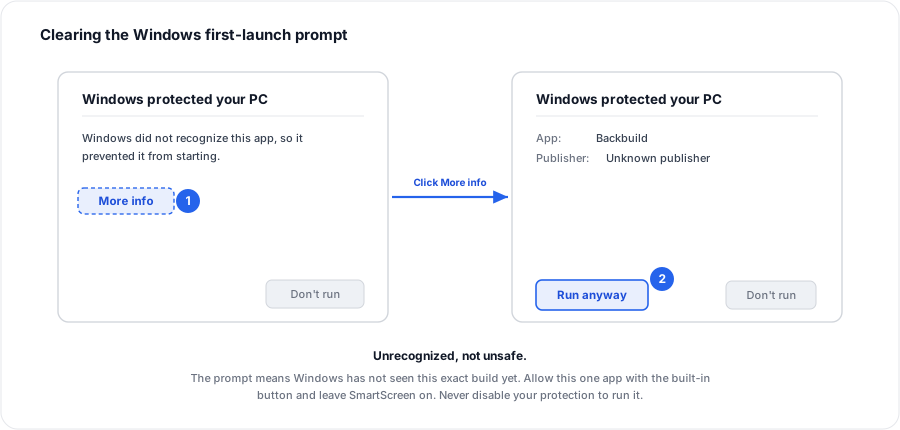
If Windows shows a blue Windows protected your PC screen when you run the installer:
- Click More info. A publisher and app-name line appears, and a new button shows up.
- Click Run anyway. The installer proceeds normally.
That is the entire process, and you only do it when you run a build the first time. If you do not see a Run anyway button, confirm you downloaded the file from the official download page and try again.
On macOS
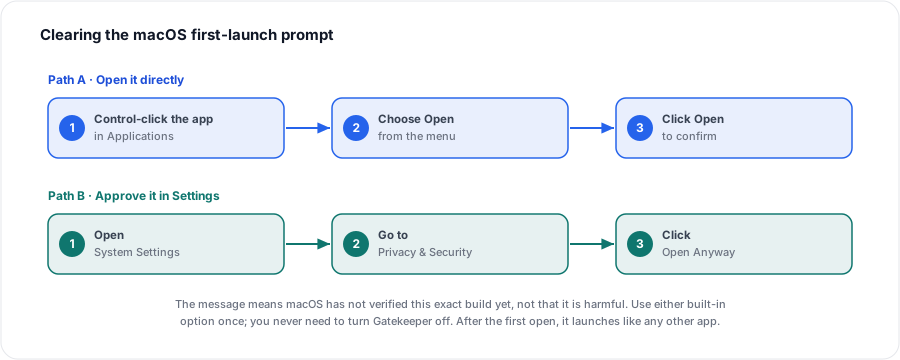
On macOS, first drag Backbuild from the opened disk image into your Applications folder, as usual. Then, the first time you open it, macOS may say the app cannot be opened because the developer cannot be verified. Clear it with either of these built-in options:
- Open it directly. In your Applications folder, hold Control and click (or right-click) the Backbuild app, choose Open from the menu, and then click Open in the dialog that appears. Opening it this way once tells macOS to trust it from then on.
- Approve it in Settings. If you double-clicked and macOS refused, open System Settings, go to Privacy & Security, scroll to the Security area, and click Open Anyway next to the note about Backbuild. Recent versions of macOS keep this control in the Privacy & Security pane.
After you allow it once, Backbuild opens normally every time, just like any other app, until you install an update, when you approve the new build the same way.
Windows or my Mac warned me when I opened it. Is this malware? No. The prompt means your operating system does not yet recognize this exact download, which is normal for an app delivered directly rather than through a store. It is not a report that anything harmful was found. Clear it with the built-in option shown above, having first confirmed you downloaded from the official page.
Should I turn off SmartScreen or Gatekeeper to stop the prompts? No. Allow the single app with the built-in option and leave the system protection on. Disabling it for every app removes a real safeguard and is never required to run Backbuild.
Are the installers code-signed? Not currently. The builds are delivered directly by Backbuild and are not signed through Microsoft's or Apple's developer program, which is why you see the first-launch prompt and see it again after each update. The safe click-through above is how you open them.
Step 4: Sign In
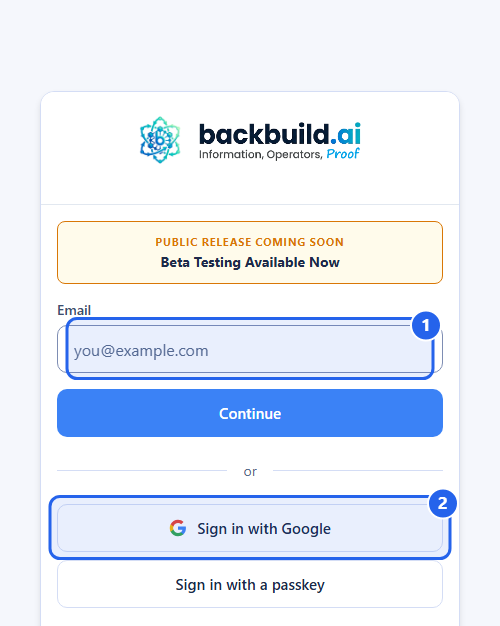
After this section you will be working in your own workspace. When Backbuild Desktop opens, it shows the same sign-in screen as the web app. Sign in the way you normally do:
- Email and password. Enter your Backbuild email and password just as you would in the browser.
- Sign in with Google. Choose Google sign-in and complete it; the app brings you back and finishes signing you in automatically. A passkey sign-in option is here too.
There is no separate desktop account. You land in the same organizations with the same data, and if you use multi-factor authentication or a passkey, it works here exactly as on the web. For everything about credentials, Google, passkeys, and multiple accounts, see Signing In and Account Security.
Step 5: How the Window Behaves
After this section you will know what to expect from the window itself. Backbuild Desktop is a normal application window with your operating system's own title bar and minimize, maximize, and close controls. Two conveniences are worth knowing:
- It remembers where it was. When you close and reopen the app, it comes back to the same size and position, so a layout you set up on a second monitor is there next time.
- It stays a single app. On Windows, if you launch Backbuild again while it is already open, or click a link that opens in the app, it brings the existing window to the front instead of opening a second copy, so you always have one Backbuild, not a pile of them.
Can I keep it snapped on my second monitor? Yes. It is a real resizable window and it reopens to where you left it, so a second-monitor or split-screen layout persists across restarts.
Is there a menu-bar or system-tray icon running in the background? No. Backbuild Desktop is a standard windowed app. When you close the window, it closes; it does not leave a background tray agent behind.
Step 6: Keeping the App Up to Date
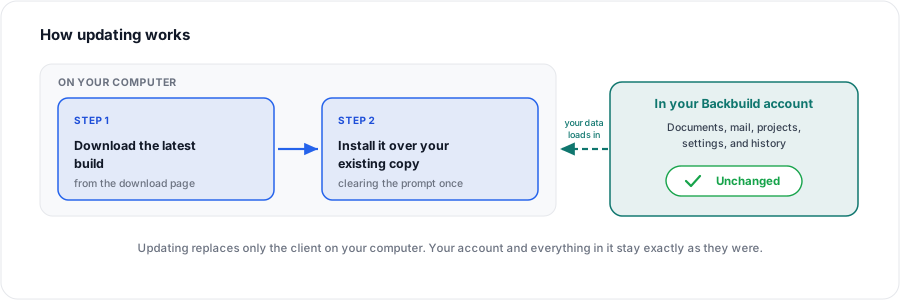
After this section you will know exactly how updates work, with no surprises. Today, Backbuild Desktop does not update itself in the background, and it will not pop up an update prompt. You update it yourself, and it takes a moment:
- Return to the download page. The links there always point at the newest build.
- Download the installer for your platform again and run it, clearing the first-launch prompt from Step 3 for the new build.
- Install it over your existing copy. Your account, your settings, and all of your data are in your Backbuild account, not in the app, so nothing is lost and you do not sign in again unless you had signed out.
Because your content lives in your account rather than in the installed app, updating is low-risk: you are only replacing the client. If you want to know which build you are on, the download page always reflects the latest release, so re-downloading brings you current.
Does the app update itself? Not at the moment. There is no automatic updater and no update prompt; you re-download the latest build from the download page and install it over the top. Your data is untouched because it lives in your account, not the app.
Will I lose anything by reinstalling? No. Reinstalling replaces only the client software. Your documents, mail, projects, and settings are all in your Backbuild account and are still there when the new build opens.
Removing the App
After this section you will know that uninstalling is safe. Remove Backbuild Desktop the normal way for your operating system: on Windows, uninstall it from Settings or the control panel; on macOS, drag the app from Applications to the Trash. Uninstalling removes only the client from that one computer. Your account and everything in it stay exactly as they were, and you can keep working on the web or reinstall the app whenever you like.
Where to Next
- Local AI Agents and Files on Your Device: the native powers that make the app worth installing, running your own AI agent locally and opening local files.
- Signing In, Sync, Device Unlock and Security: unlock your vault without repeating two-factor, and see what the app is allowed to connect to.
- Deploying to a Fleet: for administrators rolling the app out to many computers at once.