

Backbuild Contacts
Backbuild Contacts is the address book built into your Backbuild workspace. It holds the people and companies you work with, with room for real detail: multiple email addresses and phone numbers, job titles, mailing addresses, notes, and favorites. It is part of the free workspace, and the contacts you keep here are the same people you invite to events in Backbuild Calendar and email in Backbuild Mail. After this page you will have added a contact, learned every field, and know how to email someone straight from their record.
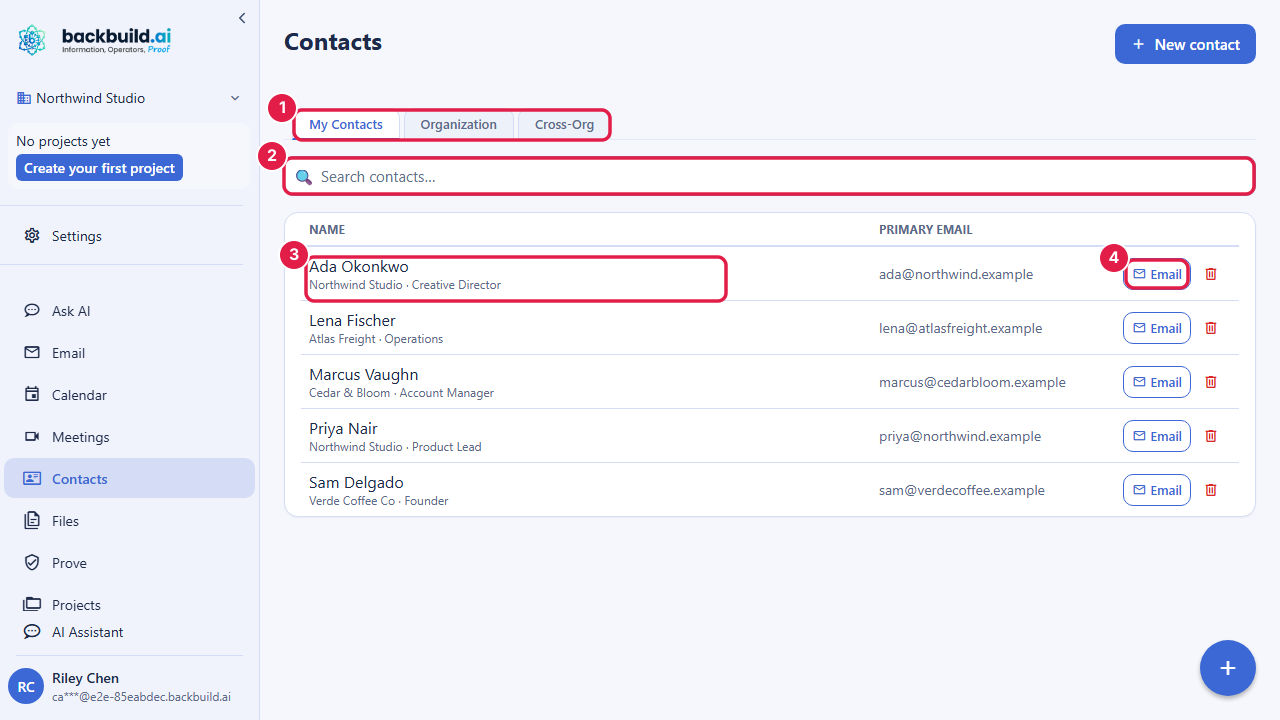
What You Get
After this section you will understand what Backbuild Contacts is for. It is a straightforward, shared address book, deliberately not a heavy CRM with pipelines and required training. You get the record-keeping a business actually needs day to day, and it is instant to learn.
- Rich contact records: a display name, first and last name, company, job title, notes, and a favorite flag.
- Multiple channels per person: as many email addresses, phone numbers, fax numbers, websites, social handles, messaging handles, and other contact points as a person has, each with an optional label like "work" or "mobile".
- Multiple addresses: mailing addresses with street, city, region, postal code, and country, each labeled.
- Instant search: filter the current tab as you type.
- Email from the record: one click opens the Backbuild Mail composer already addressed to the contact.
- Three scopes side by side: your private contacts, your organization's shared contacts, and a read-only look at contacts in your other organizations. See Personal, Organization, and Cross-Org Contacts.
Contacts Are Included on Every Plan
After this section you will know the cost: none. Backbuild Contacts is part of the free workspace on every plan, including Free, alongside Backbuild Mail, Backbuild Calendar, Backbuild Docs, and Backbuild Sheets. There is no separate contacts subscription. The pricing page is the authoritative source for what each plan includes.
Add Your First Contact
After this section you will have a real contact on file.
- Open Backbuild Contacts from the workspace sidebar.
- Choose a tab. Use My Contacts for a private contact only you see, or Organization for a contact your whole team shares.
- Click New contact (or New org contact). An inline card form opens.
- Fill in the details. A display name is the only required field; add company, job title, one or more channels, an address, and notes as you have them.
- Save. The contact appears in the list and is searchable immediately.
How much training will my staff need for this? Effectively none. Adding a contact is a name and a save; finding one is typing into the search box. Backbuild Contacts is intentionally a clean address book rather than a CRM you have to be taught, so it is useful on day one.
The Contact Fields, In Detail
After this section you will know exactly what each field holds.
- Display name (required): how the contact is listed and titled.
- First and last name: the structured name behind the display name.
- Company and job title: shown together as the subtitle under the name in the list, so you place a person at a glance.
- Channels: each channel has a type (Email, Phone, Fax, Website, Social, Messaging, or Other), a value, and an optional label. Add as many as the person has; the value can be up to 512 characters.
- Addresses: each address has a label and the usual fields (street, a second street line, city, state or region, postal code, and country).
- Notes: free text up to 4,000 characters for context you want to remember.
- Favorite: star a contact to mark it; favorites are easy to spot in the list by their star.
Can I keep full client records, phone and email channels, addresses, and notes, in one place? Yes. A contact holds company and title, as many email, phone, and other channels as the person has, multiple labeled addresses, and up to 4,000 characters of notes, so a full client record lives on one card.
Find a Contact Fast
After this section you will pull up anyone in seconds. Type in the search box and the list filters the current tab as you go. Star the people you reach for most so they stand out. This is the everyday answer to "what is that client's number", without leaving the workspace or opening a spreadsheet.
How do I quickly find a colleague's or client's contact info? Search the tab you keep them in and their record comes up as you type; favorites make the people you contact most even quicker to reach. Company and job title show in the list so you can tell two people with the same name apart.
Email a Contact From Their Record
After this section you will start an email without retyping an address. Each contact row has an Email button. Click it and the Backbuild Mail composer opens already addressed to the contact's primary email, so you go straight to writing. If Backbuild Mail is not open to that step, the button falls back to your default mail handler. The address is checked before it is used, so a malformed or tampered address cannot slip through.
Can I email a contact straight from the record? Yes. The Email button on any row opens the Backbuild Mail composer pre-addressed to that person, so the address book and the inbox are one continuous flow rather than a copy-and-paste between two apps.
Editing and Removing Contacts
After this section you will keep records current and remove ones you no longer need, safely. Opening a contact for editing loads its full detail, including notes and addresses, before you make changes, so saving an edit never wipes fields the list view does not show. Deleting a contact is a soft delete confirmed by a dialog: the record is removed from your view but can be restored by an administrator, so an accidental delete is recoverable rather than final.