

The Music Editor
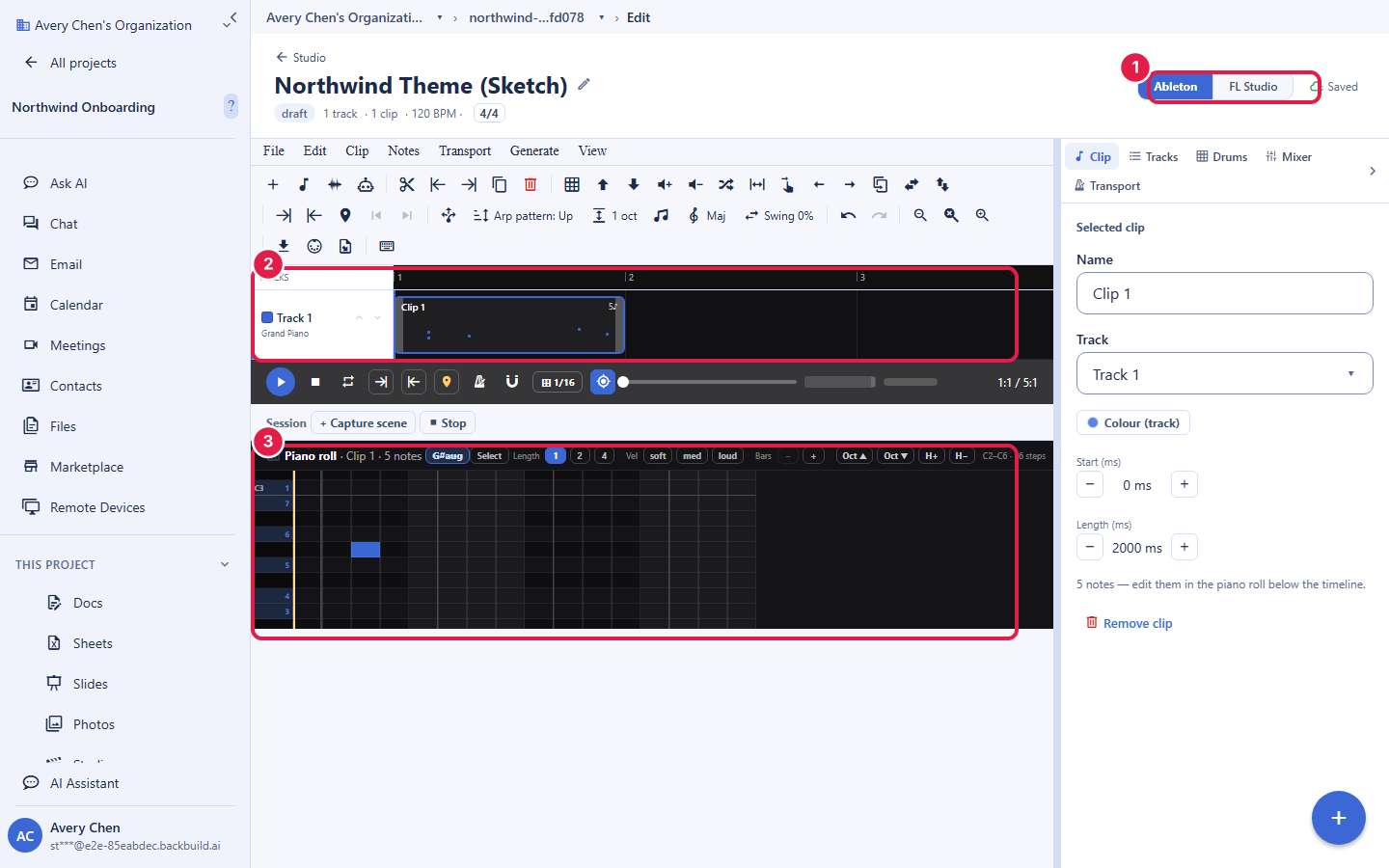
The Studio Music Editor is a multi-track, multi-instrument composition surface: arrange a song on a timeline, program parts in a piano roll or a step sequencer, play first-party instruments, mix and automate, and bounce to audio and stems, all in your browser. It also has an AI music generator for starting from an idea. This guide walks the composition tools, MIDI, the AI generator, export, and your rights to what you make. After it you will be able to sketch, arrange, and export a track.
Arrange, Program, and Play
After this section you will build a multi-track song. The editor gives you the core surfaces of a modern music workstation:
- Arrangement timeline: lay out sections and clips across multiple instrument tracks, with loop regions, a tempo map, and punch recording.
- Piano roll: draw and edit notes, with selection and note-editing operations, note coloring, groove and quantize to tighten timing, and an arpeggiator.
- Step sequencer: program beats and patterns step by step.
- First-party instruments: built-in synths and samplers, so you can start writing without hunting for a plugin.
- Mix and automate: mixer strips with automation lanes to move any parameter over time, plus warp and audio-clip timing tools.
- Help when you want it: chord detection and music-theory helpers to build progressions and stay in key.
MIDI In and Out
After this section you will move work between tools. The Music Editor imports and exports MIDI, so you can bring a part in from another program or take an arrangement out to one. Your composition is not trapped: a MIDI export carries the notes to any other workstation that reads the format.
Can I import and export MIDI? Yes. Bring MIDI in from another program and export your arrangement out as MIDI, so a part or a whole song moves between the Music Editor and any workstation that reads the format.
The AI Music Generator
After this section you will start a track from an idea. An AI music generator lets you generate musical material to build on, so you are not staring at an empty arrangement. Generation is metered in usage credits, and you can bring your own AI provider key to put that cost on your own account. What you generate drops into the arrangement as material you keep shaping with the same piano roll, mixer, and instruments as anything else.
Export: Audio and Stems
After this section you will get your track out. The Music Editor bounces to audio and to stems, in your browser, on every plan. Stem export is what lets you hand a mix to someone else, drop the track under a Studio video, or master it further in the Audio Editor, with each part on its own file rather than flattened into one.
Can I export stems? Yes. Bounce the full mix or individual stems, so you can hand parts off, place the track under a video, or master it further in the Audio Editor.
Is a browser editor good enough for real production, or only a sketch tool? It carries the surfaces real production needs: an arrangement timeline, a piano roll and step sequencer, first-party instruments, a mixer with automation, and MIDI in and out. In-browser playback and export run on your own machine's capacity, so a very large session is bounded by your device the way any local tool is; for sketching, arranging, and bouncing a track, it stands on its own.
Your Rights to What You Make
After this section you will know where you stand on commercial use. Music you create in the editor is yours to use, including for commercial work. You remain responsible for what you generate and for anything you import: do not prompt for or bring in material you do not have the right to use, and do not ask for output that infringes someone else's rights. Rights in AI-generated material are an evolving area of law and can depend on how much of the result is your own creative work, so review the position before you release an AI-generated piece commercially. This is guidance, not legal advice; your service agreement with Backbuild governs the exact terms.
Is AI-generated music safe to sell commercially? Music you make here is yours to use commercially, and you can generate on your own AI key. Because rights in AI-generated material are an unsettled and evolving area of law, review the position, and the terms that apply to the generation you used, before a commercial release. This is guidance, not legal advice; your service agreement governs the exact terms.
Where to Go Next
- The Audio Editor: master a bounce or a stem with the full DSP stack.
- The Video Editor: score a cut by dropping your track under the timeline.
- Narration, Voices, and Cost: use a track as background music under a narrated production, ducked under the voice.