

Charts, Sorting, Filtering, and Data Validation
This guide is for the reader who uses a spreadsheet to make sense of data and to keep a shared table clean: the analyst building a dashboard and the operations builder running a team's records. After it you will be able to chart a range that updates itself, sort and filter with real condition logic, and constrain what people can type into a column. Each capability is described as it works today, and where a behavior differs from what you might expect from another tool, this guide says so plainly.
Charts
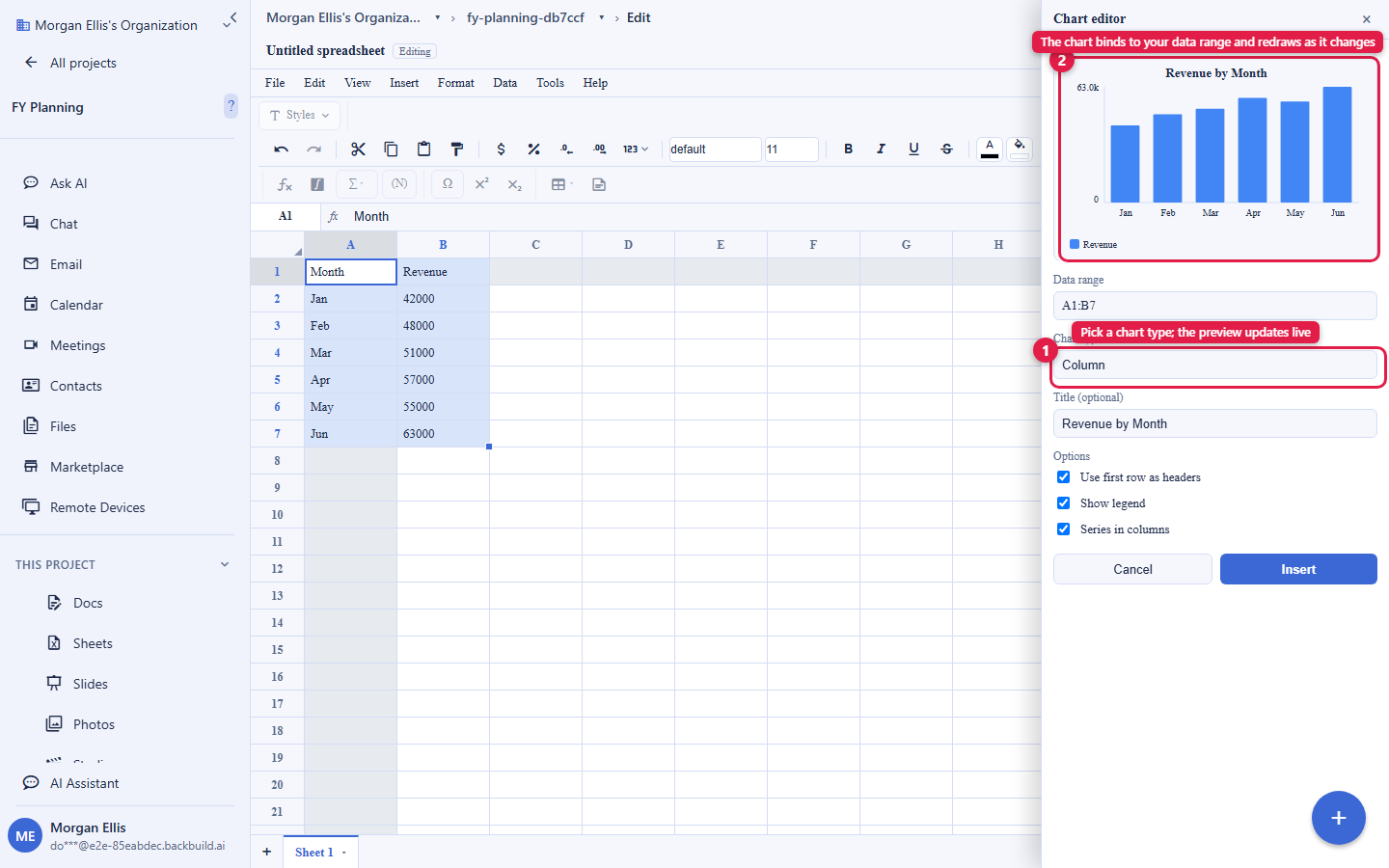
After this section you will build a chart that repaints itself as the data changes. Select a data range and open the chart editor to place a chart over the grid. A chart binds to its data range, so when the underlying cells change, the chart redraws automatically rather than going stale.
- Chart types: line, bar, column, area, scatter, and pie, covering the everyday reporting shapes.
- Live binding: the chart reads its data from the range you gave it and updates as those cells recalculate, which is what makes a dashboard living rather than a snapshot.
- Placement: a chart sits as an overlay on the grid, so you can arrange several charts and their source tables on one sheet.
Sorting
After this section you will order a table exactly how you want it. Sort the whole sheet ascending or descending in one click for a quick reorder, or open the sort-range dialog for control: choose the column to sort by, the direction, whether the first row is a header to hold in place, and add additional sort keys to break ties. A multi-key sort (by region, then by date, then by amount) is a dialog away.
Filtering
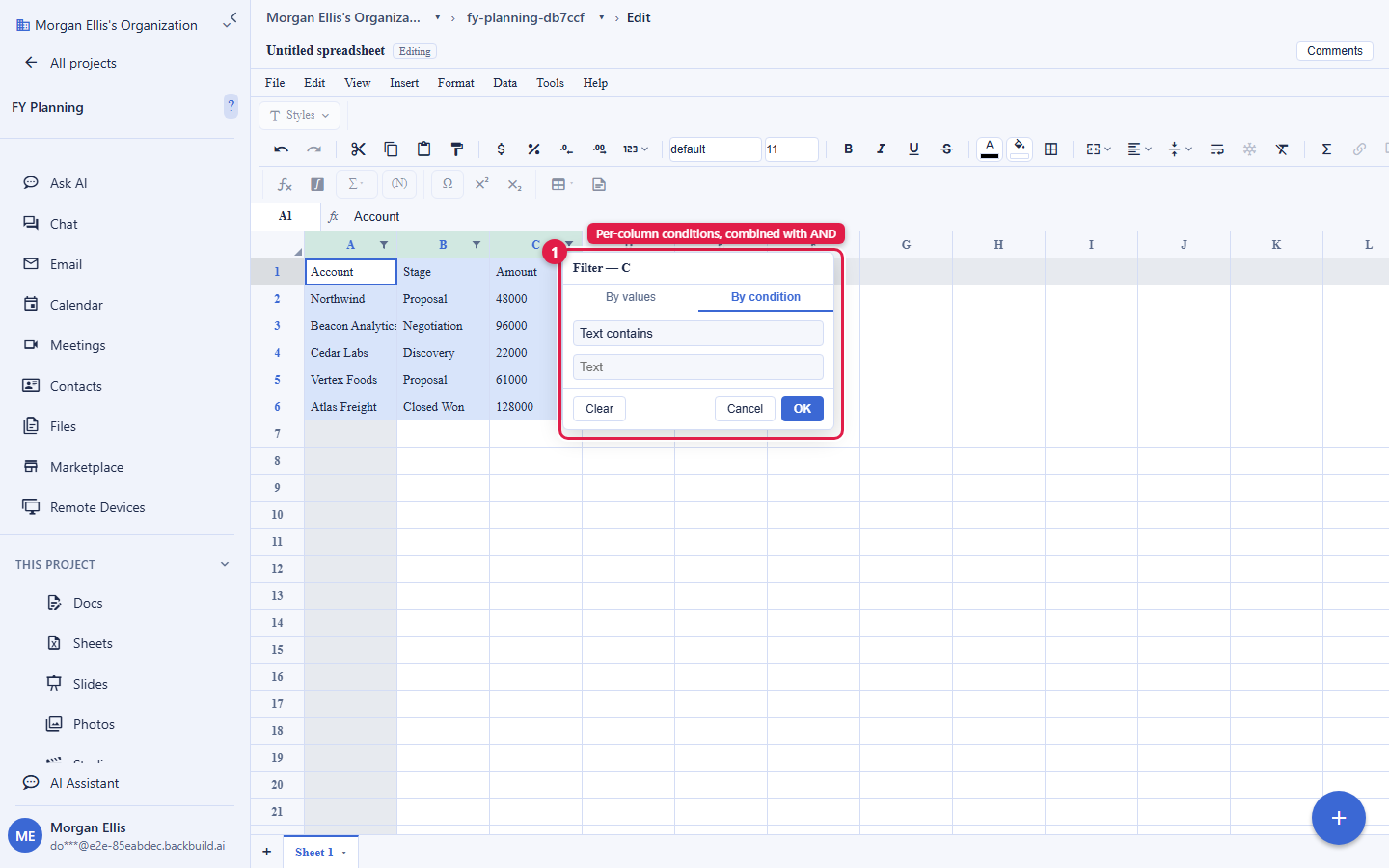
After this section you will narrow a table to just the rows you care about. Create a filter to add a funnel control to each column header, then set conditions per column, drawn from a full set of operators (equals, is greater than, contains, is between, and the rest), combined so a row must meet every active column condition to remain visible. Remove the filter to bring every row back.
How a filter is scoped today. A filter hides rows in your own view of the sheet: it narrows what you see without changing the underlying data. Saved, shared filter views that every collaborator sees identically are a planned addition, so today a filter is best understood as your personal lens on the data rather than a view you publish to the team. When you need everyone to see the same subset, sort or arrange the shared data itself, or point them at the filter conditions to apply.
Data Validation
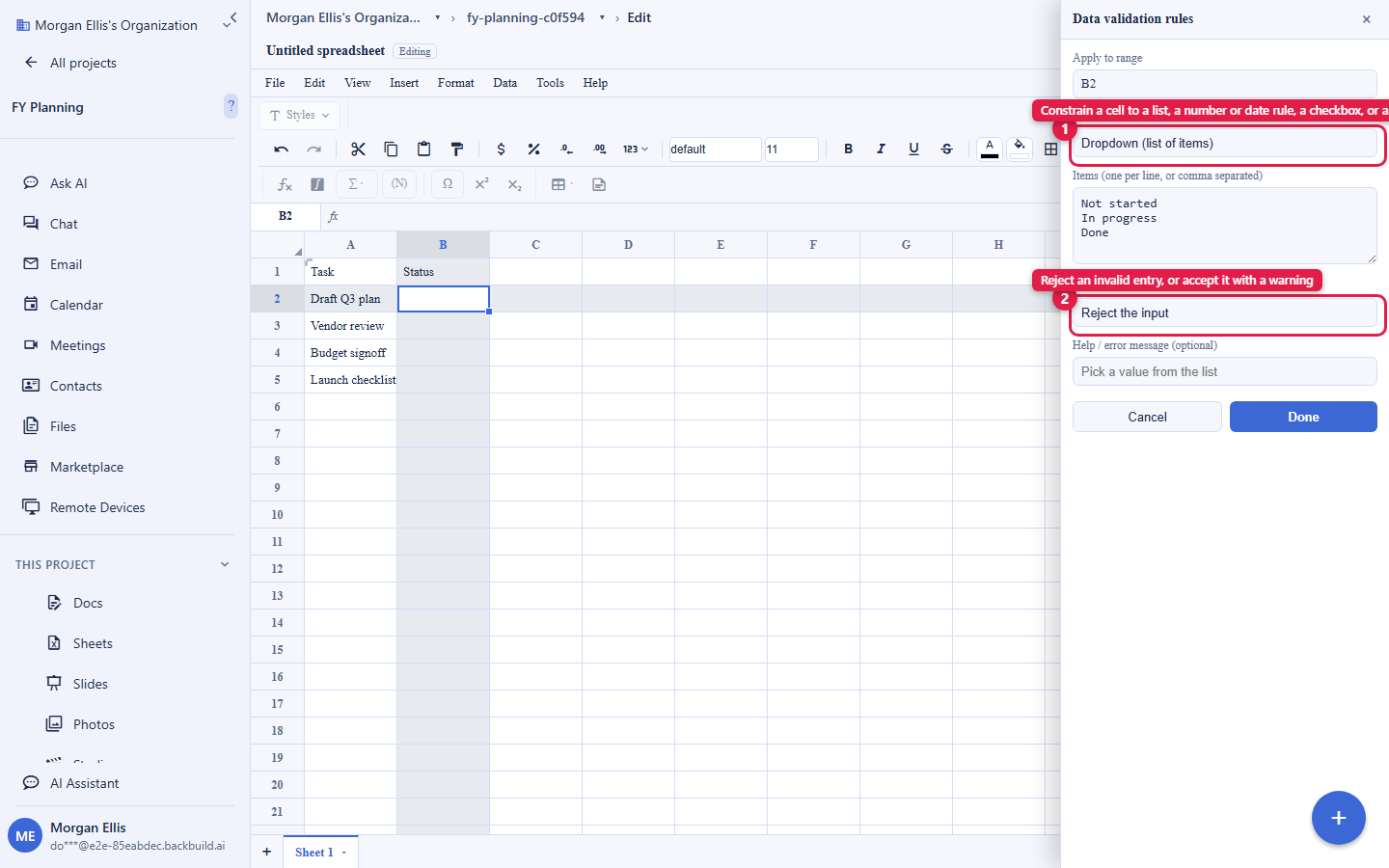
After this section you will stop bad data getting into a shared sheet. Data validation constrains what a cell will accept, which is how a table stays clean when several people are entering rows. Set a rule on a range and choose how strictly to enforce it.
- List (dropdown): restrict a cell to a set of allowed values, shown as a dropdown, so a status or category column stays consistent.
- Number and date rules: require a value in a range, above or below a bound, or on or after a date.
- Text length: hold a field to a minimum or maximum length.
- Checkbox: render a cell as a true or false checkbox for a clean yes-or-no column.
- Custom formula: accept a value only if a formula you write returns true, for any rule the built-in kinds do not cover.
- Reject or warn: choose whether an invalid entry is refused outright or allowed with a warning, depending on how strict the column needs to be.
Do filters and sorts persist and can I share a filtered view? A sort reorders the shared data, so everyone sees the new order. A filter, today, is your own view: it hides rows for you without changing the data or publishing a saved view to the team. Shared, saved filter views are a planned addition. When you need every collaborator to see the same subset right now, sort or arrange the data itself.
Does validation reject a bad value or just warn? Your choice, per rule. Set a rule to reject, and an invalid entry is refused; set it to warn, and the entry is allowed but flagged. Use reject for a column that must stay clean (a status from a fixed list) and warn where you want a nudge, not a wall.
Are there Kanban, calendar, gallery, or Gantt views? Not in the spreadsheet. Backbuild Sheets is a grid for calculation. Board, calendar, timeline, and gallery layouts belong to the platform's views over custom entity types, which are part of the free workspace on every plan. Use those when you need multiple view types over structured records, and Backbuild Sheets when you need a spreadsheet.
Are named ranges and protected ranges available?
Not yet. Reference cells and ranges with A1 notation, and control who
can edit at the document level through sharing (see
Collaboration, Comments, and
Sharing). A named-range layer and per-range protection are designed and on the
way; this documentation is kept current as they ship.
Where to Go Next
- Formulas, Functions, and the Calculation Engine: compute the values your charts and filters work over.
- Collaboration, Comments, and Sharing: control who can edit a shared sheet.
- AI Assistance, the API, and Agents: have an assistant build a chart or clean a column for you.