

Mailboxes, Inbox, and Reading
A mailbox is where your mail lives, and the inbox is where you work. This guide teaches you to create and manage mailboxes, read mail in a real-time inbox that stays in sync across every device, arrange the client the way you like, move fast with the keyboard, and understand how your mail is stored and protected. After this page you will have your mailbox set up the way you work and know exactly who can see what.
Create and Manage Mailboxes
After this section you will be able to create a mailbox, see the ones you own and the ones shared with you, and remove one you no longer need. A mailbox is a single address, such as you@your-domain, owned by one person in your organization. You can create more than one, and each is scoped to your organization: no one outside it can see or act on your mail.
- Create a mailbox with the local part you want (the piece before the @) on a domain you have linked. You can add a display name that recipients see. Creating a mailbox sets up the standard folders and labels automatically.
- See your mailboxes. Your list shows every mailbox you own plus every mailbox others have shared with you, so all the addresses you work from are in one place.
- Delete a mailbox you own when you no longer need it. Deleting removes the mailbox and its stored mail together and tells you how much was removed. Only the owner can delete a mailbox.
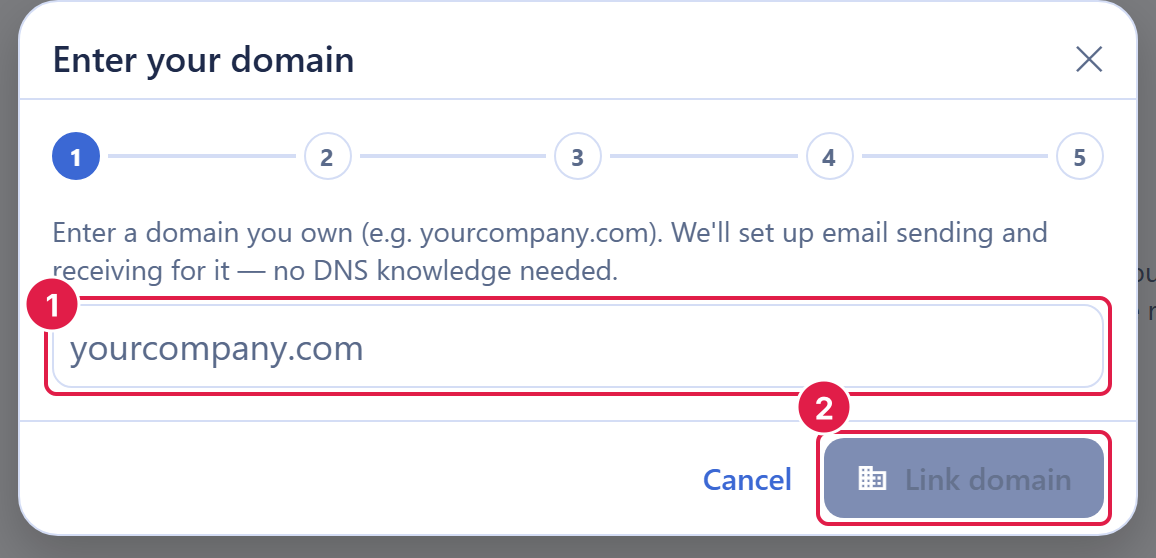
To create a mailbox you first need a linked, verified domain. If you have not linked one yet, start with Sending Domains and DNS Verification.
The Real-Time Inbox
After this section you will understand why the inbox never needs a manual refresh and how it stays fast. An open mailbox is one live object shared by every device you connect from. When new mail arrives, or when you (or a teammate on a shared mailbox) read a message, star it, change a label, or move it, that change propagates in real time to every open client. Your phone and your laptop never disagree about what you have read.
The inbox loads a window of your most recent messages first, then fills in older mail and hydrates message bodies and attachments as you scroll and open them. This keeps the client responsive on a large mailbox: you see your latest mail immediately rather than waiting for everything to load.
Does it work on mobile and across every device? Yes. Because the mailbox is one live shared object, every device you sign in from sees the same state in real time, including shared mailboxes. You read and send through the Backbuild web app and the Backbuild desktop app for Windows and macOS.
Does it stay in sync if my connection drops? Drafts are saved continuously as you write, so a closed tab or a dropped connection does not lose what you were composing. When the client reconnects, it catches up to the current state of the mailbox.
Folders and Views
After this section you will know where every message lives. Every mailbox comes with the standard system folders, plus saved views for the mail you flag or defer.
- Inbox, Sent, Drafts, Archive, Spam, and Trash: the folders you expect, set up for you when the mailbox is created.
- Starred and Important: saved views that gather everything you have starred or that is marked important, so you can jump to it without hunting.
- Scheduled and Snoozed: views for mail you have scheduled to send later and threads you have snoozed to return at a chosen time. See Composing and Sending.
System folders cannot be renamed or removed; your own labels are fully yours to manage, covered in Labels, Filters, and Search.
Arrange the Client Your Way
After this section you will have the reading layout and density that suit how you work. Backbuild Mail lays out like a modern mail client: a rail of folders and labels, a message list, and a reading pane. You control the arrangement per user, so your preferences follow you and do not change what anyone else sees.
- Reading-pane placement: put the reading pane below the message list (the default), to the right of the list, or turn the split off so a message opens on its own.
- Density: choose comfortable, cozy, or compact to fit more or fewer messages on screen.
- Conversation view: group a back-and-forth into a single thread, or turn conversation view off to see each message on its own. When a thread wanders off topic, you can split it so the tangent becomes its own conversation.
- Mark-as-read behavior: mark a message read the moment you open it, after a delay you set, or only when you say so.
- Signature: set a custom signature that is added to the mail you send.
These live in your Backbuild Mail settings and apply to your view of the mailbox. The full set of settings is covered in Labels, Filters, and Search.

Can I configure the reading pane, density, and conversation view? Yes, all three, per user. Reading-pane placement can be below the list, to the right, or off; density can be comfortable, cozy, or compact; conversation view can be on or off, with a split-conversation escape hatch for threads that drift.
Move Fast with the Keyboard
After this section you will be able to triage without reaching for the mouse. Backbuild Mail is built for people who live in their inbox. Row focus moves with the arrow keys or with j and k, and there are shortcuts to compose, reply, archive, and trash. Select messages and apply bulk actions, archive, trash, move, or label, to a whole batch at once.
The complete shortcut map and how to enable shortcuts are in Labels, Filters, and Search, alongside the search operators that pair with keyboard triage.
How Your Mail Is Stored and Protected
After this section you will be able to answer, precisely, who can see your mail and how it is kept safe. Being exact here matters, because overstating email protection does real harm.
- Durable source of truth: every message you receive or send is written as an immutable file to durable storage before it is acknowledged. The searchable index is derived from those files, so your mail survives even if the index is rebuilt.
- Encrypted in transit and at rest: mail is protected with TLS in transit and encrypted at rest in storage.
- Organization-scoped access: every open, read, send, label change, filter edit, and delete is authorized against your identity and your organization's roles. A caller cannot see or act on another organization's mailbox, and a mailbox you are not entitled to returns a uniform not-found, so its existence is never revealed.
- Audited: mailbox actions are recorded in an append-only audit trail attributed to the person who performed them.
- Safe rendering: inbound HTML is sanitized before it is shown, so a message cannot run code or quietly phone home when you open it.
- Private image loading: remote images in a message are rewritten to load through a signed, same-origin image proxy. The proxy fetches the image server-side and sends no cookies, credentials, or referrer, so a sender's tracking pixel never sees your IP address or your location, and repeated opens are served from the proxy's cache rather than a fresh request to the sender's server.
Backbuild Mail is not end-to-end encrypted and it is not zero-access: the service holds the keys and the server can read message bodies, which is what makes server-side full-text search, spam filtering, and HTML sanitization possible. If your requirement is that the provider be technically unable to read your mail, Backbuild Mail is not built for that model. Backbuild does include a separate zero-knowledge password and secrets manager in the same workspace, documented under Security and Compliance, but that zero-knowledge property applies to the vault, not to mailbox contents.
Related Guides
- Sending Domains and DNS Verification: link a domain before you create a mailbox.
- Shared Mailboxes and Delegation: let teammates work an inbox with you, and govern who can do what.
- Labels, Filters, and Search: the full settings, shortcut map, and search operators.