

Organizations & Teams
An organization is the top-level container for everything in Backbuild. Every project, entity, document, task, mailbox, and team member belongs to exactly one organization, and every request is scoped to the organization you are working in. This page teaches you how organizations work, how to configure yours, and how seats and plans apply to it.
After reading this page you will be able to: explain how your data is kept separate from every other company on the platform, manage your organization’s profile and web address, set the security policies that apply to your whole team, and understand exactly how many people you can bring in on your plan. Day-to-day people management (inviting, suspending, offboarding) has its own guide: Members, Invitations & Offboarding. Role capabilities are covered in Roles, Groups & Permissions.
One Word for Your Company: Organization
Every tool names this differently, and the mismatched vocabulary (“workspace,” “team,” “account,” “organization”) is the single most common source of confusion when people set up. Backbuild keeps it to one word. An organization is your company on the platform: it owns your members, your projects, your billing and plan, and your security policy. There is no separate “workspace” or “team” billing entity layered on top, so the vocabulary maps cleanly.
- Account is you, the individual sign-in. One account can belong to many organizations.
- Organization is the top-level container, and the tenant boundary. Everything below lives inside exactly one of them.
- Projects are the workspaces inside an organization where the actual work happens. See Projects.
- Your work (entities, documents, tasks, files, conversations) lives inside projects.
So the shape is simple: your account can sit in several organizations; each organization holds projects; each project holds your work. Nothing crosses an organization boundary.
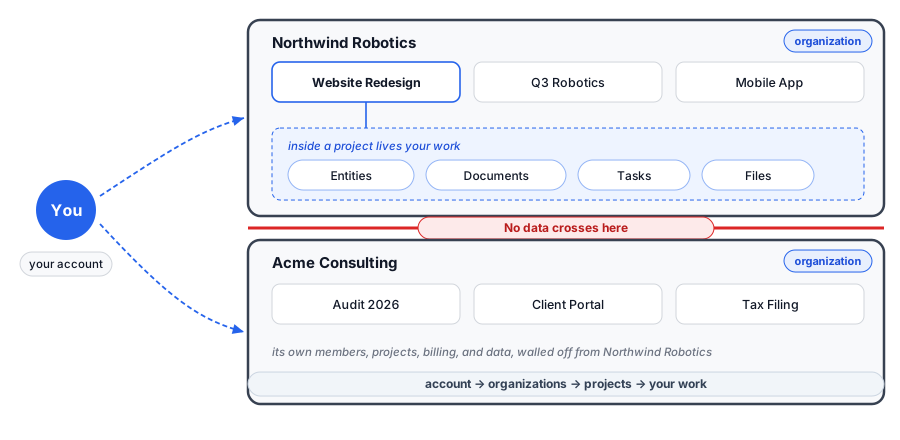
Your Data Is Isolated Per Organization
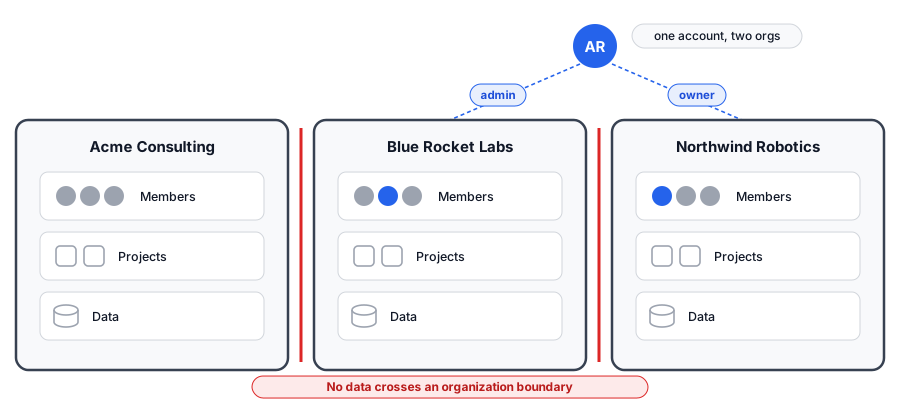
Backbuild is a multi-tenant platform, and the tenancy boundary is the organization. Isolation is enforced on the server for every single request:
- You can only ever see and act on organizations you are a member of. Data belonging to another organization is never returned, listed, or searchable from yours.
- Every request is pinned to the organization your current session was issued for. A crafted link or a guessed identifier cannot move your session into a different organization.
- Requests for resources you cannot access return a plain not-found response. The platform deliberately does not reveal whether something exists in another tenant, so outsiders cannot probe for organization names, member lists, or project addresses.
- Data is encrypted in transit and at rest. For the full security posture, including authentication, audit logging, and compliance details, see Security & RBAC.
When you build a SaaS product on Backbuild, each of your end customers becomes an organization of their own, with the same isolation guarantees protecting them from each other and from you seeing anything you should not.
You Get an Organization the Moment You Sign Up
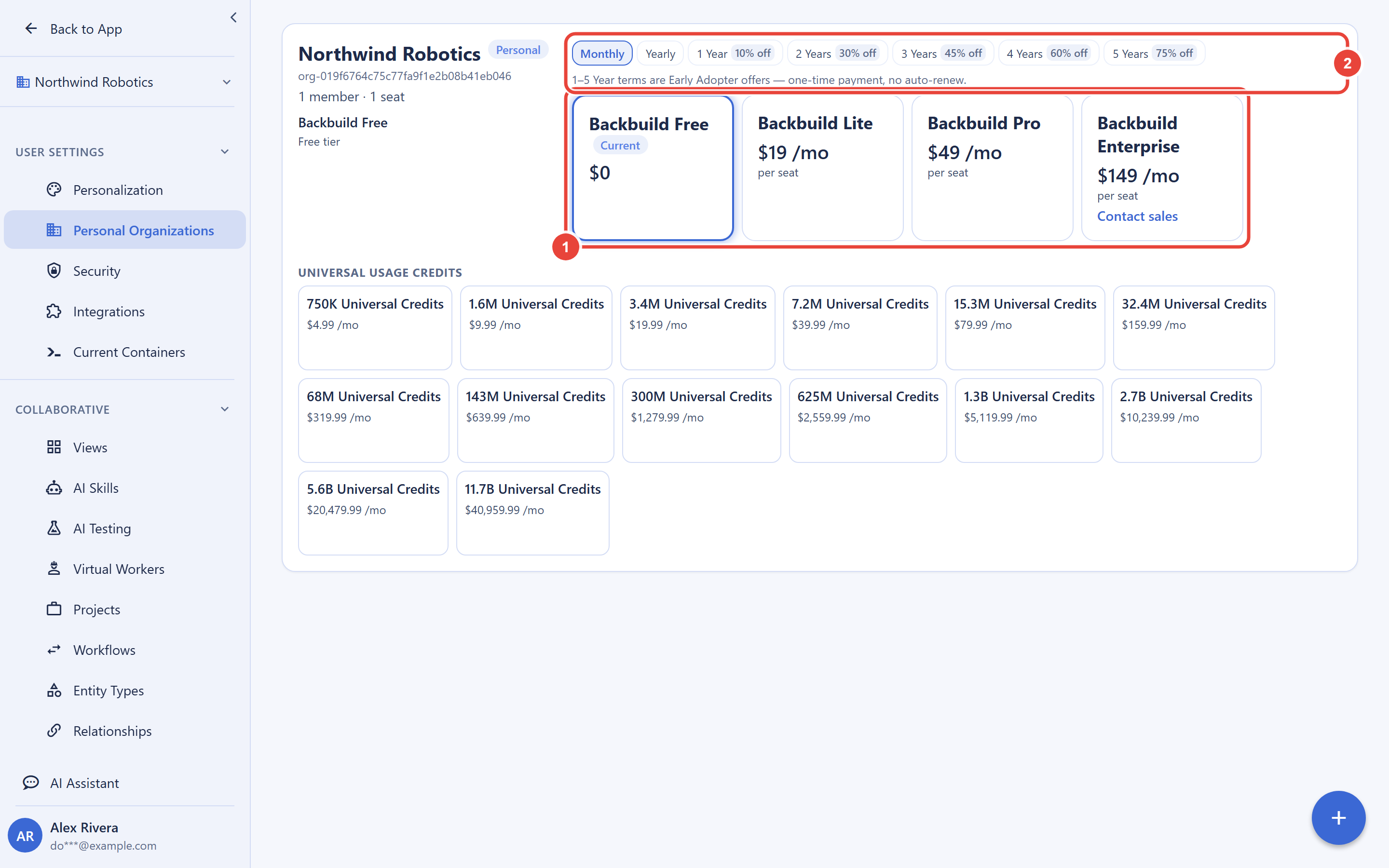
Signing up for Backbuild automatically creates a personal organization for you on the Free plan and drops you straight into its dashboard. There is no plan-selection step, no workspace-naming wall, and no card required before you can work. You are the owner of this organization from the first second.
That first organization is a real organization, not a lesser “personal mode.” Many people simply grow it into their company organization: rename it, add a logo and business details, invite the team, and upgrade the plan when they need more seats. Others keep a personal organization for their own work and belong to a separate shared company organization created by their employer. Both patterns work, because one account can hold as many organizations as you like, each with its own plan, members, and role for you.
When you are ready to upgrade, manage add-ons, or change billing frequency, open Settings → Personal Organizations. Every organization you own is listed there with its plan and billing controls. Plans are billed per seat, monthly or yearly, with optional multi-year prepaid terms; see the pricing page for current rates.
Belonging to Several Organizations
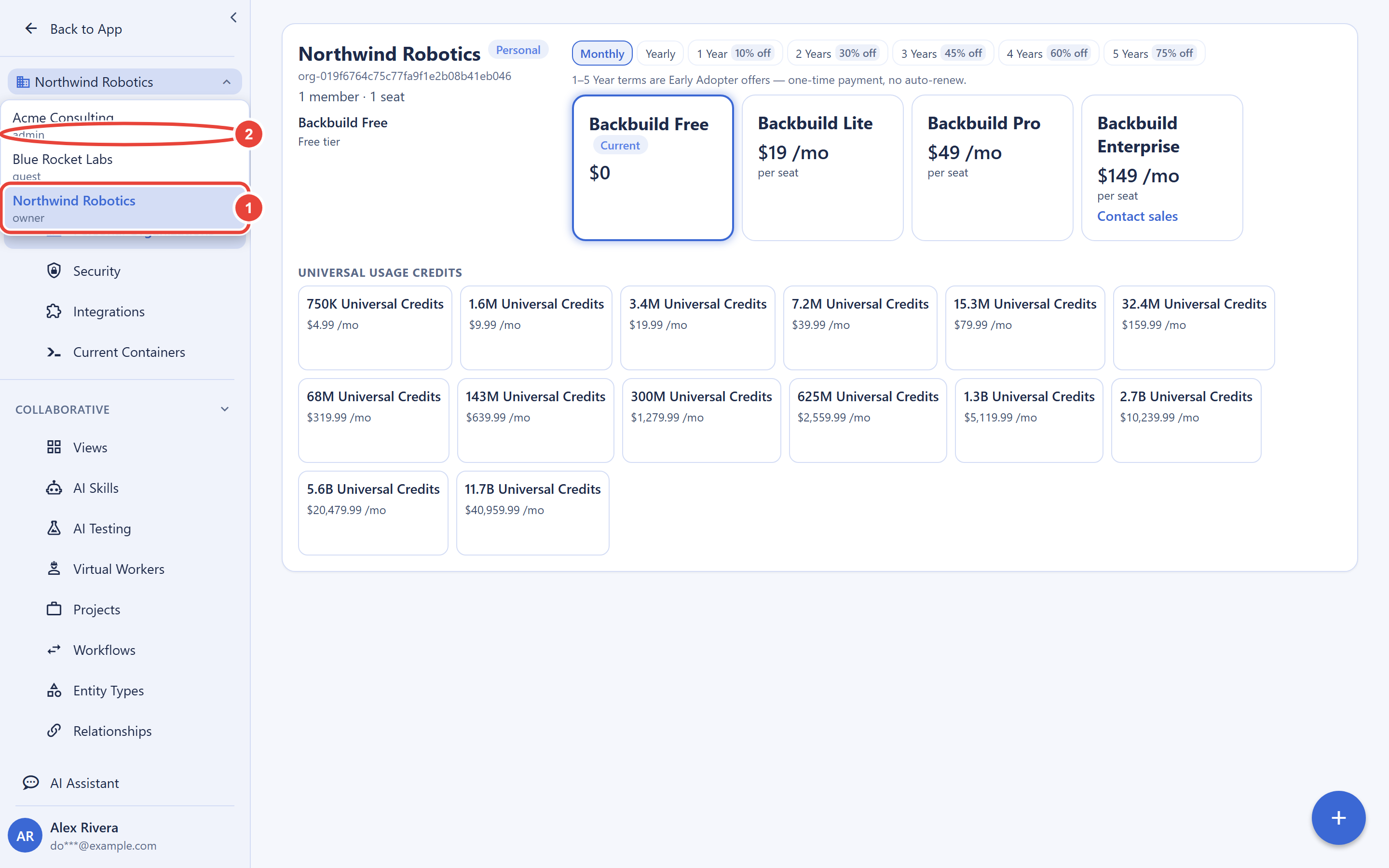
One account can belong to any number of organizations, with a different role in each. You might be the owner of your own company’s organization, an admin in a client’s, and a guest in a partner’s. The organization switcher lists every organization you belong to, with search when the list gets long.
Switching organizations is a real security boundary, not a view filter. When you switch, the platform issues you fresh session credentials scoped to the organization you switched into. Anything you do afterward is evaluated against your role in that organization only.
Adding Someone Does Not Hand Them Everything
The most common worry before the first invite is that adding a person to your organization will suddenly expose all of your work to them. It does not. Organization membership and project access are two separate layers:
- Organization membership lets a person be part of the organization at the role you choose. On its own it does not open your projects.
- Project access is granted per project. New projects are private by default, so a member sees a private project only once you add them to it.
In practice you can invite a contractor, add them to exactly one project, and they will never see anything else. The full mechanics, including the contractor recipe and the visibility model, are in Projects. Who a person is inside the organization (their role and what it can do) is covered in Roles, Groups & Permissions, and the safe invite-and-offboard flow is in Members, Invitations & Offboarding.
Organization Profile
Owners and admins maintain the organization’s profile from organization settings. The profile carries both display information and the structured business records that invoicing and formal documents draw from:
- Identity: display name, description, logo, and website.
- Business profile: legal name, DBA name, entity type, tax identifier, and phone number.
- Contact routing: billing and support email addresses, plus up to 50 titled contacts (for example “Data Protection Officer”) that reference members of the organization.
- Addresses: separate billing and shipping addresses.
Profile writes are strictly validated: unknown fields are rejected rather than silently stored, and display names are screened against lookalike-character tricks so a profile cannot impersonate another organization’s name.
Your Organization’s Web Address (Slug)
Every organization can claim a short, human-readable slug that appears in links in place of its long unique identifier. Slugs are optional; you can set one, change it, or clear it at any time from organization settings.
- Lowercase letters and digits, with single hyphens between words.
- 3 to 63 characters, globally unique across the platform.
- Reserved and misleading names are rejected, and you will get a clear conflict message if the slug is already taken.
Old identifier-based links keep working after you set a slug, and the platform hints clients toward the new address, so nothing you have shared breaks. A slug is purely an addressing convenience: it can never be used to move a session into an organization you are not a member of.
Team Security Policies
Organization-wide policies let you set a rule once and trust it for every member. They live in organization settings and are enforced on the server, so a member cannot opt out client-side.
Sign-in policy
- Passkeys as a primary factor: allow passkeys to satisfy primary sign-in for your members.
- Password sign-in: can be disabled entirely for organizations that standardize on passkeys. The platform refuses to let you disable every sign-in method at once, so you can never lock the whole organization out.
- Session duration: set the maximum time before members must sign in again, anywhere from a few minutes up to 365 days. Regulated teams often choose a short absolute session, such as a 4 hour or an 8 hour window, so a signed-in session cannot outlive a single working shift.
- Idle timeout: set how long a session can sit inactive before it is signed out automatically, as short as 5 minutes for the strictest environments. This is separate from the absolute session duration above; a session ends at whichever limit is reached first.
- Concurrent sessions: cap each member at 1 to 50 simultaneous sessions.
Two-factor authentication for everyone
Two-factor enforcement is on by default for every organization, and it requires each member, including admins and owners, to protect their account with a second factor. For anyone who holds privileged access it is mandatory and cannot be turned off. That group includes owners and admins, anyone with billing access, anyone who can read or export audit logs or manage compliance, anyone who manages your published SaaS packages, and anyone who can sign or issue Prove certifications. The moment you grant a person one of those responsibilities, two-factor protection is switched on for them automatically, and it cannot be switched off while they hold it. The people with the most power are exactly the ones who must not be exempt. Admins can still reset a locked-out member’s second factor; see Members, Invitations & Offboarding.
Allowed email domains
Restrict membership to your company’s email domains (up to 100 domains). With a domain allow-list in place, people outside those domains cannot be brought into the organization, which closes the classic “invite forwarded to the wrong person” hole at the policy level. Invitations themselves are also single-use and locked to the first browser that opens them; see the invitations guide.
Usage and session controls
- Container usage caps: bound how much on-demand compute members can consume.
- AI daily spend cap: a hard daily ceiling on AI usage across the organization.
- Member cap: optionally cap the organization’s member count below your plan’s seat limit.
Sharing policy
The sharing policy controls whether members can share resources outside the organization at all, whether public links are allowed, and the maximum permission level any share can grant. The defaults fail closed: external sharing is off until an admin or owner deliberately enables it.
Isolation Mode
For regulated or high-sensitivity tenants, Isolation Mode seals the organization to its verified email domains. Enabling it runs a strict, fail-closed transition: members outside the approved domains are deactivated, their sessions are revoked, and external shares are suspended before the mode activates. Nothing is left half-open. Isolation Mode is managed under Settings → Policies by members with settings-management permission.
Custom domains
Under Settings → Administration → Domains you can attach your company’s domains to the organization. You prove ownership by publishing a DNS TXT record the screen gives you; the platform verifies it against live DNS before the domain activates. Verified domains power domain-restricted policies and organization email.
Seats and Plans
Backbuild plans are per seat, and the seat ceiling is the plan difference that matters for team size:
| Plan | Team members (maximum active members) |
|---|---|
| Free | Up to 50 |
| Lite | Up to 400 |
| Pro | Up to 2,500 |
| Enterprise | Unlimited |
A seat is simply the maximum number of active members your organization can have. You buy seats up front and pay for them at purchase, and each active member automatically uses one seat. There is nothing to assign to people, groups, roles, or departments. If you buy 100 seats you can add up to 100 active members; you cannot add the 101st until you buy another seat.
Because seats follow your members automatically, your seat count always tracks how many active members you have, which keeps billing simple. Removing or deactivating a member frees that seat immediately, and the next person you add takes it. A pending invitation does not use a seat; a seat is used only once someone is actually an active member. Current per-seat prices, yearly discounts, and multi-year prepaid terms are on the pricing page; plan changes for organizations you own are made in Settings → Personal Organizations.
Everything Is Audited
Every membership change, role change, status change, invitation, policy write, and settings write in an organization is recorded with the acting user, target, timestamp, originating IP address, and session. Denied attempts are recorded as explicit, distinct refusals rather than generic errors. Admins can pull a per-member activity trail from the member detail screen, which turns access-review evidence gathering from a project into a lookup. See Security & RBAC for the full audit story.
Creating Additional Organizations and Closing One
Your personal organization is created at signup, and joining someone else’s organization happens through an invitation. Additional organizations can also be created programmatically through the API by an organization admin or owner; the creator automatically becomes the new organization’s owner.
There is no self-service organization deletion today. If you need to close an organization, remove its members, downgrade it to the Free plan so nothing further is billed, and contact support through the help desk to request closure. This is deliberate: deleting a tenant is an irreversible act, and the platform requires a confirmed human request for it.
Frequently Asked Questions
What is the difference between an organization, a workspace, a
team, and an account?
Backbuild uses one word: organization. Your account is
your personal sign-in and can belong to many organizations. An
organization is your company on the platform and owns
everything (members, projects, billing, policy). There is no separate
“workspace” or “team” billing entity. Projects,
covered in Projects, are the
workspaces inside an organization.
Do I have to pick a plan, name a workspace, or enter a card before
I can start?
No. Signing up creates a personal organization on the Free plan and drops
you straight in, with no plan-selection step and no card. Naming, branding,
inviting people, and upgrading are later, optional steps. Free supports up
to 50 assigned seats.
If I invite someone, can they suddenly see everything I
have?
No. Organization membership and project access are separate layers. Adding
a person to the organization does not open your projects, which are private
by default; a member sees a private project only when you add them to it.
You can add a contractor to exactly one project and they will see nothing
else. See the contractor
recipe.
Can I have a personal space and a work space under one login and
switch between them?
Yes. One account can belong to any number of organizations. The
organization switcher lists them all; switching loads that
organization’s data and your role in it only, with no bleed between
them.
Is my company’s data private from other companies using
Backbuild?
Yes. Every organization is an isolated tenant. Members of other
organizations cannot see, list, search, or reach your data, and requests
from outside your organization receive a plain not-found response that
reveals nothing. Data is encrypted in transit and at rest.
Who can delete the whole organization?
No one from inside the app: there is no self-service deletion. Closure
is a support-assisted process initiated by an owner. This means a
compromised or angry account can never destroy your tenant in one click.
What is the difference between an owner and an admin?
An owner holds full control, including billing and plan management. An
admin can run the organization day to day (members, settings, projects)
but cannot manage billing. The full capability breakdown is in
Roles, Groups & Permissions.
How many people can I add on the Free plan, and what happens at
the limit?
Free supports up to 50 active members. When adding a member would push you
past your plan’s seat ceiling, it is refused with a clear message; you
can free a seat by removing or deactivating a member, or upgrade in
Settings → Personal Organizations. Pending
invitations do not count against the cap.
Can I require 2FA for everyone, and can admins be exempt?
Two-factor enforcement is on by default and applies to every member,
including owners and admins. No one can be exempt, and for anyone with
privileged access, such as owners, admins, billing, compliance and
audit-log access, SaaS package management, or Prove certification signing,
it is mandatory and cannot be turned off.
Can I stop people outside my company from being added?
Yes. Set the allowed email domains policy, and membership is restricted
to those domains. For a sealed, regulated-tenant posture, enable
Isolation Mode.
API Reference
GET /v1/organizations: list all organizations the user belongs to, with the user’s role in eachPOST /v1/organizations: create a new organization (creator becomes owner)GET /v1/organizations/:orgId: get organization detailsPUT /v1/organizations/:orgId: update profile, slug, and the structured settings documentGET /v1/organizations/resolve?slug=: resolve a slug to an organizationGET /v1/organizations/:orgId/settings/auth/PUT: read and write the sign-in policyPOST /v1/organizations/:orgId/sharing-policy: set the sharing policy
Membership endpoints are documented in Members, Invitations & Offboarding. See the API Reference for complete request and response documentation.