

Signing In and Account Security
This page teaches you every way to get into your Backbuild account and every way to protect it. After reading it you will be able to choose the right sign-in method, enroll a second factor, recover from a forgotten password, and run several accounts and organizations side by side without confusion.
Ways to Sign In
The sign-in page at app.backbuild.ai/auth offers three methods. All three lead to the same account; they differ only in convenience and in what you have to remember.
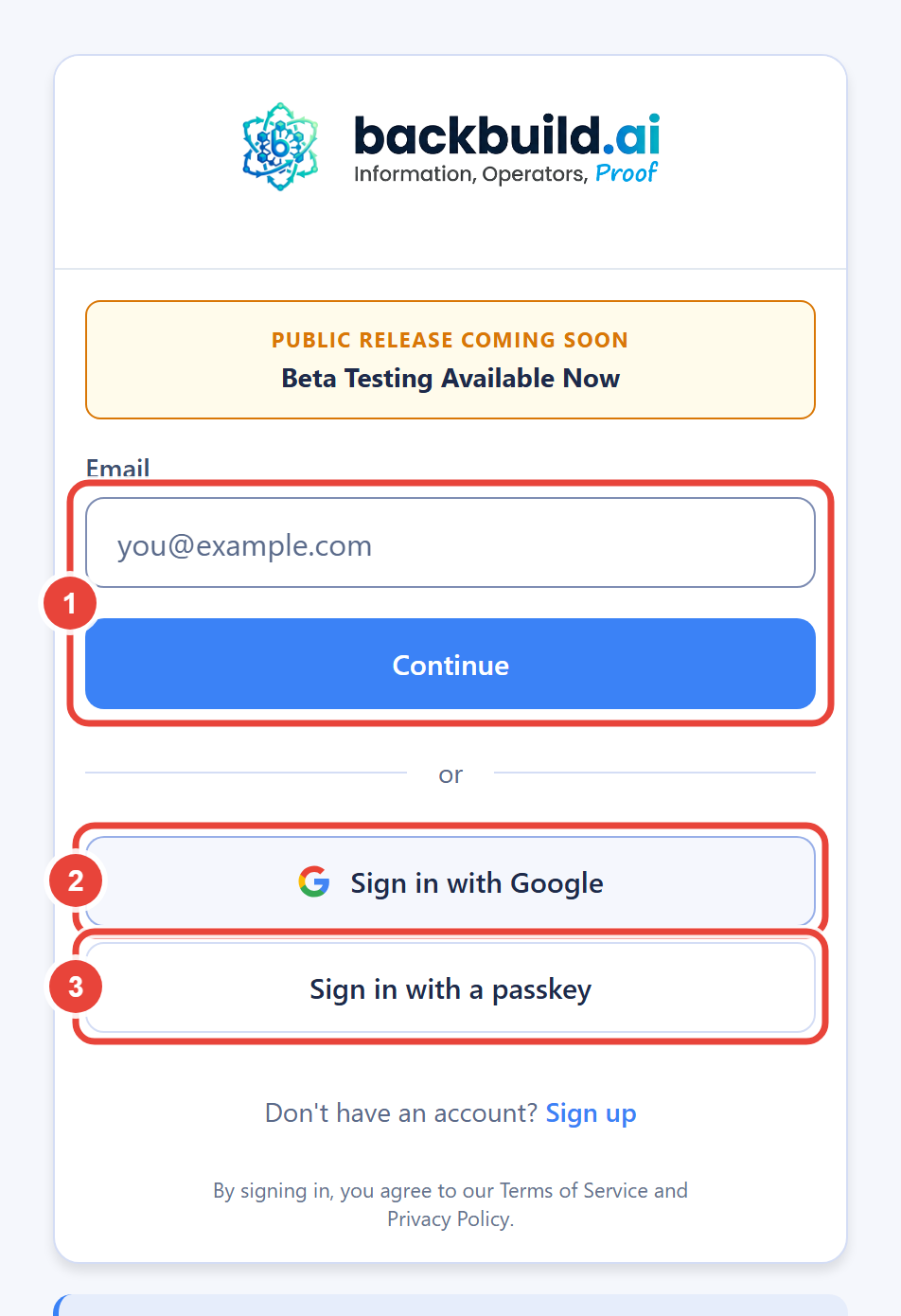
Email and password
The classic method. Enter your email address and your account password. If you have multi-factor authentication enrolled, you complete a second step after the password (see below).
Choose the Google button and approve the request in your Google account. This is safe and convenient: you carry one less password, and your sign-in inherits whatever protections your Google account already has, including its own two-step verification. Signing in with Google never creates a duplicate account for an address that already has one.
If you originally created your account with a password and then choose Google for the same email, Backbuild does not silently attach the two. Instead it asks you to confirm it is really you by entering your existing account password once. After you confirm, Google sign-in is linked to that same account and you can continue with Google directly next time. Linking always needs proof of both: control of the Google account (the approval you just gave) and of the existing account (your password), so no one else can attach their Google login to your account. Either kind of account can add the stronger factors described below.
Passkeys
A passkey signs you in with your device's own unlock (fingerprint, face, or PIN) instead of a password. Passkeys resist phishing because they only work on the real Backbuild sign-in page; there is nothing to type into a fake one. On the sign-in screen you can use the explicit passkey button, or, in browsers that support it, pick your passkey directly from the email field's autofill suggestions. If your browser or device does not support passkeys, the page tells you plainly and you can continue with your password instead; nothing breaks.
Multi-Factor Authentication
Multi-factor authentication (MFA) means a stolen password alone is not enough to enter your account. After this section you will know what factors Backbuild supports and what to expect when a challenge appears.
Backbuild supports three factor types:
- Authenticator app codes: six-digit codes from an app such as any standard TOTP authenticator.
- Security keys and passkeys: a hardware key or platform passkey used as the second step.
- Email codes: a one-time code sent to your account email.
You enroll factors from the MFA setup screen, which the app offers from your security settings (and presents automatically when enrollment is required for your account). Enroll more than one factor: a second factor on a second device is the difference between an inconvenience and a lockout if you lose your phone.
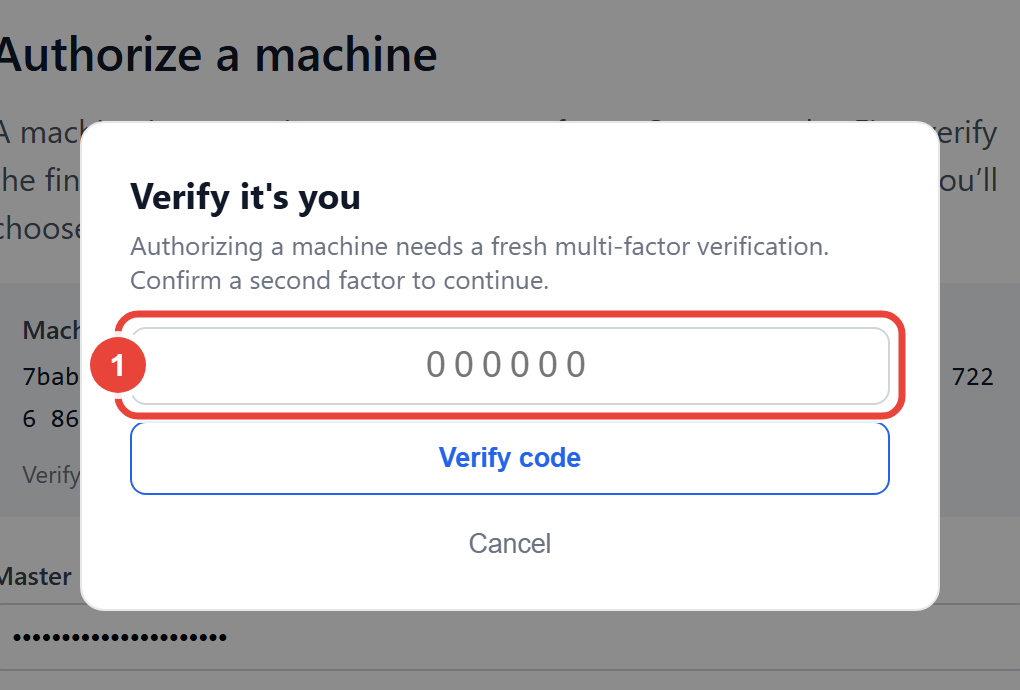
Challenges appear at the moments that matter most. Sensitive operations re-verify your identity even in the middle of a signed-in session: changing your password asks you to confirm who you are first, and authorizing a new machine to read your Secrets vault demands a fresh second-factor confirmation on the spot. A briefly unattended session therefore cannot be turned into a takeover. When a challenge appears, satisfy it with any factor you have enrolled; recovery codes are also available from the same security settings screen as a backstop.
Reset a Forgotten Password
Use the "Forgot password" link on the sign-in page. You will receive a reset email at your account address; follow it and choose a new password. The new password must meet the same requirements as at signup: at least 13 characters with upper and lower case, a digit, and a symbol, and it is screened against common and breached passwords.
Resetting your account password does not touch your vault master password. They are separate on purpose: the master password encrypts your Secrets vault on your device and is never known to Backbuild, so no email-based reset can exist for it. See the master password explainer in Getting Started.
Multiple Accounts and Organizations
Many people run a work account and a personal account, or belong to several organizations. Backbuild handles both without sign-out gymnastics.
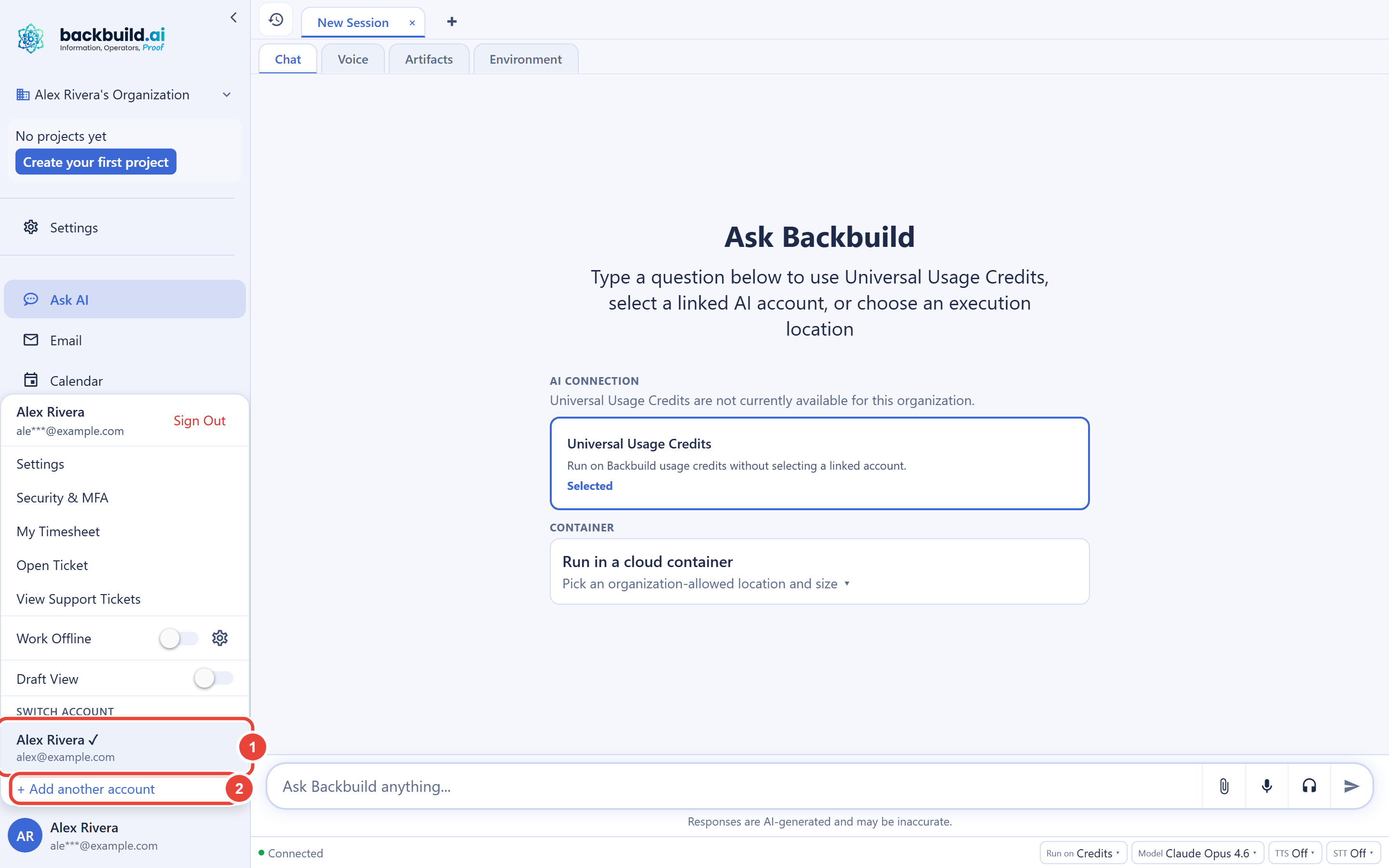
- Multiple accounts in one browser. Add another account from the account selector and switch between accounts without signing out of either. Tokens and sessions stay separate per account.
- Multiple organizations per account. If you belong to more than one organization, switch between them with the organization switcher inside the app.
- Per-tab organization context. The organization you are working in is resolved per browser tab, so you can keep one tab in your client's organization and another in your own, side by side, without the two interfering.
What the Sign-In Page Will Not Tell You (On Purpose)
Backbuild's authentication screens give identical responses whether or not an email address has an account. Signup, sign-in, and reset flows all behave this way. This prevents anyone from feeding addresses into the forms to discover who has an account, a standard reconnaissance technique against workspace products. If a flow ever feels less specific than you would like ("check your email"), this protection is why, and the email you receive will always route you correctly.
Frequently Asked Questions
Is Google sign-in safer than a password?
It is at least as safe, and for most people more convenient. Your sign-in
is protected by Google's own defenses, and there is no Backbuild password
to forget or phish. If you prefer a password account, its breached-password
screening and optional MFA make it strong too.
I made my account with a password. Can I switch to Google sign-in?
Yes. Choose the Google button for the same email. Backbuild will ask you to
confirm by entering your existing account password once; after that, Google
sign-in is linked to your account and you can use it directly from then on.
You keep the same account, projects, and data, and your password still
works too.
I lost the phone with my authenticator app. Am I locked out?
Not if you enrolled more than one factor: complete the challenge with any
other enrolled factor, such as a security key or an email code, then
update your factors from your security settings. This is why we recommend
enrolling at least two. The recovery codes offered in your security
settings are the backstop of last resort; store them somewhere safe when
you enroll.
Does resetting my password unlock my Secrets vault?
No. The vault master password is separate and cannot be reset by email,
because Backbuild never has it. Your account works after a password
reset; the vault still requires its own master password.
Can I be signed in to my work and personal accounts at once?
Yes. Add both accounts in the same browser and switch from the account
selector. Organization context is kept per tab, so parallel work in two
organizations is normal usage, not a hack.
Why does the page not tell me whether my email is registered?
To protect you. Uniform responses stop outsiders from discovering which
addresses have accounts. Check the email that was sent; it always routes
you to the right next step.
Next Steps
- New here? Walk the full Getting Started path first
- Read the platform's Security & RBAC documentation for organization-level controls
- Storing credentials? Learn the vault from the Secrets CLI guide or in the app