

The Video Editor
The Studio Video Editor is a multi-track timeline editor for cutting real footage: clips on tracks, transitions, speed changes, keyframed motion, color grading with scopes, and compositing. Its distinctive move is a layout toggle that reskins the whole editor to match the tool you already know, so you are not relearning muscle memory. This guide walks the timeline, the color tools, and the layouts, and is honest about what exports where. After it you will be able to assemble and grade a cut and export it from your browser for free.
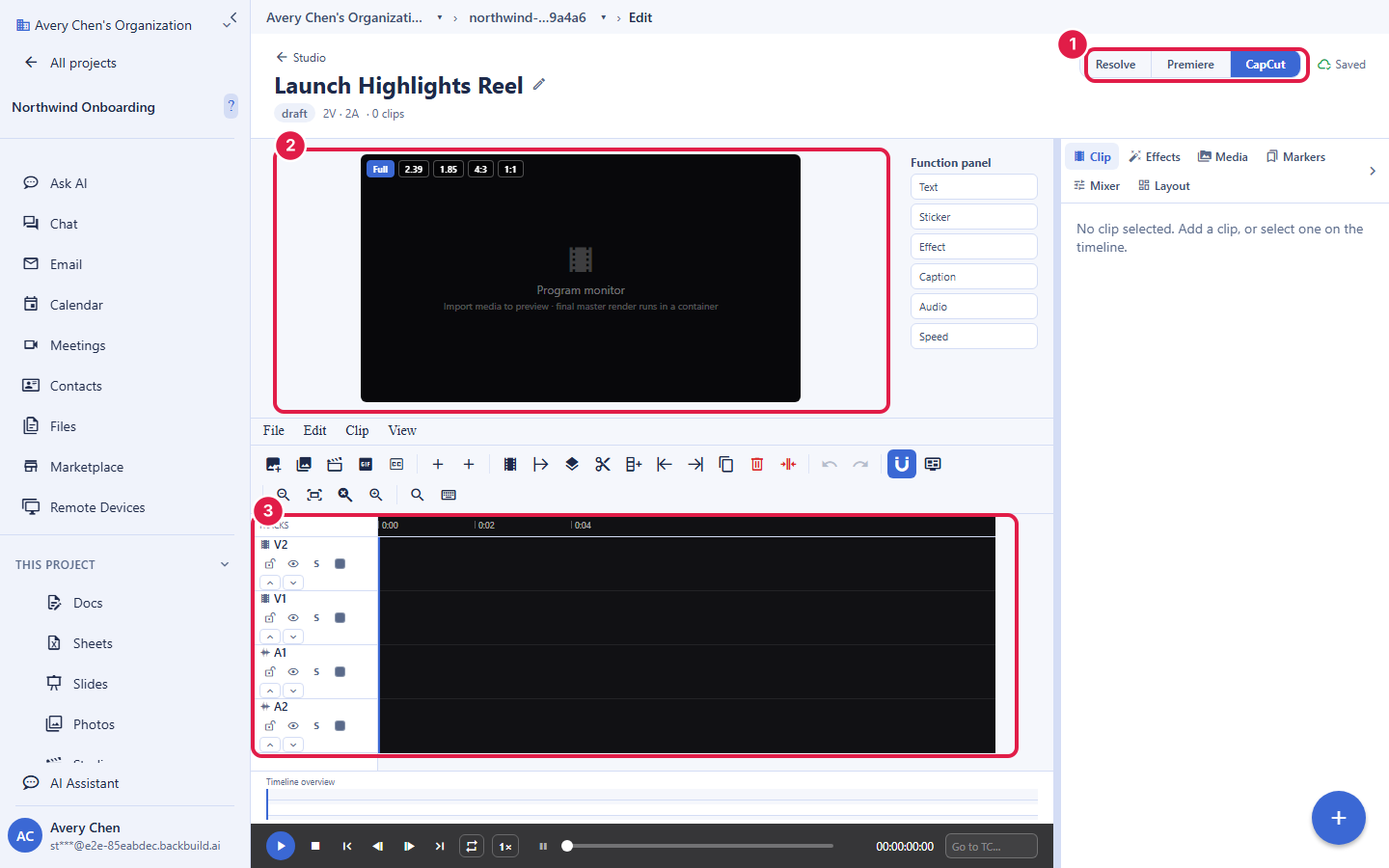
One Editor, Three Layouts You Already Know
After this section you will make the editor feel like your usual tool. A single layout toggle switches the entire editor between a Resolve style, a Premiere style, and a CapCut style, changing the arrangement of panels and the keyboard shortcuts to match, all over one underlying edit and engine. A colorist who lives in one tool and an editor who lives in another can work on the same project each in the layout they know. Switching the layout does not touch your edit; it only changes how the editor is arranged around it.
Do the keyboard shortcuts match the editor I already use? Choose the layout for the tool you know and the shortcuts follow it. The same edit can be opened by different people each in their preferred layout, so you are not relearning a new set of keys.
The Timeline
After this section you will assemble a cut fluently. The timeline carries the editing primitives you expect from a professional editor:
- Cut and arrange: place clips on multiple video and audio tracks, razor and split, trim and slip, ripple delete to close a gap, and snap to edges and markers.
- Navigate and organize: zoom the timeline, drop markers, group linked clips, manage gaps, and nest a sequence inside another so a complex section behaves as one clip.
- Motion and timing: transitions between clips, speed and retime, a keyframe graph for smooth changes over time, and transform handles with safe-area guides for repositioning and scaling in frame.
- Audio in the edit: detach audio from a clip and pan it, and reach the full mastering tools by opening any clip in the Audio Editor.
- Work faster: a thumbnail strip to scan footage, a command palette to run any action by name, and saved effect presets.
Color Grading and Scopes
After this section you will grade a shot and trust your eyes with scopes. The color tools go past a filter menu. You can apply lookup tables including a loaded cube LUT, work an HSL secondary to isolate a color, bend hue and tone curves, set gain, lift, and gamma, add a vignette, pull a chroma or luma key, and refine a matte. Video scopes, including a goniometer and a spectrum view, let you judge the image by measurement rather than by a guess on an uncalibrated screen. Compositing with blend modes stacks layers for titles, effects, and overlays.
Can I actually color grade, or is it just filters? You can grade properly: LUTs, HSL secondaries, hue and tone curves, gain, lift, and gamma, keying and mattes, and video scopes to measure the result. It is a grading surface, not a one-tap filter list.
Exporting Today, and What Is Coming
After this section you will know exactly what you get and what it costs. The Video Editor exports in your browser. That in-browser export is free on every plan, including Free, and it produces a real video file with no watermark, so most cuts finish at no cost. Export profiles let you target the format you need. A composed cloud master render for the Video Editor, the kind of higher-tier server-side output the narrated modules already use, is on the roadmap; until it arrives, treat the in-browser export as the finishing step for a Video Editor project.
Is the export free and watermark-free, or is there a catch? The in-browser export is free on every plan and carries no watermark. There is no paid gate to get a finished file out of the Video Editor today.
When would I pay, then? Today, the Video Editor does not charge for its export. Credits come in for the narrated modules' cloud render and for AI generation, not for a plain Video Editor export.
Will browser editing keep up with 4K or a long timeline? In-browser editing and export run on your own machine's capacity, so a very long or very high-resolution timeline is bounded by your device the way any local editor is. For the heaviest finishing, the coming cloud master render is the path that moves that work off your machine. For everyday cutting and export, the browser handles it.
Can I edit the video and clean the audio and score it without leaving? Yes. Open a clip's audio in the Audio Editor for full restoration and mastering, and build a track in the Music Editor, all inside the same Studio.
Where to Go Next
- The Audio Editor: master the sound of your edit with a deep DSP stack.
- The Music Editor: compose or generate a score and bounce stems.
- Making a Training Video: when the video is a product walkthrough, the narrated module drives the real app.