

Importing and Exporting
This guide teaches how a deck moves between Backbuild Slides and the rest of the world. After it you will be able to export a deck to PowerPoint, OpenDocument, and PDF, export a single slide as an image, import an existing deck to keep working, and know what a round-trip preserves. It is written for the anxiety that dominates any presentation tool decision: will the deck open correctly in the client's app, and am I ever locked in.
Exporting a Deck
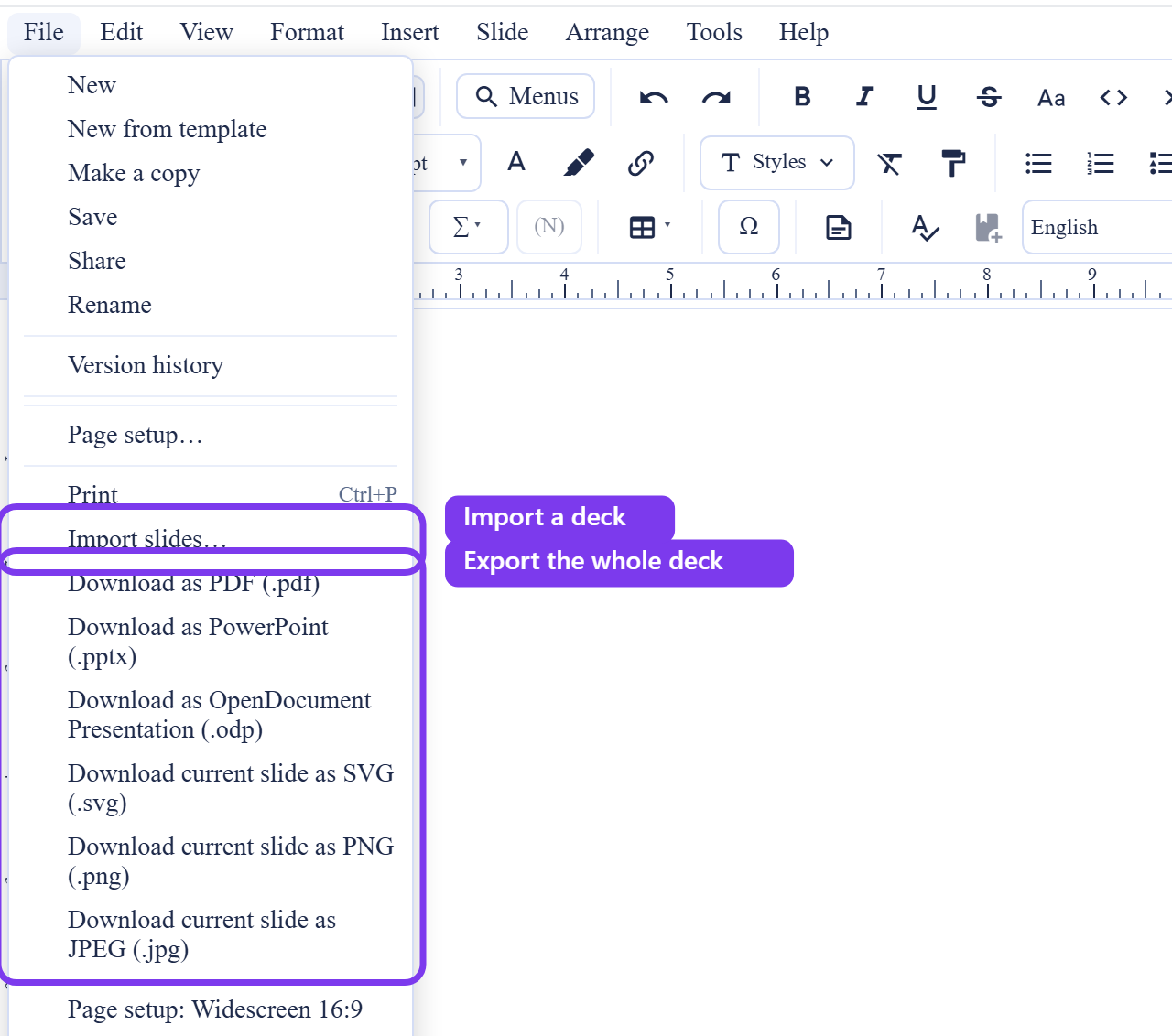
After this section you will hand off a deck in the format the room expects. From the File menu you can export the whole deck or the current slide:
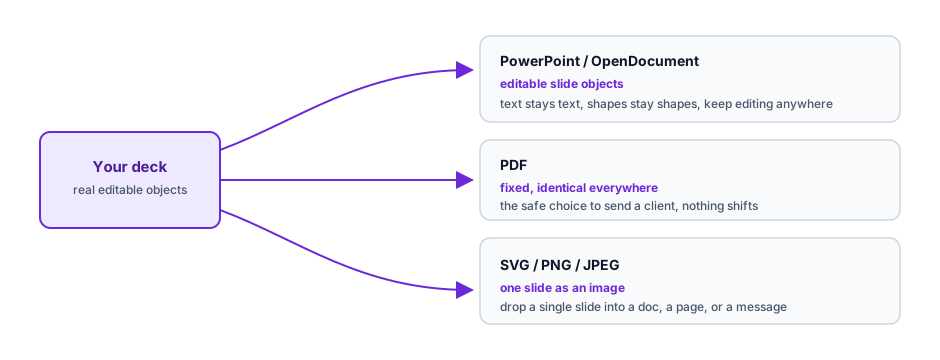
- PowerPoint (PPTX): the whole deck as a native PowerPoint file, so a client or a colleague opens it in PowerPoint.
- OpenDocument Presentation (ODP): the whole deck in the open standard, for LibreOffice Impress and other OpenDocument tools.
- PDF: the whole deck as a PDF, one slide per page, for a fixed, universally readable handout or archive.
- Image (SVG, PNG, JPEG): the current slide as a scalable SVG or a raster PNG or JPEG, for dropping a single slide into a document, an email, or a web page.
How the Export Is Built
After this section you will trust the file you send. A Backbuild Slides export is assembled by a dedicated builder that writes your deck as real slide objects, text, shapes, and layout, into the target format. It is not a screenshot of a web view flattened into a file. That means an exported PowerPoint contains editable slide objects a recipient can select and change, and text stays text rather than becoming a picture of text. This is the difference between a format that is a real export and one where export is an afterthought that shifts elements and breaks layout.
Fidelity is honest, not magical. Core content, your text, shapes, images, charts, and slide structure, is written as native objects and carries across cleanly. Effects that are specific to a runtime, such as some transitions and animations, are the parts most likely to differ between apps; where a target format cannot represent an effect exactly, the export degrades gracefully to the static content rather than corrupting the file. For the highest-fidelity, render-identical handoff where the recipient only needs to read the deck, PDF is the safe choice, because a PDF looks the same everywhere.
Importing an Existing Deck
After this section you will bring an existing deck in and keep working. Import a PowerPoint (PPTX) or OpenDocument (ODP) deck into Backbuild Slides and continue editing it as a live, collaborative deck. This is how you move an in-progress deck off a desktop app and into the shared workspace without rebuilding it, and how an agency picks up a client's existing PowerPoint to carry the work forward. Once imported, the deck gets everything a native deck has: the slide browser, co-editing, comments, version history, and the presenter runtime.
No Lock-In
After this section an administrator will treat exportability as an exit guarantee. Because a deck exports cleanly to PowerPoint, OpenDocument, PDF, and image formats at any time, your content is never trapped. If you ever need to leave, you leave with real, editable files, not a proprietary blob. For a procurement or security reviewer, this is the continuity guarantee: the data is portable on demand, in standard formats, with no gatekeeping.
Will my deck open correctly if the client is on PowerPoint? Yes. Export to PowerPoint produces a native PPTX assembled as real slide objects, so text, shapes, images, and layout come across as editable content rather than a flattened picture. Runtime-specific effects like some animations are the most likely to differ between apps; when in doubt for a read-only handoff, PDF renders identically everywhere.
Can I import an existing PowerPoint and keep working, then export back out? Yes. Import a PPTX or ODP deck, edit it as a live collaborative deck, and export it back to PowerPoint, OpenDocument, or PDF when you are done. The round-trip keeps your core content intact.
What survives an export? Your text, shapes, images, charts, and slide structure are written as native objects and carry across cleanly. Effects tied to the presenter runtime may differ in another app; the export degrades to the static content rather than breaking. PDF is the fixed-fidelity option for a deck that only needs to be read.
Am I locked into Backbuild's format? No. You can export the full deck to PowerPoint, OpenDocument, and PDF, and any slide as an image, at any time, so your content is portable on demand.
Can I export just one slide? Yes. Export the current slide as an SVG, PNG, or JPEG to drop it into a document, an email, or a web page.
Where to Go Next
- Presenting: Present Mode and Presenter View: present the live deck directly, with no export step in between.
- Collaboration, Comments, Sharing, and Governance: share a live link instead of sending a file.
- Building a Deck: Slides, Themes, and Layouts: build or restyle the deck you are about to hand off.