

Backbuild Miles Reports and Exports
The Reports tab is where a year of driving becomes a number you can put on a tax return, and a document you can hand to whoever prepares it. There are four reports you read on screen and two files you export. After this page you will be able to find your deductible mileage and what it is worth, see which of your miles are not deductible and why, check a vehicle or a quarter on its own, and produce a mileage log that answers the four questions an examiner asks.
What the Reports Tab Contains
After this section you will be able to open any report and know what you are looking at.
Tap Reports in the bar at the bottom of the screen. Every card runs when you tap it: the four reports open underneath the card you tapped and fill in with your real figures, and the two export cards write a spreadsheet to your phone and tell you where it went. Tap the card again to close it.
The line at the top of the screen names the tax year every figure covers. That year is taken from your most recent trip, so a report you open in January still shows you the year you have just finished driving rather than an empty new one.
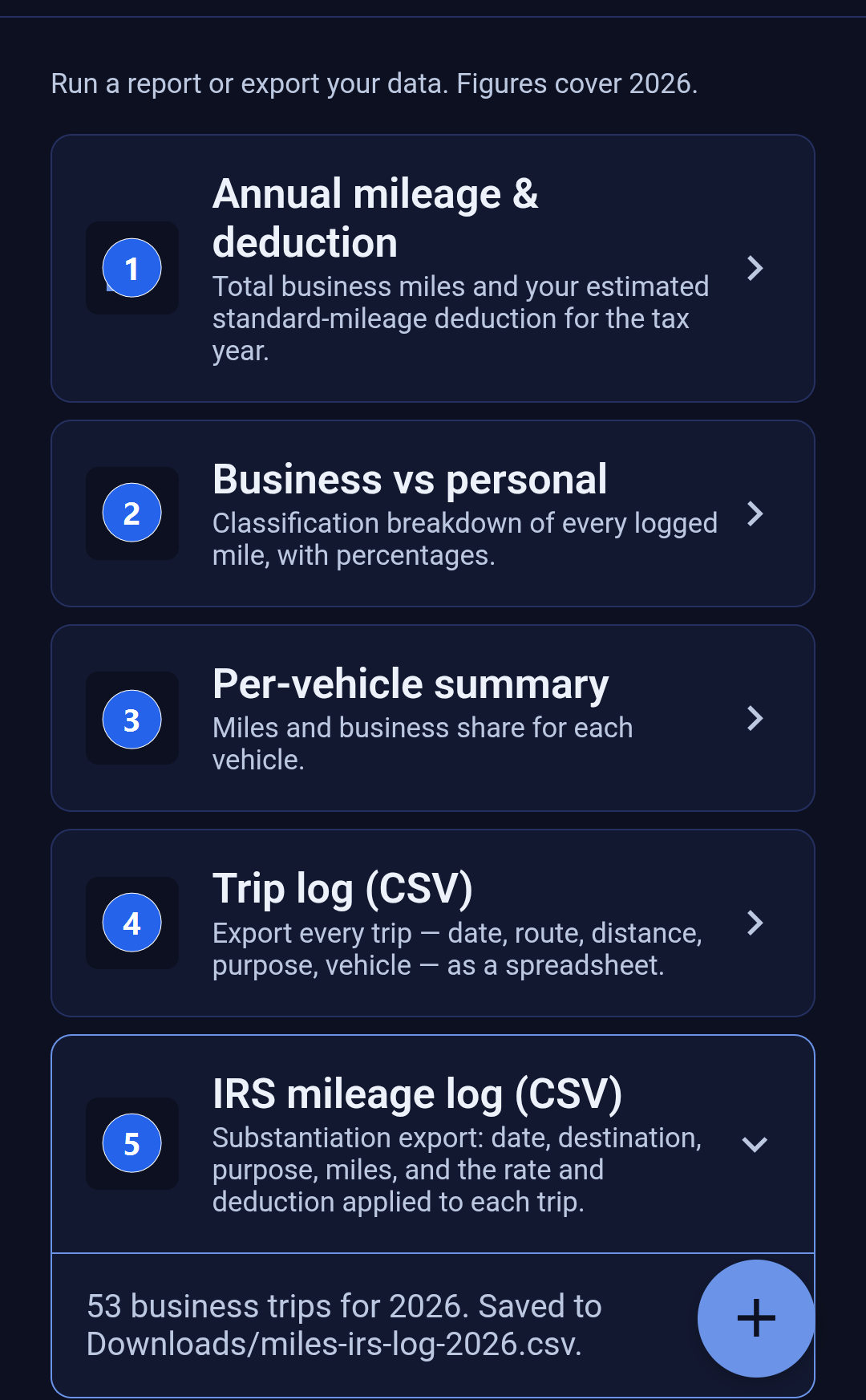
1. Annual mileage and deduction
Your deductible business miles for the year and what they are worth under the standard mileage rate.
2. Business versus personal
Every logged mile split three ways, with percentages, so you can see the shape of your driving year at a glance.
3. Per-vehicle summary
Each vehicle with its total miles, its business miles and how many trips it made, heaviest-used first.
4. Trip log (CSV)
Every trip of the year as a spreadsheet: date, start, end, miles, classification, purpose and vehicle.
5. IRS mileage log (CSV)
The business trips only, with the rate and the deduction worked out for each one. This is the file you hand to an accountant.
Underneath those five sits a sixth, Quarterly estimate: your business mileage and its value broken into four quarters, for working out estimated tax payments.
Reading Your Annual Mileage and Deduction
After this section you will be able to read every line of the headline report and know what to do about the one printed in red.
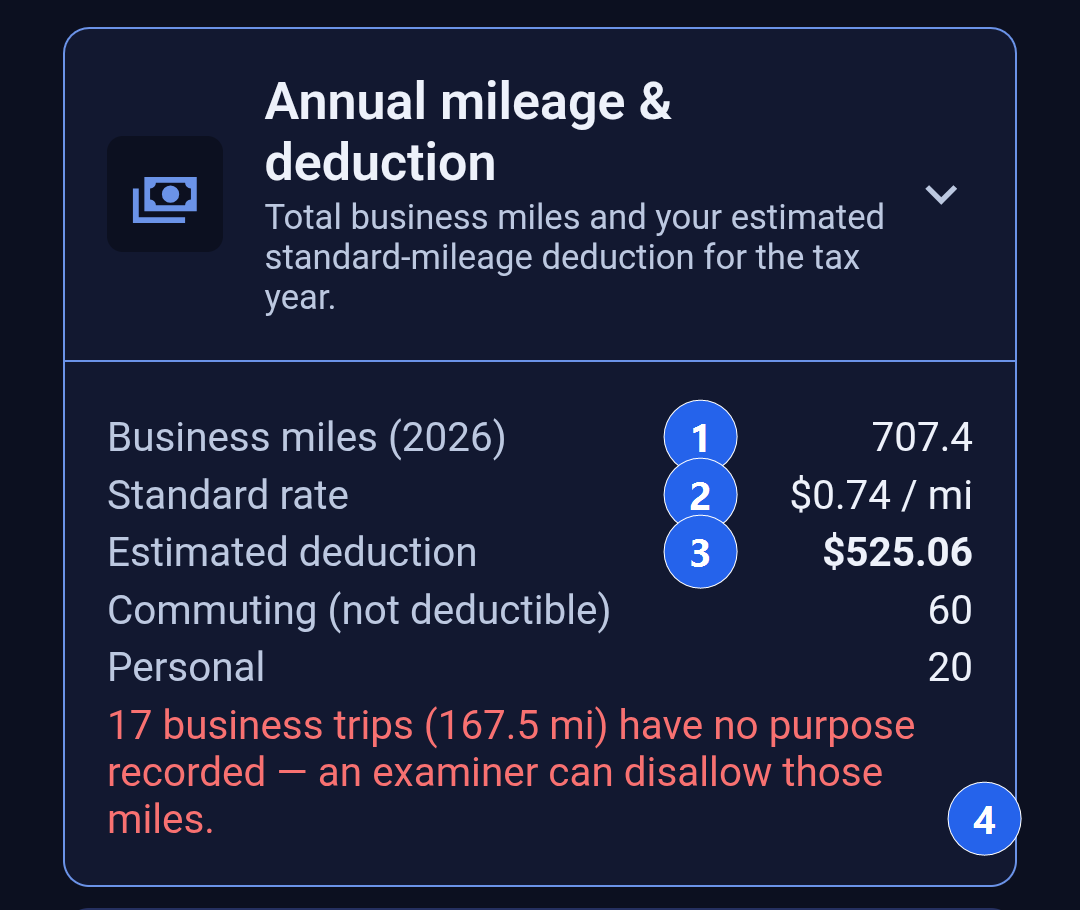
1. Business miles
The miles you classified as business, for the stated year only. Only these are deductible. Commuting between home and a regular workplace is not business driving, however far it is, which is why it has its own line lower down rather than being folded into this one.
2. Standard rate
The published rate per mile. It is worth understanding why this number can look unfamiliar: the rate is set by statute and it can change part way through a year. Backbuild Miles prices every trip at the rate in force on the day you drove it, so in a year with a mid-year change the figure shown here is the blended rate your driving actually earned, not one half of the year applied to all of it.
If a trip falls on a date no published rate covers, its miles appear on a separate line, Miles with no published rate, and contribute nothing to the deduction. A visibly incomplete figure is better than a confidently wrong one.
3. Estimated deduction
Your business miles priced trip by trip and added up. It is an estimate to work from and to check a preparer's number against, not a filing.
4. The line in red
This counts the business trips with no purpose written on them. Their miles are still included in the totals above, because you did drive them, but a mileage record without a business purpose is not substantiation, and an examiner can disallow those miles. Tap through to the Trips tab, open each of those trips and write what the journey was for. A few words is enough: "site visit, Riverside" beats a blank.
The Four Things a Mileage Log Has to Show
After this section you will understand what makes a log defensible, and which part of the app supplies each piece.
A mileage deduction stands or falls on a contemporaneous record showing four things for every trip. Backbuild Miles produces three of them automatically from the drive itself. The fourth is the one only you can supply, and it is the one people are missing when a deduction is disallowed.
Business Versus Personal, and Per-Vehicle
After this section you will be able to sanity-check your classification habits and compare your vehicles.
Business versus personal shows business, commuting and personal miles with the percentage each takes of your total, plus the total itself. It is the fastest way to catch a bad habit: a business share that looks far too low usually means a run of drives never got classified, and a personal share of zero usually means everything was waved through as business.
Per-vehicle summary lists each vehicle with its total miles, how many of those were business, and how many trips it made, heaviest-used first. A vehicle you retired part way through the year still appears for the trips it made while it was in service.
Both reports cover the tax year named at the top of the screen, so a vehicle you only drove in a previous year does not appear in this year's table.
Planning Quarterly Estimated Tax
After this section you will be able to see what each quarter of your driving is worth.
Quarterly estimate splits your business mileage into four quarters and prices each one. As with the annual figure, every trip is priced at the rate in force on the day it was driven, which matters most here: when a rate changes mid-year, the change falls inside this breakdown, so the later quarters genuinely carry a different rate from the earlier ones.
Read it alongside whatever else feeds your estimated payments. It tells you what your driving contributed in each quarter, not what to pay.
Exporting the Trip Log and the Mileage Log
After this section you will be able to produce both spreadsheets, find them on your phone, and know which one to send to whom.
Tap either export card. Backbuild Miles builds the spreadsheet, saves it into your phone's Downloads, and tells you exactly what it saved and where, for example "53 business trips for 2026. Saved to Downloads/miles-irs-log-2026.csv." Open Downloads in your files app to attach it to an email, or open it in any spreadsheet application.
The message names the file that was actually written. If you export the same log twice, your phone keeps both and the second is saved under a numbered name, which the message will show you, so you always know which file you just made.
Both files are ordinary comma-separated spreadsheets, oldest trip first, and both cover the tax year in the filename and nothing else. They are written straight to your phone; exporting does not send your log anywhere.
Which file to use
Trip log is everything: every trip of the year whatever its classification, with date, start, end, miles, classification, purpose and vehicle. Use it when you want to review or reconcile a whole year, or to keep your own copy.
IRS mileage log is the substantiation document: business trips only, with date, vehicle, start, end, miles, classification, purpose, the rate applied and the deduction that rate produced. A personal trip in a substantiation log is noise that invites questions about the trips that matter, which is why it is left out.
The purpose column is printed even when it is empty, deliberately. A gap you can see in the spreadsheet is a gap you can go back and fill; a gap that is quietly absent is one you discover during an examination.
Opening the file safely
Trip purposes and addresses are text you typed, and spreadsheet applications treat a cell that begins with an equals sign, a plus, a minus or an at sign as a formula. Backbuild Miles writes those cells so they stay ordinary text, so a purpose like "-2 crates returned" arrives as words rather than as an error or a calculation. Nothing in an exported log will try to run when your accountant opens it.
When a Report Cannot Be Run
After this section you will know what the screen is telling you when a figure is missing, and what to do next.
Reports are worked out from your trips and from the published mileage rates, so each can be unavailable on its own, and the screen says which.
If your trips could not be read, a message at the top says so and offers Try again. Your recorded trips are safe; only this screen's reading of them failed, usually because the phone is offline. Nothing is worked out and no file is exported while that message is showing, because an empty mileage log that looks like a real one is worse than no file at all.
If the published rates could not be loaded, the mileage reports still work and only the money is withheld, with a message that says so and the same Try again control. Your miles are unaffected; what is missing is the rate each one is worth.
Occasionally the copy of your trips saved on the phone itself is damaged. The screen tells you that in those words rather than showing you a wrong number, and Try again fetches a fresh copy.
Common Questions
Why is my deduction lower than I expected?
Check the commuting line. Commuting is not deductible and it is often a large share of a driving year. After that, check the line in red: trips with no purpose still count toward the total, so if the red line is large your real, defensible deduction is smaller than the headline.
Does the report cover more than one year?
No. Every figure and both exports cover the single tax year named at the top of the screen. That is deliberate: a percentage or a spreadsheet that mixes tax years belongs to no return.
Can I still export if I have not classified everything?
Yes, and the export reflects exactly what you have classified so far. Drives still waiting in your trip inbox are not trips yet and do not appear in either file. Clear the inbox first if you want a complete year.
Where did my file go?
Into your phone's Downloads, under the name the message showed you. If the message said the export could not be saved, no file was written and the message says what stopped it.
Should I use the standard mileage rate or my actual costs?
These reports work in standard mileage rates. Which method you may use is constrained by what was elected in a vehicle's first business year and by depreciation already claimed, so it is a question for whoever prepares your return rather than one an app should answer for you.
Where to Go Next
Writing purposes and correcting classifications happens on the Trips tab: see Working Your Backbuild Miles Trips List. Turning captured drives into trips in the first place is covered in Clearing Your Backbuild Miles Trip Inbox. For the running view of the year as it happens, see Reading Your Backbuild Miles Dashboard.