

Backbuild Chat
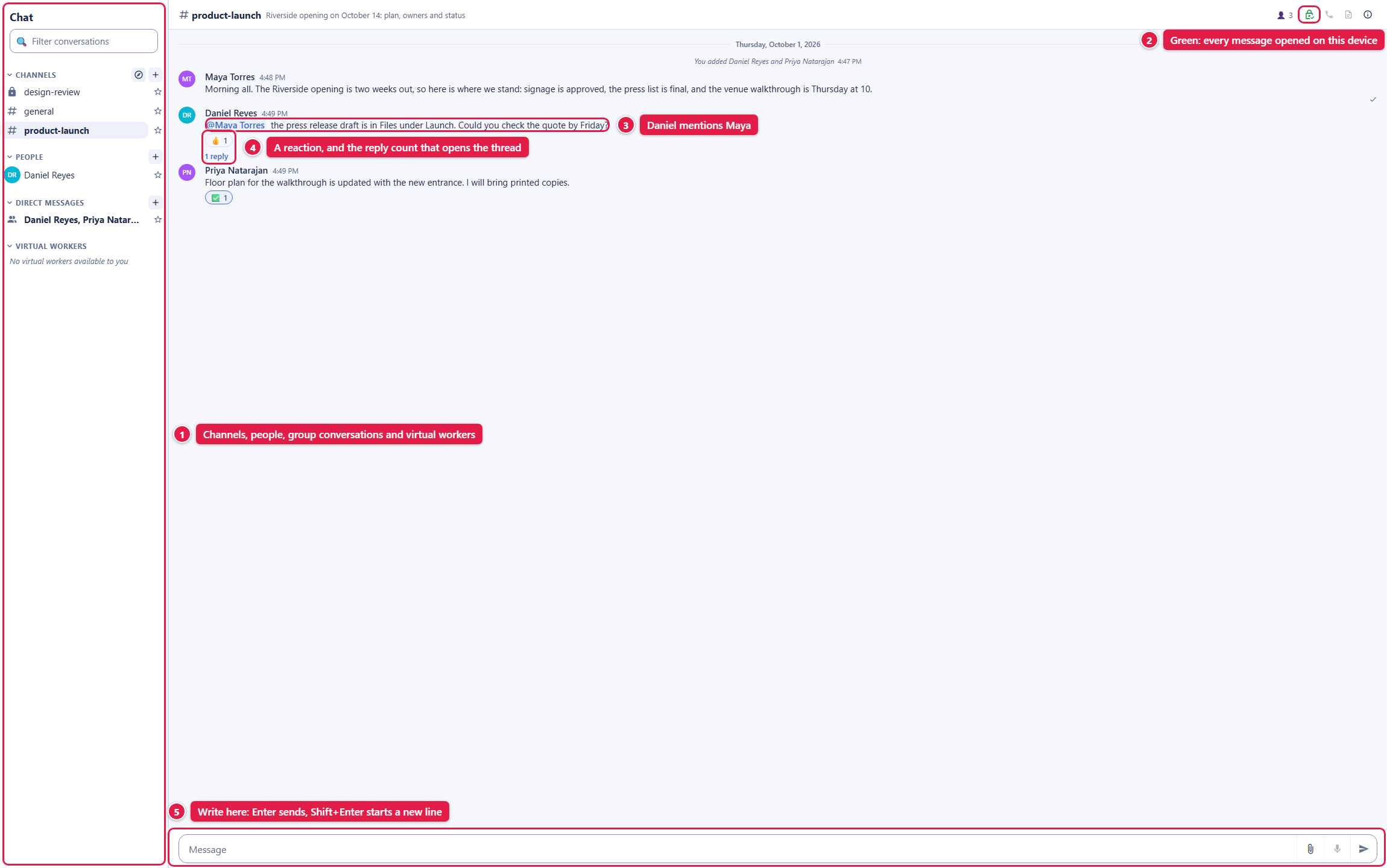
Backbuild Chat is where your organization talks: channels for a team or a project, direct conversations between two people or a small group, and the virtual workers you run, all on one screen in the same workspace as your mail, calendar, and files. Messages are encrypted on the sender's device before they leave it. After this page you will know what Backbuild Chat does, how to send your first message, and where to go for each thing you need to do.
What You Get
After this section you will know the shape of the product.
- Channels. Public channels anyone in your organization can find and join, and private channels only invited members can see. Each has a topic, a description, members with roles, and settings for who may post.
- Direct and group conversations. Message one person, or start a group conversation of up to nine people, you included.
- Mentions, reactions, and threads. Mention a person to get their attention, react to a message with an emoji, and keep a side discussion in a thread so the channel stays readable.
- Files. Upload a file from your computer or attach one from Backbuild Files. Every open is checked against the conversation's current members.
- Delivered and seen. In direct and group conversations, your messages show when everyone's app has received them and when everyone has seen them, and each person decides whether to share when they have read a message.
- Virtual workers. The virtual workers you run or that are shared with you are listed beside your people, so you can open a session with one from the same screen.
- Encrypted messages. Each message is sealed on the sender's device with post-quantum cryptography before it is sent. Security, Privacy, and Administration explains exactly who can open it.
Chat is part of the workspace on every plan, including Free, with no separate subscription and no per-seat charge. Anyone in your organization whose role includes Use Chat, which every built-in role does, can use it.
Send Your First Message
After this section you will have sent a message to a colleague and to a channel.
- Open Chat from the workspace sidebar.
- Message a person: select the + beside People, type a colleague's name, pick them, and start the conversation. Or select a name already in your People list.
- Write and send: type in the message box at the bottom and press Enter. Shift+Enter starts a new line.
- Join a channel: select the compass beside Channels to browse the public channels of your organization and join one, or the + beside it to create a channel of your own.
Who can I chat with? Everyone who is an active member of your organization, and the virtual workers you run or that are shared with you. Chat does not connect to people outside your organization.
Choose Your Guide
- Channels, Conversations, and People: the Chat sidebar, starring, creating and joining channels, channel members and settings, direct and group conversations, people who leave, and virtual workers.
- Messages, Mentions, and Files: writing and formatting, mentions, reactions, threads, editing and deleting, attaching files, and delivered and seen receipts.
- Security, Privacy, and Administration: how messages are encrypted, what the service can and cannot see, permissions and roles, and what an administrator can do.
What Backbuild Chat Does Not Do Yet
Being exact about the edges helps you plan. Today Backbuild Chat does not offer:
- A search of message text. The filter box finds conversations and people, not words in messages.
- Huddles (live audio or video in a conversation) or a shared canvas document per conversation. The phone and document buttons in a conversation's header are shown but not active yet.
- Desktop, browser, or phone notifications. New messages and mentions of you show as bold names and badges in the Chat sidebar, and muting is the only notification setting per conversation.
- Pinned or saved messages, reminders, or scheduled messages.
- An import of conversations from another chat app.
- Access for API keys or MCP tools. Chat answers only a signed-in person's session, the kind the Backbuild apps use, and messages are sealed and opened on that person's device, so an API key cannot read or send chat messages.
- Zero-knowledge conversations, which would remove the service's ability to open messages. They are shown as an option when you create a channel but cannot be created yet.
Chat runs in the Backbuild web app and the Backbuild desktop app.