

Scanning Your Backbuild Miles Receipts
If you deduct what your vehicle actually costs you rather than a flat rate per mile, the deduction is only as good as the paper behind it. The Receipts screen turns a paper receipt into a photograph attached to a specific expense on a specific vehicle, in about fifteen seconds, while you are still standing at the pump. After this page you will be able to capture a receipt, file it against the right vehicle and category, find any receipt again months later, and understand what your records will and will not prove if you are ever asked.
Why a Photograph, and Why Now
After this section you will know which deduction method needs receipts, and what a receipt has to show to be worth keeping.
There are two ways to deduct a vehicle used for work. The standard mileage method multiplies your business miles by a published rate; it needs a mileage log, which Backbuild Miles produces for you (see Reports and Exports). The actual expense method deducts the business-use share of what the vehicle really cost: fuel, oil, tyres, repairs, insurance, registration, parking and tolls. That method needs the receipts.
The receipts are also the half of the record most people lose. Thermal paper fades, often within months, and a glovebox full of blank slips proves nothing. A receipt photographed the day you were handed it is legible for as long as you keep it, and it arrives already attached to the vehicle and the amount, so nothing has to be reconstructed from a bank statement the following spring.
Capture whatever you would want to be holding if someone asked you to justify the number: the merchant, the date, the total, and what was bought. You do not need to crop or straighten anything. A flat, well-lit photograph of the whole slip is enough.
Opening the Receipts Screen
After this section you will be able to reach the screen and point it at the right vehicle.
Open the menu with the button at the top left of any screen, then choose Receipts. The screen opens on one vehicle at a time, because a receipt belongs to a vehicle: fuel bought for the van is not a cost of the car.
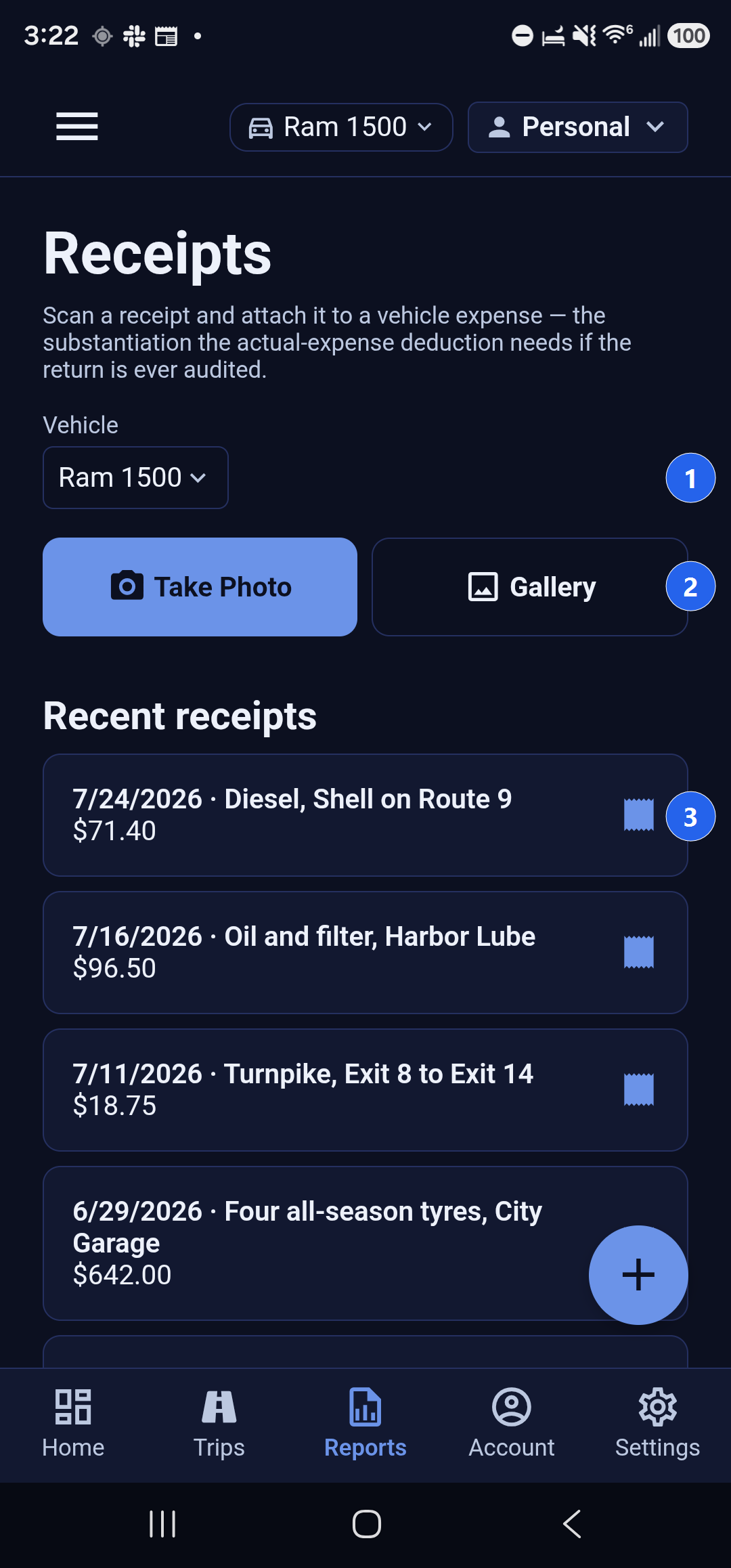
- Tap the Vehicle picker and choose the vehicle the receipt belongs to. The app remembers your choice, so the next time you open the screen it is still on that vehicle. If a paired vehicle is connected over Bluetooth, that one is offered first.
- If the picker says you need to register a vehicle first, add one on the Vehicles screen and come back. Receipts attach to vehicles, so there has to be one to attach to.
Under Recent receipts sits everything already filed against the vehicle you have chosen, newest first, each with its date, your own note about it, and the amount. That list is the record: if a receipt is not in it, it is not attached to anything.
Capturing a Receipt
After this section you will be able to capture a receipt with the camera or from photographs you already have.
There are two buttons, and they do different jobs.
- Take Photo opens your phone's camera. Use this at the counter or in the car, while the receipt is in your hand. Frame the whole slip, take the picture, and accept it.
- Gallery opens your photo library, for a receipt you already photographed, a screenshot of an emailed receipt, or an image someone sent you.
Either way the photograph appears on the screen with the attach form underneath it. If the picture is blurred, cut off, or simply the wrong one, tap Retake: the photograph is discarded and the two capture buttons come back. Nothing is filed until you save.
Photographs are accepted in the usual formats a phone camera and photo library produce, up to fifteen megabytes each, which is comfortably larger than a full-resolution phone photograph. If a file is not a photograph, or is larger than that, the screen says so before anything is uploaded rather than after.
Filing It Against an Expense
After this section you will be able to record the expense the receipt proves, correctly, the first time.
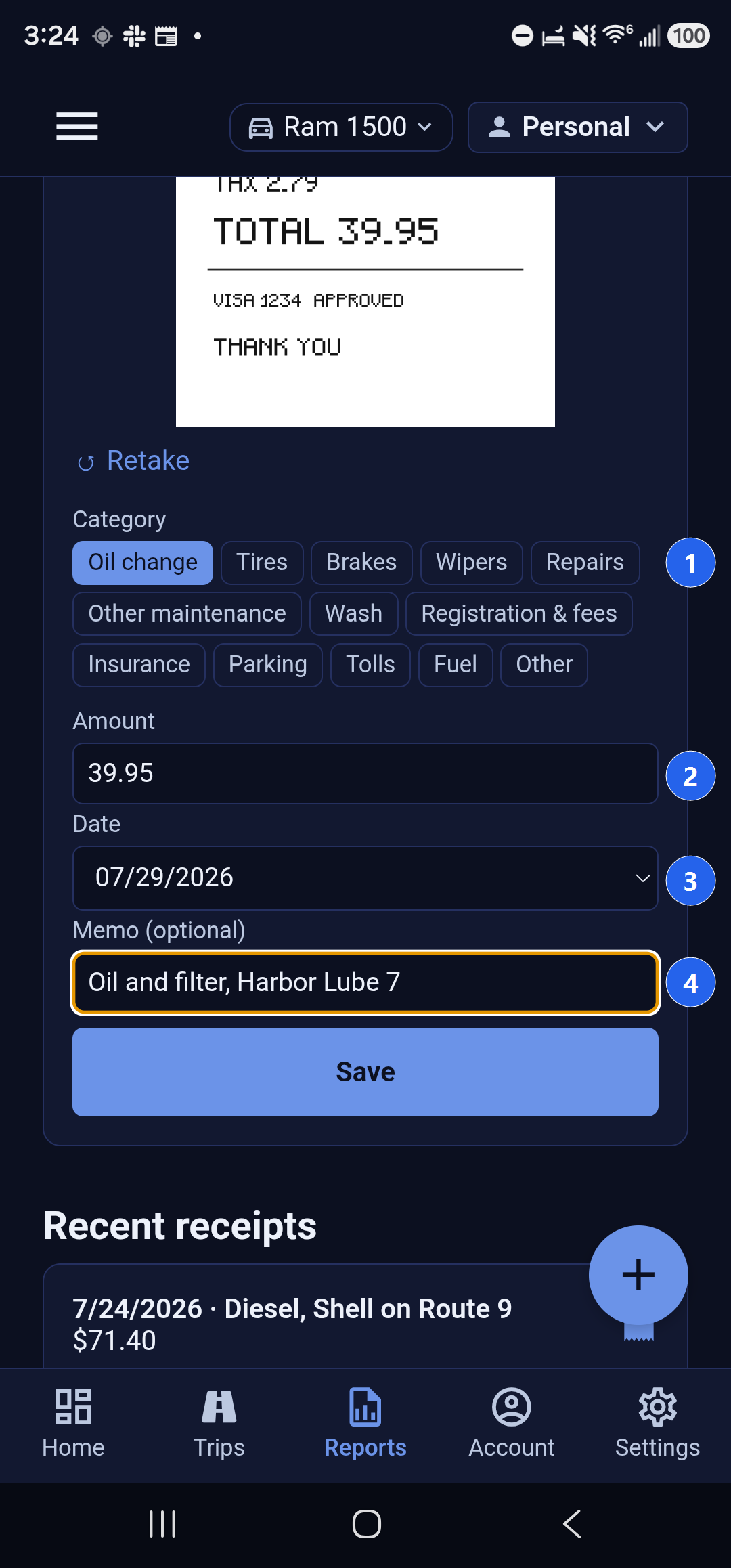
Category
Tap one of the thirteen categories: Oil change, Tires, Brakes, Wipers, Repairs, Other maintenance, Wash, Registration and fees, Insurance, Parking, Tolls, Fuel, or Other. The one you pick is filled in and the rest are outlined. The category decides which line of your vehicle costs this expense lands on, so it is worth a second's thought: a set of tyres filed as Repairs is not wrong enough to matter to your total, but it makes the year harder to read back.
Amount
Type the total from the receipt, in dollars and cents, exactly as it is printed.
Both 39.95 and 1,234.50 are understood. If what you
type could be read two different ways (a lone comma, for instance, which means a
decimal point in some countries and a thousands separator in others) the screen
stops and asks you to write it plainly, rather than guessing at a number that
will end up on a tax return.
Date
The date starts on today, in your own time zone, and cannot be set in the future. Change it when you are filing a receipt from earlier in the week or catching up on a shoebox: use the date printed on the receipt, not the day you got round to photographing it. The date decides which month, quarter and tax year the expense falls into.
Memo
Optional, and worth writing anyway. The memo is what the receipt is called in every list afterwards, so "Diesel, Shell on Route 9" is findable in December and a blank memo is not. It is also the natural place to record why the cost was a business one when that is not obvious from the merchant.
Tap Save. The photograph is uploaded, the expense is recorded against the vehicle, and the new receipt appears at the top of Recent receipts. If something goes wrong, the screen tells you what happened and keeps your photograph and everything you typed, so you can fix the one field at fault and save again rather than starting over.
Finding a Receipt Again
After this section you will be able to produce any receipt on demand.
Choose the vehicle, then tap any card under Recent receipts. The photograph opens full screen with the date, your note and the amount printed underneath it, so you can confirm you are looking at the right one before you read it. Close it with the cross at the top right, or with your phone's normal back gesture.
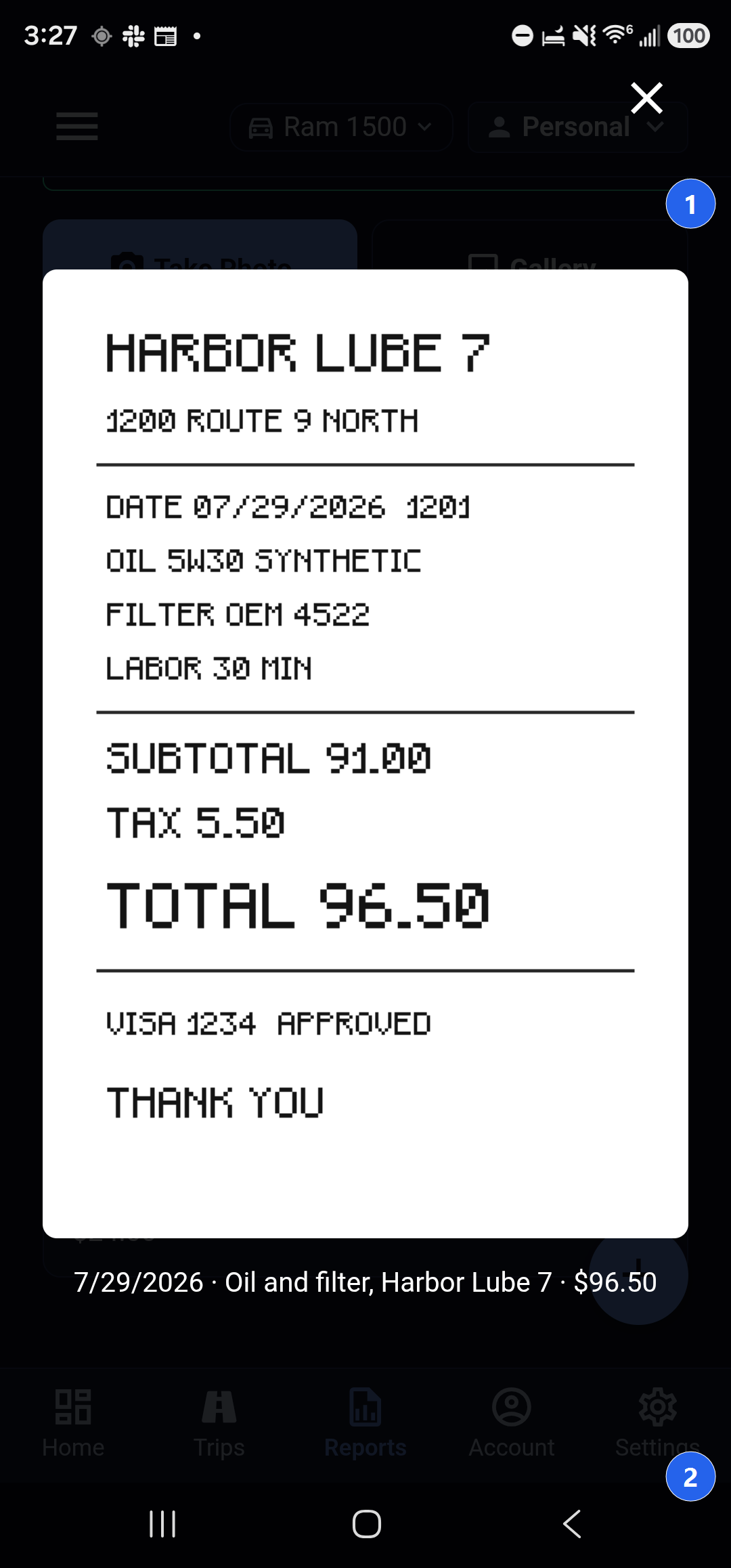
The list shows every receipted expense on the chosen vehicle, not a recent sample of them, so scrolling to the bottom really is the end of that vehicle's records. A voided expense stays visible and is marked as voided rather than disappearing: a record that quietly vanishes is worse than one that is plainly cancelled.
Where Your Receipts Live
After this section you will know who can see a receipt and what happens to it.
A receipt is stored against the entity you were working in when you saved it, alongside that entity's other financial documents, and it is visible only to people who are members of that entity. Somebody in a different entity cannot reach it, whether or not they know it exists. Receipts travel over an encrypted connection and are stored encrypted at rest.
If you keep more than one entity in Backbuild Miles, a personal car and a company van for instance, check the entity chip at the top of the screen before you save. The receipt is filed where you are, and moving it afterwards means recording it again in the right place.
Every receipt you file is also a financial document in Backbuild Finances, so an entity that keeps its books there sees the same receipt in its document records without anyone filing it twice.
Habits That Survive a Question
After this section you will have a routine that keeps the record complete.
- Photograph it before you drive off. The receipt in your hand is the one you will still have. The one in the door pocket is not.
- Write the memo. Ten characters now saves ten minutes later, and it is what makes a list of forty receipts searchable by eye.
- Use the date on the receipt. Especially at the turn of a month, a quarter or a year, where a day's difference moves the deduction into a different return.
- Check the vehicle. The screen stays on whichever vehicle you used last, which is right nearly always and wrong on the day you drive the other one.
- Capture the small ones. Parking and tolls are individually trivial and collectively large, and they are the ones nobody keeps.
Frequently Asked Questions
Do I need receipts if I use the standard mileage rate?
Not for the mileage itself, which is proved by your mileage log. Parking and tolls are deductible on top of the standard rate, so those receipts are still worth capturing, and keeping the rest costs you nothing if you later find the actual expense method gives the better result.
What if the receipt is faded or torn?
Photograph it anyway, and write what it was for in the memo. A poor photograph of a real receipt with a contemporaneous note is a far better record than a reconstruction from memory months later.
Can I attach the same photograph to two expenses?
No. Each photograph belongs to one expense, so one receipt cannot appear to justify two costs. If you photographed the wrong slip, use Retake and capture the right one.
What happens if I lose my phone?
Your receipts are not stored only on the phone. They are saved to your entity as soon as you tap Save, so a new phone signed into the same account shows the same receipts.
Can my accountant see them?
Anyone you have added to the entity can. Your mileage figures and the trip log export are covered in Reports and Exports.
Is there a limit on how many receipts I can keep?
There is no cap on the number of receipts. Each individual photograph must be fifteen megabytes or smaller, which no ordinary phone photograph approaches.
Where to Go Next
- Reports and Exports: turn a year of driving into a deduction and a mileage log.
- Working Your Trips List: give every captured drive a vehicle, a classification and a purpose.
- Getting Around Backbuild Miles: the menu, the pickers and the tabs.