

Projects
Projects are the primary workspace unit inside an organization. They group entities, files, tasks, and workflows into a single place your team collaborates on, and they are the boundary you use to decide who sees what.
After reading this page you will be able to: create a project and get your team into it, choose the right visibility so the right people (and only the right people) can see it, give a contractor access to exactly one project, and archive, restore, or retire a project without ever losing data.
Overview
Every entity, document, and task in Backbuild belongs to a project. Projects scope search results, AI context, and access control. If you are new to how Backbuild is structured, the short version is: your account belongs to organizations, each organization holds projects, and each project holds your work. When you build a SaaS product, your end users create projects to organize their own work, whether that is managing clients, tracking support tickets, or running a construction job.
Every project belongs to exactly one organization, and project access is granted only to that organization’s active members. That is a deliberate guarantee, not a limitation: it means there is no side door through which a project can leak outside your tenant. To bring an outside person in, make them a member at a tightly scoped role (see the contractor recipe below). To serve external customers at scale, package your product with the SaaS Builder; each subscriber gets their own isolated organization governed by the plan they purchase.
Creating Projects
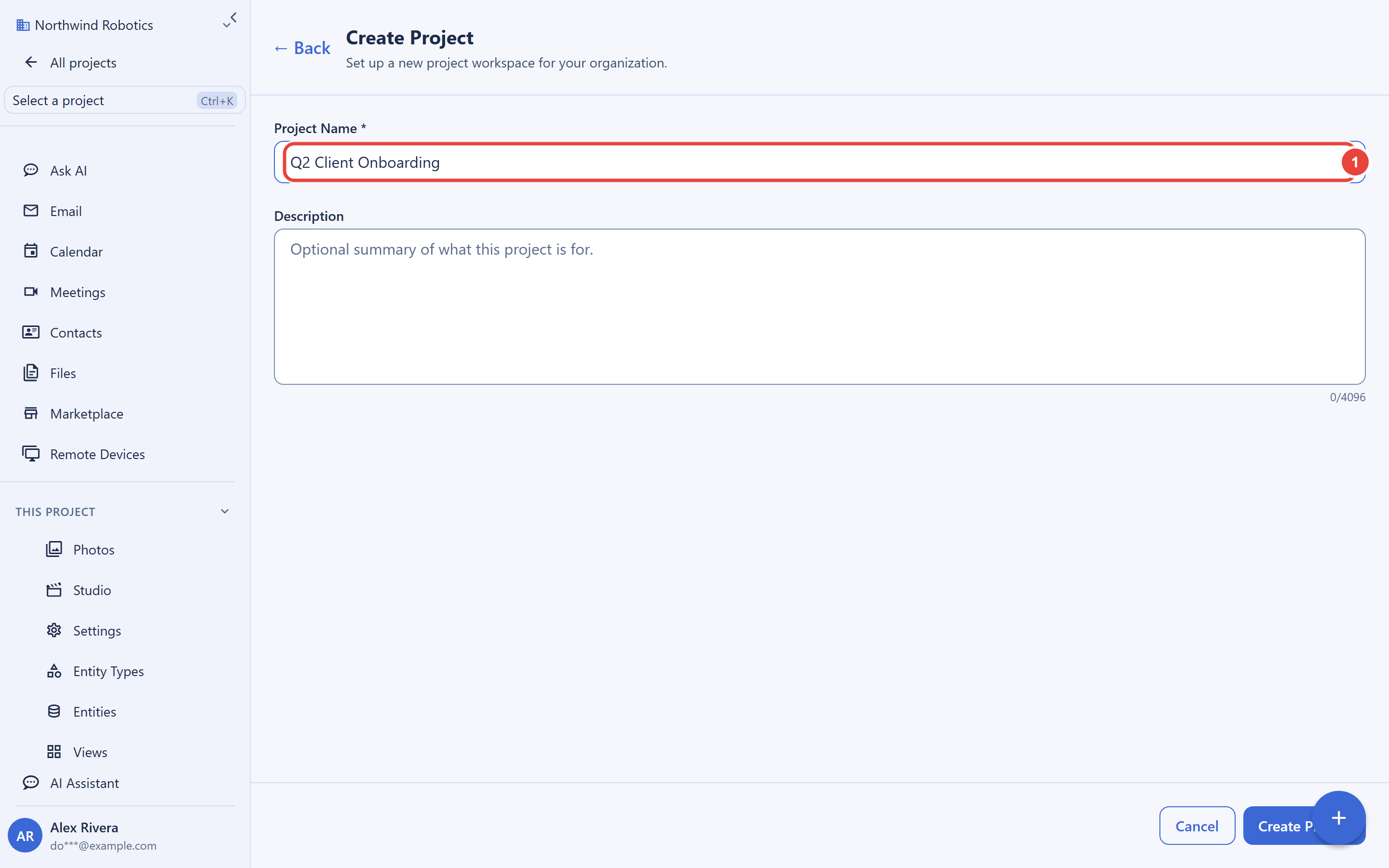
Create a project from the project selector in the app or via the API.
The only required field is name; a URL-friendly slug is
generated from the name automatically when you do not supply one. The
organization always comes from your authenticated session, so you never
pass an organization id. The creator becomes the project’s owner,
default settings are created, and the creation is audit-logged.
# Create a project
curl -X POST https://api.backbuild.ai/v1/projects \
  -H "Authorization: Bearer $TOKEN" \
  -H "Content-Type: application/json" \
  -d '{"name": "Q2 Client Onboarding"}'

# Response: 201 Created. The full project record is returned.
{
  "success": true,
  "data": {
    "id": "019d...",
    "org_id": "019c...",
    "name": "Q2 Client Onboarding",
    "slug": "q2-client-onboarding",
    "description": null,
    "prefix": null,
    "visibility": "private",
    "category_id": null,
    "owner_scope": "org",
    "is_active": true,
    "created_by_user_id": "019b...",
    "created_at": "2026-04-13T12:00:00Z",
    "updated_at": "2026-04-13T12:00:00Z",
    "settings": {}
  }
}
Response Codes
| Code | Meaning |
|---|---|
201 Created | Project created. The full project record is returned in data. |
400 Bad Request | VALIDATION_ERROR for an invalid field (name missing or too long, bad prefix, visibility not one of public/private/internal, malformed slug, or non-UUID category_id); or INVALID_JSON for an unparseable body. |
401 Unauthorized | Missing or invalid access token. |
403 Forbidden | You lack the project.create permission, or the plan governing your workspace defines a project limit that has been reached (PROJECT_LIMIT_REACHED). |
409 Conflict | PROJECT_SLUG_EXISTS: a project with that slug already exists in this organization and environment. |
500 Internal Server Error | An unexpected server error occurred. |
Backbuild’s own plans do not cap how many projects an organization can create. The project-limit refusal exists for products built on Backbuild whose plans define a project cap for their subscribers; if you hit it there, retire a project or upgrade the plan.
Who Can See a Project: Visibility and Membership
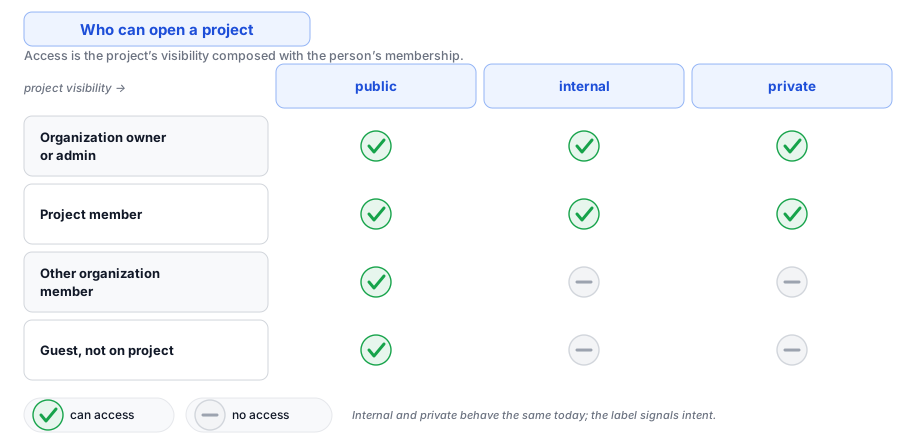
Two controls decide access, and they compose simply:
| Visibility | Who can access |
|---|---|
public | Every active member of the organization. |
internal | Project members, plus organization admins and owners. |
private | Project members, plus organization admins and owners. |
- New projects default to
private: private by default is the platform posture, so nothing is broadly visible until you decide it should be. - Organization admins and owners can always reach every project; there are no admin blind spots, which is what makes offboarding and audits reliable.
- To someone without access, a restricted project is indistinguishable from one that does not exist. There is no “you cannot open this” page that confirms the project’s existence, and its name never appears in their lists or search results.
Project members and project roles
Within a project, members hold one of four project roles:
owner, admin, member (the default
when adding), and viewer. Adding a member requires you to
be a project admin or owner, or an organization admin or owner. The
person you add must already be an active member of the organization,
and adding the same person twice is refused cleanly.
Project membership is managed through the project members endpoints in the API reference below. When a project owner leaves the company, an organization admin adds a new project owner the same way; ownership of the workspace never dead-ends with a departed account (see the offboarding runbook).
Recipe: a contractor or client who sees exactly one project
- Invite the person to the organization at the
guestrole (see Invitations). - Keep the target project’s visibility
private. - Add them as a project member, as
memberif they contribute orviewerif they only review.
What they get: that one project. What they do not get: other projects
(including internal ones), organization settings, or
administrative surfaces. Public projects are visible to every active
org member, guests included, so if you run truly open projects
alongside contractors, prefer internal for the open ones.
When the engagement ends, remove the person from the organization and
every trace of access ends with their sessions,
immediately.
Project Lifecycle: Archive, Restore, Retire
A project’s live state is tracked by the is_active
flag, and no lifecycle action ever destroys data:
| State | Meaning |
|---|---|
| Active | Live and accessible to everyone with access. |
| Archived | Hidden from everyday listings via the Active toggle in project settings. Flip the toggle back to restore it exactly as it was. |
| Deleted (soft) | Removed from listings. All data is preserved and the project can be restored; the audit trail stays intact. |
Deletion is always a soft delete. Nothing inside the project (entities, files, tasks, history) is removed, which is why an accidental deletion is an inconvenience rather than an incident. One guard applies: a project that is bound to a SaaS package with active subscribers cannot be deleted while those subscriptions exist; the platform refuses with a conflict rather than pulling a live product out from under customers.
Project Settings
- Name and slug: the display name and the URL-friendly identifier. Slugs are unique per organization; a clash is refused with a clear conflict, and reserved or malformed slugs are rejected.
- Description: a summary visible to people with access; clearable.
- Visibility:
private,internal, orpublicas above. - Prefix: an optional short alphanumeric prefix used to label the project’s records.
- Active toggle: the archive and restore switch.
- Custom settings: a bounded per-project settings document for workflow defaults, notification rules, and integration configuration.
Finding Your Way: the Selector, Pins, and Recents
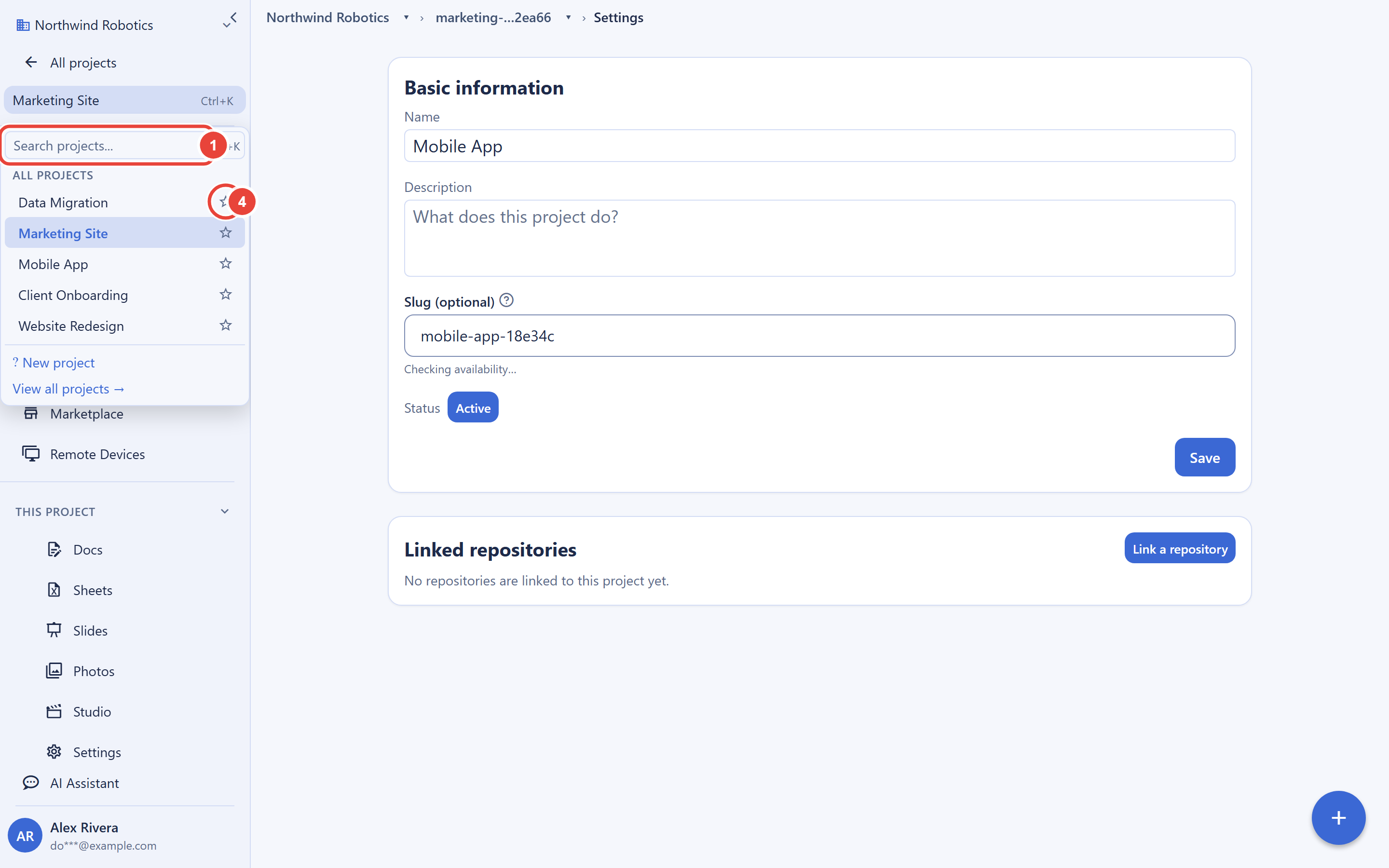
The sidebar project selector is built for organizations with many projects: it combines your pinned projects, your recently opened projects, and search in one place, and can include archived projects when you ask. Pin the projects you live in; recents track where you have actually been, automatically.
Connecting Repositories
A project can be linked to one or more of your organization’s repositories, each link carrying a branch, an optional subpath, a role, and a primary flag. Repo links are how file bridging and paired-repo workflows know which code belongs to which workspace. Manage them from the project’s settings or via the API.
Pairing connects a repository on your own machine to the workspace through the Backbuild desktop app. Once a local repository is paired, a file in it can be opened and edited in the cloud editors: the desktop app reads the file from your repository, the editor works on it, and edits are written back to the local file with a content check that refuses a stale write, so a change made outside the editor is never silently overwritten. Your files stay in your repository under your own version control; the workspace reaches them only through the pairing you set up, and only for the repositories you pair.
Repository links also drive deployment. A push to a linked repository can trigger the project’s container deployment pipeline through a signature-verified webhook, so the code, the documents that describe it, and the pipeline that ships it live in one project with one workflow.
What Lives Inside a Project
- Entities: flexible data objects (items, contacts, tickets, anything). See Entities.
- Files: uploaded files for storage, analysis, and AI-powered search. See Files.
- Tasks: work items with assignees, due dates, and status tracking.
- Views: saved filters and sort configurations for entities. See Views.
- AI conversations: chat history scoped to the project’s data.
Frequently Asked Questions
How do I give a client access to just one project?
Use the contractor recipe: guest
org role, private project, project membership as
viewer or member. They cannot see other
projects, the member roster’s admin surfaces, or org settings.
Can people outside my organization be given project
access?
Not directly; project members must be active members of the
organization. That rule is what guarantees a project can never leak
outside your tenant. Bring outsiders in as guests, or serve customers
through the SaaS Builder.
If I delete a project by mistake, is the data gone?
No. Deletion is a soft delete: the project leaves your listings but all
of its data is preserved and it can be restored.
What is the difference between private and internal?
Access is the same today: project members plus organization admins and
owners. Use private for restricted work and
internal for projects any teammate may be added to on
request; the label communicates intent to your team.
Is there a limit on the number of projects?
Backbuild’s own plans do not cap project count. Products built on
Backbuild can define a cap for their subscribers, in which case
creation past the cap is refused with a clear message.
API Reference
GET /v1/projects: list projects (paginated; also supports a selector mode that returns pinned, recents, and search in one round trip)POST /v1/projects: create a new projectGET /v1/projects/:id: get project details (works with the slug as well)PUT /v1/projects/:id: update name, slug, description, visibility, and the active flag (also the restore path)PUT /v1/projects/:id/settings: replace the project’s settings documentDELETE /v1/projects/:id: soft-delete a project (data preserved)GET/POST/DELETE /v1/projects/:id/repo-links: manage repository linksGET /v1/projects/:id/members/POST: list and add project members with project rolesDELETE /v1/projects/:id/members/:userId: remove a project member
The projects list endpoint returns paginated results using
limit and offset query parameters:
{
  "success": true,
  "data": [...],
  "pagination": {
    "total": 42,
    "limit": 50,
    "offset": 0,
    "has_more": false
  }
}
See the API Reference for complete request and response documentation.