

AI Image Tools: Generate, Fill, Expand, and Remove
This guide teaches the AI image tools in Backbuild Photos: making a new image from a text prompt, and editing an existing image the way a familiar select-and-generate workflow does. After it you will be able to generate, fill, expand, and remove, know when to reach for the fast classical tools instead, and understand exactly what these cost and what rights you have to the result. Every AI edit is non-destructive and metered, and nothing extra about your image is kept.
AI image work runs server-side and is metered, not free-flowing. The generation and editing tools consume usage credits, or you can bring your own AI provider key so the cost lands on your own account. Either way the meter is visible, so there is no surprise. See usage and credits and the pricing page for current rates.
Generate an Image From a Prompt
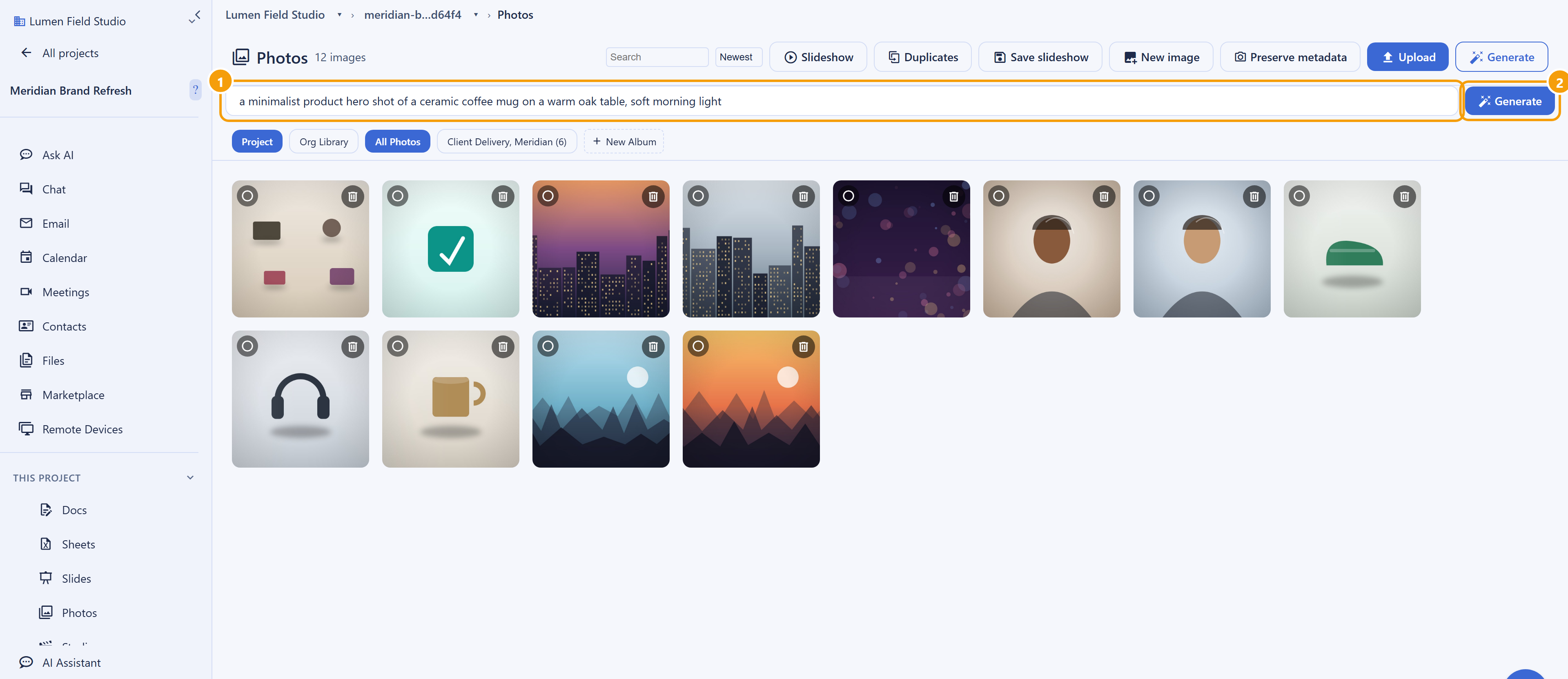
After this section you will create an image from a description. From the gallery, choose Generate with AI, type a prompt describing the image you want, and submit. The image is created server-side, stored as a rendition, and added to your grid like any other picture, ready to organize, edit further, and share. This is the fast path when you need an on-brand illustration or a placeholder and do not have a photo for it.
Edit With a Prompt: Fill, Expand, and Remove
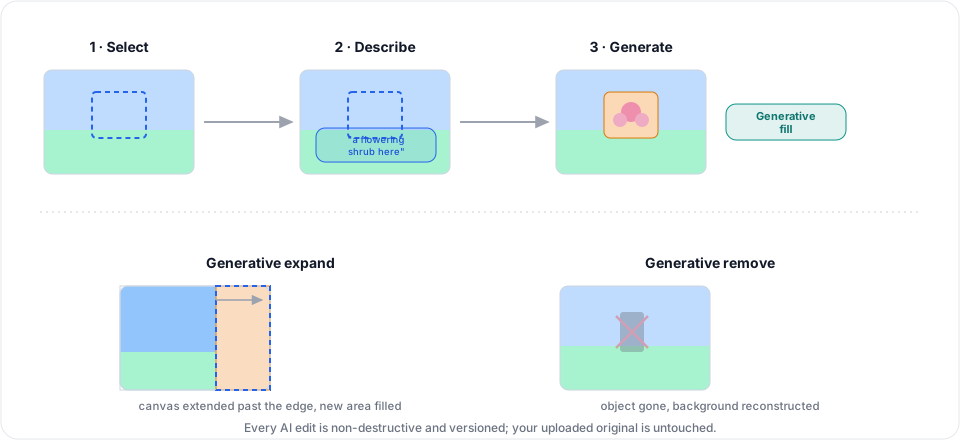
After this section you will change a real image with a prompt. In the editor, the AI edits follow the select-and-generate workflow a designer already knows:
- Generative fill. Make a selection, describe what should go there, and the region is filled from your prompt, matched to the surrounding image. Use it to add an element or replace an area.
- Generative expand. Extend the canvas beyond an edge and have the new space filled to continue the scene. Use it to reframe a shot for a different aspect ratio without re-shooting, for example turning a landscape crop into a vertical story.
- Generative remove. Point at an object and remove it in one action, with the background reconstructed behind it.
Because the editor is non-destructive, an AI edit lands as part of your edit document and is saved as a new rendition; your uploaded original is untouched and the change is versioned like any other. Nothing beyond the resulting image is persisted from an AI operation.
The Fast Classical Tools
After this section you will pick the right tool for common jobs. Some tasks do not need a prompt. Backbuild Photos ships fast, classical (non machine-learning) engines for the most common ones:
- Background removal in one action, to drop a subject onto a clean or transparent background.
- Subject selection that finds the main subject for you as a starting selection.
- Upscale that enlarges an image with edge-directed detail.
- Denoise that cleans up grain and sensor noise.
These run locally in the editor rather than as a metered AI call, so they are fast and free to use. They are excellent on clean images and degrade on genuinely hard cases, such as fine hair against a busy background; when a classical result is not clean enough, refine it with Select and Mask (see Editing Photos) or reach for the prompt-based tools above.
Your Rights to AI Output
After this section you will know where you stand on commercial use. Images you generate are yours to use, including for commercial work. You remain responsible for the prompts you write and any images you provide as input: do not prompt for, or upload, content you do not have the right to use, and do not ask for output that infringes someone else's rights. This is guidance, not legal advice; your service agreement with Backbuild governs the exact terms.
How many AI generations do I get, and what do they cost? AI generation and prompt-based editing are metered in usage credits, and you can bring your own AI provider key to put the cost on your own account instead. The classical tools (background removal, subject select, upscale, denoise) are free. The pricing page is the source for current rates and included allowances.
Can I use AI-generated images commercially? Yes, the output is yours to use commercially, with the responsibility noted above to keep your prompts and inputs clear of other people's rights.
Is background removal one-click? Yes. It is a fast classical tool, so it is instant and free; on a difficult edge, refine with Select and Mask.
Can I reframe for each platform without re-shooting? Yes. Generative expand extends the canvas and fills the new space, so a single shot becomes a square post, a vertical story, or a wide banner.
What Is Not Here Yet
Being clear matters if AI features are why you are switching:
- No machine-learning restoration set: machine-learning denoise, sky replacement, colorize, style transfer, depth blur, smart portrait, and photo restoration are not available. Denoise and upscale ship as classical engines described above.
- No AI culling that auto-selects the best frames from a large shoot.
- No match-font that identifies a typeface from an image.
Where to Go Next
- Editing Photos: the full non-destructive editor the AI edits live inside.
- The API, AI, and Agents: drive generation and editing from a script or an AI agent.
- Usage and credits: how metered AI work is counted and capped.