

Files
Files is your organization’s shared file space. Create a note, upload any file, organize it into folders, attach it to a project, keep it private or share it at exactly the access level you intend, and let the AI assistant read, analyze, and semantically search the formats it understands. One explorer holds everything: files you write, files you upload, and artifacts your AI conversations produce, alongside the files other people have shared with you.
Free The Files app is part of the free Backbuild workspace. Custom data modeling (entity types, entities, relationships, and views) is also included on every plan. AI analysis and semantic search draw on universal usage credits or your own connected AI keys. See pricing.
Your First Few Minutes With Files
By the end of this section you will have created a file, found it again by meaning, and shared it with a teammate at the access level you choose. Those three moves (create, find, share) are the whole daily loop, and everything later in this page is depth on one of them.
- Open Files and pick where the file belongs. The left of the explorer is a short list of libraries: your Personal space, your Department, the whole Organization, per-project Projects, AI-generated Artifacts, and two combined views, Shared (what others shared with you) and Sharing (what you shared out). Where a file lives sets who can see it by default, so this first choice is also a privacy choice.
- Create or upload. Write a note directly (a Markdown, plain-text, or rich-text document) or upload a file of any kind. Either way the file is stored safely and, if its format is text-extractable, it becomes AI-searchable in the background within moments.
- Find it by meaning. Use semantic search and describe what you want in your own words. You do not have to remember the title or the exact wording inside the file.
- Share it. Grant a specific person, group, department, project, or the whole organization the exact level of access you intend, from simply seeing it exists up to editing or removing it. You can review and revoke that access at any time.
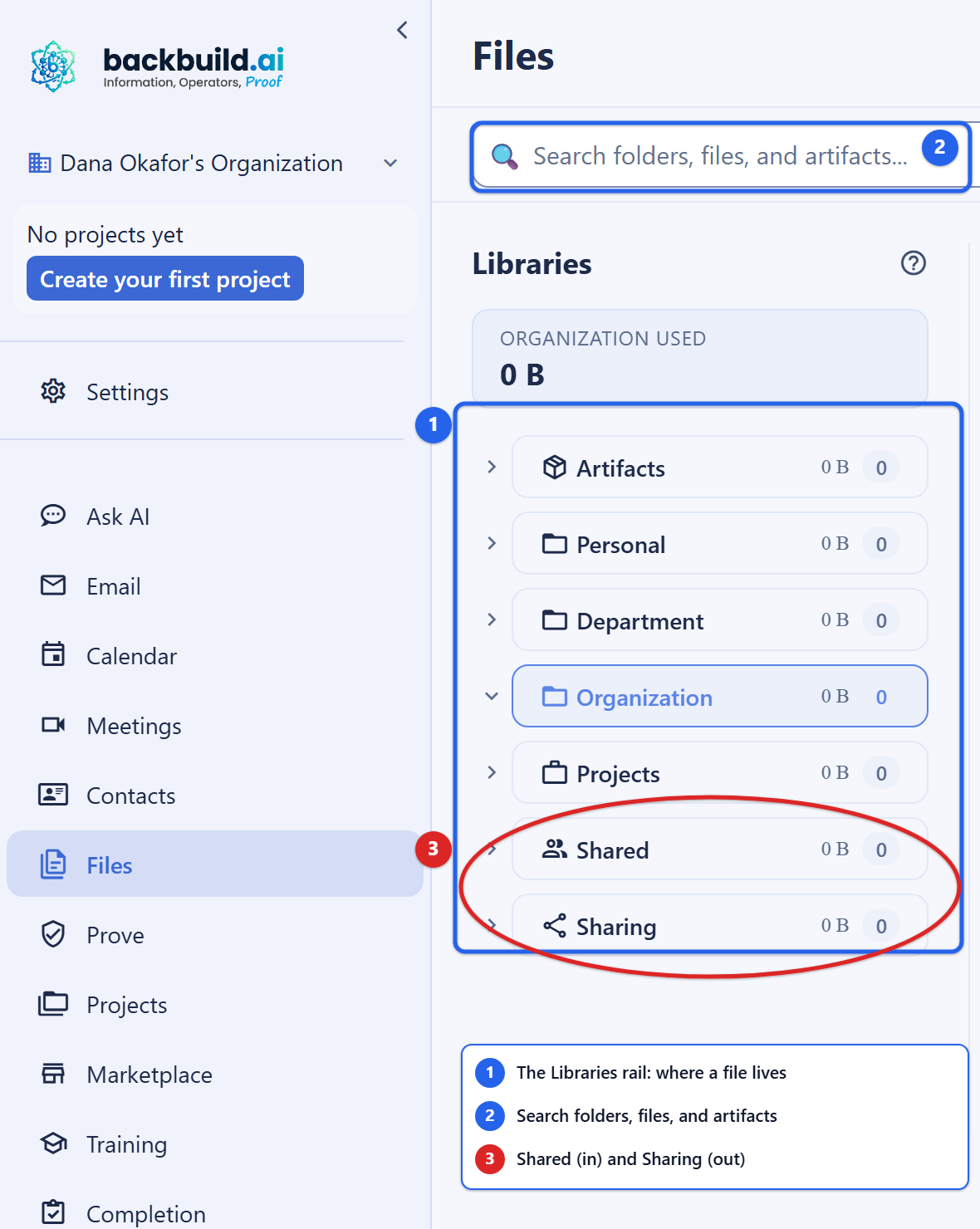
That is the loop. The rest of this page teaches each move in depth: what a file is, how to keep it organized, exactly who can see it, how sharing works, how administrators turn the app on and keep it safe, and the full API behind every action.
What a File Is
The Files app stores two kinds of items side by side, in one unified explorer:
- Documents: files you create or upload. A document has a title, optional text content, an optional set of tags, and metadata. Larger binaries (such as a generated PDF) are stored as the file behind a document and streamed back on demand.
- Artifacts: files produced inside your AI conversations (generated reports, exports, attachments). They live alongside your documents so everything your workspace produces is in one place. Artifacts carry a file name, content type, and byte size, and they remember the conversation that produced them. They share, and are governed, exactly like any other file.
Every file is scoped to your organization. Access is governed by org-scoped, project-aware access control, and create, update, and delete operations are audit logged with the identity of who performed them.
Writing a Document Directly
You do not have to upload a file to use Files: you can author a document
right in the workspace. A written document declares a
content_type, which tells the platform how to render and index
its text:
| Content type | Use for |
|---|---|
markdown | Markdown-formatted notes and docs (the default). |
plain | Plain, unformatted text. |
rich_text | Rich-text content from the editor. |
Raw HTML is intentionally not an accepted content type; rich content is
stored as Markdown or a safe rich-text representation so it can never become
an injection vector when rendered. A document’s title is
required (1 to 500 characters); content and tags
are optional.
Uploading Any File, Stored Safely
You can keep any kind of file in Files, and it is preserved faithfully: the bytes you upload are the bytes you get back. Uploaded content is stored in durable, org-scoped storage, and every download is re-authorized on the way out. There are no public, guessable URLs, and the platform serves a file only after re-checking that the caller may see it.
Uploads are screened for safety before they are stored. The platform inspects file contents (not just the name or declared type), refuses known-malicious files, and strips or rejects active content embedded in documents (for example, scripts or auto-running actions inside a PDF). Text you write into the platform is screened against the content safety policy before it is persisted. This screening is about safety, not about restricting what you can keep: ordinary files of any format are welcome, and nothing is rejected merely for being an unusual type.
Indexed for AI Analysis and Search
On top of safe storage, the common content formats are automatically indexed for AI, meaning the AI assistant can read them, answer questions about them, and find them by meaning rather than by exact keyword. Formats that get AI analysis and semantic search include:
- PDF documents
- Word documents (DOCX) and rich text
- Spreadsheets (XLSX) and tabular data
- Images (their content is described and made searchable)
- Plain text and Markdown
- Other common, text-extractable formats
Indexing happens automatically in the background the moment a document is
created or its content changes, so the upload or save returns immediately and
the file becomes AI-searchable shortly after, with no manual reindexing step.
Because indexing runs in the background, a freshly created document reports
is_indexed: false for a brief moment and then becomes
searchable; this short freshness window is the one legitimate reason a file
you just saved is not yet a search hit. Once indexed, a file is retrievable
through semantic search and surfaces as
grounding for the AI assistant when it answers questions for you.
A file in a format that is not text-extractable is still stored and shared exactly like any other; it simply is not added to the semantic index. Nothing is rejected for being “the wrong type.”
AI analysis and semantic indexing consume AI inference, which is billed against your organization’s universal usage credits or your own connected AI provider keys. See AI for how usage and keys work.
Organizing: Folders and Libraries
After this section you will know where any file lives and why “shared with me” and “my files” are both easy to find. Files are organized into a folder tree inside a small set of top-level libraries. The library groups files by audience; the folders are yours to arrange.
| Library | What it contains |
|---|---|
| Personal | Private files that belong to you within this organization. |
| Department | Files shared with a department or working group. |
| Organization | Files available across the whole organization. |
| Projects | Files attached to project workspaces, grouped per project. |
| Artifacts | Files generated by your AI conversations. |
| Shared | A combined view of every file and folder that has been shared with you, so you never hunt for a file a teammate handed you. |
| Sharing | Your personal files and artifacts that you have explicitly shared with others, so you can always see and revisit what you exposed. |
You can create folders, rename them, and delete them, and place a document
inside a folder when you create it. Creating a folder takes a
root_id (the library) plus a folder path (and an
optional project_id). The Shared and
Sharing libraries are read-only, aggregated views, so you
organize with folders inside the libraries you own, not inside those two.
You never supply a folder’s id, org_id, or
timestamps; the platform assigns them. A successful create returns
201 Created with the full folder record in the canonical
success envelope.
Attaching Files to Projects
A document can be attached to a project
by supplying a project_id when you create it. Project-attached
files appear in that project’s workspace and roll up into the
Projects library, grouped under the project’s name, so
everyone working on the project finds the relevant files in one place. This is
the mechanism behind a team lead’s most common wish: a new project
member sees the project’s files the moment they join, with no file
re-sharing by hand. You can also scope a listing to a single project to see
just its files.
You supply only the document fields: the title (required), and
optional content, content_type,
project_id, parent_id, tags, and
metadata. The document’s id, the owning
org_id (taken from your session), the created_by
actor, and the created_at / updated_at timestamps
are all assigned by the platform.
# Create a project-attached Markdown note
curl -X POST https://api.backbuild.ai/v1/documents \
  -H "Authorization: Bearer $TOKEN" \
  -H "Content-Type: application/json" \
  -d '{
    "title": "Kickoff notes",
    "content": "# Kickoff\n\n- Scope agreed\n- Timeline drafted",
    "content_type": "markdown",
    "project_id": "019d...",
    "tags": ["kickoff", "planning"]
  }'
A successful create returns 201 Created with the complete new
document in the canonical success envelope: its generated id,
the resolved org_id, the optional folder_id and
project_id, the title, content,
content_type, file_url, file_size,
metadata, the is_indexed flag (indexing runs in the
background, so a fresh document starts false), the
created_by actor, and timestamps.
{
  "success": true,
  "data": {
    "id": "019e...",
    "org_id": "019a...",
    "folder_id": null,
    "project_id": "019d...",
    "title": "Kickoff notes",
    "content": "# Kickoff\n\n- Scope agreed\n- Timeline drafted",
    "content_type": "markdown",
    "file_url": null,
    "file_size": null,
    "metadata": {},
    "is_indexed": false,
    "indexed_at": null,
    "created_by": "019b...",
    "created_at": "2026-01-01T00:00:00Z",
    "updated_at": "2026-01-01T00:00:00Z",
    "deleted_at": null
  }
}
Response Codes
| Status | Meaning |
|---|---|
201 Created | The document was created; the full record is returned. |
400 Bad Request | Validation error: a missing title, an unsupported content_type, content that fails the safety screen, or a folder_id / project_id that does not reference a real folder or project. |
401 Unauthorized | Missing or invalid bearer token. |
403 Forbidden | Caller lacks the document create permission, or sends a mismatched org_id. |
500 Internal Server Error | Unexpected server error. |
Who Can See a File: Visibility and Sharing
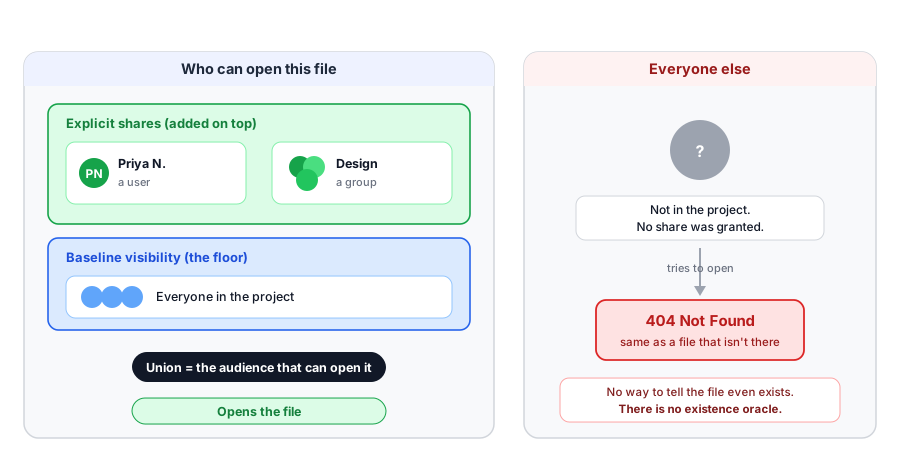
This is the section team leads and administrators read most closely, because it is where accidental over-exposure would happen if the model were vague. It is not vague. A file’s audience is decided by two things layered together: a baseline visibility set by where the file lives, and any explicit shares you add on top.
Baseline visibility is the floor
The library a file belongs to expresses who can see it before anyone shares anything:
| Visibility | Who can see the file |
|---|---|
| Personal | Only you. Personal files are private until you share them. |
| Project | Members of the project the file is attached to. |
| Department | Members of the file’s department or working group. |
| Organization | Every member of the organization. |
Visibility is a floor, and the floor is real: a file you cannot see is
treated as though it does not exist. A read on it returns
404 Not Found rather than revealing that it is there. There is
no way to probe for the existence of a file you were not granted, which is
the guarantee a security reviewer is looking for when they ask whether
“invisible to non-members” is genuinely invisible. Sharing
extends access above the floor to specific people or teams; it never
lowers it.
Sharing: grant the exact access you intend
Beyond its baseline visibility, a file can be shared to grant access to people who would not otherwise see it. Sharing is grant-based: each grant targets a subject and conveys an access level on the file. You choose both, so you never expose more than you mean to.
Who you can share with
- A user: a specific member of the organization.
- A group: everyone in a named group.
- A department: everyone in a department.
- A project: everyone who is a member of a project.
- The whole organization: every member of the org.
The access ladder
A share conveys what the recipient may do, and the levels form a ladder: from simply seeing that the file exists, to reading its contents, to editing it, up to removing it. Each rung includes the ones below it. You grant exactly the rung you intend, no higher.
Because sharing is tied to a subject rather than a person’s inbox, onboarding is joining the group, not re-sharing files: add someone to a project and they see the files shared with that project; a department library simply works for everyone in the department. Files generated in AI conversations (artifacts) carry their own dedicated share grants, managed with the same subjects and the same ladder as any other file.
Reviewing and revoking access
You can review who has access to a file and revoke any share at any time. A revoked share conveys nothing from that moment on, so removing a person from a group or deleting a grant removes their access promptly. Revocation is how offboarding stays clean: when someone leaves a team or project, dropping the grant (or removing them from the subject) closes the door without touching the file itself.
The same resource-sharing model underpins cross-organization access and SaaS-package distribution, so files (most commonly seeded reference files) can be made available to the tenants of a SaaS package; see SaaS Builder packages below.
Keeping Projects Close: Pinning
Projects can be pinned so they surface for quick access, for example as a starred project in your sidebar. Pins are per-user and private: pinning affects only your own view, never anyone else’s, and you still need view access to what you pin. This is how you keep the projects whose files you work in most close at hand. Pinning a project does not change who can see its files; that is governed by visibility and sharing above.
# Pin a project (per-user, private)
curl -X POST https://api.backbuild.ai/v1/entities/project/019d.../pin \
  -H "Authorization: Bearer $TOKEN" \
  -H "Content-Type: application/json" \
  -d '{ "position": 0 }'
Publishing Managed Documents
Files supports a publish pipeline for distributing managed, versioned documents (runbooks, policies, and compliance material) into your organization’s library. Publishing takes a rendered document (its source Markdown plus a generated PDF) and:
- Stores the PDF in secure, org-scoped storage and the Markdown for AI search.
- Files the document into a named library (
runbooks,policies, orcompliance) under a category and folder path, creating any missing folders along the way. - Is idempotent by source path: re-publishing the same source updates the existing document in place rather than creating a duplicate, so it is safe to run from CI as content evolves.
- Indexes the document for AI search just like any other file.
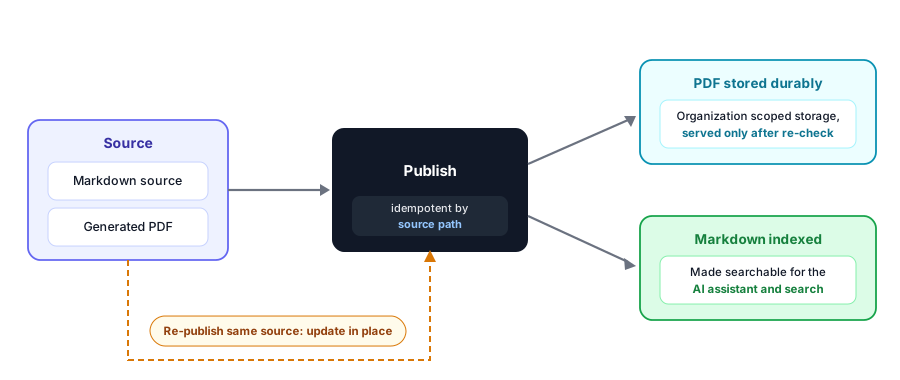
Publishing accepts either a user session or a scoped API key (so it can run in automation), and the caller must hold the publish capability. Published PDFs are delivered through an authenticated endpoint that re-checks access on every request, and the app can mint a short-lived, signed link so the platform’s PDF viewer can open a file without exposing a bearer token. Signed links expire quickly and are bound to the specific organization and document.
You supply only the publish payload: the library,
category, folder_path, title,
source_path (the idempotency key), markdown,
pdf_base64, and optional metadata. The
document’s id, the owning org_id (taken from
your session or API key), the created_by actor, and the
timestamps are all assigned by the platform.
# Publish a managed policy document (Markdown + PDF)
curl -X POST https://api.backbuild.ai/v1/documents/publish \
  -H "Authorization: Bearer $API_KEY" \
  -H "Content-Type: application/json" \
  -d '{
    "library": "policies",
    "category": "security",
    "folder_path": ["Security", "Access Control"],
    "title": "Access Control Policy",
    "source_path": "policies/access-control.md",
    "markdown": "# Access Control Policy\n...",
    "pdf_base64": "JVBERi0xLjcK..."
  }'
Publishing is idempotent by source_path: the first publish
creates the document and returns 201 Created; a re-publish
updates it in place and returns 200 OK. The response confirms
the result in the canonical success envelope: the document’s
id, the operation (created or
updated), the authenticated file-delivery
file_url, the stored file_size, and the
folder_path the document was filed under.
{
  "success": true,
  "data": {
    "id": "019e...",
    "operation": "created",
    "file_url": "/v1/documents/019e.../file",
    "file_size": 48213,
    "folder_path": ["Security", "Access Control"]
  }
}
Response Codes
| Status | Meaning |
|---|---|
201 Created | A new managed document was published; the full record is returned. |
200 OK | An existing managed document (same source_path) was updated in place. |
400 Bad Request | Validation error: an invalid payload, a non-PDF or active-content PDF, an empty or over-cap PDF, or content rejected by the safety screen. |
401 Unauthorized | Missing or invalid bearer token or API key. |
403 Forbidden | Caller lacks the publish capability (the documents.publish scope or document create permission), or sends a mismatched org_id. |
413 Payload Too Large | The PDF exceeds the size cap. |
500 Internal Server Error | Unexpected server error. |
503 Service Unavailable | The upload safety check could not run, so the request fails closed. |
For Administrators: Turning Files On and Keeping It Safe
This section answers the questions an IT administrator or security reviewer asks before rolling Files out to the organization.
Turning it on
The Files capability is governed by a per-plan feature flag. Availability is set at the plan level, and the pricing page is the canonical source for what each plan includes. Because Files is part of the free workspace, it is commonly enabled on every tier.
Everything is scoped to your organization
Files, folders, sharing, and search are all scoped to your organization from
the authenticated session, never from a value in the request body. A caller
cannot redirect a request to another organization or another user by altering
an identifier: a request for a file the caller may not see returns
404, and a request that carries a mismatched organization is
refused. This is the answer to the direct-object-reference question: object
identifiers are not a back door, because access is re-checked against the
caller’s session on every request, and a denied request never reveals
whether the target exists.
Uploads are screened
Every upload is content-inspected (not trusted by name or declared type), checked against a maintained deny list, and stripped or rejected when it carries active content. Text written into the platform is screened against the content safety policy. Users cannot smuggle in auto-running content through the Files app.
Everything is attributable
Create, update, and delete operations are audit logged with the identity of the actor who performed them, so “who changed this, and when” has an answer. Deletion is recoverable rather than instantly destructive, and signed file links expire quickly and are bound to a single organization and document.
SaaS Builder Packages
When you turn your configuration into a SaaS package, files can travel with the product so each tenant starts with the content they need rather than an empty workspace.
- Seed data and data bundles ship starter files. A package can include seed data (ready-made documents and reference files created in a new tenant when it is provisioned) so customers begin with onboarding guides, templates, runbooks, or example content already in their Files library.
- Screen and view definitions shape how files appear. The package’s screen and view definitions determine where the Files app and its libraries surface in the tenant-facing product.
- Per-plan feature flags gate the Files app. The Files
capability is governed by a
feature flag (for example,
the
documentsflag). Mapping that flag to a pricing plan controls which tiers get the Files app; commonly it is enabled even on free plans, since Files is part of the free workspace.
Frequently Asked Questions
What file types can I upload, and are they kept intact?
Any type. The bytes you upload are the bytes you get back. Common
text-extractable formats (PDF, DOCX, XLSX, images, text, Markdown, and
similar) are additionally indexed so the AI assistant and semantic search can
work with them; other formats are stored and shared normally but are not
indexed. Every upload is safety-screened first.
Where do files shared with me live, versus my own files?
Both are in the same explorer. Your own files are in Personal, Department,
Organization, or Projects; everything others shared with you gathers in the
Shared library, and everything you shared out gathers in
Sharing, each labeled with who is involved.
Can I share at the exact granularity I need, and set precisely what
the recipient can do?
Yes. Grant to a single user, a group, a department, a project, or the whole
organization, and pick the access rung: see, read, edit, or remove. You never
expose more than you choose.
Does a new team member automatically see the right files, or do I
re-share everything?
Automatically. Because sharing targets a subject (a project, a department, a
group), adding a person to that subject grants them the files shared with it.
Onboarding is joining the group, not re-sharing files one by one.
How do I revoke access when someone leaves?
Every grant is revocable, and revocation takes effect promptly. Remove the
person from the subject or delete the grant, and their access ends without
touching the file.
If I do not share a file, is it genuinely invisible, including that
it exists?
Yes. A file below your visibility floor returns 404, exactly as
a nonexistent file would. There is no way to detect that a file you were not
granted is there.
Can I share an AI-generated artifact like any other file?
Yes. Artifacts use the same subjects and the same access ladder as documents
and uploads, managed independently of the conversation that produced them.
Can someone reach another user’s or another tenant’s
files by changing an ID in the request?
No. Access is scoped to your organization from the authenticated session and
re-checked on every request; an identifier is not a back door, and a denied
request does not reveal whether the target exists.
Does Files keep a version history of a document?
Document history is a separate concept from the platform’s resource
versioning. The publish pipeline updates a managed document in place by
source path, and collaborative editing preserves your work continuously. For
the fixed set of builder resources that carry full inspect-and-revert version
history, see
Resource Versioning.
API Reference
The Files app is served by the /v1/documents endpoints. All
routes require authentication and are organization-scoped; reads honor
visibility and sharing, and a file you cannot see returns 404.
Documents
| Method and Path | Description |
|---|---|
GET /v1/documents | List documents. Optional project_id, parent_id (folder), search (title text), sort_by (title / created_at / updated_at), sort_order, limit, offset. |
GET /v1/documents/shared-with-me | List every document and folder that has been shared with you, backing the Shared library. |
GET /v1/documents/explorer | Unified explorer of documents and artifacts, grouped into libraries and folders. |
POST /v1/documents | Create a document (title required; optional content, content_type, project_id, parent_id, tags, metadata). Content is indexed for AI search in the background. |
POST /v1/documents/upload | Upload a file into a library (base64 payload with the target root_id; project_id is required for, and only valid for, Projects uploads). Uploads are content-inspected and safety-screened before storage. |
GET /v1/documents/:id | Get a document, including its content and metadata. |
PUT /v1/documents/:id | Update a document’s title, content, content_type, or tags. New content is re-indexed automatically. |
DELETE /v1/documents/:id | Delete a document and its stored content. |
Folders
| Method and Path | Description |
|---|---|
POST /v1/documents/folders | Create a folder under a library (root_id + folder path; optional project_id). The read-only Shared and Sharing views cannot host folders. |
PUT /v1/documents/folders/:id | Rename a folder. |
DELETE /v1/documents/folders/:id | Delete a folder. |
Publishing and file delivery
| Method and Path | Description |
|---|---|
POST /v1/documents/publish | Publish a managed document (Markdown + PDF) into a library; idempotent by source_path. Accepts a session or a scoped API key. |
GET /v1/documents/:id/file | Stream the stored PDF for a document. Accepts a bearer token or a short-lived signed link. |
POST /v1/documents/:id/file-link | Mint a short-lived, signed link to a document’s file (for the PDF viewer). |
Related concepts
- Files API reference: request and response detail for the document endpoints.
- Semantic Search: find your files by meaning.
- Real-time Collaboration: co-editing, presence, offline sync, and resource versioning.
- AI: how the assistant reads your files, and how usage credits and connected keys work.
- Projects: the workspaces files attach to, and the items you can pin.
- Entities: structured records of your custom data model (Pro). Entities can also carry uploaded media.
See the API Reference for complete request and response documentation.