

Backbuild Studio
Backbuild Studio is the media production studio inside the Backbuild workspace. It turns a written script into finished, narrated media. Its signature capability is the training video: you describe the steps to take in your real product interface, and Studio drives that interface for real, moving a cursor, clicking, typing, and dragging, while it speaks your narration and keeps every on-screen action in time with the words. It also produces illustrated storybooks, long-form audiobooks and voiceover, and audio and music projects. Studio is part of the workspace on every plan; rendering a production consumes usage credits for the speech synthesis and the compute a render uses.
Backbuild Studio does not use AI avatars. It does not generate a synthetic presenter, a talking head, or a face reading your script. Its training videos show your actual product on screen, driven step by step, with a voiceover. If your goal is a presenter-led video with an AI avatar in many languages, that is a different kind of tool. Studio is built to teach software and narrate long-form audio, not to stand a synthetic person in front of a camera.
A modular studio with one shared engine
Studio is organized as a set of editor modules, each opening its own project type, all built on one underlying media engine. Every production shares the same core: a script, a voice, an optional timeline of cues, and optional music, sound effects, and overlays. The engine always produces an audio track; a production can add a visual source on top to produce video as well. The modules are:
- Training Video: narrated screen-walkthrough videos that drive your real product interface with a scripted cursor, clicks, typing, drag and drop, and rounded-box highlights on the control being used. This is the most complete module.
- Visual Storybook: illustrated, narrated stories told scene by scene, with gentle pan-and-zoom motion, that render to a video and an audiobook in one run.
- Audiobook: chaptered long-form narration produced from a manuscript, with chapter markers and cover art embedded in the file.
- Video Editor, Audio Editor, and Music Editor: early authoring surfaces for assembling clips, editing a waveform, and composing multiple tracks. These are first-cut editors for laying out a project; final playback and export are still being built.
You start a production from a tile on the Studio home screen, or you direct an AI agent to author and generate one for you through MCP. Studio productions live inside a project, so they sit alongside your documents, sheets, and other work. The Training Video, Storybook, and Audiobook modules share the narration and rendering pipeline described below; the Video, Audio, and Music editors are authoring previews that do not yet render a final file.
How a training video is made
A training video is the most distinctive thing Studio does, so it is worth understanding the pipeline. You write a narration script and mark the points in it where each on-screen action should happen. You list the actions to perform against your product: navigate to a screen, click a control, type into a field, drag one element onto another, highlight an area. Studio then runs the production through these stages:
- Speech: the script is spoken by a text-to-speech voice, producing the narration audio.
- Alignment: the spoken words are timed precisely, so the audio becomes the master clock for the whole video.
- Drive and record: a real browser is driven through your listed actions against your live product, recording the screen as it goes, with a synthetic cursor and a spotlight overlay so the viewer can follow the pointer.
- Assemble: each action is placed at the exact moment its cue is spoken, so the narration and the on-screen action stay in sync, and a virtual camera frames the part of the screen in use.
- Compose: the frames, the narration, any music, sound effects, and overlays are combined into the finished video in each output format you chose.
Because the narration is the master clock, the words and the actions never drift apart. The result is a short, focused walkthrough, up to three minutes, output as a 16:9 desktop video and, optionally, a 9:16 vertical version that follows the active area of the screen for a phone.
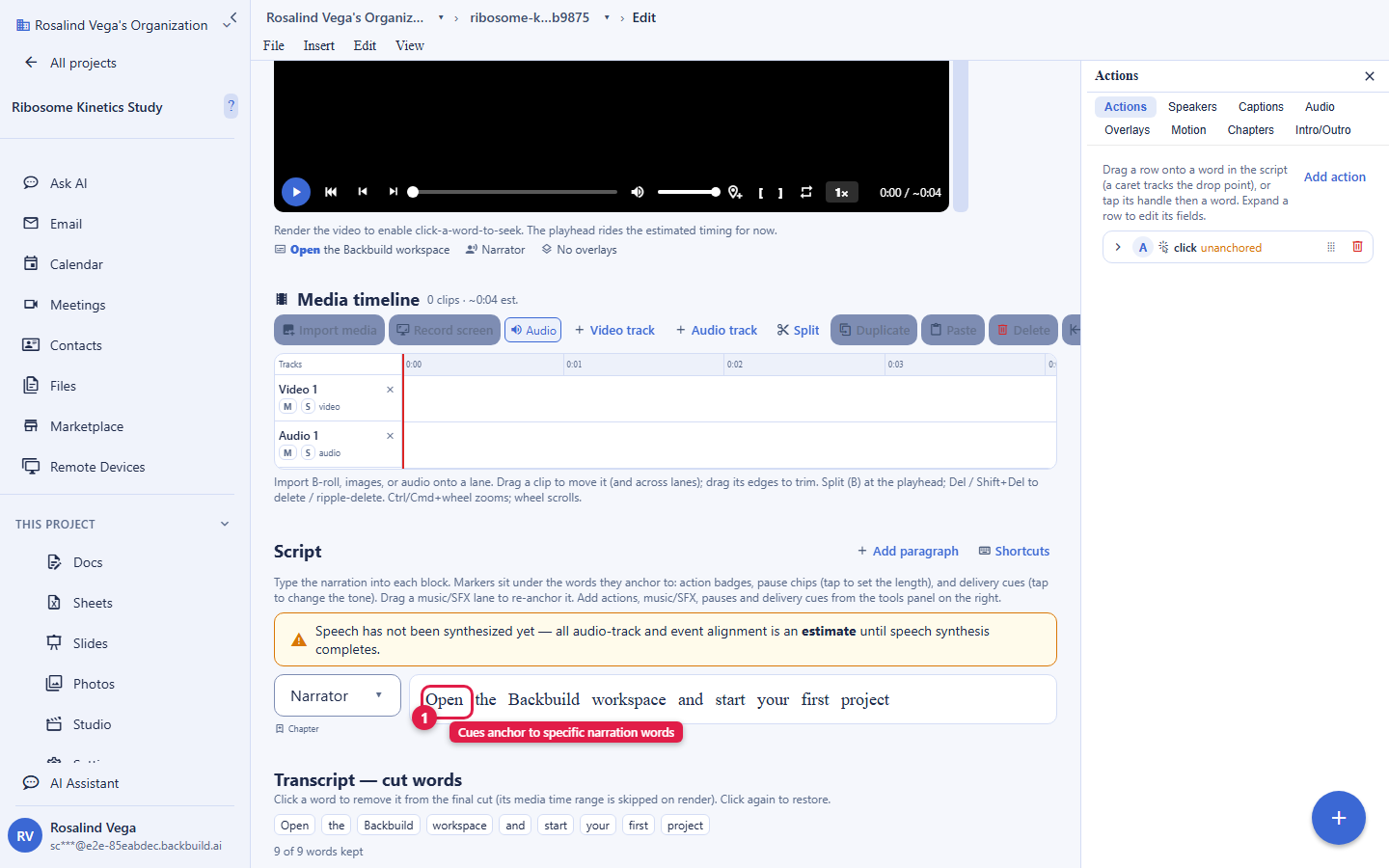
Narration, voices, and delivery
Studio speaks your script with text-to-speech voices. You pick a voice from the voice catalog, and you can add your own voice from a supported provider by bringing your own key, which is stored in the encrypted Secrets vault and never exposed. You shape delivery inside the script with simple markup: insert a pause of a set length after a word, or tag a phrase with a delivery style such as calm or warm. An auto-markup option can annotate an unmarked script with sensible pauses and delivery tags for you, filling gaps without overwriting marks you added by hand.
Music, sound effects, overlays, and metadata
A production is more than a voice track. Studio composes several layers into the finished media:
- Background music: placed by absolute time or anchored to a spoken word, with gain, fades, looping, and automatic ducking under the narration.
- Sound effects: triggered at a chosen word, with a timing offset.
- Overlays: timed titles, lower thirds, captions, images, shapes, and a credits roll, positioned per format and anchored to time or to a spoken word.
- Intro and outro: reusable branded segments joined onto the front and back of the body.
- Metadata: descriptive, credit, rights, and identifier fields embedded into the output file, with chapters and cover art for audiobooks.
Word-synced timeline editor
The timeline editor is the core surface for shaping a production. It plots the script word by word and lets you attach an action, a sound effect, a music start or stop, a scene, or an overlay to a specific word. Before you have rendered anything, it shows an estimated timeline from the length of the script, so you can lay out cues without spending on a render; after a render, it shows the exact word times from the alignment. Cue anchors survive edits to the script, so rewriting a sentence does not scatter your timing.
Authenticated product demos (rolling out)
Because a training video drives your real product, Studio is designed to record a screen that sits behind a login. You link a credential from your Secrets vault to the production and mark the field it fills. During the render, the value is entered into that field with the typing hidden and the field masked, so the credential never appears in the recording, and it is only ever used on the exact origin you approved. This capability is designed and is being enabled; until it is live, record walkthroughs of screens that do not require a sign-in during the recording.
Rendering, caching, and cost
Rendering runs on usage credits. A production consumes credits for the speech synthesis, for the word alignment, and for the compute a video render uses, which scales with the resolution, frame rate, and length of the video. Studio is careful about not spending twice: it caches the narration audio, the alignment, and the rendered video, and it only regenerates the parts that actually changed. Re-rendering a production you have not changed costs nothing, and changing only the music or an overlay recomposes the video without re-recording the screen or re-synthesizing the voice. There is no fixed monthly cap on how many minutes of video you may produce; you pay for the compute each render uses.
Where Studio fits
Studio is built for teaching software and for producing narrated audio. It is the right tool when you want a walkthrough that shows your real product in use, a narrated storybook, or a long-form audiobook, all inside the same workspace as your documents and projects. It is not built to generate a presenter-led marketing video with a synthetic avatar, and it does not offer a large gallery of themed video templates or one-click translation of a finished video into many languages. Knowing that boundary helps you pick the right tool for the job.