

Clearing Your Backbuild Miles Trip Inbox
The Trip inbox holds every drive Backbuild Miles has recorded that does not yet belong to anybody. A drive lands here the moment your phone notices you have finished moving, and it stays here until you either file it into one of your entities or dismiss it. Nothing in the inbox counts towards a deduction, appears in a report, or is visible to anyone but you. After this page you will be able to clear a week of captures in a sitting, split one drive across two entities, keep the app honest about which stops mattered, and recognise every state the screen can be in.
What the Trip Inbox Is, and Why It Exists
After this section you will know exactly what is in the inbox, who can see it, and what filing a drive actually does.
Backbuild Miles records drives from movement. It does not know, and should not guess, which of your businesses a drive belonged to: the same car, on the same road, on the same afternoon, might be a client visit for one company, a supply run for another, and the school pick-up in between. So a captured drive is held against you, not against a set of books, until you say where it goes.
That is what the line under the heading means when it says these trips are yours, not the entity you currently have selected. Switch entity at the top of the screen and the same drives are still listed, because they are still yours; what changes is where the next drive you file will land. Filing is the moment a private capture becomes an entry in a set of books, and it is deliberately a decision you make rather than one the app makes for you.
Reading a Trip Card
After this section you will be able to look at any card and know what the drive was, what the app noticed about it, and what it still needs from you.
Every waiting drive is one card, newest first. The card is the same one the Trips tab uses, so a drive looks the same wherever you meet it.
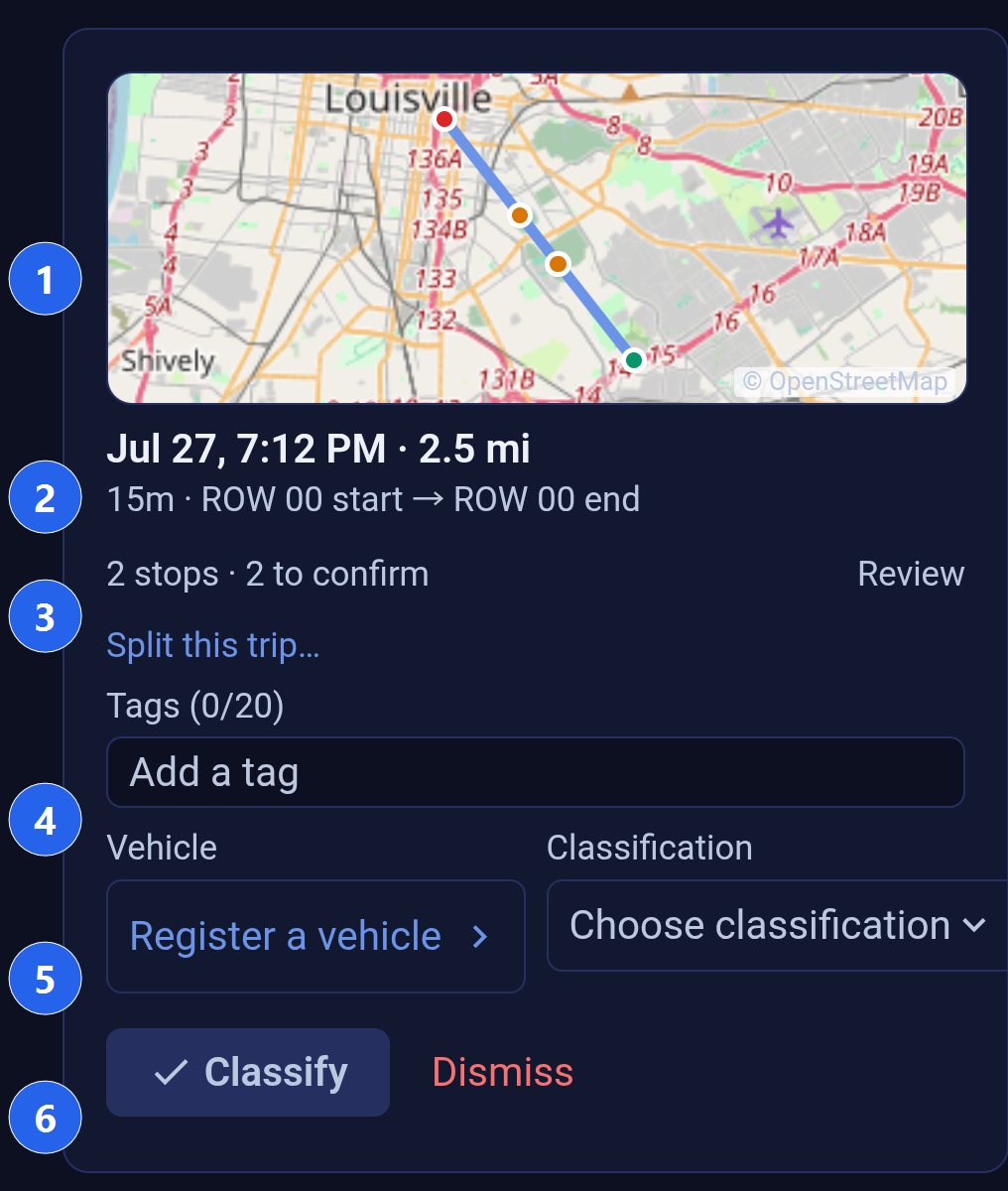
1. The route
The drive drawn on a map: a green dot where it began, a red dot where it ended, and an amber dot at each place it paused long enough to count as a stop. Tap the map to open the drive in full, where each leg gets its own map and figures. A drive whose location points were never recorded says so in plain words instead of showing an empty grey box.
2. When it was and how far
The date and clock time the drive started, the distance, how long it took, and the start and end addresses. The date and time are the ones where you were driving, not where your phone happens to be when you read the list. That matters at a year boundary: a drive that began late on 31 December stays on 31 December even if you review it a time zone or two east of where you drove it.
3. The stops it detected, and splitting
Backbuild Miles notices where a drive paused and for how long, and tells you how many stops it found and how many you have not confirmed. Tap Review to open the list. Split this trip is directly below it, and it is what you use when one recorded drive was really several jobs: pick the points where one ended and the next began, and the drive becomes separate segments you classify on their own, into different entities if that is what happened.
4. Tags
Short labels of your own, up to twenty per trip, for whatever you want to find later: a client, a job number, a vehicle-share arrangement. Type one and press enter. Tags you have used before are offered as chips under the field, so a regular client stays spelled the same way every time. Tags follow the drive into the mileage log when you file it.
5. The vehicle and the classification
Two pickers, one decision each, and Backbuild Miles will not file the drive until both are answered.
- Vehicle is which car you were in. The list offers the vehicles that are still in service in the entity you are filing into; a vehicle you have retired is not offered, because it can no longer take on new miles. If the entity has no vehicles at all, the picker becomes a link straight to the vehicle registry so you can add one and come back.
- Classification is what kind of journey it was. It starts on
Choose classification rather than on a guess, because which one you pick is
the difference between a deductible mile and a mile that is not:
- Business: a journey made for work. These are the miles a standard mileage deduction is calculated from.
- Commuting: travel between home and a regular place of work. Kept separate on purpose, because commuting is generally not deductible and folding it into business is one of the most common ways a mileage claim is disallowed.
- Personal: everything else.
Where Backbuild Miles can tell what a drive probably was, it says so above the pickers, with its reason: that the drive happened inside the working hours you set, that it ran between two places you have named, or that you have classified this exact route this way before. Use this accepts the suggestion, which is the same thing as choosing it by hand. Dismiss puts the suggestion away without answering the question, and the picker stays on Choose classification until you answer it yourself. A suggestion is never applied on its own.
6. Classify, or dismiss
Classify files the drive into the entity named at the top of the screen, with the vehicle, classification, tags and confirmed stop labels you gave it, and the card leaves the inbox. Dismiss deletes the capture. Because a captured drive is the evidence behind a deduction, dismissing asks first, naming the distance and the date that will be lost, and offers Keep as the way out. There is no undo once you confirm.
Confirming the Stops
After this section you will be able to turn a single long drive into an accurate record of a working day.
Tap Review and the stops open in place. Each one shows its address, how long you were there, and a picker holding the label Backbuild Miles guessed. Confirming or correcting a label does two things: it makes the trip a truthful record of what the day actually was, and it teaches the app your regular places, so the next drive arrives with better guesses. Confirmed stops travel with the drive when you file it.
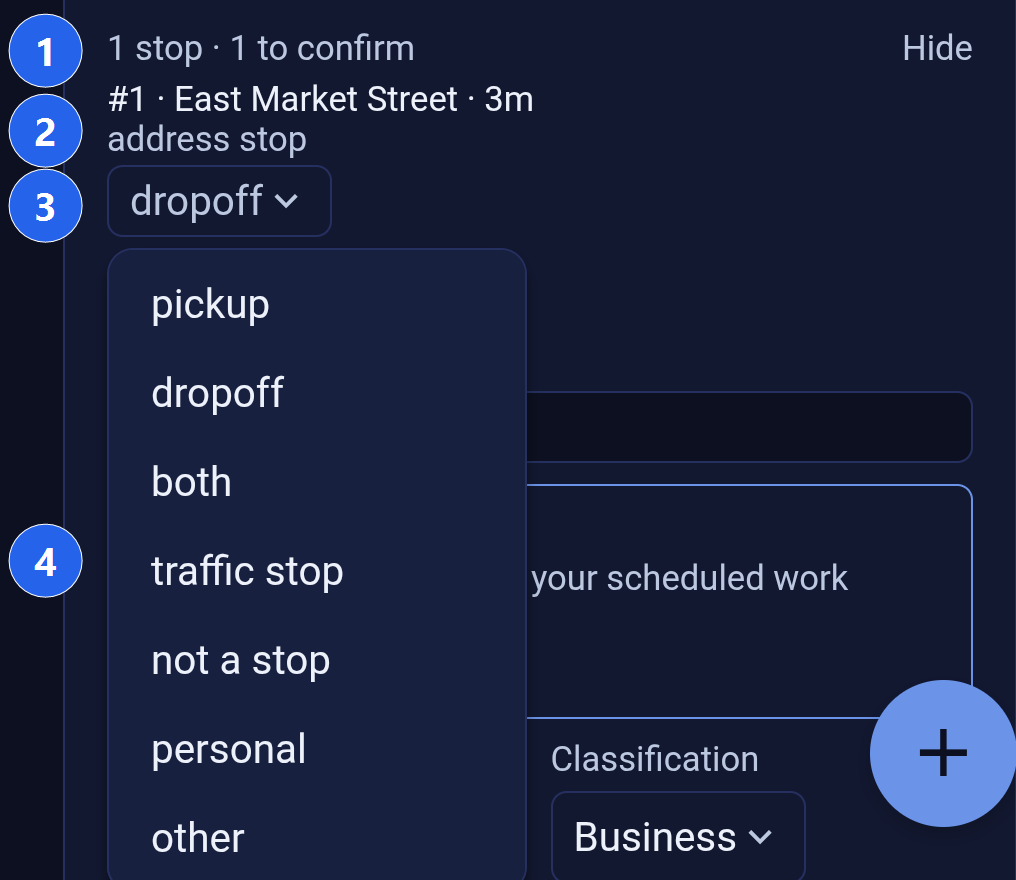
The labels mean what they say:
- Pickup, drop-off and both: a real call, where something or somebody was collected, delivered, or both.
- Traffic stop: a light, a sign, a queue. Not a destination.
- Not a stop: the app was wrong; nothing happened there.
- Personal: a stop of your own inside a working drive.
- Other: anything that fits none of the above.
The counter at the top changes from a number outstanding to all confirmed as you work through them, and a confirmed stop is ticked, so you can leave the list part-done and pick it up later without losing your place.
Working a Backlog
After this section you will be able to clear a week of driving without losing track of where you were.
The inbox lists every waiting drive, not just the recent ones, however many have built up. Work from the top down: each card you classify or dismiss leaves the list immediately, and the rest close up behind it, so the top of the list is always the next thing to do.
Opening a drive to look at it in detail and then coming back returns you to the place in the list you left, not to the top. That matters on a long backlog: you can open the third drive from the bottom, check what it was, come back, and carry on from there.
Filing is per trip, so a drive that is still being written does not freeze the rest of the list. You can keep choosing vehicles and classifications on other cards while one is being filed.
When Something Goes Wrong
After this section you will be able to tell a genuinely empty inbox from a screen that could not load, and know what to do about each.
An inbox with nothing waiting says so in plain words: every captured trip has a destination. That sentence only ever appears when Backbuild Miles has actually read your inbox and found it empty. It is a statement about your data, so it is never shown on a guess.
If the read did not succeed, the screen says that instead, and offers Try again. That is the message you will see in a car park with no signal, or on a train going through a tunnel. Your drives are safe: recording never needs a connection, and captures upload when one returns. Only reviewing and filing need the network.
If the copy of the list saved on your phone is damaged, the screen says that too and offers the same retry, which fetches a clean copy. It will not quietly show you an empty inbox instead.
Frequently Asked Questions
Why is a drive in my inbox and not in my trips?
Because nobody has said where it belongs yet. A recorded drive has a route, a distance and a time, but no vehicle and no classification, so it cannot be priced or reported. Give it both and press Classify and it moves to that entity's trips.
I have two businesses. Do I get two inboxes?
No, one. Captured drives belong to you, not to a set of books, so the same list is there whichever entity you have selected. Selecting an entity chooses where the next drive you file will land, and the line under the heading names it so you can see which one you are about to file into.
One drive was really three jobs. Do I have to file it as one?
No. Use Split this trip, pick the points where one job ended and the next began, and it becomes separate segments. Each one is then classified on its own, and they can go to different entities.
Why can I not press Classify?
A vehicle or a classification is still unanswered. Both are required, because a trip with no vehicle cannot be priced and a trip with no classification cannot be reported. The button becomes solid as soon as both are set.
Why is the car I just retired missing from the list?
Because it is retired. A vehicle you have taken out of service keeps every mile it already earned, but it cannot take on new ones. If the drive really was in that car, put the car back in service in the vehicle registry first.
I dismissed a drive by mistake. Can I get it back?
No, which is why dismissing asks first and names the drive it is about to delete. If you are unsure whether a capture is real, classify it as personal instead: it stays in your records, counts towards nothing deductible, and can be corrected later.
Does labelling stops actually do anything?
Yes, two things. The labels stay with the drive as part of its record, and they teach Backbuild Miles which of the places you stop at are real calls and which are traffic, so later drives arrive with better suggestions and fewer stops to confirm.
Can I work the inbox without a signal?
Recording never needs one. Reviewing and filing do, and without a connection the screen tells you the list could not be loaded and offers a retry rather than showing you an empty inbox.
Where to Go Next
- Working your trips list: what happens to a drive after you file it, and how to correct one.
- Reading your dashboard: what your classified miles are worth and how they split.
- Navigating the app: the menu, the tabs, the vehicle and entity pickers.