

MCP & Agent Integration
Backbuild exposes a full Model Context Protocol (MCP) server, so external AI agents and CLI coding tools can work with your organization’s data through one standard interface. Every platform capability has an MCP surface, and every call runs the same authorization checks as the web app, so an agent connected this way is powerful without being a way around your access controls.
After reading this page you will be able to: connect an MCP-compatible client to your organization; understand how a client discovers and calls tools without loading a giant menu; explain to a security reviewer exactly why an agent can never reach data the connecting identity could not; and authenticate a command-line coding agent so it can act on your behalf.
The MCP server and agent integration are available on every plan, including Free. Work that consumes compute or AI models draws on usage credits or your own AI provider keys. See the pricing page.
What MCP gives you
MCP is an open standard for connecting AI agents to tools and data. Backbuild speaks it as a server: any MCP-compatible client (a coding agent, an assistant in another product, your own script) can connect to your organization and use the same capabilities the app exposes. Through it, agents can create projects, manage entities, run searches, work with files and documents, work tickets, drive Docs, Sheets, and Slides, and control a live container’s browser and desktop, all through one protocol instead of a dozen bespoke integrations.
Endpoint and authentication
The server is a single JSON-RPC 2.0 endpoint. Clients authenticate with an
API key scoped to an organization and to specific permissions. Keys follow
the format bb_live_{prefix}_{secret}. Treat a
key as a credential: store it in a secret manager, never commit it, and
revoke and rotate it if it is exposed.
POST https://api.backbuild.ai/v1/mcp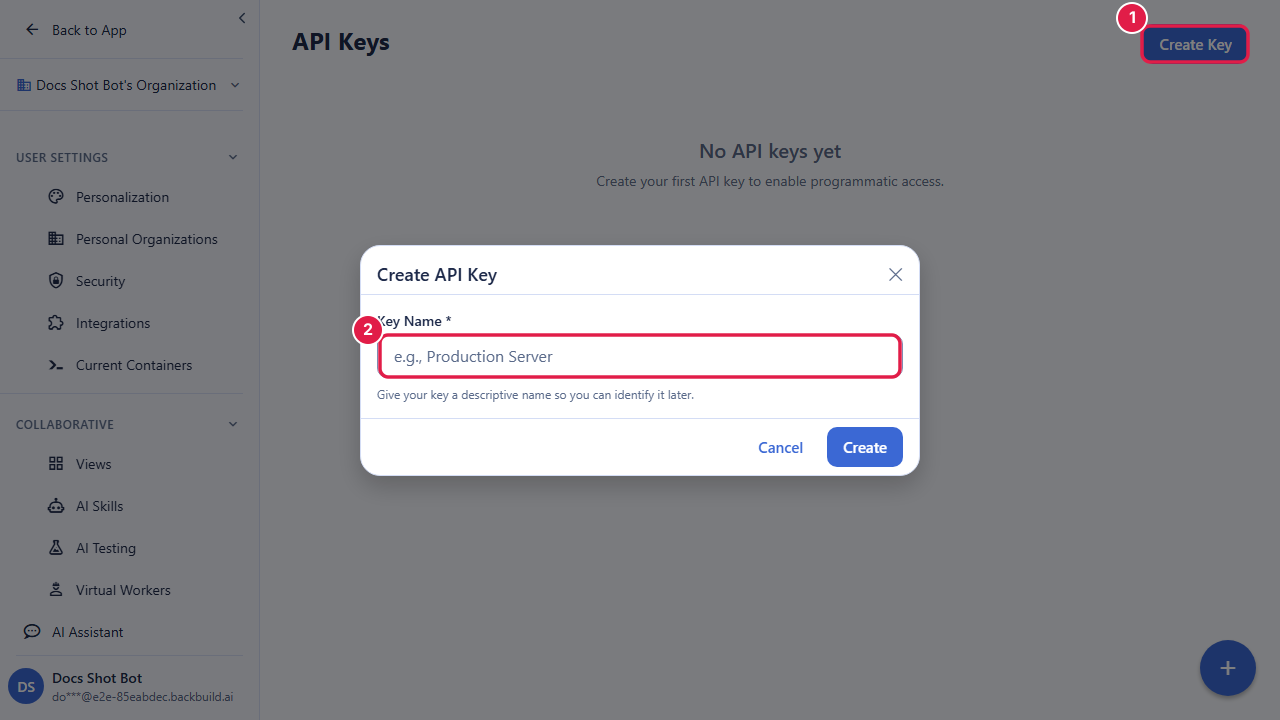
Tool discovery: an aggregator facade
The registry holds a large number of tools, so by default the server does not
dump all of them on a client. Instead, tools/list advertises
just three discovery meta-tools, giving a client a tiny menu to start from:
find_tools: search the registry for tools that match a description of what you want to do.get_tool_schema: fetch the full input schema for a named tool.call_tool: execute any registry tool by name, with its arguments.
A client discovers what it needs on demand and then calls it. Clients that
prefer the classic behavior can pass "full": true in the
tools/list parameters to receive the complete registry, filtered
to the tools the caller may actually use. Whichever path a client takes,
call_tool and the native tools/call method run
every invocation through the same authorization checks, so the facade never
becomes a bypass.
# List tools (returns the 3 discovery meta-tools by default)
curl -X POST https://api.backbuild.ai/v1/mcp \
  -H "Authorization: Bearer bb_live_abc123_secretkey" \
  -H "Content-Type: application/json" \
  -d '{ "jsonrpc": "2.0", "id": 1, "method": "tools/list" }'

# Discover, then execute, a registry tool through the facade
curl -X POST https://api.backbuild.ai/v1/mcp \
  -H "Authorization: Bearer bb_live_abc123_secretkey" \
  -H "Content-Type: application/json" \
  -d '{
    "jsonrpc": "2.0",
    "id": 2,
    "method": "tools/call",
    "params": {
      "name": "call_tool",
      "arguments": {
        "name": "search_documents",
        "arguments": { "query": "overdue tasks", "project_id": "019d..." }
      }
    }
  }'
What the registry covers
Each tool maps to a platform capability and respects the same access control and feature entitlements as the REST API. Among the categories:
| Category | What agents can do |
|---|---|
| Projects | List, create, update, delete projects |
| Entities | Work with entities and entity types |
| Tasks | Create, assign, update, and complete tasks |
| Workflows | Advance and manage workflows and automations |
| Files & folders | Upload, list, retrieve, and organize documents |
| Search | Meaning-aware search across documents, entities, and tasks |
| Docs & Sheets | Read and edit Backbuild Docs and Backbuild Sheets content |
| Slides | Create Backbuild Slides decks, add, delete, and reorder slides, apply design templates and shapes, and read every slide layout and speaker note |
| Browser & desktop | Drive a live container’s browser and full desktop |
| Helpdesk | Read, triage, and reply to support tickets |
| Read and send mail through Backbuild Mail | |
| Secrets | Scoped access to the Secrets vault |
| Skills | Invoke and manage custom AI skills |
Why an agent can never exceed your access
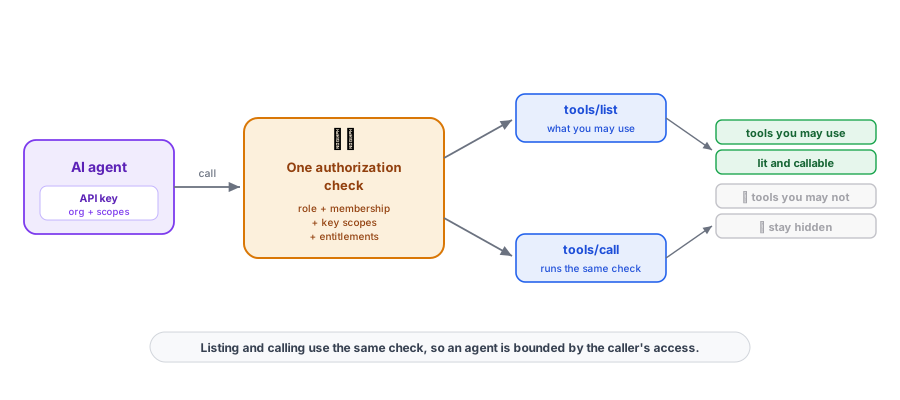
This is the question a security reviewer will ask first, so here is the
direct answer. Not every tool is available to every key. The server
evaluates the connecting caller’s role, organization membership, key
scopes, and feature entitlements, and it applies the same predicate
whether it is listing tools or executing one. That means
tools/list never advertises a tool that tools/call
would then deny, and, more importantly, a connected agent is bounded by
exactly the access of the identity behind its key. An agent cannot reach a
project, a document, or an action that the connecting identity could not
reach directly. There is no elevated agent context and no side door.
To keep an agent least-privilege, scope its API key to only the permissions it needs and give it a short expiry. If you resell on the platform, per-plan limits apply to how hard a key can hit the server, so a runaway or abusive client is throttled rather than left unbounded.
Connecting a CLI coding agent
The launch-target container can run Claude Code, Codex, Gemini CLI, Kimi Code, Cursor Agent,
or Devin CLI. Choose each tool you want to use, choose the vault item that
will own its connection, and complete that tool’s publisher sign-in.
Cursor Agent is the terminal coding agent; the Cursor editor is a separate
MCP client. Devin CLI is likewise separate from Devin Desktop and Devin
Local. Windsurf Editor and Cascade connect through MCP rather than through a
native windsurf terminal agent.
- Unlock Backbuild Secrets, choose or create the item for the exact agent, and approve the vault grant.
- When the agent supplies a one-time code, the pairing window keeps it visible with a quick-copy control and an explicit button for the publisher’s authorization page.
- If the publisher asks you to bring a return code back, paste it into the pairing window. Backbuild supplies it to the same live terminal session once.
- Pairing shows Linked only after the agent’s native credential state is captured and written into the chosen vault item.
In the launch-target workflow, pair the agents you intend to use before relaunching the container. On every relaunch, Backbuild restores each paired agent’s current credential state from its selected vault item and leaves unpaired agents unconfigured. You can switch among paired agents without signing in again. Revoke or relink one tool without changing the others.
Running agent work on your own machine
MCP lets an external agent reach into your organization. The reverse direction, letting the platform’s assistant run agent turns on a host you control (your IDE extension, desktop app, or a linked local CLI), is covered separately:
- Connect a Local AI Agent: link a local host so it can receive and run agent turns.
- Browser Extension: the extension’s role in connecting and driving the browser.
- Where your AI work runs: choosing a platform container or one of your connected hosts as the run location.
Can a connected agent see data I cannot?
No. The server applies one authorization check to both listing and calling
tools, so an agent is bounded by exactly the access of the identity behind
its key. Scope the key narrowly and give it a short expiry for
least privilege.
Do I have to load hundreds of tools into my client?
No. By default the server advertises three discovery meta-tools; your
client searches for what it needs and calls it. Pass
"full": true only if you want the whole filtered registry.
How does a CLI coding agent sign in without a pasted
secret?
Through the OAuth Authorization Code flow with PKCE: the agent starts the
flow, you approve in a browser under your own sign-in, and the agent
exchanges the result for an API key. No long-lived secret is pasted into
the tool.
What stops an abusive client from hammering the server?
Requests are rate limited per key, and the limits are set per plan, so a
runaway client is throttled rather than left unbounded.
API reference
POST /v1/mcp: the JSON-RPC 2.0 MCP endpoint (tool listing and invocation)POST /v1/auth/device/authorize: start the PKCE authorization flowPOST /v1/auth/device/complete: browser-side consent completionPOST /v1/auth/device/token: exchange the code (with PKCE verifier) for an API key
See the API Reference for complete request and response documentation, and AI Assistant, Skills & Agents for the built-in assistant these tools complement.