

Local AI Agents and Files on Your Device
A browser tab is not allowed to run a program on your computer or reach a file in a local folder. The native desktop app is, and that is where its most valuable capabilities come from. This guide teaches the two that matter most to people who work with code and text: running an AI agent on your own machine with the command-line tool you already use, and opening a file that lives in a local folder or Git repository directly in the Backbuild editor. It also covers opening Backbuild links straight into the app, and driving the whole platform over the API and native tools. After this page you will know what runs where, what the app can and cannot reach on your disk, and how to keep control of both.
Run an AI Agent on Your Own Machine
After this section you will be able to run an assistant turn on your own computer instead of in the cloud. Backbuild's AI assistant normally runs in Backbuild's cloud. In the desktop app you gain a second choice: run the turn locally, on your machine, through the command-line coding tool you already have installed. You keep working in the same Backbuild AI chat; the difference is where the work happens.
When you pick your own machine as the run location, Backbuild hands the task to the coding agent installed on your computer, such as a command-line coding assistant you already use, running under your own account or keys on that tool. The agent does its work locally, and its output streams back into the Backbuild chat as it goes, so the conversation reads the same as a cloud turn while the computation stays on your device. For people who care about latency and about keeping a task on hardware and credentials they control, this is the whole point: your device, your tool, your account.
- The work runs on your computer. When you choose your machine as the run location, the installed command-line agent executes there, not in Backbuild's cloud.
- It uses the tool and account you already have. Backbuild drives the coding agent you have set up on that machine; its own sign-in or keys are what it uses, so that usage is on your account with that tool, not on your Backbuild credits.
- Output streams into the chat. You read the results in the same Backbuild AI conversation, so the experience is continuous with cloud turns.
This local run location is available only in the desktop app, because only a native app can start a program on your computer. For the complete picture of connecting your own agent to Backbuild, including how it is authorized and scoped, see Connect a Local AI Agent, and for the assistant in general see AI Assistant.
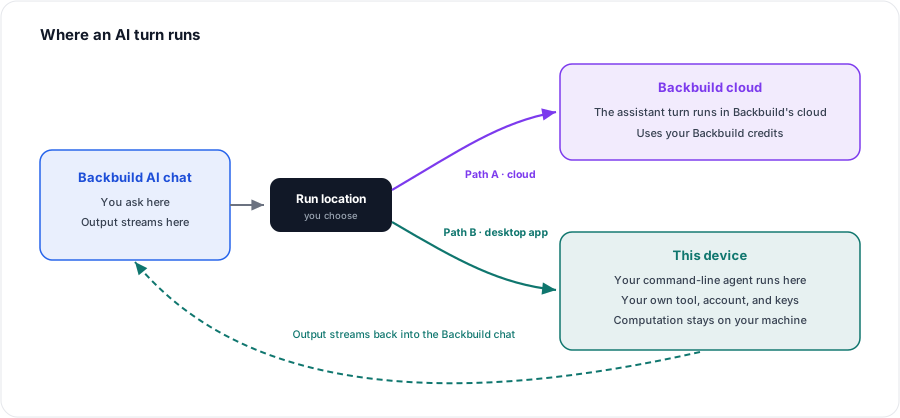
Does the agent actually run on my machine, or in the cloud? When you choose your own machine as the run location in the desktop app, it runs on your machine, through the command-line agent you have installed there, using that tool's own account or keys. The cloud option is still there when you want it.
Which command-line tools can it use? It drives the coding agent you already have set up on that computer. Because the tool and its account are yours, that usage is billed to your account with that tool rather than to your Backbuild credits.
Is this available in the browser? No. Running a program on your own computer is something only the native desktop app can do. In the browser, assistant turns run in Backbuild's cloud.
Open Local Files and Repositories
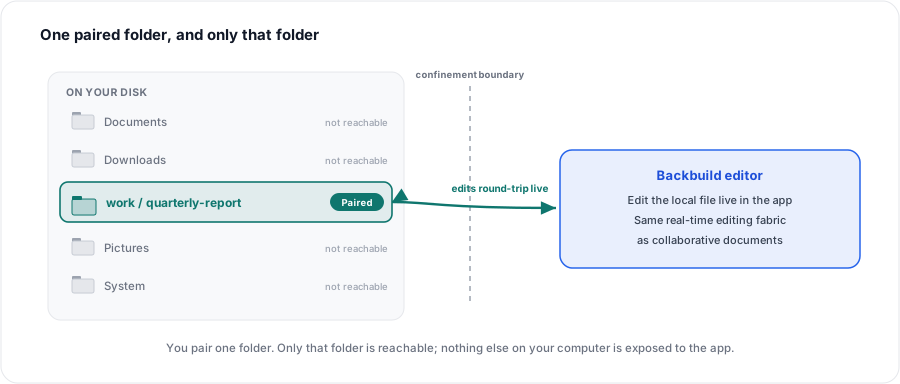
After this section you will understand how the desktop app opens files from your own disk, and exactly how far it can reach. The desktop app can open a file that lives in a local folder or Git repository on your computer, for example a LaTeX source file, and let you edit it in the Backbuild editor, with your edits flowing through the same real-time editing fabric that powers collaborative documents. This closes a gap that local-first and cloud tools usually force you to choose between: a local file you own on disk, edited in a collaborative cloud editor, without a manual sync-and-merge dance.
The most important thing to understand is the boundary. The app's reach into your disk is confined to the one folder you deliberately pair. It does not roam your filesystem, and nothing outside the folder you chose is reachable through it. You decide which single folder or repository to expose, and that decision is the entire scope of what the app can see locally. This is the confinement model to verify and rely on: one paired folder, and only that folder.
Opening and editing local files on the desktop is a newly arriving capability and is still rolling out. The confinement model above, one paired folder and nothing beyond it, is the design to rely on; the exact in-app steps for pairing and browsing a folder are settling as the feature lands, so treat this section as the shape of the capability rather than a fixed click-by-click procedure. If a control described here is not yet where you expect it, it is on its way.
Exactly what on my disk can the app see? Only the single folder or repository you pair. It is scoped to that one location; it does not read the rest of your filesystem, and anything outside the paired folder is not reachable.
Are my edits to a local file saved back to the file? The intent is a genuine round-trip through the same real-time editing fabric as a collaborative document, not a one-way import. Because this capability is still rolling out, confirm the behavior on your own paired folder before you depend on it for critical work.
Open Backbuild Links Straight Into the App
After this section you will know how an open-in-app link behaves. When you click a Backbuild link that is meant to open in the app, for example a link that takes you to a specific screen, the installed desktop app can pick it up and jump straight to that place, rather than sending you back through the browser. The first time your browser hands a link to the app, it may ask once whether to allow it and offer to remember your choice; allow it, and future links open the app directly. If the app is not installed, the same links simply open in the web app instead, so a link always works for everyone you share it with.
What if I do not have the desktop app? The link opens in the web app instead. Open-in-app links are a convenience for people who have the app, not a requirement, so they never leave anyone stuck.
My browser asked whether to open Backbuild. Is that normal? Yes. The first time a link is handed to the app, the browser confirms once and can remember your answer. It is the standard prompt for opening an installed app from a web page.
Drive Backbuild by API and Native Tools
After this section you will know that everything here is also programmable. The entire Backbuild platform is drivable over the public REST API and through native AI-agent tools, from any environment, not only the desktop app. If you want to script a workflow, wire Backbuild into your own tooling, or let an AI agent operate the platform, you use the same API and tools whether you are on the web or the desktop. See the REST API reference for endpoints and authentication, and MCP and Agent Integration for driving Backbuild from an AI agent.
Is the whole platform drivable by API and by AI agents? Yes. Backbuild exposes a public REST API across the platform and a native tool surface for AI agents. These work from anywhere and are not specific to the desktop app; the desktop app simply adds the ability to run one of those agents locally.
Where to Next
- Remote Desktop in the Native App: pop a remote session into its own window and drag files between it and your desktop.
- Signing In, Sync, Device Unlock and Security: unlock your vault without repeating two-factor, and what the app is allowed to connect to.
- Connect a Local AI Agent: the full authorization and scoping story for running your own agent against Backbuild.