

Suggesting, Tracked Changes, Compare, and Combine
This guide is the review and negotiation workflow: proposing edits without committing them, seeing exactly what changed and who changed it, and reconciling two versions into one. After it you will be able to redline a draft, hand a counterparty a marked-up copy and a clean copy, accept or reject changes with confidence that nothing disappears silently, and merge an outside party's edits back in as changes you decide on one by one. It is written for anyone who negotiates a document, and especially for legal and contract work, where the redline is the deliverable.
Suggesting Mode: Propose, Do Not Overwrite
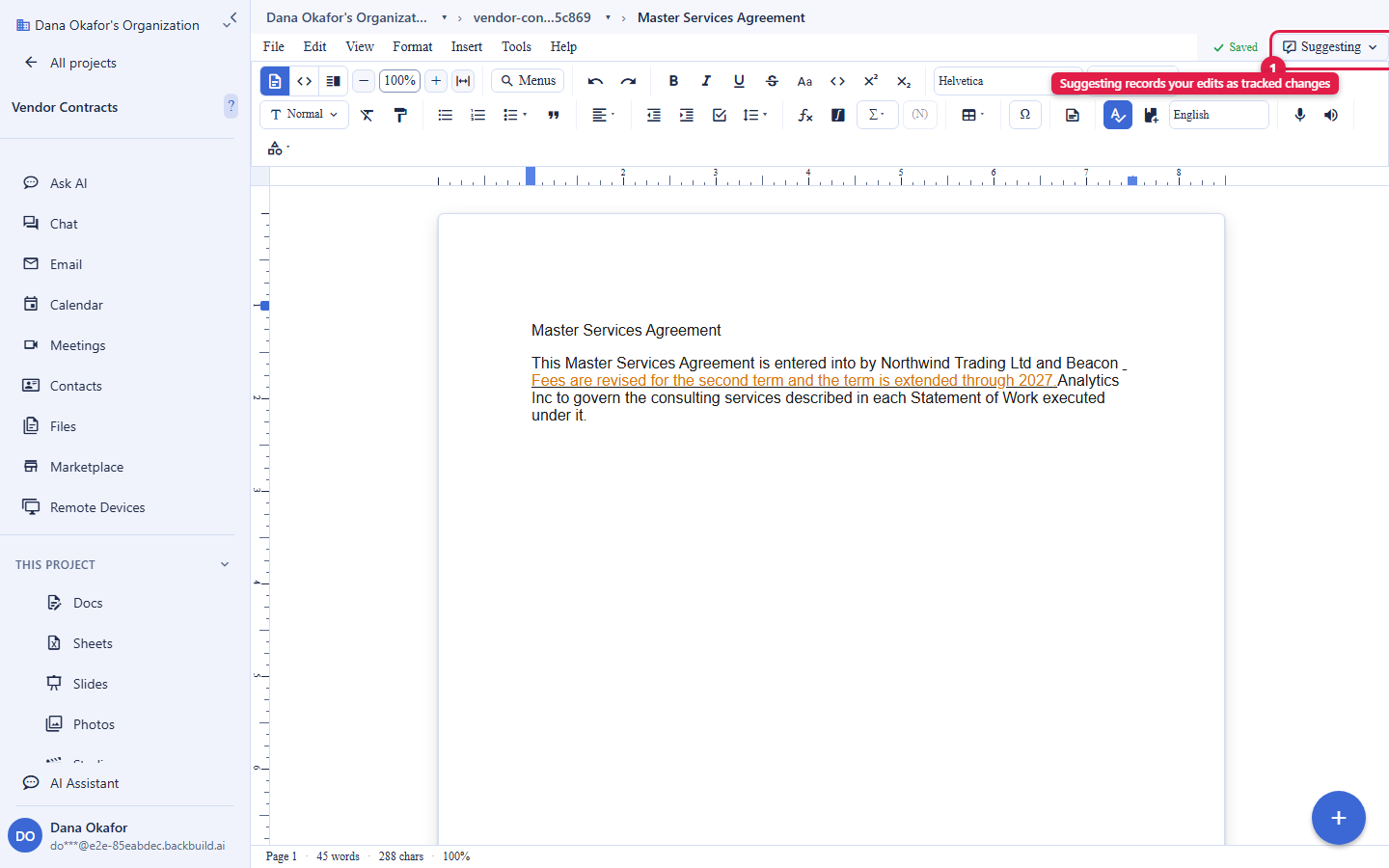
After this section you will make edits that an author reviews rather than changes applied outright. Switch the access-mode selector at the top right from Editing to Suggesting. Now your edits are recorded as tracked changes instead of being written into the text:
- Text you type appears as a tracked insertion, marked and set off so it reads as proposed, not final.
- Text you delete is kept and struck through rather than removed, so the reviewer sees exactly what you propose to cut.
- Every change carries its author and a timestamp, and each author's changes get their own color, so a multi-party markup is legible at a glance.
This is the redline: a marked-up copy that shows precisely what one party proposes against the current text.
Accepting and Rejecting Changes
After this section you will resolve a markup into a final document, trusting that every decision is deliberate. Review each tracked change and accept it (fold it into the text) or reject it (discard the proposal and keep the original). You can do this one change at a time, or accept all or reject all at once when you have decided on the whole markup.
Rejecting a change is a visible, deliberate action on a change that is right there in the document, not a silent revert buried somewhere. This is the exact fear people carry from older tools, that an agreed edit quietly vanishes between versions, and the tracked-change model is built to prevent it: a change exists as an object with an author until someone explicitly accepts or rejects it.
Are Accept-all and Reject-all trustworthy, or can an edit disappear silently? Every change is an attributed object that stays visible until you accept or reject it. Accept-all and reject-all act on exactly the set of outstanding changes shown; nothing is resolved behind your back. If you want to see the result before committing, review changes one at a time, then use the bulk action for the remainder.
Is every edit attributed to a person with a timestamp? Yes. Each tracked change records its author and the time it was made, and each author has a color. Document activity is also recorded in your organization's audit log, so the trail exists beyond the markup itself.
Will redlining mangle my numbered clauses and lists? Numbered lists, multi-level lists, and legal numbering are automatic: the numbers are derived from the document's structure rather than typed by hand, so they stay correctly numbered as you insert, remove, and reorder items, and as you accept or reject changes. You do not renumber a clause list by hand, and there is no manual numbering to drift out of order across negotiation rounds.
A Clean Copy and a Marked-Up Copy
After this section you will produce both deliverables a negotiation needs. The two artifacts of a redline come from the same document:
- The marked-up copy is the document with tracked changes shown. Share it, or print it to PDF, while changes are displayed, and the reader sees the redline.
- The clean copy is the document with the changes resolved. Accept (or reject) the changes and the text reads as final, with nothing struck through and nothing underlined; print or export that for the clean version.
Because both come from one live document rather than a pile of emailed files, you are never guessing which attachment is current. Version history (see Importing and Exporting) lets you return to any earlier state, so producing a clean copy does not cost you the markup.
Do counterparties who live in Word get a redline they can open? Yes. Export to Word and the document opens in a Word processor on the other side. Tracked-change and clean exports let a counterparty who works in Word receive the version they expect. Format-by-format detail, including where a conversion is lossy, is in Importing and Exporting.
Will the file leak hidden metadata, like deleted comments or edit history, when I send it? Produce the clean copy deliberately: accept or reject the outstanding changes so nothing is carried as a pending edit, and resolve or remove comment threads before you export or print. A printed PDF of the resolved document carries the finished text, not the change objects or comment threads behind it. When the requirement is a document with no residual markup, resolve the markup first, then export.
Compare Two Versions
After this section you will see exactly what differs between two drafts. Compare produces a read-only, word-level difference between two versions of a document, so you can see what changed between, for example, the draft you sent and the draft you got back, without trusting anyone's summary of it. Compare shows the difference; it does not alter either document.
Combine Another Party's Edits
After this section you will merge an outside copy back in as changes you decide on. When a counterparty edits their own copy and sends it back, Combine (in the Tools menu) merges their version into yours by turning their edits into tracked changes, which you then accept or reject one by one. It maps exactly to the negotiation loop: their marked-up copy comes back, you fold it in as proposals, and you keep control of what lands.
Be precise about what Combine does today: it reconciles the text of the two documents at word level and normalizes whitespace, so it is a merge of the wording rather than a byte-for-byte reconstruction. It is built for prose, which is where negotiation lives. If either document contains inline objects such as images or equations, Combine warns you before it runs, because those objects are not part of the text merge and would be dropped, and on a document that carries them Combine can be unavailable so the loss cannot happen silently. So reach for Combine on a pure-text redline, where it is exactly the tool, and for a document whose figures or equations also changed, reconcile those directly rather than through Combine.
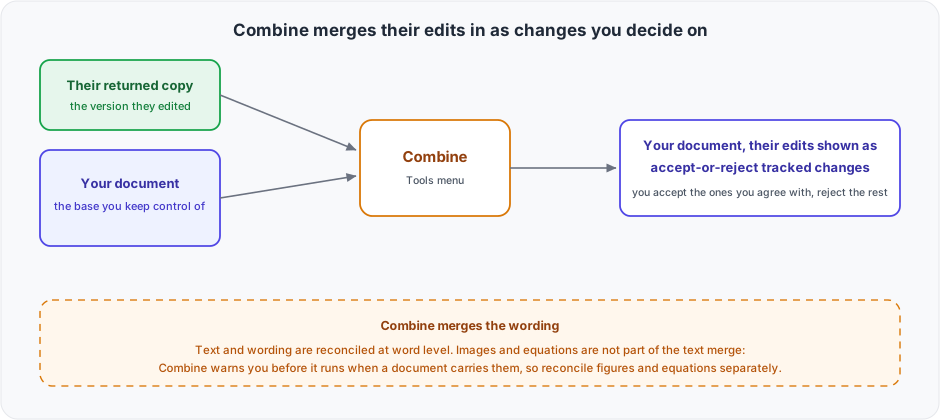
How do I merge the other side's edits without losing my own? Use Combine. Your document stays the base, and the other side's edits come in as tracked changes on top of it, so nothing of yours is overwritten; you accept the proposals you agree with and reject the rest. For a side-by-side view of what differs before you merge, use Compare first.
Where to Go Next
- Collaboration, Comments, and Sharing: grant a counterparty comment access and discuss in place.
- Importing and Exporting: export a Word redline or a clean PDF, and use version history.
- Writing, Formatting, and Page Layout: the editing surface and its access modes.