

AI Connection and Budgets
Two decisions govern what a worker costs: what AI it runs on, and how much it may spend. Backbuild keeps both explicit. A worker runs on your universal usage credits with nothing to configure, or on a coding-agent provider account you link, so an engineering team's own subscription and model quality carry over. Either way, you cap a worker with a weekly token budget it will not exceed, and you watch its burn in real time. After this page you will be able to choose a worker's AI connection source, link its own provider account, and set a budget that stops a runaway before it starts.
Worker AI and any container it runs are metered on universal usage credits, the same pool that covers the AI assistant, containers, and audio. Only active work is metered. There is no separate per-worker subscription and no per-task surcharge.
Choosing an AI Connection Source
After this section you will be able to pick exactly where a worker's thinking comes from. Under AI settings, the AI connection source is chosen explicitly, per provider. There is no silent default: you decide, and until you do, a worker's source stays unset rather than falling back to something you did not choose. The choices are:
- Universal Usage Credits. The worker runs on the platform's AI, drawn from your organization's credit pool. Nothing to link, works immediately, and is the right choice for most support and inbox work. This is the only source you can commit at hire time; the others are linked afterward.
- This worker's own linked account. The worker uses a coding-agent provider account that belongs to the worker itself, linked once and reused. This preserves a specific provider's model and quota for that worker.
- The worker owner's personal linked account. The worker draws on the personal provider account of the person who owns it.
- An organization linked account. The worker draws on a provider account linked at the organization level and shared across workers.
Personal and organization links stay separate, durable owners of their own connections, so linking one never quietly changes another. You choose one source per provider, deliberately.

Bringing Your Own Provider: Linking a Worker's Own Account
After this section you will be able to give a worker its own coding-agent account so your subscription and model quality are preserved. A Developer worker that edits code often should run on your own coding-agent subscription rather than platform credits, so it uses the exact model and quota you already pay for. In the per-worker editor's Connections section you link the worker's own provider-native account for a supported coding-agent tool. You link it by completing a real sign-in through the worker's own container, through the connected desktop app, or through an editor extension; an API key is an alternative where you prefer one.
Launch-target preview: the expanded multi-agent choices and pairing workflow below are being completed and verified on the development environment for launch. The launch-target native container choices are Claude Code, Codex, Gemini CLI, Kimi Code, Cursor Agent, and Devin CLI. Each is a separate connection with its own selected vault item. Pairing one never authorizes another. Cursor editor, Windsurf Editor with Cascade, Devin Desktop, and Devin Local remain separate MCP client surfaces rather than aliases for those terminal connections.
The credential you link is held in your organization's zero-knowledge, post-quantum secrets vault, not in the worker's prompt. The model that drives the worker never receives the plaintext value; the real credential is substituted on a trusted path at the moment of use and kept out of the model's context, its results, and the logs. You can unlink an account at any time. Credential handling is covered further in Security and Governance.
In the launch-target workflow, during a publisher sign-in, the pairing window gives you a quick-copy control for a one-time code and a button that opens the authorization page. If the publisher returns a code, paste it into the same window so it reaches the live terminal. The finished native credential is written to the chosen vault. A later container relaunch restores every paired agent from its own vault item, ready to use, while leaving unpaired agents unset.
Whose AI account and quota does a worker use? Whichever source you select. Leave it on universal usage credits and it draws on your plan's credits; link a provider account and it uses that subscription's model and quota instead. A worker never picks a source you did not choose.
Can a worker use my own coding-agent CLI account? Yes. Link the worker's own provider-native account through its container, the desktop app, or an editor extension, or with an API key, and set that as its source. Your subscription's model quality and quota carry over.
The Weekly Budget: A Cap, Not a Suggestion
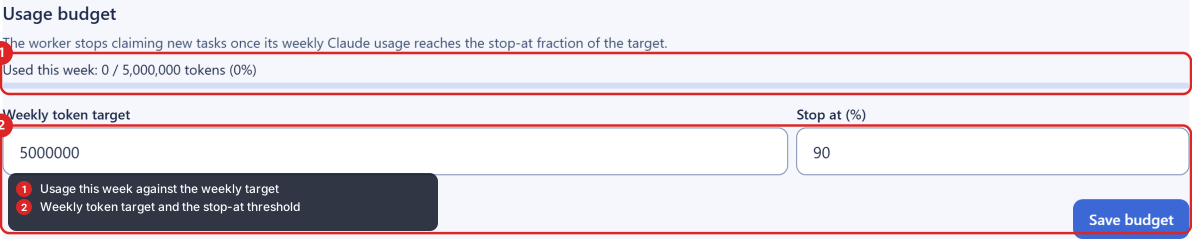
After this section you will be able to put a hard ceiling on what a worker spends. For workers that run a coding-agent tool or hybrid mode, the Usage budget section sets two numbers:
- Weekly token target. The amount of model work you allow the worker each week. Leave it blank for unlimited, or set a number to cap it.
- Stop at. A percentage of the target, defaulting to ninety-five, at which the worker throttles itself. As it approaches the cap it stops taking new work rather than pushing past your ceiling.
This is the answer to the fear that an agent takes five to twenty inferences on a task you thought was cheap and quietly runs up a bill. The budget is enforced, not advisory: a worker that has hit its stop-at threshold waits rather than spends. When a new week begins the budget resets.
Watching Burn in Real Time
After this section you will be able to see exactly where a worker is against its budget. The per-worker editor shows live usage: used this week against target, in tokens and as a percentage, with a progress bar that turns red as the worker nears its stop-at threshold. You do not wait for an invoice to learn a worker is expensive; you see it climbing and can lower the target, pause the worker, or adjust its work on the spot. Because the same credits meter the rest of the platform, a worker's spend also shows up on your billing and usage screen alongside everything else.
What happens when a worker reaches its budget? It throttles itself at your stop-at threshold and stops taking new work until the weekly budget resets, rather than spending past the cap. You are never surprised by a charge above the ceiling you set.
Do I pay a separate fee per worker or per task? No. Workers run on the same universal usage credits as the rest of the platform, metered only while working. There is no per-worker subscription and no per-task surcharge.
Where to Next
- Hiring and Configuring a Worker: the rest of a worker's setup, from persona to schedule.
- Security and Governance: how a linked credential is protected and kept out of the model and the logs.
- Universal Usage Credits: how the credit pool works across the platform.
- The Billing and Usage Screen: where a worker's spend appears alongside the rest of your usage.