

Labels, Filters, and Search
Organizing mail should happen for you, not by hand. This guide teaches you to tag messages with labels, sort incoming mail automatically with filters, find anything with search operators, and triage fast with the keyboard, then tune the client with per-user settings. After this page your inbox will keep itself in order and you will find any message in seconds.
Labels
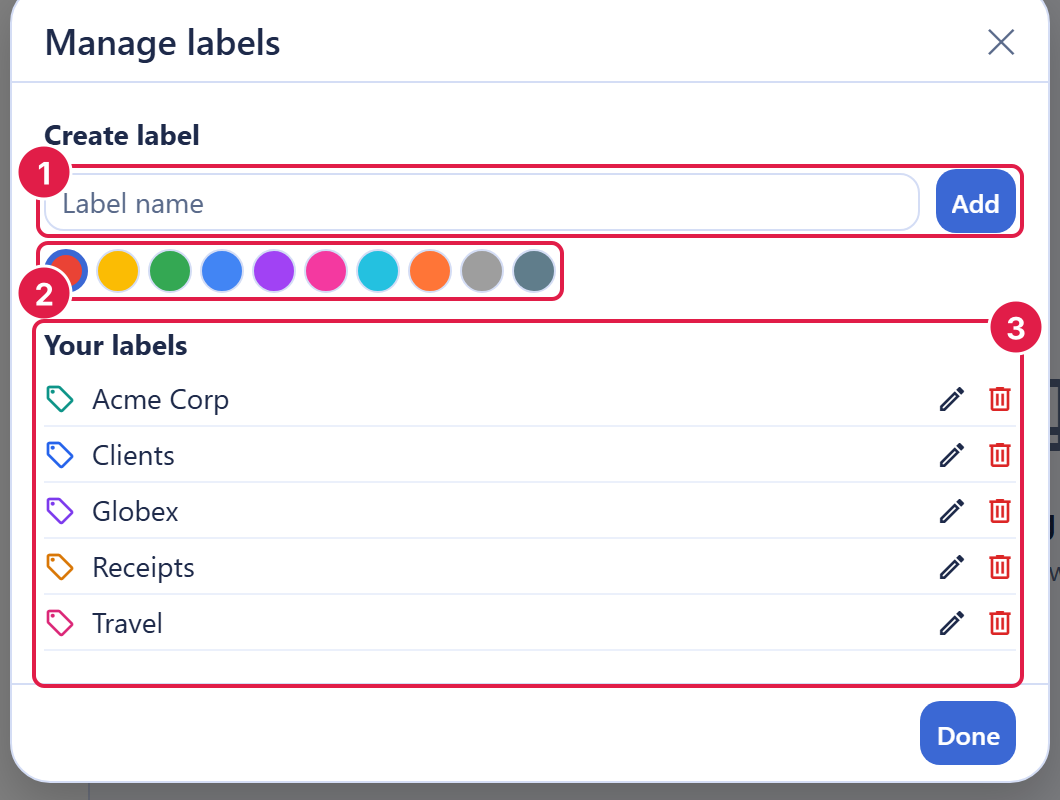
After this section you will be able to tag and group mail your way. Labels tag messages so you can group and find them. A message can carry as many labels as you like, which is more flexible than filing it into a single folder.
- Create, rename, and recolor a label to match how you think about your mail.
- Reorder and nest labels under a parent so related labels stay together.
- Apply one or many labels to a message by keyboard or by clicking.
- Filter to a label by clicking it, which shows every message that carries it.
The system folders (Inbox, Sent, and the rest) behave like fixed labels and cannot be renamed or removed; your own labels are entirely yours to manage.
Filters
After this section you will have rules that sort mail for you. A filter is a rule you define once: a set of conditions and the actions to take when mail matches. Filters run automatically on new mail as it arrives.
- Conditions to actions: match on properties of the message and take actions such as apply a label, move it, star it, or mark it read.
- Re-run over existing mail: a filter can be run on demand across mail you already have, so a new rule tidies your existing inbox, not just future mail.
- Enable, disable, and order: turn a filter on or off and set the order filters apply in.
Filters are built from a fixed set of conditions and actions, so a rule is always safe and predictable; there is no code to write and nothing arbitrary to run.
Can a filter re-run over existing mail, and do filters chain? Yes to both. You can run a filter over mail you already have to apply it retroactively, and filters apply in the order you set, so several can act on the same incoming message.
Search
After this section you will find any message fast. Search covers the full text of your mail, the sender, the recipients, the subject, and the body, and it accepts structured operators you can combine.
- is:unread, is:starred, is:important: filter by state.
- in:sent, in:drafts: search within a folder.
- from:, to:, subject:: match on who and what.
- has:attachment: only messages with a file attached.
- label:"name": only messages carrying a label (use quotes for names with spaces).
- after:: only mail after a date.
Combine operators to narrow quickly, for example
from:alex has:attachment after:2026-01-01 finds messages from Alex
with an attachment since the start of the year. Because the searchable index
lives on the server, a search matches text deep inside the body of old
messages, not just recent headers.
What search operators are supported? is:unread, is:starred, is:important,
in:sent, in:drafts, from:,
to:, subject:, has:attachment,
label:"name", and after:, all combinable with
full-text search across the whole message.
Keyboard Shortcuts
After this section you will triage without the mouse. Backbuild Mail is built for people who live in their inbox. Move row focus with the arrow keys or with j and k, and use shortcuts to compose, reply, archive, and trash. Select a batch of messages and apply a bulk action, archive, trash, move, or label, to all of them at once.
Can I triage entirely from the keyboard? Yes. Navigate the message list with the arrow keys or j and k, and compose, reply, archive, and trash from the keyboard, so a full triage pass never needs the mouse.
Your Settings
After this section you will have the client tuned to how you work. Backbuild Mail settings are per user and per mailbox, so your preferences follow you without changing anyone else's view.
- Reading-pane placement: below the message list, to the right, or off.
- Density: comfortable, cozy, or compact.
- Conversation view: on or off.
- Signature: a custom signature added to the mail you send.
- Undo-send window: 0, 5, 10, 20, or 30 seconds.
- Mark-as-read behavior: immediately on open, after a delay you set, or only when you choose.
Related Guides
- Mailboxes, Inbox, and Reading: folders, views, and the reading layout.
- Composing and Sending: signatures and the undo-send window in the send flow.