

Workflows, Automations & Campaigns
This is where a process that lives in someone’s head, or in a scattered trail of email and chat threads, becomes a repeatable, enforceable, auditable machine. Backbuild gives you four building blocks for that: role-gated approval workflows, event-driven automation rules, scheduled time triggers, and multi-step campaigns.
After reading this page you will be able to: pick the right building block for any job in seconds; build an approval flow where only the right role can advance a record; write an automation rule that reacts to an event, branches on conditions, and calls out to another system; run a job on a schedule; enroll people into a timed sequence; and, crucially, tell in advance whether a thing you built will actually fire, and prove after the fact that it did.
Workflows, automations, time triggers, and campaigns are part of the AI and automation toolset that is available on every plan, including Free. Actions that consume compute or AI models (for example running an AI session) draw on universal usage credits or your own AI provider keys. See the pricing page for what each plan includes.
Workflow, automation, or campaign: which one you want
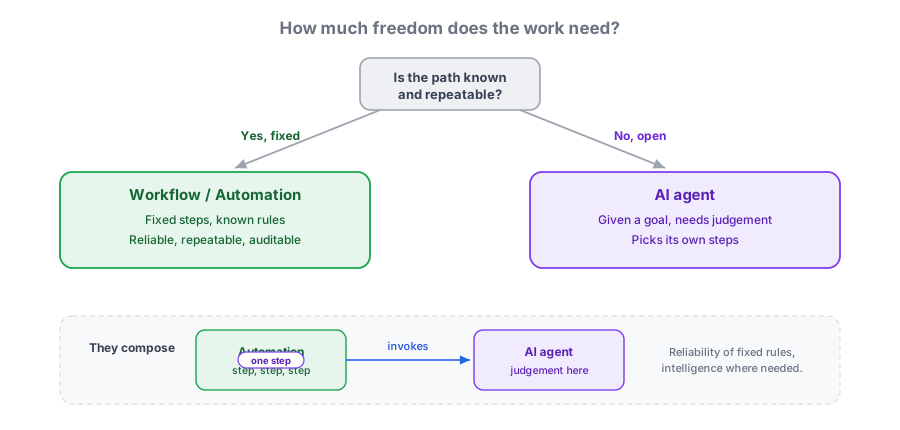
These four tools overlap enough to be confusing, so start here. The fastest way to choose is to ask how much freedom the work needs. A fixed sequence of steps with known rules and a predictable outcome is an automation or a workflow: reliable, repeatable, and auditable. A goal where the path is uncertain and judgment is required (triage this ticket, research this account, draft this reply) is a job for an AI agent, which is given an objective and decides its own steps. The two compose: a deterministic automation can invoke an AI agent as one of its steps, so you keep the reliability of fixed rules and add intelligence exactly where the path is genuinely open. The AI side is covered in AI Assistant, Skills & Agents; this page is the deterministic side.
| Use this | When you want to | Example |
|---|---|---|
| Approval workflow | Govern how a record moves through named states, with a role required to make each move | Draft → In review → Approved, where only a manager can approve |
| Automation rule | React to one event with one action, optionally filtered by conditions | When a critical ticket is created, call a webhook and start an AI triage session |
| Time trigger | Run an action on a recurring schedule | Every Monday at 9 AM, run a housekeeping job |
| Campaign | Move people through a multi-step, timed sequence with delays and conditions | A five-step onboarding drip over two weeks |
Approval workflows
An approval workflow is a state machine for your records. You define the named states a record can be in, and the allowed moves between them, and you attach a required role to each move. The result is a process where the rule for “who can advance this, and to where” is written down and enforced, instead of living in an email thread or in the memory of whoever happens to be around.
After this section you will be able to define your own states, wire the transitions between them, gate each transition to a role or group, and understand exactly what happens when someone tries a move they are not allowed to make.
States: the stages a record moves through
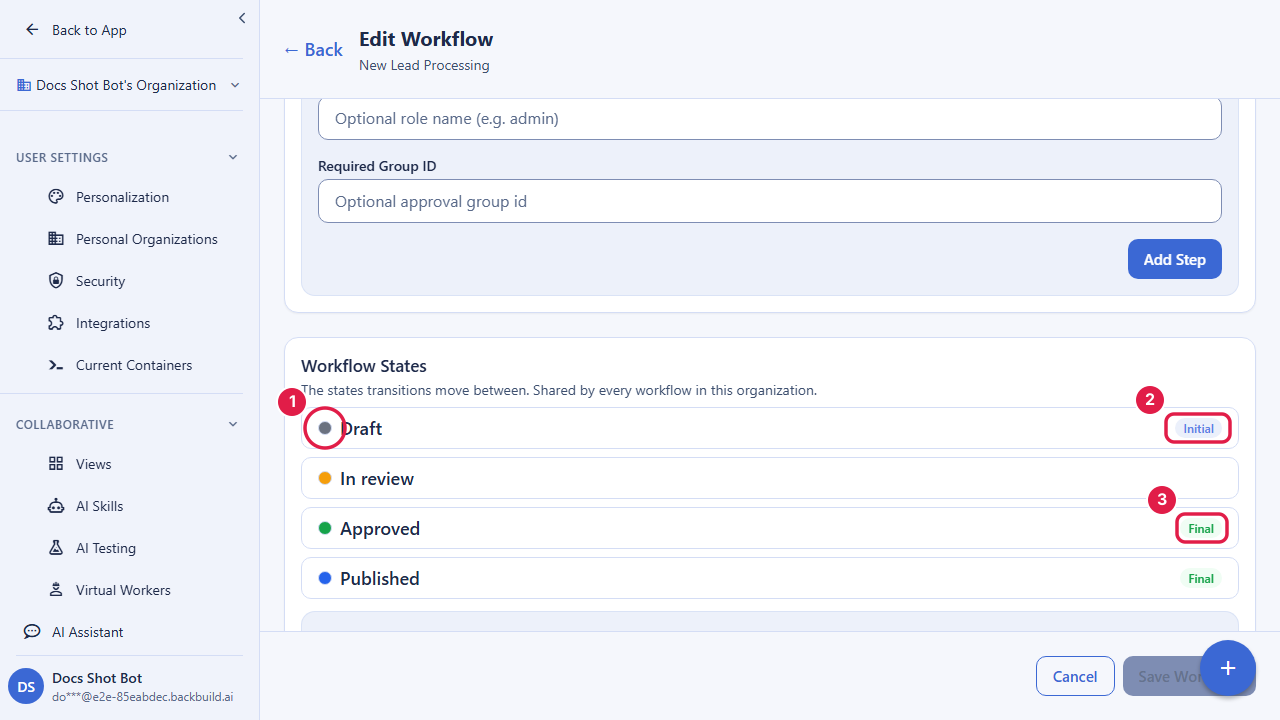
Each organization defines its own set of workflow states. A state has a name, an optional description, a color so it reads at a glance on a board, and a position that sets its order. Two markers matter: one state is the initial state (where a record starts), and any number of states can be terminal (an end of the line, such as Approved or Rejected). Define states for your actual domain: Draft, In review, Approved, Published, Archived, or whatever your process really uses.
# Create a workflow state
curl -X POST https://api.backbuild.ai/v1/workflows/states \
  -H "Authorization: Bearer $TOKEN" \
  -H "Content-Type: application/json" \
  -d '{
    "name": "in_review",
    "color": "#f59e0b",
    "position": 1,
    "is_initial": false,
    "is_terminal": false
  }'
Steps: role-gated transitions
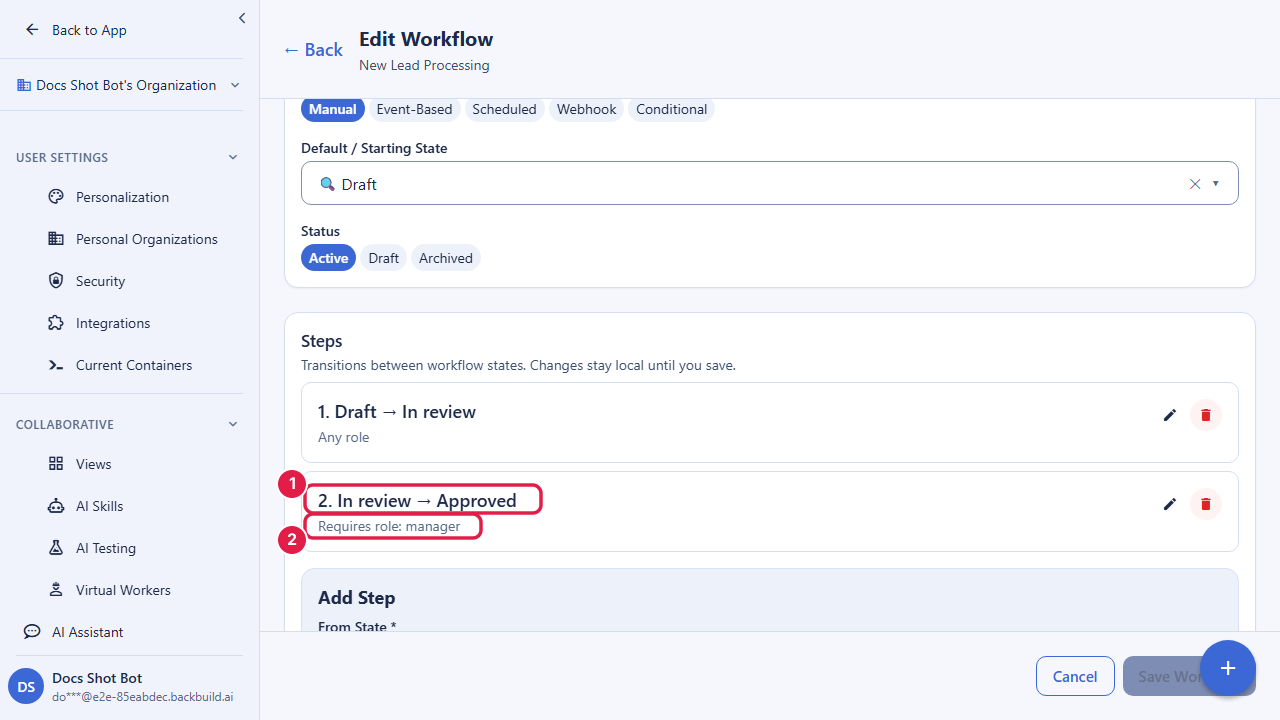
A workflow’s steps are the moves. Each step links a
from_state_id to a to_state_id and, optionally,
requires a specific role (required_role) or group
(required_group_id) to perform that move. That single idea, a
move plus who is allowed to make it, is the whole approval model. A record
in the In review state can only advance to Approved through a step, and if
that step requires the manager role, then only a manager can perform it.
A workflow belongs to your organization and can be scoped to a single entity type, so, for example, your Lead workflow applies to leads and your Invoice workflow applies to invoices. The starting state is designated automatically from the step graph if you do not set one explicitly, and it is never cleared once set, so a workflow always has a well-defined entry point.
# Create a workflow with its steps (role-gated state transitions)
curl -X POST https://api.backbuild.ai/v1/workflows \
  -H "Authorization: Bearer $TOKEN" \
  -H "Content-Type: application/json" \
  -d '{
    "name": "New Lead Processing",
    "description": "Route new leads through review",
    "entity_type_id": "019d...",
    "status": "active",
    "steps": [
      {
        "from_state_id": "019d...",
        "to_state_id": "019d...",
        "required_role": "manager"
      }
    ]
  }'
Is the role gate real, and what happens on an invalid move?
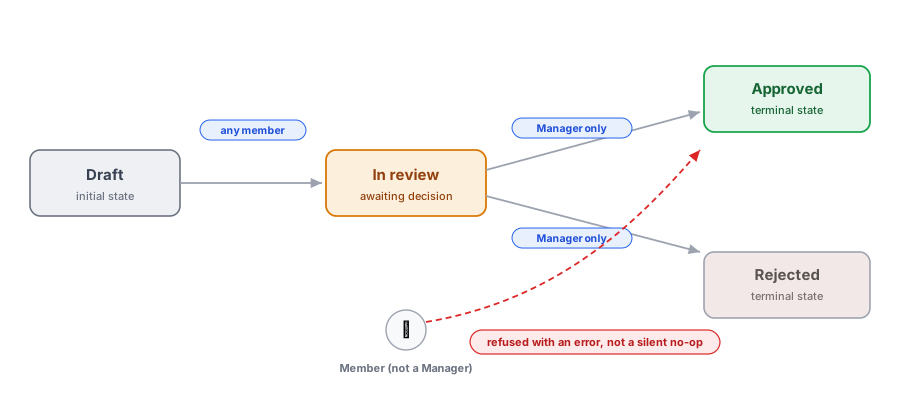
Yes, the gate is real. Role gating is enforced on the server for every request, not hinted at in the interface and hoped for. A person who does not hold the required role cannot advance the record, whether they try from the web app, the API, or through an AI agent acting on their behalf. There is no “discouraged but possible” state; an unauthorized move is refused.
An invalid move (one that is not a defined step at all, or that a caller is not permitted to make) is likewise refused with an explicit error, so it never lands silently. This matters: the worst failure in an approval system is a request that quietly goes nowhere while everyone assumes it advanced. When you drive a transition through the API, check the response; a refusal returns a clear error status (for example a permission error or a not-found for an unknown state or record) rather than a success with nothing behind it.
Statuses and trigger type
A workflow has a status of active,
draft, or archived, so you can build one before
it is in use, run it, and later retire it without deleting its history. A
workflow also carries a trigger_type
(manual, event, schedule,
webhook, or condition) that records how the
process is intended to be started. Think of the trigger type as a label on
the workflow; the state machine itself is advanced by people (or callers)
performing the role-gated transitions above. If you want an event to
cause something to happen automatically, that is the job of an
automation rule, covered next.
Where the audit trail lives
Every write to a workflow, its states, and its steps is recorded, and changes emit real-time collaboration notifications so teammates see structure change as it happens. For the approver, that means there is a durable record of who advanced what and when, which is exactly the trail an audit or a dispute needs. See Security & RBAC for how audit events are captured across the platform.
Can I restrict who approves to a single role?
Yes. Set required_role (or required_group_id)
on the step. Only holders of that role or members of that group can make
that move, enforced server-side.
If someone tries a move they are not allowed to make, does it
error or silently fail?
It errors. Both unauthorized moves and moves that are not a defined step
are refused with an explicit error, never accepted as a no-op.
Can I scope a workflow to one kind of record?
Yes. Attach an entity_type_id and the workflow applies to
that entity type only.
Automation rules
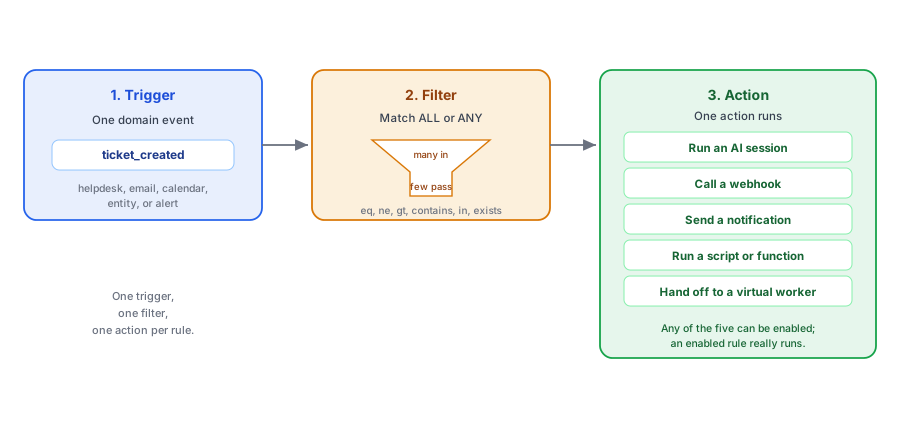
An automation rule is the simplest useful shape of automation: one trigger, one action, with optional conditions in between. Rules are how you turn “when this happens, do that” into something the platform performs for you, without standing up any infrastructure of your own.
After this section you will be able to choose a trigger, filter it down to exactly the cases you care about, pick an action, test the rule before it goes live, scope it to a project or the whole organization, and read its run history to confirm what happened.
The three ways a rule can be triggered
A rule has exactly one trigger. There are three families, and it is worth being precise about which fire on their own and which you run yourself, because assuming an automatic trigger exists when it does not is the most common way people get burned.
| Trigger family | What it listens for | How it runs today |
|---|---|---|
| Domain event | An event in one domain: helpdesk (ticket created / updated / deleted / matches), email (received), calendar (created / updated / deleted / started / ended), entity (created / updated / deleted / archived), or alert (received / read / resolved / archived) | Runs when a matching event is delivered to the rule’s domain; the rule evaluates its filter and, on a match, queues its action |
| Manual | You, on demand | Runs immediately when you choose Run now (or call the execute endpoint) |
| Schedule | A recurring or one-shot time | For a guaranteed recurring run, use a Time Trigger, the platform’s dedicated scheduled-execution surface |
A single rule listens to one domain; you cannot mix, say, a helpdesk event and a calendar event in the same rule, and the builder will not let you try. Build one rule per cause.
Filters: reacting only to the cases you care about
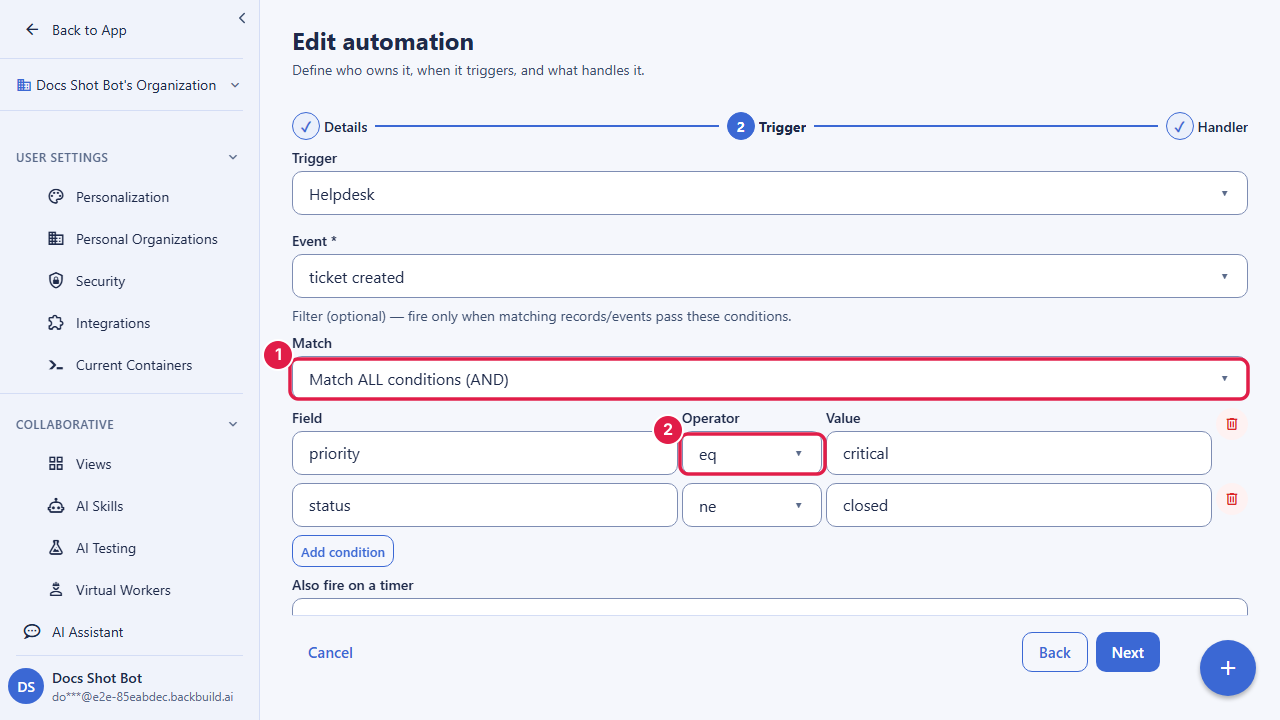
A raw event is usually too broad. A filter narrows it. A
filter has a match mode, either all (every
condition must hold, a logical AND) or any (at least one, a
logical OR), and a list of conditions. Each condition names a field, an
operator, and a value. The operators are eq,
ne, gt, gte, lt,
lte, contains, in, and
exists. So “priority equals critical AND assignee
exists” is match all with two conditions;
“priority is critical OR high” is one in condition,
or two conditions with match any.
You build filters visually with the condition builder: choose the match mode, then add condition rows. There is no code and no template language; field names and values are treated as data and matched literally, never interpolated into anything.
Actions: what the rule does
When a rule fires, it performs exactly one action. You choose the action when you build the rule, and each action type carries the configuration it needs (a skill for an AI session, a URL and method for a webhook, a chosen function for a script, a skill and container size for a virtual worker). Every action type below runs, so a rule you enable actually does something rather than looking armed while quietly going nowhere.
| Action | What it does |
|---|---|
| Run an AI session | Runs a chosen AI skill against the event, with an optional prompt, so an agent can triage, draft, summarize, or act |
| Call a webhook | Sends an HTTPS request to a URL you specify, so you can notify or drive an external system |
| Send a notification | Posts an in-app notification to the right people |
| Run a script or function | Runs a chosen script or built-in function against the event data and records its result, for lightweight in-platform transforms |
| Hand off to a virtual worker | Dispatches an autonomous virtual worker (a chosen skill running in a container) to carry out longer work on the event; draws on container usage credits |
Calling a webhook
The webhook action sends a request from the platform to a URL you control. Two requirements keep it safe: the URL must be HTTPS, and you specify the HTTP method. Point it at an endpoint you own, have that endpoint verify the request before acting on it (for example by checking a shared secret you include in a header, or by validating a signature your endpoint expects), and treat delivery as at-least-once: design the receiver to be idempotent so that if the same event is delivered twice, the second delivery is a safe no-op. Never trigger an irreversible action on a webhook without a de-duplication key.
# A rule that calls a webhook when a critical ticket is created
curl -X POST https://api.backbuild.ai/v1/automation-rules \
  -H "Authorization: Bearer $TOKEN" \
  -H "Content-Type: application/json" \
  -d '{
    "name": "Notify on critical ticket",
    "trigger_type": "helpdesk",
    "trigger_config": {
      "event": "ticket_created",
      "filter": {
        "match": "all",
        "conditions": [
          { "field": "priority", "operator": "eq", "value": "critical" }
        ]
      }
    },
    "action_type": "call_webhook",
    "action_config": { "url": "https://hooks.example.com/critical", "method": "POST" },
    "is_enabled": true
  }'
Starting an AI session
The AI-session action hands the event to an AI agent by running one of your custom AI skills. You choose the skill, and can add a prompt that frames the task. This is how support teams get automatic first-touch triage: a rule on the ticket-created event runs a triage skill that reads the ticket and drafts or routes a response. The agent runs under the permissions and entitlements of the context that invoked it and can never exceed them, so an automated agent cannot reach data a person in that context could not. Grounding and attribution for those AI replies are covered in AI Assistant, Skills & Agents.
Test before you enable, and see what ran
Do not trust a rule you have not watched run. Every rule can be executed on demand with Run now, which queues it exactly as a real trigger would, so you can dry-run the logic before you switch it on. After it runs, the rule’s execution history shows each run and its outcome, so you can confirm a rule fired and see whether it succeeded. Between Run now and the execution list, you never have to guess whether an automation is working; you can look.
This is also the answer to the universal “will it silently do nothing?” fear. The specific ways an automation can appear to do nothing all have a visible cause: the rule is disabled (its toggle is off), the filter never matched (the run history shows no matching runs), or you expected an automatic trigger that you actually need to run or schedule. Each is something you can see and correct, not a mystery.
Scope, ownership, and who is in control
A rule can be scoped to a single project or to the whole organization, so you can keep a project’s automations contained to that project. A rule also records an owner (a user, group, role, or department) that designates who is responsible for it, and a visibility policy that controls who can see, run, or clone it. Owner and visibility are organizational metadata; they do not grant any execution rights of their own. Every reference you attach (owner, project, skill, policy) is checked against your organization when you save, so a rule can never point at something outside your tenant.
Who can build and run automation rules
Creating, updating, deleting, and executing rules requires the automation-management permission, which owners and admins hold by default and which you can grant to others through roles. Listing and reading rules requires only active membership. Every permission check is enforced on the server, so the control is real rather than a hidden button, and a manual execution first verifies the rule belongs to your organization before it runs, which closes the door on running someone else’s rule by guessing its identifier.
Which triggers fire automatically, and which do I run by
hand?
Domain-event rules run when a matching event is delivered to their
domain. Manual rules run when you choose Run now. For a guaranteed
recurring run, use a Time Trigger. When in doubt, use Run now to prove
the logic, then rely on the execution history to confirm live firing.
Which action types can a rule run?
Five: run an AI session, call a webhook, send a notification, run a
script or function, and hand off to a virtual worker. Each one executes
when the rule fires, so any rule you enable actually does something.
Can I branch on conditions?
Yes, through filters: choose match ALL or ANY, then add conditions using
operators such as equals, contains, in, and exists. For different actions
on different branches, build one rule per branch, each with its own filter.
Will a retry double-fire my webhook?
Treat delivery as at-least-once and make your receiver idempotent: include
a de-duplication key and make repeat deliveries a safe no-op, so a retry
never causes a double effect.
Can I scope a rule to one project?
Yes. Set the scope to a project, and the rule is contained to it;
otherwise it applies organization-wide.
Time triggers
A time trigger runs an action on a schedule. This is the surface to use for anything recurring: nightly cleanups, weekly reports, periodic reminders. Schedules use standard five-field cron expressions (minute, hour, day-of-month, month, day-of-week), evaluated in UTC, and the platform’s scheduler runs each one and records every run and its outcome in the trigger’s log.
| Expression | Runs |
|---|---|
0 9 * * 1 | Every Monday at 9:00 AM UTC |
0 0 1 * * | First day of every month at midnight UTC |
0 */6 * * * | Every 6 hours |
0 17 * * 5 | Every Friday at 5:00 PM UTC |
Creating, updating, deleting, and managing time triggers requires the
automation-management permission. Each trigger can be enabled or disabled,
and its log is your record of whether a scheduled job actually ran. Because
schedules run in UTC, convert your local time when you write the
expression: 9 AM in a UTC+2 zone is 0 7 * * 1, not
0 9 * * 1.
Campaigns
A campaign is a multi-step engagement sequence. Where an automation rule is one trigger and one action, a campaign is an ordered series of steps that people are enrolled into and advanced through over time, with delays and conditions between steps. Campaigns are how you run onboarding, nurture, and re-engagement as right-message-right-time sequences rather than one-off blasts.
After this section you will be able to build a drip or sequence, add steps with delays and conditions, enroll people, watch where each person is in the sequence, and avoid the two traps that make campaigns look broken: the draft trap and poor deliverability.
Campaign types and steps
A campaign has a type: drip (steps released on a cadence),
sequence (an ordered path), or one_shot (a single
send). Its steps are ordered, and each step has a type,
email, notification, delay,
condition, or action, its own configuration, an
optional template, and a delay before it fires. Conditions on a step gate
whether that step runs for a given person, so you can branch a sequence
(for example, skip a reminder for anyone who already responded).
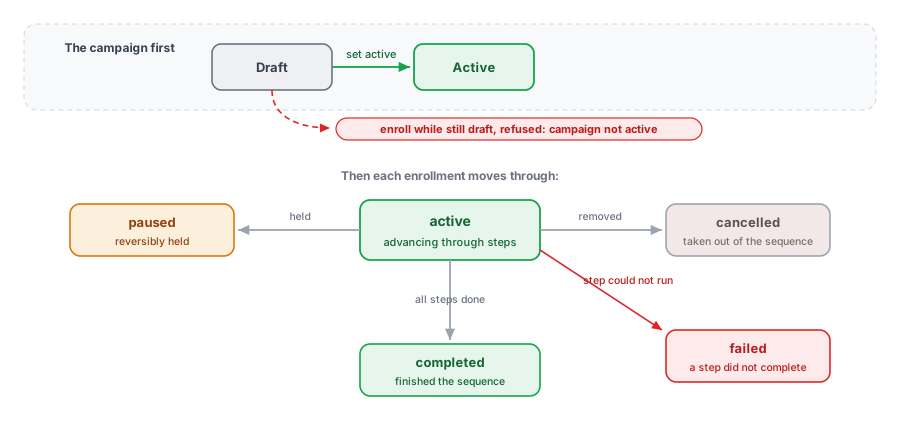
Enrollments, and the draft trap
You enroll a person into a campaign, and each enrollment tracks its current
step and a status: active, completed,
paused, cancelled, or failed. That
status is where you watch progress and spot anyone stuck.
Here is the trap that makes people think enrollment is broken: a campaign is created in draft and must be set active before enrollments do anything. Enrolling someone into a campaign that is not active is refused with a clear “campaign not active” error; it does not silently accept the person and then never send. So if contacts are not entering your sequence, check first that the campaign is active, then check the enrollment criteria. Enrolling people also requires the campaign-enrollment permission.
Deliverability: staying out of spam
A campaign that sends email is only as good as its deliverability. Two habits keep your messages in the inbox. First, authenticate your sending domain: publish SPF, DKIM, and DMARC records so receiving providers can verify your mail is really from you; unauthenticated bulk mail is increasingly rejected outright. Second, protect your sender reputation with list hygiene: send to people who expect to hear from you, remove hard bounces, and do not blast a large unsegmented list all at once. These authentication principles apply to any domain you send from, and they are what keep a legitimate sequence out of the spam folder.
Why are contacts not entering my sequence?
Most often the campaign is still in draft. A campaign must be active
before enrollment does anything; enrolling into a draft is refused, not
silently queued. After that, check the enrollment criteria.
How do I add delays and conditional steps?
Each step has its own delay before it fires and an optional condition
that decides whether it runs for a given person, so you can space
messages out and branch the path.
How do I see who is at which step?
Each enrollment tracks its current step and status (active, completed,
paused, cancelled, failed). Watch the enrollment list to see progress and
find anyone stuck.
How do I stay out of spam?
Authenticate your sending domain with SPF, DKIM, and DMARC, and keep your
list clean: send only to people who expect it, drop hard bounces, and do
not blast a large unsegmented list at once.
Frequently asked questions
What is the difference between a workflow, an automation, and an AI
agent?
A workflow or automation is a fixed sequence of steps with known rules and a
predictable, auditable outcome; reach for it when you are repeating the same
process. An AI agent is given a goal and decides its own steps; reach for it
when the path is uncertain (triage, research, drafting). They compose: an
automation can invoke an agent as one step. See
AI Assistant, Skills & Agents.
How do I make sure a thing I built will actually fire?
For automation rules, use Run now to dry-run, then read the execution
history. For approval workflows, an unauthorized or invalid move errors
rather than no-ops. For campaigns, confirm the campaign is active before
enrolling. Every “silent” failure has a visible cause you can
check.
Who is allowed to build and run all of this?
Building and running automation rules and time triggers needs the
automation-management permission; advancing an approval workflow needs the
role on the step; enrolling into a campaign needs the enrollment permission.
All of it is enforced on the server. See
Roles, Groups & Permissions.
Is my data used to train AI models?
No. When an automation runs an AI session, your data is not used to train
models, is encrypted in transit and at rest, and the agent runs under the
invoking context’s permissions. The full data posture is in
AI Assistant, Skills & Agents.
API reference
GET/POST /v1/workflows: list or create workflows (GET/PUT/DELETE /v1/workflows/:idto manage one)POST/PUT/DELETE /v1/workflows/:id/steps[/:stepId]: manage role-gated stepsGET/POST /v1/workflows/states: list or create workflow statesGET/POST /v1/automation-rules: list or create rules (GET/PUT/DELETE /v1/automation-rules/:idto manage one)GET /v1/automation-rules/:id/executions: run historyPOST /v1/automation-rules/:id/execute: Run nowGET/POST /v1/time-triggers: list or create scheduled triggers (GET /v1/time-triggers/:id/logsfor the run log)GET/POST /v1/campaigns: list or create campaigns (GET/PUT/DELETE /v1/campaigns/:idto manage one)GET/POST /v1/campaigns/:id/steps: manage campaign steps (PUT/DELETEper:stepId)GET/POST /v1/campaigns/:id/enrollments: list or create enrollments
See the Workflows & Automation API for complete request and response documentation.