

Formulas, Functions, and the Calculation Engine
This guide is for the reader who lives in formulas: the finance analyst
building a model, the data analyst reshaping a dataset, and the researcher
running real statistics. After it you will know exactly what the engine covers,
how dynamic arrays and QUERY behave, how errors and recalculation
work, and where the honest limits are, so you can decide whether your existing
models will move over without surprises. Nothing here is aspirational; every
capability is stated as it works today, and every limit is named plainly rather
than left for you to discover.
The Function Catalog
After this section you will know the breadth of the catalog and how to find a function. Backbuild Sheets carries more than 500 functions, grouped the way you expect:
- Math and trigonometry: the arithmetic, rounding, modular, logarithmic, and trigonometric functions, plus matrix operations.
- Statistics: the everyday aggregates and, beyond them, the hard distributions researchers actually need, including gamma, beta, chi-square, Student's t, F, binomial, and Poisson, along with regression through
LINEST,TREND, andGROWTH. - Finance:
PMT,IPMT,PPMT,FV,PV,NPER,RATE,NPV,IRR, and the dated-cash-flow variants, plus bond math. - Lookup: the lookup and reference family, including
XLOOKUPwith array returns, alongsideINDEX,MATCH, and theSUMIFSfamily. - Text, logical, date and time, and information functions, plus regular-expression functions with pattern matching guarded against runaway expressions.
Open the function browser from the Insert menu to search the catalog by name or category and read what each function expects before you use it. Autocomplete in the cell does the same as you type.
Do XLOOKUP, SUMIFS, INDEX and MATCH, and QUERY work the way I expect
from Excel and other spreadsheets?
Yes. The lookup and conditional-aggregate families are present and behave as a
spreadsheet user expects, and QUERY is a real query language, not a
thin wrapper. Where a function has a behavioral nuance, the function browser
describes it. If you rely on a specific function, check it in the browser before
you migrate a mission-critical model; the catalog is broad, and this guide names
the few areas that are not covered yet (single-sheet references and the
live-import functions, both below).
Dynamic Arrays and Spill
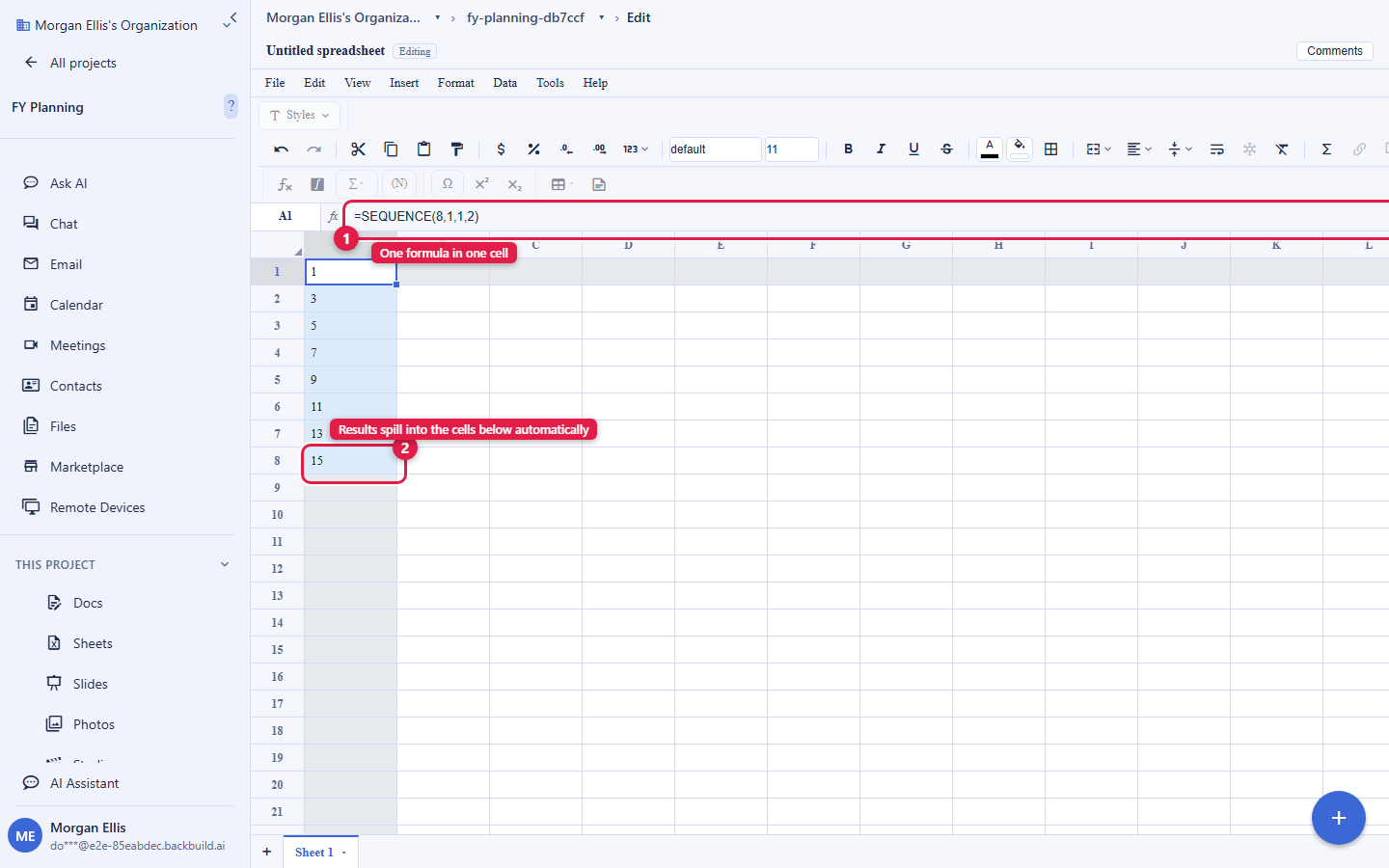
After this section you will use one formula to produce a whole range of results. A dynamic-array formula returns many values from a single cell, and those values spill into the neighboring cells. The formula lives in one place, so the result stays traceable to the logic that produced it, which is the opposite of a column of copied formulas nobody can audit.
- The array functions include
UNIQUE,SORT,SORTBY,FILTER,SEQUENCE, andRANDARRAY, plus functions that stack, reshape, and transform ranges, andXLOOKUPreturning an array. - Spill means the extra results fill the cells below and to the right of the formula automatically and recompute when the inputs change.
- A blocked spill raises the
#SPILL!error when something (a value, or a merged cell) sits where the results need to go. Clear the blocking cell and the array spills. A per-result cap bounds how large a single spill can be, so one formula cannot fill an unbounded region.
LAMBDA and the Composition Functions
After this section you will write reusable logic without a scripting
language. LAMBDA lets you define a function inline, and
LET names intermediate results so a long formula reads clearly.
Around them, MAP, REDUCE, SCAN,
BYROW, BYCOL, and MAKEARRAY apply your
logic across a range, and ARRAYFORMULA extends a formula over a
whole range at once. Together they cover the transformations that would
otherwise push you into a macro or an external script, kept inside the sheet
where a collaborator can read them.
The QUERY Function
After this section you will summarize a dataset from one
formula. QUERY runs a SQL-like statement over a range,
with SELECT, WHERE, GROUP BY, and the
familiar clauses, so you can filter, aggregate, and pivot a table without
building a chain of helper columns. It is a real lexer, parser, and executor,
which is why a substantial query behaves predictably rather than falling over on
a slightly complex expression.
Do the dynamic-array and LAMBDA functions actually work, or are they
behind a flag that might be off?
They are on by default. UNIQUE, SORT,
FILTER, SEQUENCE, RANDARRAY, and the
LAMBDA, LET, MAP, REDUCE,
SCAN, BYROW, and BYCOL family evaluate as
described. You do not need to enable anything.
What causes a #SPILL! error and how do I fix it?
A dynamic-array formula needs empty cells to spill into. #SPILL!
means something is in the way, most often a stray value or a merged cell in the
target range. Clear that cell (or unmerge it) and the array spills. If the
result would exceed the per-result cap, narrow the range the formula produces.
How Calculation and Errors Work
After this section you will trust the recalculation and read every error correctly. The engine tracks which cells depend on which, so a change recomputes only the cells downstream of it rather than the whole sheet, which is what keeps a large model responsive. When a formula cannot produce a value, it returns a typed error that tells you precisely what went wrong:
#REF!: a reference points at something that no longer exists.#DIV/0!: a division by zero.#VALUE!: an argument is the wrong type.#CYCLE!: a circular reference, where a formula depends on itself directly or through a chain.#NAME?: an unrecognized function or name.#N/A: a lookup found no match.#SPILL!: a dynamic array cannot spill into an occupied range.
Volatile functions such as RAND, RANDBETWEEN,
TODAY, and NOW draw from a single consistent clock and
random source per recalculation pass, so a sheet full of them stays internally
consistent within a pass rather than each cell disagreeing.
How are circular references and divide-by-zero handled?
A circular reference surfaces as #CYCLE! at the cells involved
rather than silently returning a wrong number or freezing the sheet, and a
division by zero returns #DIV/0!. Every error is typed and local to
the cell that produced it, so you can see exactly where a model breaks and
trace it back.
Financial and Statistical Accuracy
After this section you will know the numbers can be trusted.
This is the detail a finance analyst and a researcher check first, so it is
stated directly. The finance functions (IRR, NPV, the
dated-cash-flow variants, PMT, IPMT,
PPMT, FV, PV, RATE,
NPER, and bond math) compute on the standard definitions, and the
dated-cash-flow variants handle irregular, real-date cash flows rather than
assuming even periods. The statistical distributions (gamma, beta, chi-square,
Student's t, F, binomial, Poisson, and the rest) are validated to high precision
against reference values. If you type an IRR or a t-distribution
and check the digits, they hold up, which is the whole point of using a real
engine rather than an approximation.
The Honest Limits
After this section you will know exactly what to plan around. A tool earns trust by naming its edges. These are the ones a formula-heavy user will meet:
- Single-sheet references. A formula reads cells on its own tab. A cross-tab reference such as
Sheet2!A1is not evaluated yet. Keep the inputs a formula needs on the same tab for now. Cross-tab references are a planned addition. - XLSX export is values, not formulas. Exporting to Excel writes the computed values of your sheet, not the formulas behind them. This is a deliberate, portable snapshot that opens cleanly anywhere; if a downstream recipient needs live formulas, keep the working copy in Backbuild Sheets. See Importing and Exporting.
- Live-import functions are off by design. Functions that would fetch over the network, such as
IMPORTRANGE,IMPORTDATA,IMPORTHTML,IMPORTXML, and the finance-quote functions, are recognized so a pasted foreign formula does not silently misparse, but they perform no network access and return a clear error. To bring external data in, import a file (see the import guide) or write it through the API. The engine does no outbound input or output on its own, which is a security property, not an oversight. - Named ranges are not surfaced yet. Reference cells and ranges with
A1notation; a named-range layer is designed but not yet available in the formula bar or menus.
Why does IMPORTRANGE (or a stock-quote function) return an
error?
On purpose. Backbuild Sheets does not make outbound network requests from a
formula, so the whole class of live-import and live-quote functions is
recognized but returns a clear error rather than fetching. This keeps a shared
sheet from silently pulling in changing external data and is a deliberate safety
boundary. Import the data as a file, or write it in through the API, and compute
on it locally.
How many rows before the sheet slows down? There is no fixed per-plan row ceiling that hard-stops a sheet at a set number of rows. The grid stays responsive as it grows, and your data draws on the plan's database-storage allowance rather than a hard record cap. See File vs Database Storage for the allowances and how overage is metered.
Where to Go Next
- Charts, Sorting, Filtering, and Data Validation: turn a computed range into a chart and keep its inputs clean.
- Rich Cells, LaTeX Math, Images, and Links: annotate a results table with real mathematical notation.
- Importing and Exporting: bring a model in and understand exactly what an export preserves.